Reports and investigation
The Reports page (/reports) is where you look at individual database activity records. You choose a report, set a time range and filters, run it, inspect rows, and export or schedule the result. This page describes the Reports tab (report list, command bar, filters, results table, row detail, export, creating and saving reports, natural-language creation) and the Scheduled deliveries tab.
Community Enterprise
Who can open it: every role except the access manager. Running reports is open to all of these roles, including the auditor. Some actions need more:
| Action | Required |
|---|---|
| Run reports, filter, inspect rows, change columns on screen | Any role that can open the page |
| + New, Save, Save as a new report…, edit, duplicate or delete a report, Restore built-in templates | Administrator |
| Export (CSV, JSON, PDF) | Administrator, or a user with the extra permission reports:export |
| Schedule and the Scheduled deliveries tab (create, change, send) | Enterprise edition, and administrator or reports:export |
Extra permissions such as reports:export are given per account in Identity & Access → Accounts.
Reports tab
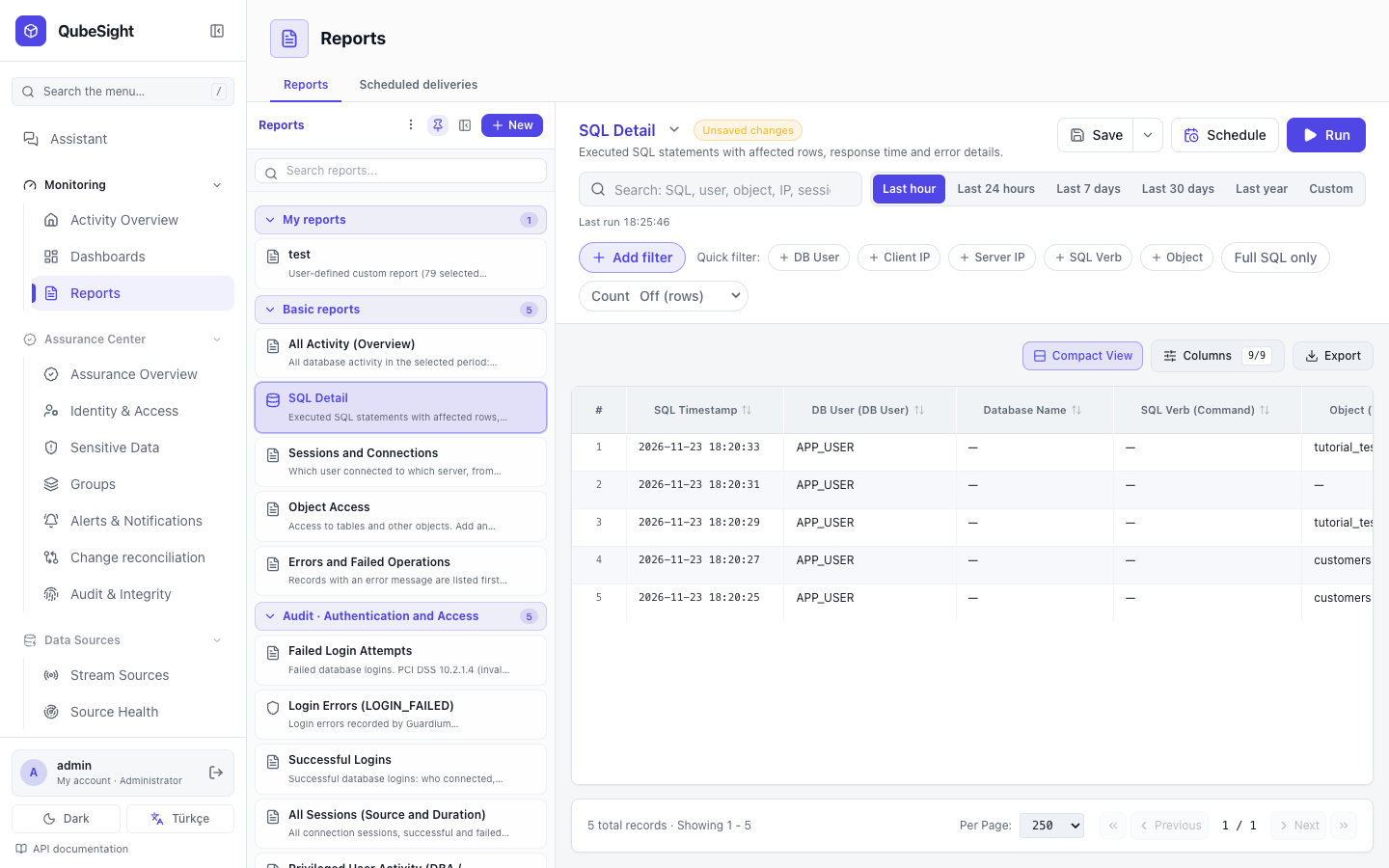
Report list
The left column lists all reports, grouped:
- My reports: user-defined reports, including reports saved from the Assistant.
- Basic reports: built-in reports without a category.
- Built-in categories such as Audit · Authentication and Access, Audit · SQL Activity, Audit · Alerts and Errors and Audit · Summaries and Per-User Detail.
Group headers can be collapsed. A clock icon marks reports that have an active scheduled delivery ("This report has a scheduled delivery").
| Control | What it does |
|---|---|
| Search reports... | Filters the list by name. "No matching report found." when empty. |
| + New | Opens Create a new report (administrator). |
| Options (⋯) | Restore built-in templates: brings back deleted built-in templates; your edited and custom templates are not touched. Reports "N built-in templates restored." or "No built-in templates are missing." (administrator). |
| Pin | By default the list stays open when you pick a report. Unpin it to have the list collapse to a narrow strip when you choose a report. |
| Collapse / Open the report list | Hides or shows the list. Switch report in the header lets you change report while the list is collapsed. |
| Width handle | "Drag to adjust the width". |
| Right-click on a report (administrator) | Edit, Duplicate, Delete Report Template. |
The pin, collapse and width preferences are remembered in this browser. On a phone the list does not collapse.
Command bar
| Element | What it does |
|---|---|
| Report name and description | "No description" when none. "Unsaved changes" when the filters, search, range or sort differ from the saved report. |
| Save | Updates the report with the current filters, search, time range and sort ("No changes to save" when nothing changed). Administrator. |
| More save options → Save as a new report… | Names the current view and saves it as a separate report. Administrator. |
| Schedule | "E-mail this report with these filters on a schedule": opens the Scheduled deliveries tab with a new delivery pre-filled. Enterprise and export permission. |
| Search box | "Search: SQL, user, object, IP, session id…". Searches SQL text, user, object, client IP and database. A value that looks like an identifier is searched exactly, and the box says how: "Searched as Session ID (exact match)", or as Record ID, IP address, DB user. To search the SQL text instead, put it in quotes or start with text:. Clear search empties it. |
| Time range | Last hour, Last 24 hours, Last 7 days, Last 30 days, Last year, Custom. |
| Run | Runs the report again. Relative windows are re-anchored to the current time, the browser cache is skipped, and a running query is restarted. Enter in the search box does the same. |
| Stop | Cancels the running query and the total count; the database query is cancelled too. Rows already found stay on screen. |
| "Last run | When the last run finished. |
| "Read from cold storage (slower)" | Part of the result came from the locked archive because it is older than the hot tier. |
The Custom Time Range window has From and To fields in the display time zone. Changes apply only when you confirm. Clicking outside does not close it; Esc closes it and keeps your draft dates; × discards the draft.
Filters
Below the command bar:
- Quick filter: chips add a filter row in one click: DB User, Client IP, Server IP, SQL Verb and Object. The chips are shown only while there are no filter rows and Full SQL only is off.
- Add filter opens a searchable field list (72 fields in the categories SQL and Activity, Session and Identity, Network and Server, Security and Threat and System and Extra). Enter takes the first match. Fields already in use are marked.
- Each filter row has the field, an operator, a value and × (Remove this filter (the report reruns)).
| Operator | Meaning |
|---|---|
| contains | Default for text fields. Case-insensitive search within the value. |
| equals | Exact match. % is a wildcard: alice% starts with, %alice ends with, %alice% contains. Without % the match is exact and fast. |
| not equals | Excludes the value. |
| in group / not in group | The value is a member (or not) of a group. Both Guardium-type groups and sensitive-data groups from Groups are offered. |
| at least (≥), less than (<), in range (a..b) | Numeric fields. A numeric field added with Add filter starts with at least (≥). |
Typing a value shows Suggested Values (Top 10) with record counts, limited to the selected time range ("Suggestions are limited to the selected date range — try widening it"). Use the arrow keys to pick one.
Other filter-panel controls:
| Control | What it does |
|---|---|
| Count | Groups rows by User, Object (table), Database, Server, Client IP, Program or Operation and shows an event count per group instead of individual rows. Off (rows) returns to rows. Not offered on summary reports, which are already grouped. |
| Full SQL only | Shows only rows that carry the full SQL text. It filters the loaded page only: "The Full SQL view only filters the loaded page. Other pages may still contain Full SQL records." |
| Apply & Run | Applies the filters and runs. |
| Clear / Reset all filters | Removes the filters. |
Results table
| Element | What it does |
|---|---|
| Column headers | Click to sort; drag to move; Hide this column. Column order you set by dragging is remembered in this browser for the report. |
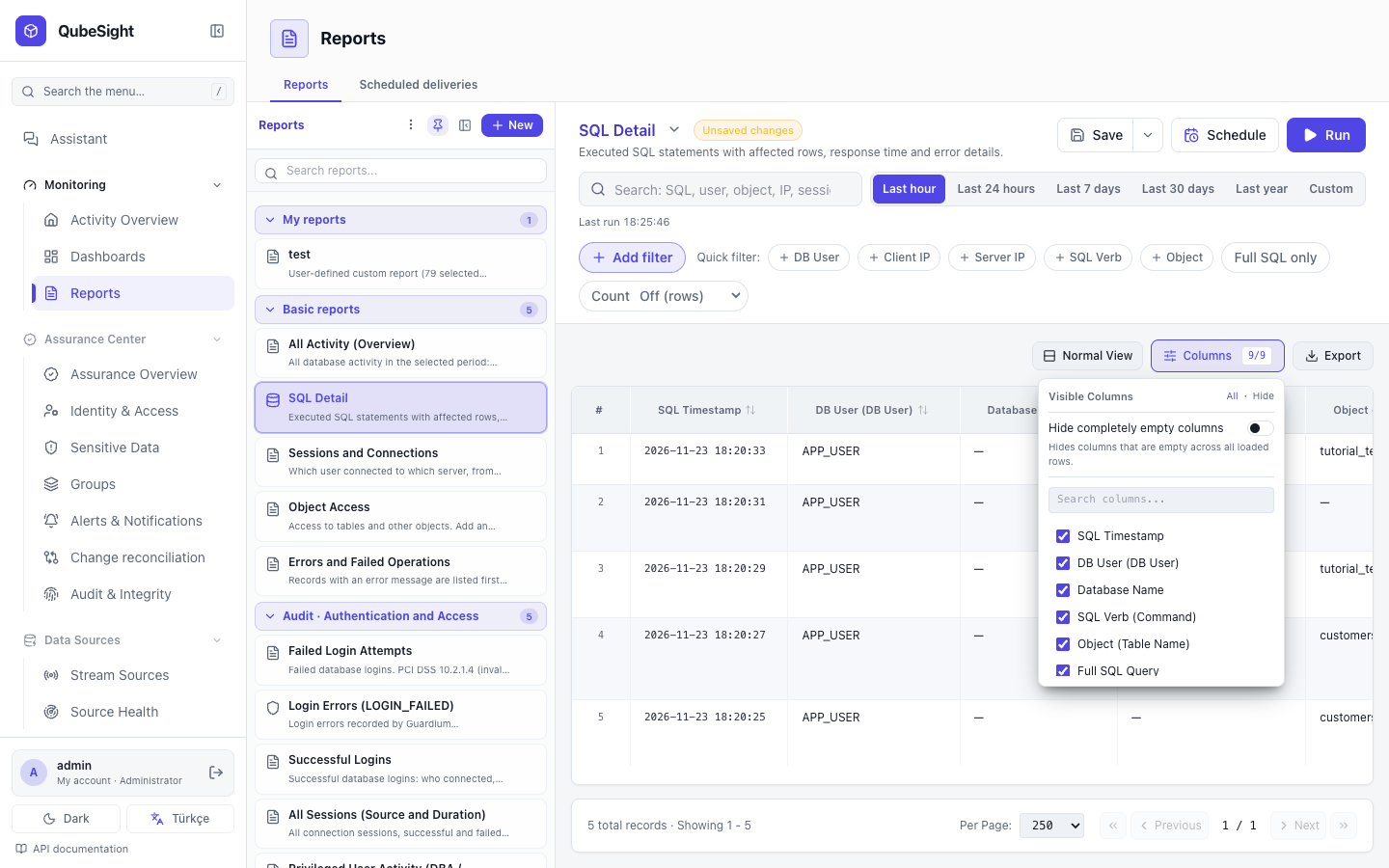
| Columns | Visible Columns with search, All, Hide, and Hide completely empty columns (based on loaded rows). |
| Compact View / Normal View | Row density. |
| Inspect (row icon) | Opens the Record Detail Inspector. |
SUCCESS / FAILED |
Result of the statement. |
| derived / estimate badges | The value was filled from a related record, for example the session's open/close event, the access record of the same client, server and user, or a statement measurement from slow-operation logs. "estimate" marks a session close estimated after 8 hours of inactivity. Hover for the exact source. |
The footer shows the total ("N total records" or "Last count ≈N records", "Counting total…", "Count failed · Retry"), "Showing a - b", Per Page:, first/previous/next/last page buttons and Go to:.
For the first page of a time-sorted report, the server searches from the newest data backwards. If the page is not full after about 8 seconds, rows found so far are shown with "N records found; still searching (scanned up to
When nothing matches, the table offers Query Last 24 Hours, Query Last 7 Days and Query Last Year, and Show report column structure (empty table headers). In the column structure view the table shows "No Records Found" with Back to Summary, which returns to the empty-result summary.
Other states of the report area:
| State | What you see |
|---|---|
| No report selected | "Select a report template from the left menu" and "or design a new report template with the "New" button." |
| Report selected, not run yet | "Report ready to run" and "Use the Run button above to see results." |
| First run in progress | "Fetching report results... N s" with the report name; the seconds count up. |
| Re-running with rows on screen | "Loading data... N s" over the table. |
Record Detail Inspector
The inspector shows every field of one record ("All parameters of the database audit and activity record") with Field Name and Value, a search box ("Search field name or value..."), Copy value per field, Copy SQL for the SQL field (with its character count) and Copy JSON for the whole row.
The column list with descriptions (for example Full SQL Query, Session ID, Client IP, [QS] Affected Tables, [QS] Source) is shown in the column pool of the report editor; columns prefixed [QS] are computed by QubeSight.
Export
Export in the table toolbar offers Download as CSV, Download as JSON and Download as PDF. A confirmation shows the number of rows and columns and an estimated File size. The file is generated on the server and streamed directly to your browser.
| Format | Content |
|---|---|
| CSV | The whole result, every row and column. |
| JSON | The whole result. |
| A readable table: at most 2,000 rows and 12 columns. Use CSV for the whole report. |
Exports are recorded in the audit trail.
Creating reports
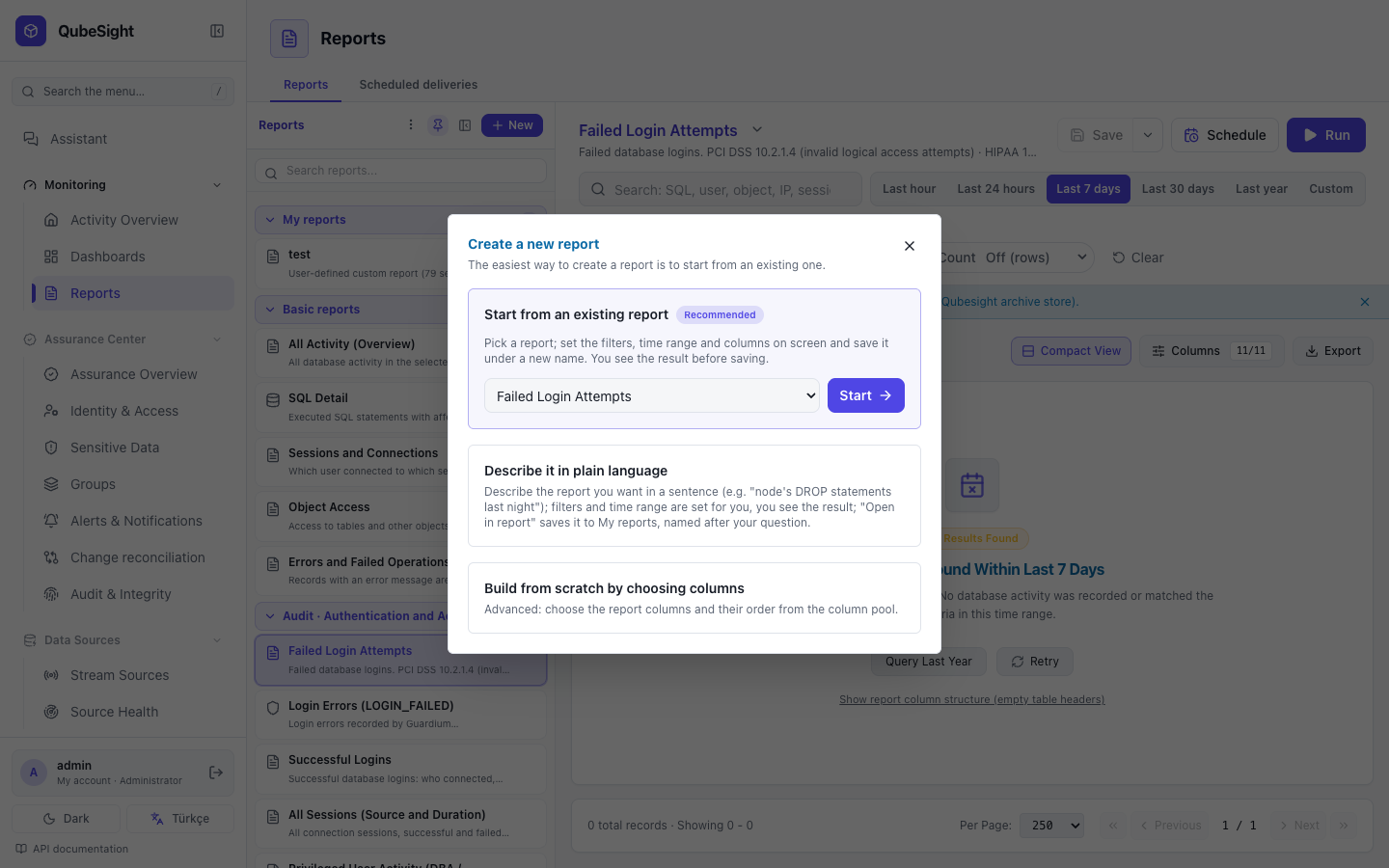
+ New opens Create a new report with three options:
| Option | What happens |
|---|---|
| Start from an existing report (Recommended) | Pick a report and Start. It opens as a draft: "New report draft based on " |
| Build from scratch by choosing columns | Advanced: opens the report editor described below. |
| Describe it in plain language | Opens the natural-language dialog. Shown only when a language model is available (the local assistant service answers, or an active large model exists). |
Report editor
Create New Report Template (also used for Edit Report Template and Duplicate Report Template):
| Field | Meaning |
|---|---|
| Report Template Name | Required. |
| Description (Optional) | Shown in the list and command bar. |
| Default time range | Window the report opens with. |
| Column Pool | All columns by category with descriptions and a search box. Presets: Full SQL, Session and Network, Security and Threat, Comprehensive, All columns; All / Clear. |
| Selected Column Order | "N Columns Selected". Drag or use Move Left / Forward, Move Right / Backward, Remove. |
| Test Query (First 10 Records) | Runs a preview without saving; Stop cancels it. |
| Save Template / Save Changes | Saves. At least one column is required. |
| Back to Report View | Discards and returns. |
Save as a new report
Save as a new report… shows What will be saved: Filters, Search, Time range and Columns. A custom range is saved as "Custom range (opens with the last 24 hours)". Enter New Report Name and an optional Description, then Save as New Report.
Delete a report
Right-click → Delete Report Template asks for confirmation: "This permanently deletes the report definition and cannot be undone." Deleted built-in templates can be restored with Options → Restore built-in templates.
Describe it in plain language
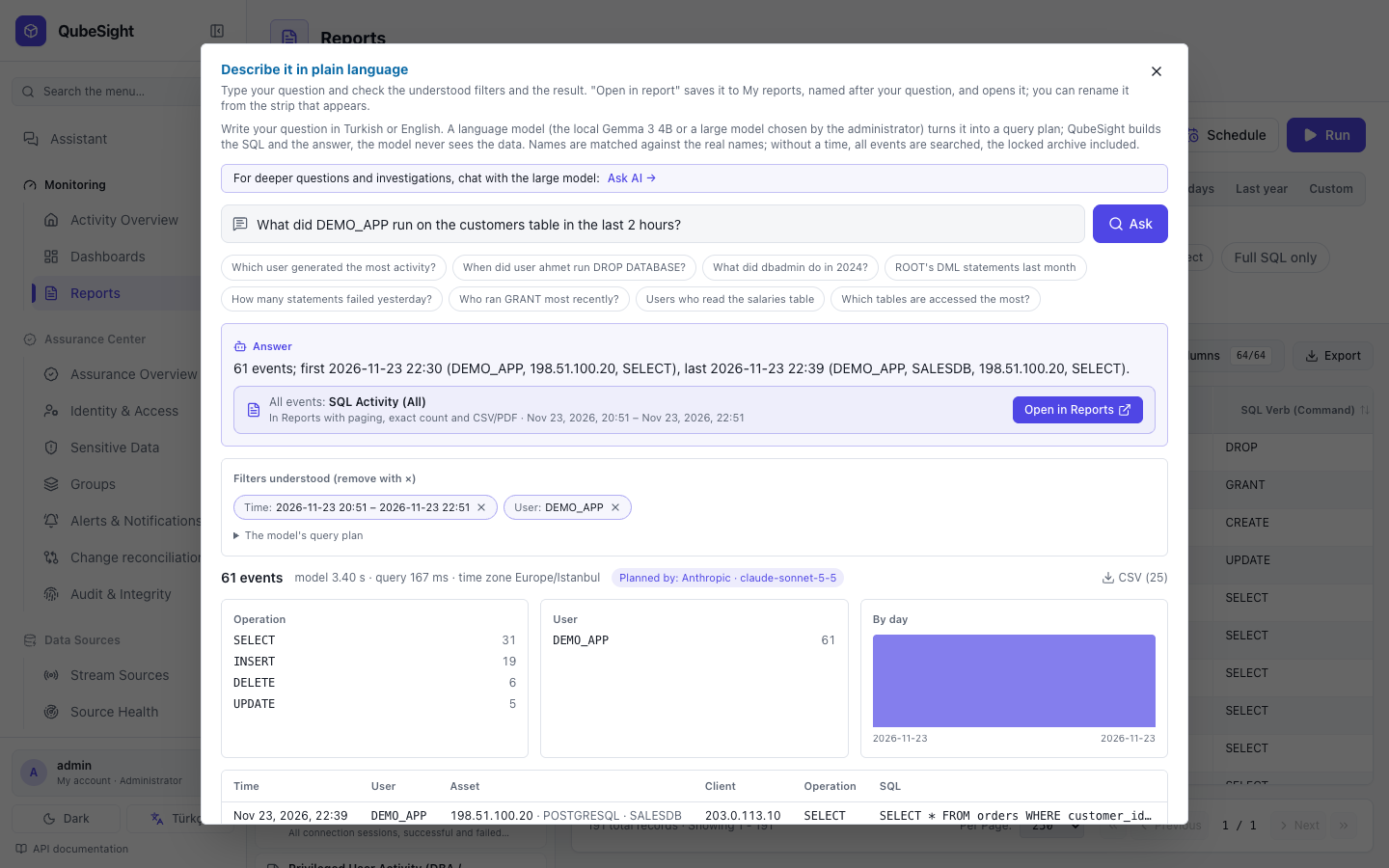
The dialog Describe it in plain language turns a question into report filters. A language model (the local Gemma 3 4B model or the active large model chosen by the administrator) turns your question into a query plan; QubeSight builds the query and the answer itself. The model sees only the question, never the data.
- Type the question in English or Turkish, for example "When did user ahmet run DROP DATABASE?", and press Ask. Example questions are offered.
- Check Filters understood (remove with ×). Each chip has a kind (User, Time, Operation, SQL, Status, Table, Database, Server, Client, Engine). Remove a chip with × or restore it.
- Read the Answer with the event count, a preview table (Time, User, Asset, Client, Operation) and breakdowns (Operation, User, By day or By month, or "Most active users / databases / tables…" for "most" questions). "The locked archive (cold tier) was read too" appears when old data was included. Under the count, a line gives the timing ("model
- The All events: line names the report and the period ("In Reports with paging, exact count and CSV/PDF ·
– "). Open in Reports opens it. For an administrator, the result is saved to My reports under a name taken from your question ("Saved to My reports as: "); change the name in the strip and click Save name ("Report renamed: ", or "A report named " " already exists. Choose another name."), or OK to keep it. If the name cannot be derived, "Assistant report – " is used. Other roles, or a failed save ("The report could not be saved to My reports (…); it was opened as a draft, use "Save as new report" to keep it."), get an unsaved draft.
While the question is processed the button reads Thinking…. If the assistant service does not answer, the dialog shows "The assistant server is not reachable. See the assistant card in Settings → Assistant." with the server's reason.
Names are matched against the real names in your data. If a name does not exist, the dialog says so ("There is no user named "x" in the data.") and lists Closest names:. If the question names a period without data, it states the period the data covers.
When the question has no time, the last year is searched. If nothing matches but older records exist, the answer offers Look further back. The dialog Which range should I search? proposes a range from the first older record to the start of the last year; change From / To if needed and press Search this range. The search starts only when you press the button.
The dialog closes only with ×, so the question and answer are not lost by a stray click. Old links to /reports?tab=ask open this dialog.
Opening reports from other pages
Many pages open Reports with filters and a time range already set: dashboard drill-downs, Open in report in the Assistant and Investigate, alert evidence and Activity Overview. In that case the report runs immediately with those filters; the parameters are removed from the address afterwards so a page reload does not re-apply them.
Scheduled deliveries tab
Enterprise
A scheduled delivery runs a report on a schedule and e-mails the result, for example "every Sunday at 09:00 the audit team receives last week's privileged user activity".
If no outgoing mail server is configured, the tab shows "No outgoing mail server is configured; deliveries cannot be e-mailed." with the link Settings → Notifications → Outgoing mail server, which opens that tab. Users without the export permission see "You can view deliveries; creating and changing them needs an administrator or the "export reports" permission."
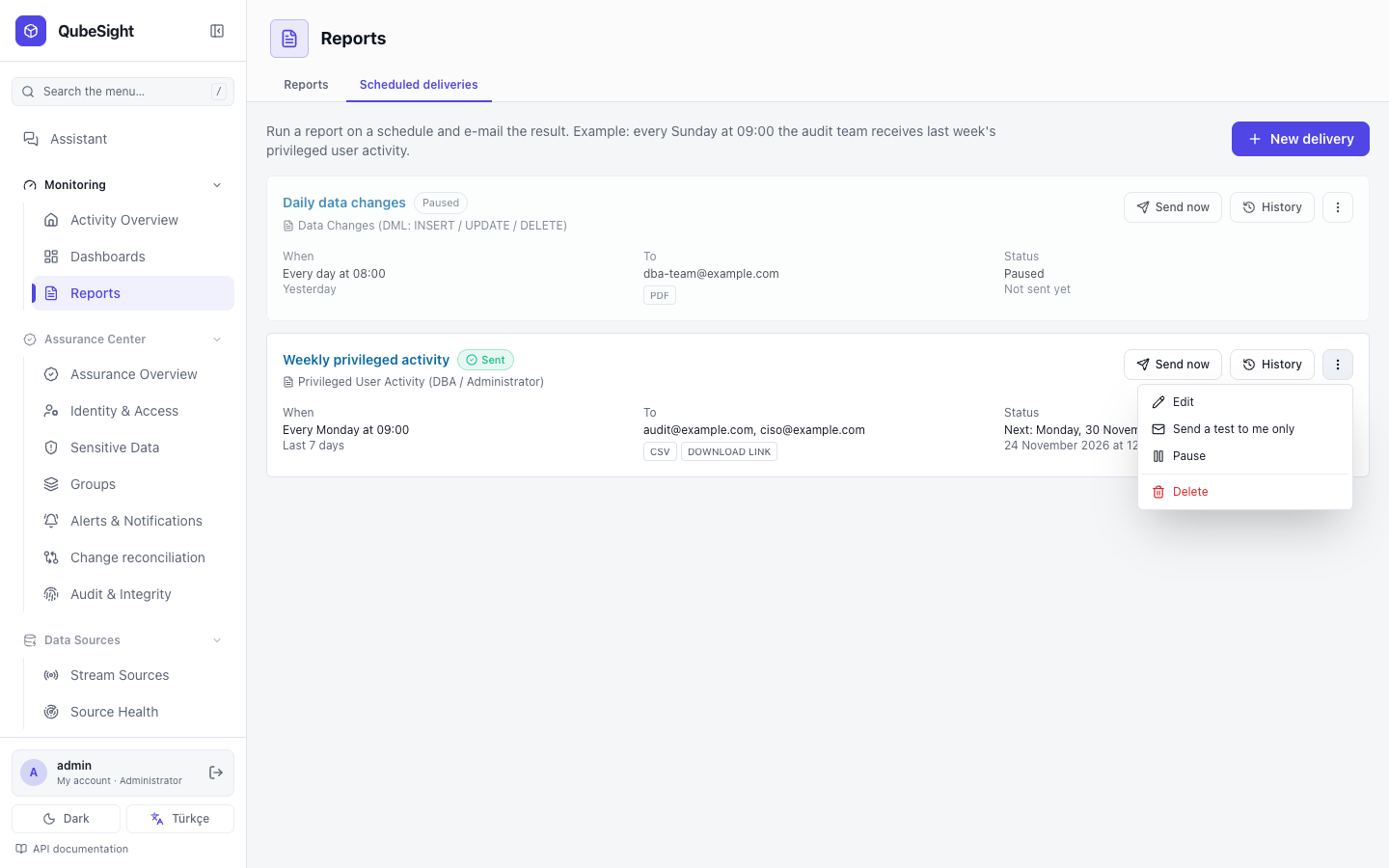
Delivery list
| Column | Meaning |
|---|---|
| Report | Report name and "N filters". |
| When | For example "Every Monday, Friday at 09:00", "On the last day of every month at 08:00". |
| To | Recipients ("+N" for more). |
| Status | Last result: Sent (with "N records"), No records, not sent, Failed, Running; Paused; "Not sent yet"; Next: . While a delivery is being sent, the row shows Sending…. |
When there is no delivery yet, the tab shows "No scheduled deliveries yet" and "Set the filters on the report screen and press "Schedule", or create a new delivery here." If the list cannot be read, "Could not load deliveries" or the server's error is shown.
Actions report their result in a notice above the list, for example "Sending "
Actions per delivery:
| Action | Effect |
|---|---|
| Send now → Send to all recipients / Send a test to me only | Sends immediately. The test goes to the e-mail address of your account; add one in your account if missing. There is a one-minute pause between manual runs. |
| Edit | Opens the editor. |
| Pause / Resume | Stops or restarts the schedule. |
| History | Delivery history of " |
| Open report | Opens the report in the Reports tab. |
| Delete | "Delete the delivery " |
Delivery editor
New delivery (or Schedule from a report) opens New scheduled delivery in five steps:
| Step | Fields |
|---|---|
| 1. Which report? | Choose a report. Filters of this delivery lists the filters copied from the report screen ("No filters: every record of the report is sent."). Filters belong to the delivery; changing the report screen later does not change them. Search text (optional), column selection ("N columns selected" or All columns of the report), Remove filter. |
| 2. Which period? | Yesterday (00:00–24:00), Last week (previous full Monday–Sunday), Last month (previous calendar month), Last 24 hours, Last 7 days, Last 30 days (before the send). The editor shows "First send covers: |
| 3. When? | Every day, Weekly (choose Days) or Monthly (Day of month or Last day of the month), Time. The time zone is shown. Default: weekly on Sunday at 09:00. |
| 4. To whom, and in which format? | Recipients: type an address and press Enter (comma or space also separate); at most 50 recipients. Formats: CSV attachment (every row and column), PDF attachment (at most 2,000 rows and 12 columns), Download link (for large reports; the person who opens it must sign in to QubeSight). Link valid for 1, 3, 7, 14, 30 or 90 days (default 7). QubeSight address (used in links) is filled with your browser's address. If attachments exceed 10 MB, the e-mail carries download links instead. |
| 5. Name and options | Delivery name, Note in the e-mail (optional), Do not send when there are no records (when unchecked, a "no records" e-mail is still sent, which is useful as audit evidence), Active (send on schedule). |
The Summary box describes the delivery in one sentence and shows the first send time ("The delivery will be saved paused." when inactive). Save or Save and send me a test. Missing fields are listed (for example "Enter at least one recipient.").
Report download page
Download links in delivery e-mails open the Report file page. See Links in e-mails.
Limitations
- The largest preset window is one year. Older data is available through Custom; reading from the cold tier is slower.
- Saving, editing and deleting report definitions is limited to administrators; report definitions are shared by all users, not personal.
- Full SQL only filters only the rows on the current page.
- PDF exports and PDF attachments are limited to 2,000 rows and 12 columns.
- A scheduled delivery sends at most 100,000 rows; larger results are cut and the e-mail says so. Each person can own at most 50 deliveries.
- A delivery runs for at most 15 minutes. When mail or the query fails, it is retried up to 3 times at 10-minute intervals.
- If the owner of a delivery loses the export permission, the delivery stops.
- The natural-language dialog depends on a language model; it is hidden when no model is available.