Your account and sign-in
This page describes the screens every user sees regardless of role: the Sign In page with its single sign-on button and two-step verification step, the Change password page (including the forced change), and Account security, where you set up two-step verification (MFA) and manage recovery codes.
Community Enterprise
Local accounts, LDAP sign-in and built-in MFA are in both editions. Single sign-on (OIDC) is Enterprise.
Sign In page
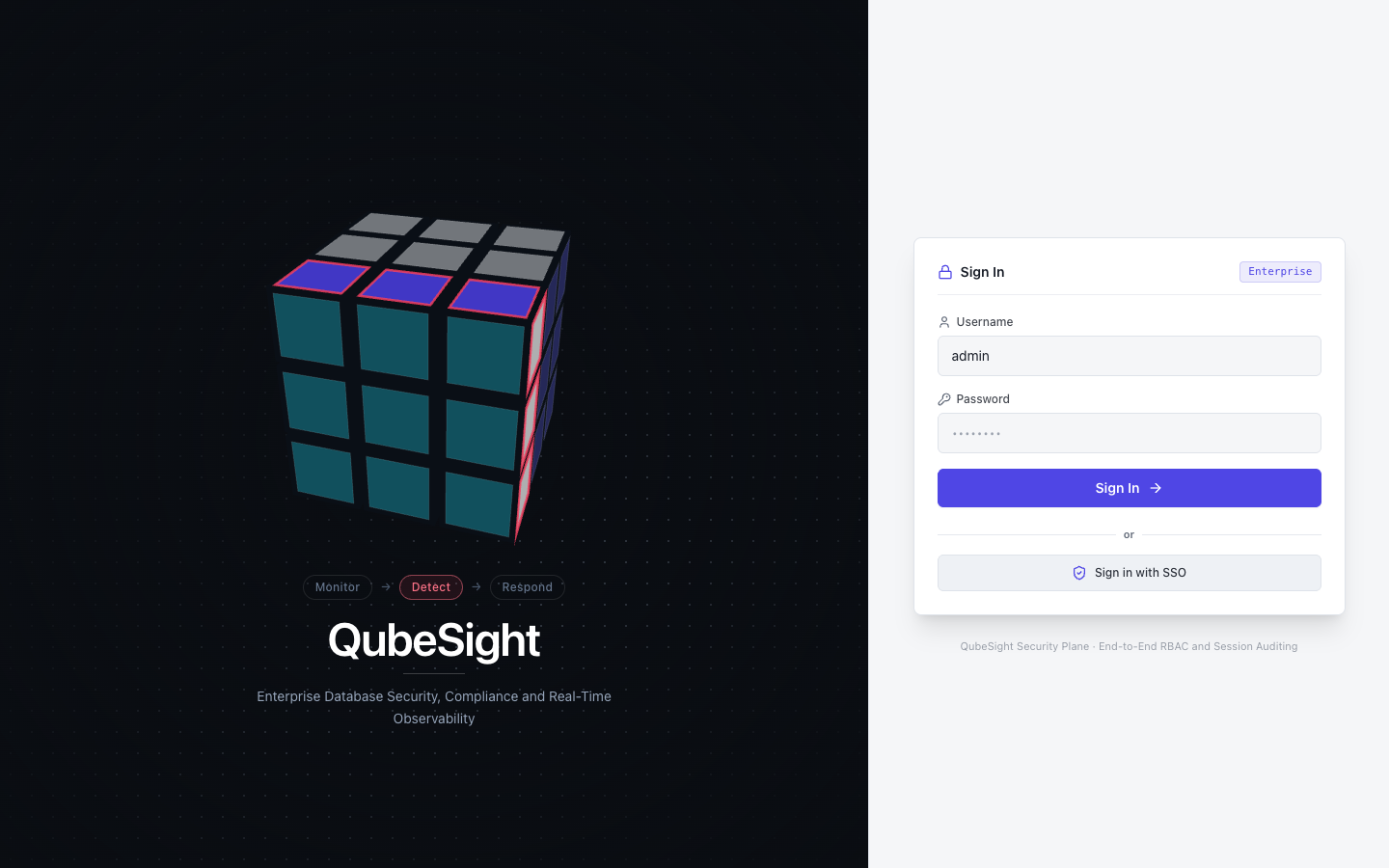
| Element | What it does |
|---|---|
| Username | Your QubeSight or directory (LDAP) user name. |
| Password | Your password. |
| Sign In | Signs in ("Verifying..." while it checks). |
| Sign in with |
Shown below the or divider. Sends your browser to the organisation's identity provider; password, passkey (Touch ID / Face ID) or security-key checks happen on the provider's own page. |
The card header shows the edition of the installation (Community or Enterprise) when it is known; the product version is not shown. On a cloud marketplace installation, before the administrator has changed the generated password, the page also explains where the first passwords are stored (AWS Secrets Manager or Azure Key Vault).
Sign-in messages
| Message | Meaning |
|---|---|
| "Please enter your username and password." | A field was left empty. |
| "Invalid username or password." | Wrong credentials. The message does not reveal whether the account exists. |
| "Account temporarily locked after repeated failed attempts…" | The lockout threshold was reached (default 10 attempts, 30 minutes). Wait or ask an access manager to unlock it. |
| "This account is disabled." | An access manager disabled the account. |
| "While LDAP is enabled only the admin and access manager accounts can sign in with a local password. Sign in with your directory account." | LDAP sign-in is on; your local password is no longer accepted. |
| "Your directory account is not mapped to any QubeSight role." | Your directory groups match no role mapping and unmapped users are refused. |
| "The directory service (LDAP) is unavailable." | The directory server cannot be reached. |
| "Sign-in is temporarily unavailable (the account store could not be read). Try again shortly." | The server could not read the user accounts, for example while the configuration database is unavailable. |
| "Your session was closed for security after a period of inactivity. Please sign in again." | You were signed out by the idle timeout. |
After a successful sign-in you return to the page you originally asked for. Only addresses inside QubeSight are accepted as return targets.
Single sign-on
If SSO is not set up, the button leads to SSO has not been set up yet with the steps an administrator follows (configure it in Identity & Access → Directory and SSO → SSO). If the server version does not support SSO, it says so.
When SSO fails, the sign-in page shows "SSO sign-in failed:" followed by the reason, for example:
| Reason | Meaning |
|---|---|
| SSO is not enabled or has not been set up yet. | Configure SSO first. |
| The identity provider could not be reached. | Address, network or certificate problem. |
| Your sign-in session is invalid or has expired. | The same page was opened twice, the back button was used, cookies are blocked, or QubeSight was opened at an address different from the public address in the SSO settings. Try again. |
| Sign-in at the identity provider was cancelled, or you have no access to this application. | The provider refused access. |
SSO accounts are created at their first sign-in and have no local password. Their MFA is handled by the identity provider. See Single sign-on (OIDC).
Two-step verification step
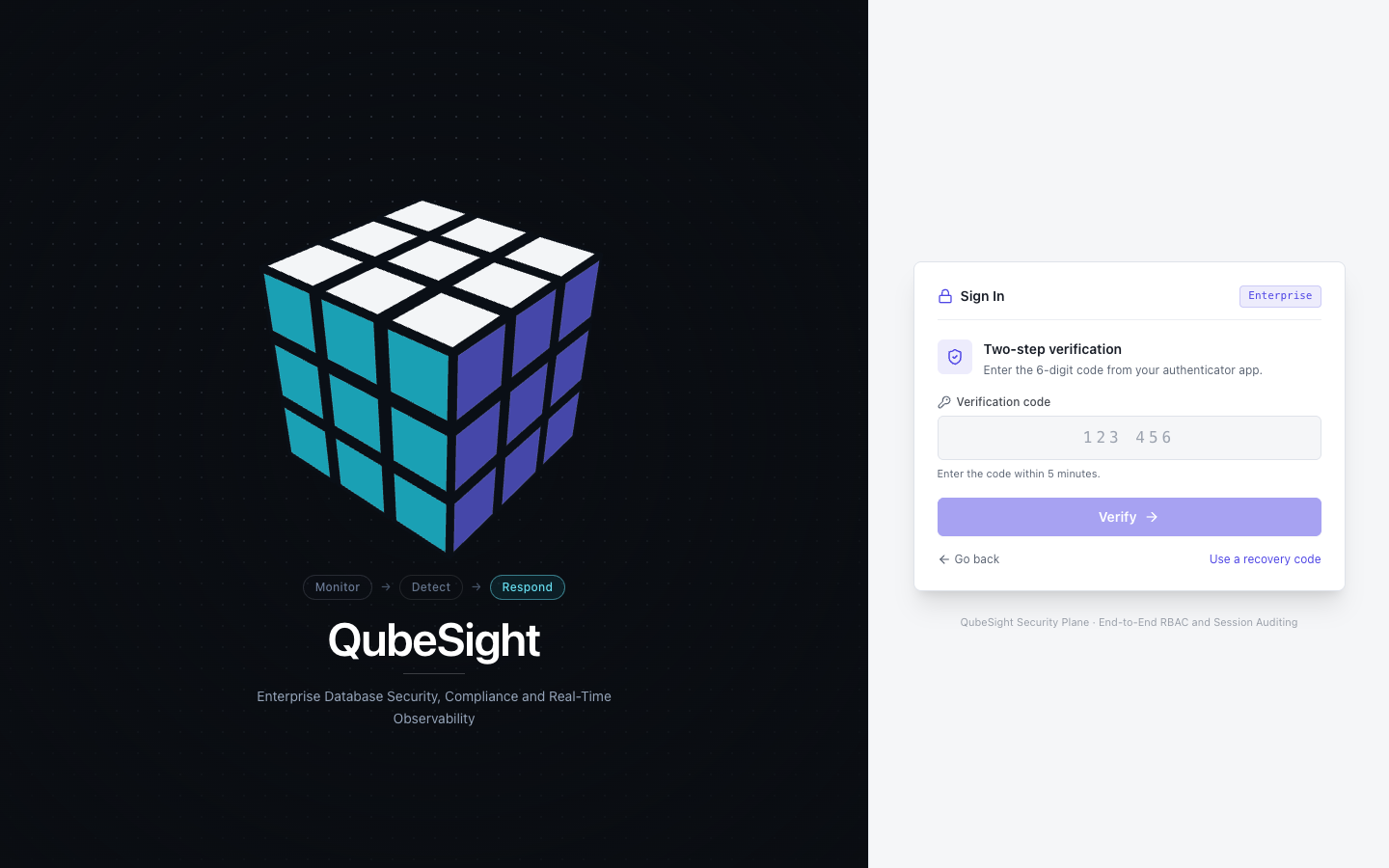
If your account has MFA, a second step Two-step verification follows the password:
- Enter the 6-digit code from your authenticator app in Verification code and press Verify. Enter it within 5 minutes.
- If you cannot reach your phone, choose Use a recovery code and enter one code in Recovery code (format
XXXXX-XXXXX). Each recovery code works once. Use the code from the app switches back; Go back returns to the password step.
| Message | Meaning |
|---|---|
| "The code is wrong or was already used. Wait for the next code in the app and try again." | Each code is accepted once. |
| "The verification session expired or ran out of attempts. Sign in again with your password." | Start again from the password. |
| "Two-step verification is temporarily unavailable. Try again shortly." | Server-side problem. |
After signing in with a recovery code you are taken to Account security, which shows You used a recovery code and how many are left.
Change password
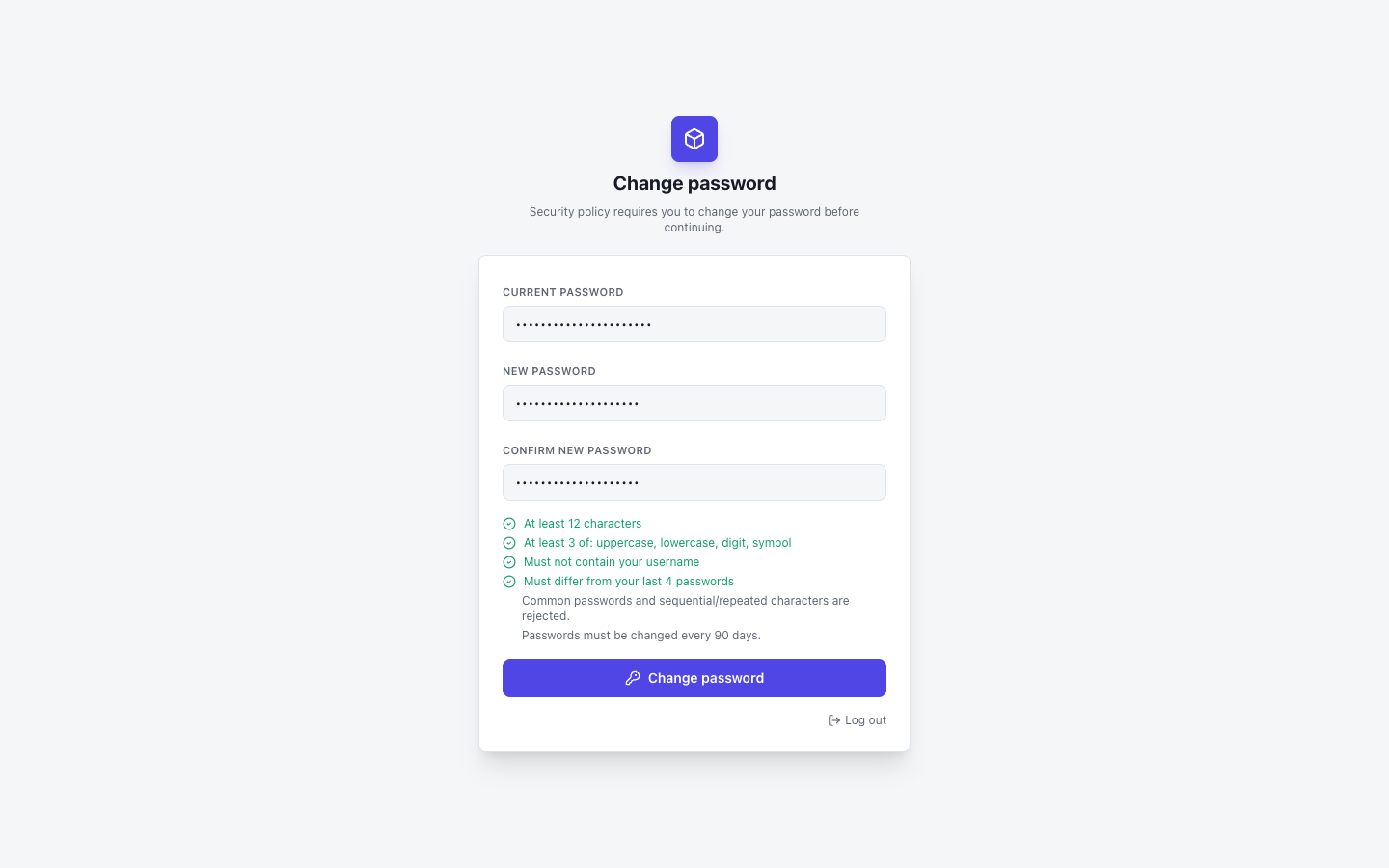
Open it from Account security → Password → Change my password, or you are sent there automatically (see Forced password change).
| Field | Meaning |
|---|---|
| Current password | Required. Wrong attempts count towards the lockout. |
| New password | Must meet the policy. |
| Confirm new password | Must match ("Passwords do not match."). |
| Change password | Saves. |
| Cancel | Returns to the previous page without a change. Not shown on a forced change. |
| Log out | Signs you out. |
A checklist below the fields shows the policy and ticks each rule as you type:
| Rule (default) | Text |
|---|---|
| Length (12) | "At least 12 characters" |
| Character classes (3) | "At least 3 of: uppercase, lowercase, digit, symbol" |
| User name | "Must not contain your username" |
| History (4) | "Must differ from your last 4 passwords" |
| Common passwords | "Common passwords and sequential/repeated characters are rejected." |
| Maximum age (90 days) | "Passwords must be changed every 90 days." |
If the server rejects the password, The password does not meet the policy: lists the reasons, for example "the password can only be changed after N hours" (minimum age).
The policy applies to local accounts only. LDAP passwords are changed in the directory; SSO accounts have no QubeSight password, so the Password section is not shown to them.
Forced password change
If your password is temporary (set by an access manager or generated at installation) or has expired, QubeSight opens only the Change password page after sign-in, with "Security policy requires you to change your password before continuing." No other page or API works until you change it. Log out is available on the page. After the change you continue to the page you asked for.
Account security
Open Account security by clicking your name at the bottom of the sidebar (/account/security).
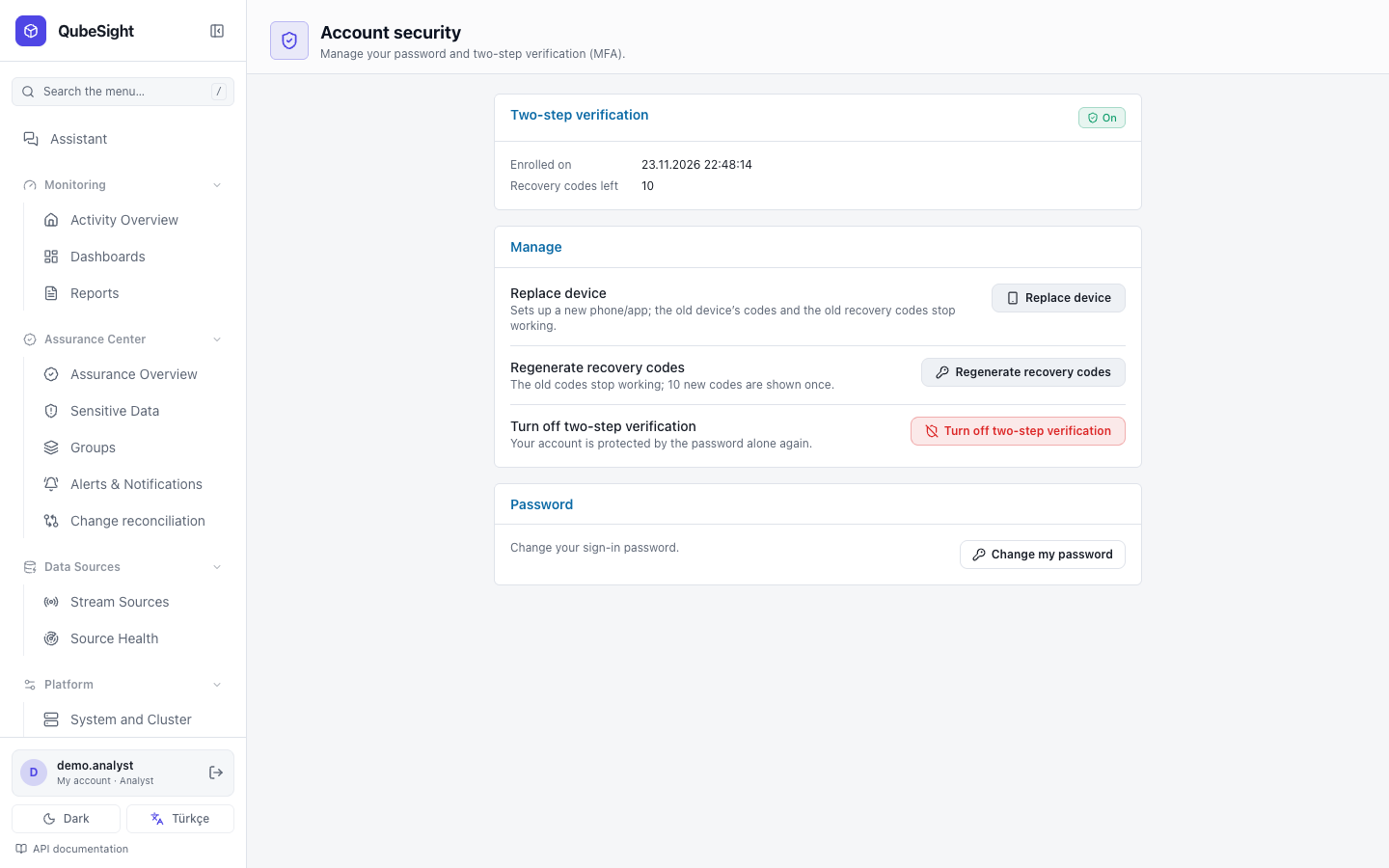
Two-step verification status
| Field | Meaning |
|---|---|
| Status On / Off | Whether MFA is enabled on your account. |
| Enrolled on | Date of setup. |
| Recovery codes left | Remaining codes. "You are running low on recovery codes: regenerating them is recommended." when few remain. |
| "Your administrator requires two-step verification for this account." | The policy requires MFA for you; you cannot turn it off. |
| Managed by your identity provider | SSO account: MFA happens at the identity provider. |
| Turned off by the administrator | MFA is off for the installation; sign-in asks for the password only. |
Set up two-step verification
Press Set up two-step verification and follow three steps:
- Confirm your identity: enter your password again and press Continue.
- Scan with the app: in an authenticator app (for example Google Authenticator, Microsoft Authenticator, Apple Passwords, 1Password, Bitwarden or Authy) add an account and scan the QR code. If you cannot scan it, use If you cannot scan the QR code, enter the key by hand and Copy key; the Account and Issuer are shown. Enter the 6-digit code from the app and press Verify and enable.
- Save your recovery codes: ten codes are shown once. Use Copy codes or Download (.txt), tick I saved the codes somewhere safe and press Finish. Leaving the page earlier asks for confirmation because the codes cannot be shown again.
Cancel stops the setup at any step. After Finish, Account security confirms "Two-step verification enabled" (or "New device activated" after Replace device).
If the policy requires MFA and you have not enrolled, every page redirects to Account security and the setup opens by itself ("Your administrator requires two-step verification: set it up below to continue.").
Manage
| Action | Effect | Confirmation |
|---|---|---|
| Replace device | Sets up a new phone or app. The old device's codes and the old recovery codes stop working; new recovery codes are shown. | Password and the current code (or a recovery code). |
| Regenerate recovery codes | The old codes stop working; 10 new codes are shown once. | Password and a code. |
| Turn off two-step verification | Your account is protected by the password alone. Not possible when the administrator requires MFA for you; use Replace device instead. | Password and a code. |
If you have lost both the device and the recovery codes, ask an access manager (or an administrator when separation of duties is not enforced) to use Reset MFA in Identity & Access → Accounts. All your sessions end and you set it up again at the next sign-in.
Password
Change my password opens the Change password page.
Limitations
- Built-in MFA supports authenticator apps (TOTP) and recovery codes. Passkeys and security keys are available only through an SSO identity provider.
- A recovery code is the only way in without your phone; store the codes safely.
- Anyone with account-management rights can reset another user's password and MFA, including an administrator's; there is no second approval.
- MFA cannot be set up in production if the server has no MFA encryption key; the page then shows that the key is missing. See Multi-factor authentication.