Users, roles and permissions
This page explains how QubeSight controls who can sign in and what each person can do: the five fixed roles, the optional extra permissions, the local sign-in rule while LDAP is enabled, the built-in access manager account and separation of duties. It also gives the procedures for creating and maintaining accounts.
Community Enterprise
Local accounts, roles, the password policy, LDAP sign-in and built-in multi-factor authentication are available in both editions. Single sign-on (OIDC), the Separation of duties tab and the Guardium account review require Enterprise (capability enterprise_auth).
The screens themselves (Assurance Center → Identity & Access, with the tabs Overview, Accounts, Password and session, MFA, Directory and SSO and Separation of duties) are described field by field in Identity & Access. For the full role and capability matrix, see Roles and capabilities.
Roles
QubeSight has five fixed roles. You cannot create custom roles; you can widen an analyst, DBA or auditor account with extra permissions.
| Role (UI label) | Role id | Purpose |
|---|---|---|
| Administrator | admin |
Operates the platform: all configuration (sources, pipeline, notifications, backup, cluster, licence, updates) and all data. Manages accounts while separation of duties is not enforced. |
| Analyst | analyst |
Works with monitoring data: dashboards, reports, investigations, alert handling. Cannot change product or integration configuration. |
| DBA | dba |
Same day-to-day scope as the analyst, intended for database administrators. Cannot change product or integration configuration. |
| Auditor | auditor |
Read-only. Can view data, run reports and read the product audit trail; cannot change anything. |
| Access manager | access_manager |
Account and role management only. Has no access to monitoring data, configuration, reports or alerts. |
Legacy role names
Older installations and directory mappings may still use earlier role names. QubeSight converts them when it reads them; they are shown with "(legacy)" in role lists.
| Name you may see | Treated as |
|---|---|
operator, security_analyst |
analyst |
viewer, readonly |
auditor |
administrator |
admin |
database_administrator |
dba |
accessmgr, access-manager, user_admin |
access_manager |
What each role can do
The table summarises the server-side rules. The server enforces them on every API request; hiding a menu entry is never the only protection.
| Activity | admin | analyst | dba | auditor | access_manager |
|---|---|---|---|---|---|
| View dashboards, reports, Activity Overview | Yes | Yes | Yes | Yes | No |
| Run reports | Yes | Yes | Yes | Yes | No |
| Export report results | Yes | With reports:export |
With reports:export |
No | No |
| Export sensitive-data findings (CSV) | Yes | With reports:export |
With reports:export |
With reports:export |
No |
| Schedule report deliveries | Yes | With reports:export |
With reports:export |
No | No |
| Acknowledge and resolve alerts | Yes | Yes | Yes | No | No |
| Change alert rules and notification channels | Yes | No | No | No | No |
| Change Guardium and stream-source integrations | Yes | No | No | No | No |
| Change pipeline rules and ingest policies | Yes | No | No | No | No |
| Edit Guardium policies and groups | Yes | No | No | No | No |
| Reinstall a Guardium policy | Yes | With policies:reinstall |
With policies:reinstall |
No | No |
| Start Guardium archive restores | Yes | With restore:trigger |
With restore:trigger |
No | No |
| Read service (container) logs | Yes | Yes | Yes | No | No |
| Upload a licence, ingest source allowlist, raw pipeline configuration | Yes | No | No | No | No |
| Read the product audit trail | Yes | No | No | Yes | Account events only |
| Manage accounts and sessions | Yes, unless separation of duties is enforced | No | No | No | Yes |
| Change the password policy and MFA policy | Yes | No | No | No | No (read only) |
| Change LDAP and SSO settings | Yes (restricted while separation of duties is enforced) | No | No | No | Yes |
| Turn separation of duties on or off | Yes, while it is off | No | No | No | Yes |
Every signed-in account, including auditors and access managers, can change its own password and manage its own two-step verification under My account. See Your account and sign-in.
Live role matrix
Identity & Access shows a role matrix that is produced by running the live authorization decision for every role and area, not from a static document. Use it as audit evidence of the rules that are actually in force on your installation.
Extra permissions
An account can carry extra permissions in the Extra permissions field of the account dialog (comma-separated, for example reports:export, restore:trigger). The field is in the advanced part of the dialog. Administrators already hold these rights.
| Permission | Grants |
|---|---|
reports:export |
Export report results, export sensitive-data findings to CSV, create, change, delete and send scheduled report deliveries. An auditor with this permission can export sensitive-data findings only, because every other export is a change request that the read-only auditor role cannot make. |
restore:trigger |
Start and control Guardium archive restore actions (not for auditors: an auditor stays read-only). |
policies:reinstall |
Reinstall a Guardium policy on the Central Manager, including the reinstall that applies a noise-management (ignore) proposal. |
all |
All of the above. |
Extra permissions cannot be set on directory (LDAP) or SSO accounts; their scope comes from the identity source.
Account sources
| Source (UI) | How the account is created | Where its role comes from |
|---|---|---|
| Local | Created on the Accounts tab, or by the installer (the first administrator and the access manager) | The Role field |
| LDAP | Created automatically at the first successful directory sign-in | Per-user role mapping, then group mapping, then the default role of the LDAP settings. It is re-evaluated at every sign-in. |
| SSO | Created automatically at the first OIDC sign-in (Enterprise) | The group or role mapping of the SSO settings, refreshed at every sign-in |
You cannot change the role or permissions of an LDAP or SSO account in QubeSight. Change the mapping instead. See LDAP / Active Directory and Single sign-on (OIDC).
Cluster operations need a local account
Critical cluster operations (for example adding or removing a node) ask you to confirm with your own local QubeSight password. LDAP and SSO accounts have no local password in QubeSight, so they cannot run these operations, even with the administrator role. Keep a local administrator account for cluster work. A wrong confirmation password counts towards the sign-in lockout of the account, and after 5 wrong passwords within 15 minutes cluster operations are refused for that account for 15 minutes. See Cluster operations and the cluster map.
Accounts created by the installer
| Account | Role | Created when | First password |
|---|---|---|---|
admin (name can be changed at installation) |
admin | First start on an empty database | Set in the web installer, given as QUBESIGHT_ADMIN_PASSWORD, or generated and shown once at the end of the terminal installer. On cloud images it is stored in the cloud secret store and the sign-in page tells you where. |
accessmgr |
access_manager | First start on an empty database, unless BOOTSTRAP_ACCESS_MANAGER_USER=none |
Random. Read it on the server with docker compose exec control-plane cat /var/lib/qubesight/secrets/accessmgr_password. It must be changed at the first sign-in. |
The access manager account is created only once. If you delete it, it is not recreated.
The local sign-in rule while LDAP is enabled
When LDAP is enabled and its settings are valid, only administrator and access manager accounts can sign in with a local password. Everyone else signs in with a directory account. This keeps a "break-glass" local account available when the directory cannot be reached, while ordinary users are governed by the directory.
- A local analyst, DBA or auditor who enters the correct local password receives the message that local sign-in is disabled while LDAP is enabled. A wrong password still returns the generic sign-in error, so account names cannot be probed.
- When LDAP is switched on, the open sessions of local accounts that lose local sign-in are ended. The Accounts list marks them Local sign-in off (LDAP).
- While LDAP is enforced, a new local account can only be an administrator or an access manager. The Role list offers only those two, and the screen shows: "While LDAP is enabled a local account can only be an administrator or an access manager."
- LDAP cannot be enabled unless at least one active local administrator or access manager exists.
- While SSO is enabled, the last active local administrator or access manager cannot be deleted, disabled or downgraded.
Separation of duties
Enterprise
Separation of duties splits account management from platform administration.
| Separation of duties off (default) | Separation of duties enforced | |
|---|---|---|
| Create accounts, assign roles, reset passwords, end sessions | admin and access_manager | access_manager only |
| Turn the policy off | admin or access_manager | access_manager only |
| LDAP/SSO mappings that grant admin or access manager, and the identity provider itself | admin or access_manager | access_manager only |
| Conflicting roles for the same person | Saved with a warning | Refused |
QubeSight detects conflicts through the Person reference field, which links several accounts of the same real person (for example an employee ID). The default conflicting role pairs are:
- admin and access_manager
- admin and auditor
- access_manager and auditor
- dba and auditor
When separation of duties is enforced and an administrator opens Accounts, the tab is read-only and shows: "Separation of duties is enforced: account management belongs to the access manager role only."
Manage accounts
Prerequisites
- You are signed in as an access manager, or as an administrator while separation of duties is not enforced.
- For directory users: configure LDAP first; see LDAP / Active Directory.
Create a local account
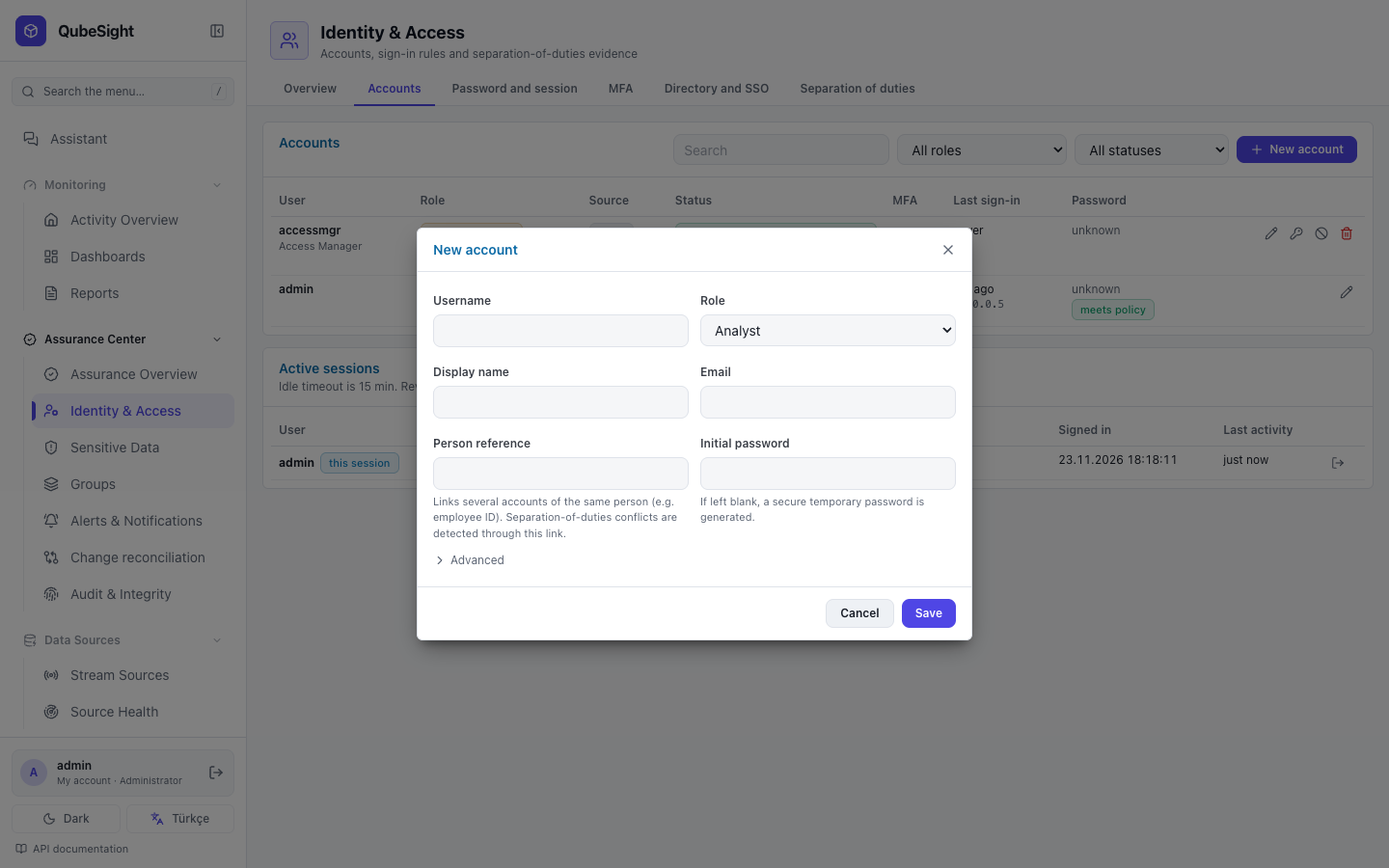
- Go to Assurance Center → Identity & Access → Accounts.
- Select New account.
- Fill in Username, Role, and optionally Display name, Email and Person reference.
- Leave Initial password empty to have QubeSight generate a secure temporary password, or enter one that satisfies the password policy. Policy violations are listed in the dialog.
- Optional: open the advanced part and enter Extra permissions.
- Select Save.
- If a temporary password was generated, the dialog Temporary password: {user} shows it once. Select Copy and pass it to the user over a secure channel. The user must set a new password at the first sign-in.
Change, disable or delete an account
The row actions on the Accounts tab are:
| Action | Effect |
|---|---|
| Edit | Change display name, email, person reference, role and extra permissions (role and permissions are locked for LDAP and SSO accounts). |
| Reset password | Leave the field blank to generate a temporary password, or enter one. Open sessions of the account end. Local accounts only. |
| Reset MFA | Deletes the account's two-step verification secret and recovery codes and ends its sessions; if MFA is required, the user sets it up again at the next sign-in. |
| Unlock | Shown for an account locked after too many failed attempts. |
| Disable / Enable | A disabled account cannot sign in and its open sessions end. |
| Delete | Permanently deletes the account and ends its sessions. |
Built-in guards:
- You cannot change your own role, status or permissions, and you cannot delete your own account.
- The last active administrator cannot be deleted, disabled or given another role. While separation of duties is enforced, the same applies to the last active access manager.
- Every account change, including refused attempts, is written to the product audit trail (Assurance Center → Audit & Integrity → Events).
Require two-step verification
- Go to Assurance Center → Identity & Access → MFA.
- Under Requirement, choose Not required (users opt in) (default), Required for administrators (admin and access manager) or Required for everyone (all local and LDAP accounts).
- Save. Only an administrator can change this policy, and MFA must be set up on your own account before you can save. Accounts without MFA are sent to setup on their next request.
SSO accounts are exempt at every level, because the identity provider performs their authentication. See Multi-factor authentication.
Verification
- The new account appears on Accounts with the expected Role, Source and Status.
- Sign in as the user in a private browser window and confirm that the menu shows only the pages for that role (see Roles and capabilities).
Password and session defaults
The Password and session tab sets the password policy for local accounts. The defaults follow PCI DSS 4.0:
| Setting | Default | Allowed range |
|---|---|---|
| Minimum length | 12 | 8–128 |
| Character classes required (upper, lower, digit, symbol) | 3 | 1–4 |
| Password history (cannot reuse the last N) | 4 | 0–24 |
| Maximum password age | 90 days | 0 (never) – 730 days |
| Minimum password age | 0 hours | 0–720 hours |
| Lockout threshold (failed attempts) | 10 | 0 (off) or 3–50 |
| Lockout duration | 30 minutes | 1–1440 minutes |
| Idle timeout | 15 minutes | 0 (off) or 1–480 minutes |
| Maximum session length | 12 hours | 0 (unlimited) or 1–168 hours |
| Reject the username in the password | On | |
| Reject common passwords | On | |
| Force a change at sign-in when the password does not comply or has expired | Off |
Limitations
- Roles are fixed; there are no custom roles and no per-database scoping of what a user can see.
- Anyone who may manage accounts can reset another administrator's password and MFA. There is no dual approval for this; enforce separation of duties if this must be restricted to the access manager.
- The access manager account is created only on a fresh, empty database. On an upgraded installation, create an access manager account yourself.
- LDAP group-to-role resolution maps a user who matches conflicting roles to the least privileged role when separation of duties applies.
- LDAP and SSO accounts cannot run cluster operations, or apply and roll back masks on Sensitive Data → Masking, because these actions require the account's local password.