Mail (SMTP) and notification channels
This guide shows you how to connect QubeSight to your outgoing mail server and to the systems that receive alert notifications: e-mail, syslog, webhook, Slack, Microsoft Teams and PagerDuty. It also covers the notification language, which alert goes to which channel, the delivery queue and how to test each connection. To change the layout of the e-mail and syslog messages, see Notification templates.
Community Enterprise
E-mail and webhook channels are part of both editions. Syslog, Slack, Microsoft Teams and PagerDuty channels require Enterprise (capability alert_delivery).
Enterprise channels after the licence ends
Syslog, Slack, Teams and PagerDuty channels that were created under an Enterprise licence keep delivering alerts if the licence ends, so that no alert is lost. They can no longer be changed, however: the server rejects every save of a channel of these types without the licence, so Save in the edit dialog fails with an Enterprise-required error. Only the Enabled switch, Test and Delete still work on them. New channels of these types cannot be created.
Where the settings are
| What | Where | Who can change it |
|---|---|---|
| Outgoing mail server and notification language | Platform → Settings → Notifications → Mail server and language | Administrator (other roles that see the tab can read it) |
| Notification channels | Platform → Settings → Notifications → Notification channels | Administrator (auditor can read) |
| SIEM forwarding of stored events | Platform → Settings → Notifications → SIEM forwarding, see SIEM forwarding | Administrator (auditor can read) |
| E-mail and syslog templates | Platform → Settings → Notifications → Notification templates | Administrator |
| Which channels and mail recipients a rule uses | Assurance Center → Alerts & Notifications → Rules | See Alerts & Notifications |
| Delivery queue | Assurance Center → Alerts & Notifications → Delivery queue | Administrator can retry |
flowchart LR
    R[Alert rule fires] --> Q[(Delivery queue)]
    Q --> C1[Channels: e-mail, syslog, webhook, Slack, Teams, PagerDuty]
    Q --> C2[Rule e-mail recipients]
    C2 --> S[Outgoing mail server]
C1 -->|e-mail channel without own server| SPrerequisites
- The Administrator role.
- For e-mail: an SMTP relay that accepts mail from the QubeSight nodes, a sender address, and, if the relay requires it, an account and password.
- For syslog: a receiver address (
host:port); for TLS, the receiver CA in PEM format if it is internal. - For webhook: an endpoint (HTTPS recommended) that accepts JSON
POSTrequests. - For Slack or Microsoft Teams: an incoming webhook URL created in the workspace or channel.
- For PagerDuty: an Events API v2 integration routing key for the service.
- Network access from every QubeSight node to these endpoints.
Step 1: configure the outgoing mail server
The outgoing mail server sends the e-mail recipients defined in alert rules, scheduled report deliveries and every e-mail channel that does not have its own server.
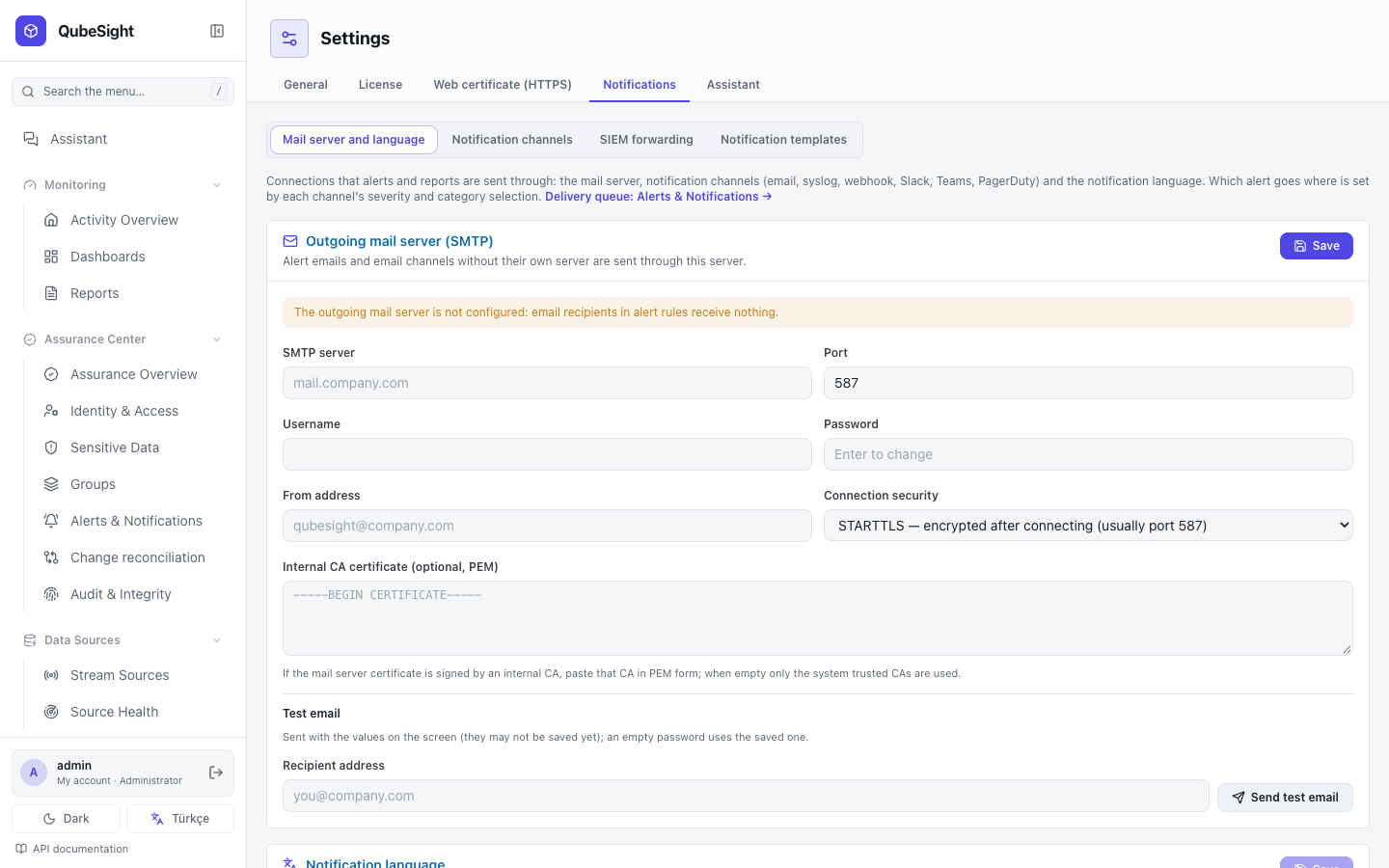
- Go to Platform → Settings → Notifications → Mail server and language.
-
In Outgoing mail server (SMTP), fill in:
Field Description Default SMTP server Host name of the relay, for example mail.example.com.— Port 587 for STARTTLS, 465 for SSL/TLS, 25 for unencrypted relays. 587 Username, Password Only if the relay requires authentication. The password is stored encrypted; leave it empty to keep the saved one. — From address Sender address, for example qubesight@example.com.— Connection security STARTTLS — encrypted after connecting (usually port 587), SSL/TLS — encrypted from the start (usually port 465) or Unencrypted (not recommended). STARTTLS Internal CA certificate (optional, PEM) The CA that signed the relay certificate, when it is internal. Empty uses the system trusted CAs. Shown when encryption is selected. empty -
Click Save.
- Under Test email, enter a Recipient address and click Send test email. The test uses the values on the screen, even if they are not saved yet. An empty password uses the saved one only when the server and username match the saved ones; otherwise enter the password for the test.
- The recipient must be a single plain address of the form
name@domain.tld(at most 254 characters, no display name, no spaces or commas). With an empty field the card shows Enter a recipient address for the test email.; an invalid address fails with Test email could not be sent: invalid recipient address: …. - On success: Test email sent: {to} ({server}, {ms} ms). Check the inbox.
- The recipient must be a single plain address of the form
The card shows the server state:
- Ready: {server} ({security}) — {n} enabled rule(s) have email recipients.
- The outgoing mail server is not configured: email recipients in alert rules receive nothing.
- The outgoing mail server is incomplete: {problem}
- When enabled rules have e-mail recipients but the server is not ready, the warning is shown in red, because those recipients receive nothing.
Roles other than administrator see the fields disabled and the note Only an administrator can change this setting. instead of Save.
Step 2: choose the notification language
Notifications are written in Turkish or English, independently of the interface language. Until an administrator saves a language, the installation's language is used (the language chosen in the installer, see Product language and time zone).
- In the Notification language card, select Türkçe (Turkish) or English under Language.
- Click Save (enabled only after you change the value). The card confirms Notification language saved; notifications from now on are sent in this language. and the line Last change: {by}, {at} shows who changed it. Every change is written to the audit log.
- Verify: click Test on a notification channel (or send a test e-mail from the mail server card) and check that the test notification arrives in the chosen language. For a webhook, the
langfield of the body shows the selected language.
The language applies to alert and test notifications (e-mail, Slack, Teams, PagerDuty, webhook and the syslog text) and to the e-mail and PDF of scheduled report deliveries. The language is chosen when a notification is sent, so notifications still waiting in the queue are also sent in the new language. Other cluster nodes pick up the change within 15 seconds.
The following stay as written, whatever the language: rule, channel and delivery names, the delivery message, and syslog / CEF field keys (so SIEM parsers keep working). A webhook body carries both languages: the Turkish fields, the English fields with an _en suffix, and a lang field with the selected language.
Step 3: add notification channels
- Go to Platform → Settings → Notifications → Notification channels.
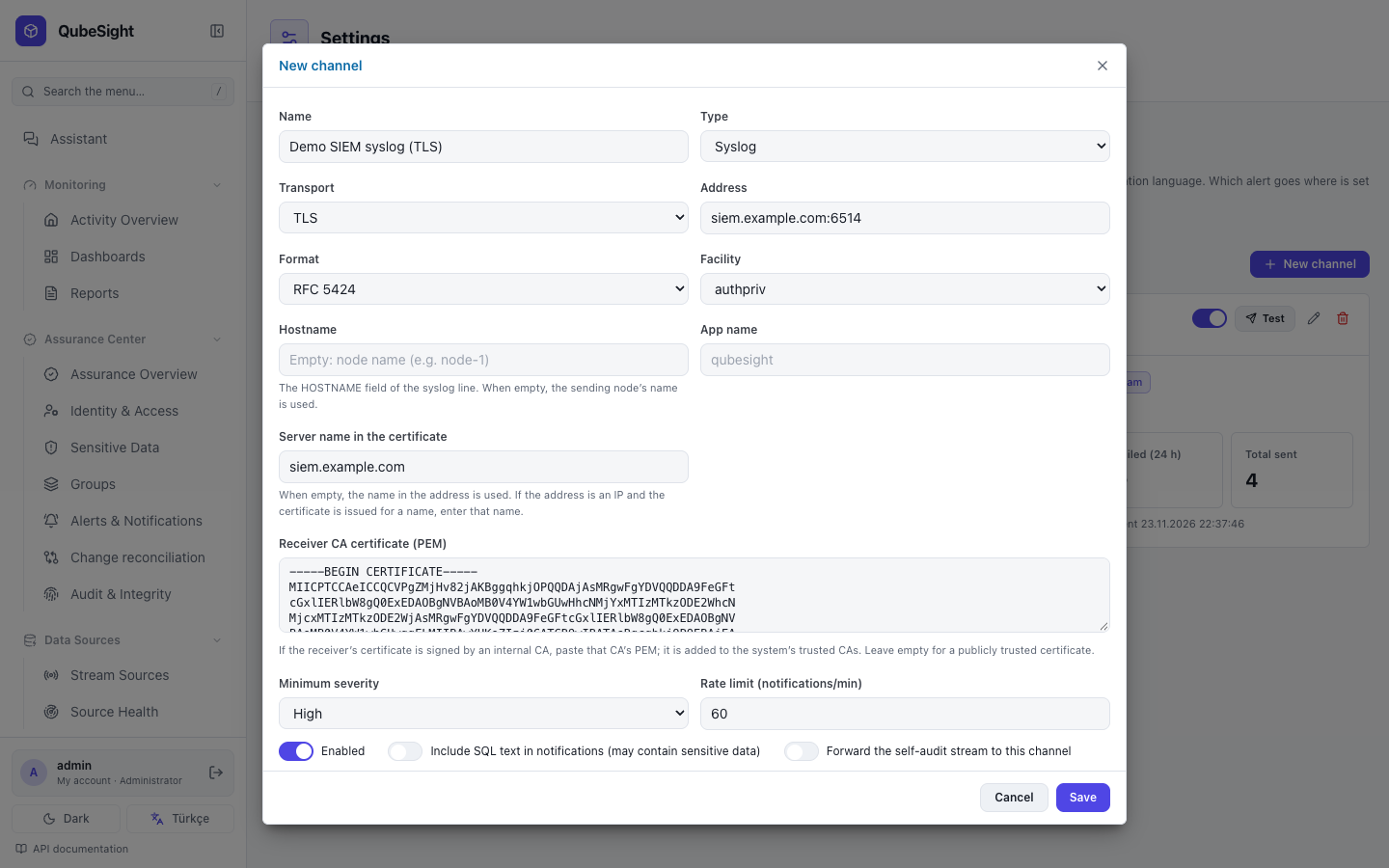
- Click New channel.
- Enter a Name and select the Type. In Community, only Email (SMTP) and Webhook are offered, with the hint Slack, Teams, PagerDuty and syslog channels are part of the Enterprise edition. The type cannot be changed after saving.
- Fill in the fields for the type (see below). The channel dialog has no category field; see Step 4.
-
Set the common fields:
Field Description Default Minimum severity The channel receives alerts of this severity or higher: Info, Low, Medium, High, Critical. Info Rate limit (notifications/min) At most this many notifications per minute (1–6000). Extra notifications wait in the queue. 60 Enabled Turns the channel on or off. on Include SQL text in notifications (may contain sensitive data) Off by default: the triggering SQL is removed from the notification. off Forward the self-audit stream to this channel Syslog and webhook only: also sends QubeSight's own audit records. Use Categories to forward to limit them; none selected means all categories. off -
Click Save (notice Channel saved), then click Test on the channel card.
With no channel, the sub-tab reads No notification channel yet, so alerts reach nobody. Add at least one channel. While the list loads, placeholder panels are shown; if it cannot be loaded, an error box with Retry appears.
E-mail (SMTP)
| Field | Description |
|---|---|
| SMTP server | Leave empty to use the shared outgoing mail server from Step 1 (the card then shows Shared SMTP server). Fill it in to use a different relay for this channel. |
| Port, Security | Always shown, but used only for a channel with its own server. Defaults: port 25, None (plain); the other choices are STARTTLS and TLS (SMTPS). |
| From | Sender, for example QubeSight <qs@example.com>. |
| Recipients | Comma-separated addresses. At least one is required. |
| Username, Password | Always shown; use them only with the channel's own server. A username without an SMTP server is rejected, and a username requires a password. |
| Subject prefix | Text placed before the subject, for example [QubeSight]. |
Syslog (Enterprise)
| Field | Description | Default |
|---|---|---|
| Transport | UDP, TCP or TLS. | UDP |
| Address | host:port, for example siem.example.com:514. |
— |
| Format | RFC 5424 or CEF. | RFC 5424 |
| Facility | authpriv, auth, user, daemon, local0–local7. |
authpriv |
| Hostname | HOSTNAME field of each line. Empty uses the sending node's name. | empty |
| App name | APP-NAME field. | qubesight |
| Server name in the certificate | TLS only: the name to verify when the address is an IP. | empty |
| Receiver CA certificate (PEM) | TLS only: internal CA of the receiver. An invalid PEM is rejected. | empty |
Webhook
| Field | Description |
|---|---|
| Address (URL) | https:// endpoint (an http:// URL is also accepted; use it only on a trusted network). QubeSight sends a JSON POST; any 2xx answer is success. |
| HMAC secret | Optional. Each request then carries the header X-QubeSight-Signature: t=<unix time>,v1=<hex>, where the value is HMAC-SHA256 over <unix time>.<body> with the secret. Check the time to reject replays. |
| Authorization header | Optional. Either Header: value or only a value, which is sent as Authorization. |
Slack and Microsoft Teams (Enterprise)
Enter the Incoming webhook URL created in Slack or Teams. The URL is treated as a secret: it is stored encrypted and never shown again.
PagerDuty (Enterprise)
Enter the Routing key of an Events API v2 integration. QubeSight sends events to the public PagerDuty events endpoint.
Secrets
Passwords, HMAC secrets, authorization headers, incoming webhook URLs and routing keys are stored encrypted (AES-GCM) and never returned by the API. When you edit a channel, the hint Saved; enter a new value to change it. If the server, address or user changes, enter it again or remove it. is shown. If you change the server, address or user, the saved secret is not sent to the new endpoint: enter it again. Remove saved value is offered for the e-mail password and for the webhook HMAC secret and Authorization header; Slack, Teams and PagerDuty secrets have no remove button (enter a new value instead).
Step 4: route alerts to channels
Routing is decided per alert at the moment it is raised:
- Rule channels. In an alert rule, Channels selects the channels to use. If none is selected, the alert goes to all enabled channels.
- Severity. A channel receives the alert only if the alert severity is at or above the channel's Minimum severity.
- Category (API only). A channel can also be limited to alert categories: Data activity, Authentication, Source health, Platform, Integrity, Backup, Policy. The channel dialog has no category field in this version; the filter is set only through the REST API field
categoriesof the channel (empty means all), and saving the channel in the dialog keeps any categories set through the API. The rule's Category is the value compared with the channel's categories. See REST API. - Rule e-mail recipients. Each rule can also list up to 20 Email recipients. These are sent through the outgoing mail server, independently of channels. Include the SQL that triggered the alert in the email adds up to 8000 characters of SQL to that e-mail only.
The delivery summary of rule e-mail recipients appears on the Notification channels sub-tab as the Alert rule email recipients card.
Verify
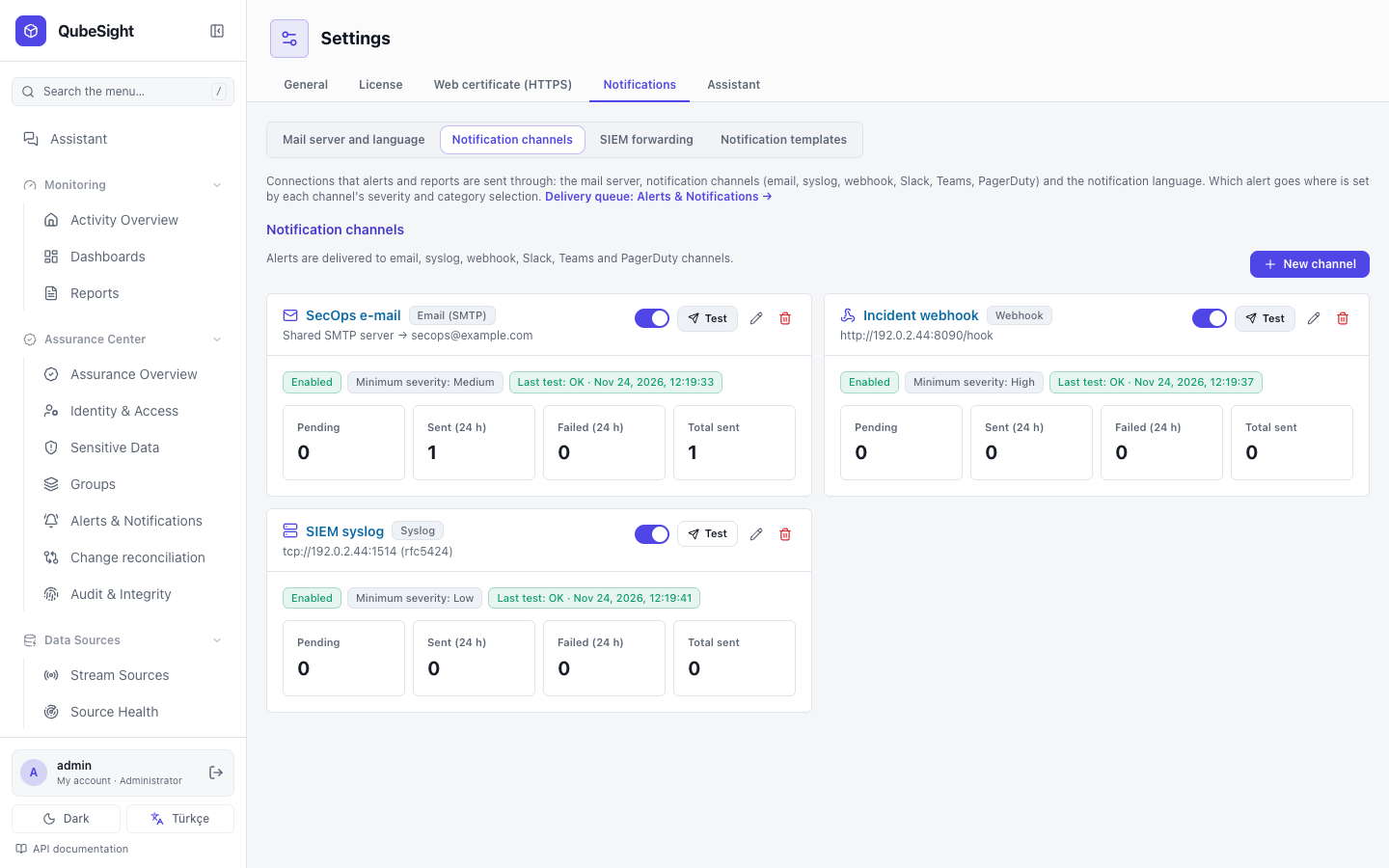
- Channel test. Test on a channel card (administrators) sends a test notification through the real channel: title QubeSight channel test, summary This is a test notification. The channel configuration works., the fields Channel, Type and Triggered by, severity Info (syslog MSGID
CHANNEL_TEST). The notice reads Test notification sent or Test failed: {error}. The test is also written to the delivery queue with type Test. The card then shows Last test with OK or Failed, the time and, on failure, the error text in red. - Simulate a rule. In Assurance Center → Alerts & Notifications → Rules, the rule simulation can send a real notification marked as a test to the rule's channels and e-mail recipients, after the confirmation Send a real notification?.
- Channel card. The title shows the name and type; the subtitle shows the destination: for e-mail
host:port → recipients(or Shared SMTP server→ recipients), for syslogudp|tcp|tls://address (rfc5424|cef), for a webhook the URL, and nothing for Slack, Teams and PagerDuty (their URL is a secret). Pills show Enabled or Disabled, Minimum severity: {level}, self-audit stream, includes SQL text and Last test. - Channel counters. Each card shows Pending (warning colour above 20), Sent (24 h), Failed (24 h) (danger colour above 0) and Total sent. For channels with self-audit forwarding, a line shows the records sent, the records pending and the last sent time. The Alert rule email recipients card uses the same thresholds and shows the last error in red.
- Delete. The trash icon asks Delete channel? (Delete the channel "{name}"?). Deleting a channel also removes its queued notifications, including pending ones.
The delivery queue
Every notification is written to a persistent queue before it is sent, so a receiver outage does not lose it.
- Open Assurance Center → Alerts & Notifications → Delivery queue to see each notification. Only administrators and auditors see the table; analysts and DBAs see only a link to the notification settings. Columns: Time, Channel (with recipients), Type, Severity, Title, Status, Attempts, Error. The page refreshes every 15 seconds and shows 25, 50 (default), 100 or 200 rows per page.
- Statuses: Pending and Sending (amber), Sent (green), Given up (red).
- A failed send is retried up to 8 times. The wait starts at 30 seconds and doubles after each attempt, up to 30 minutes. Errors that cannot succeed on retry (for example an invalid configuration or a rejected recipient) go to Given up at once.
- An administrator can click Retry on a notification in Given up to queue it again (Queued again).
- Notifications that were already queued for a channel wait as Pending while it is disabled and are sent once it is enabled again. Alerts raised while a channel is disabled are not queued for it at all. Sending pauses while a disaster-recovery restore runs. A notification postponed by the rate limit is retried after one minute.
- Records are kept for 90 days. Pending notifications are never deleted.
- Filter by time range (Last 1 hour, Last 24 hours, Last 7 days (default), Last 30 days, Custom range) and status.
Troubleshooting
| Symptom | What to check |
|---|---|
| The mail card says the server is not ready | Host, port and connection security must match the relay. For STARTTLS on 587 or SSL/TLS on 465, add the internal CA if the relay certificate is not publicly trusted. |
| Test e-mail fails with an authentication error | Re-enter Username and Password. Some relays accept only authenticated submission on port 587. |
| Save of the outgoing mail server fails on a new 2.0.107 installation | A 2.0.107 defect (the unconfigured Guardium SNMPv3 profile stored with the mail settings was validated). Fixed in 2.0.109; upgrade, then save again. |
| Rule recipients receive nothing | The outgoing mail server must be configured; failed attempts appear in the delivery queue. |
| Syslog lines do not arrive over UDP | UDP has no delivery confirmation. Use TCP or TLS, and check firewalls between the nodes and the receiver. |
| Syslog TLS test fails with a certificate error | Paste the receiver CA in Receiver CA certificate (PEM) or set Server name in the certificate. |
| Webhook receiver rejects requests | Verify the signature as HMAC-SHA256(secret, "<t>." + body) and compare in constant time; check the Authorization header value. |
| Slack, Teams, PagerDuty or Syslog is missing from Type | These types need an Enterprise licence. |
| Saving an existing Slack, Teams, PagerDuty or syslog channel fails | The Enterprise licence has ended. These channels keep delivering, but can only be enabled, disabled, tested or deleted. |
| A channel works, but some alerts do not reach it | Compare the alert severity with Minimum severity, check the rule's Channels list and any category filter set through the API. |
| Many notifications wait as Pending | The Rate limit (notifications/min) may be too low for the alert volume, or the receiver is slow. |
QubeSight also raises its own alerts for delivery problems, such as Notification channel problem and No notification channel.
Limitations
- The category filter of a channel can only be set through the API in this version. (The introduction on the Notifications settings page mentions a category selection per channel; the dialog does not offer one.)
- Without an Enterprise licence, existing syslog, Slack, Teams and PagerDuty channels cannot be edited.
- Validation messages returned by the server for channel settings (for example a missing recipient) are not translated and appear in Turkish in the English interface.
- Syslog over UDP cannot confirm delivery; a lost UDP datagram is not retried.
- The notification language is one setting for the whole installation; it cannot be set per channel.
- E-mail action buttons that link back to QubeSight need the public address of the installation; see Links in e-mails.