Data lifecycle and retention
This page explains how long QubeSight keeps event data, what happens when the ClickHouse disk fills up, and how the hot tier and the locked (WORM) cold tier interact. It also explains how to change these settings safely.
Community Enterprise
Retention, the disk guard and a locked store on the same server are in both editions. A locked store on a separate server (Separate server (Enterprise)) is Enterprise only.
The lossless rule
While data is deleted or archived, live events keep being written. Live events are lost only if an administrator deliberately chooses Drop incoming events (lossy). In every other case, when the disk is full, events are held at their source (Kafka, Event Hub, Kinesis) and written without loss once there is room.
Where the settings are
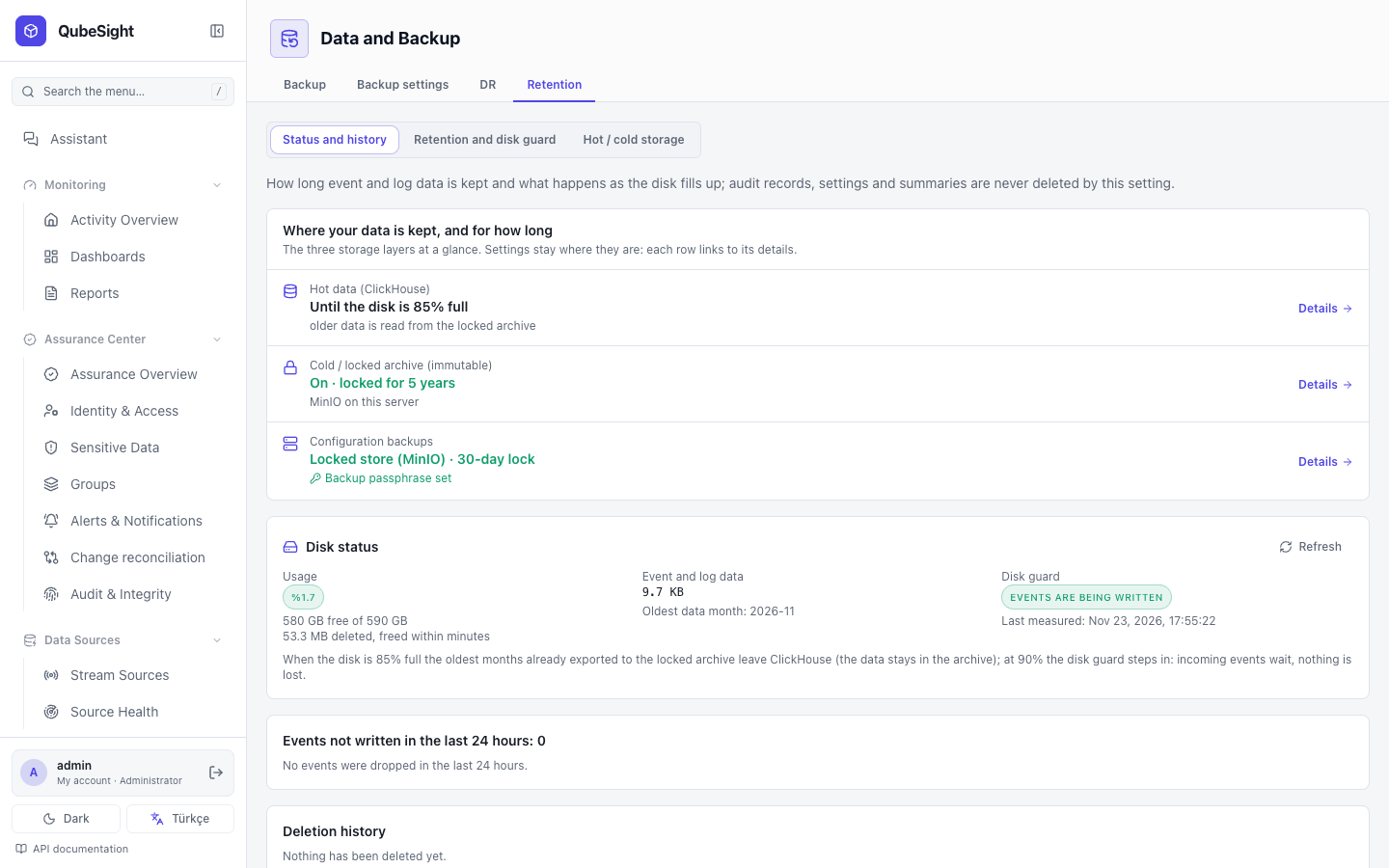
Go to Platform → Data and Backup → Retention (administrators only). The page has three sub-tabs:
| Sub-tab | Contents |
|---|---|
| Status and history | Where your data is kept, and for how long (hot data, cold/locked archive, configuration backups), Disk status (usage, free space, oldest data month, disk guard state, last measurement, Refresh), Events not written in the last 24 hours (always shown; empty when nothing was dropped) and the deletion history. The last line of Disk status states, for the saved settings, at which fill level what happens. |
| Retention and disk guard | Retention and Disk guard settings. |
| Hot / cold storage | Hot / cold storage (immutable archive): mode, hot data limit, lock period, store connection. |
What the settings apply to
| Managed (can be deleted) | Never deleted by these settings |
|---|---|
Database activity events (global_db_activity_logs), unparsed log lines (unparsed_logs_queue), statement durations and slow-operation logs (statement_metrics_v1), session open/close events (db_session_events_v1) |
Self-audit and integrity records, alert history, all settings, Guardium configuration tables, dashboard summary tables |
Deletion is done by monthly partition. Deleting a partition does not block live writes. The Retention and disk guard sub-tab lists the managed tables under the retention field (Scope: Database activity events, Unparsed logs, Statement durations and slow-operation logs, Session open/close events.).
Retention
| Option | Behaviour |
|---|---|
| Unlimited (default) | Data is never deleted. As the disk fills, the disk guard takes over. |
| A fixed period (Retention period (days)) | A month is deleted when even its last moment is older than now − days. Data is kept at most one month longer than the period and never deleted early. Month boundaries use the ClickHouse server time zone. |
The cut-off uses the event time. If you restore a Guardium archive older than the retention period, those rows are deleted again within a minute. Extend the period before such a restore.
When the locked archive is on, retention applies only to data in ClickHouse. Data in the locked store cannot be deleted before its lock expires.
Disk guard
All local ClickHouse disks are measured every minute. Disks on the same filesystem are evaluated together and the decision follows the fullest filesystem. Parts that ClickHouse has deleted but not yet removed count as "freed within minutes". An inconsistent measurement never triggers a deletion.
| Setting | Default |
|---|---|
| Apply the guard while the disk fills up | On |
| Threshold: disk % | 90 % |
| Release level | 5 points below the threshold (85 %), to avoid flapping |
| Action | Hold incoming events (default, lossless) |
| Action | What happens | Data loss |
|---|---|---|
Hold incoming events (default, lossless) (pause_new) |
Nothing is deleted. The worker stops writing and stops advancing its Kafka, Event Hub and Kinesis positions; events wait at the source and are written in order once there is room. Meanwhile they do not reach screens or real-time database alert rules. | None, as long as room is made before the source's own retention expires (Redpanda keeps 7 days by default). |
Delete from the oldest, make room (free_oldest) |
The oldest months that really free space on the full filesystem are deleted until usage is below the release level. All managed tables of a month are deleted together. The current month, and a month that ended less than a day ago, are never deleted. Months whose data is on another disk are skipped. At least 10 minutes pass between deletions. | Old data only. Live events are never dropped; they are held briefly if needed. |
Drop incoming events (lossy) (drop_new) |
Old records are kept; new events are not written and are lost. Dropped events are counted per database user and source per minute. | New events. Choose this only deliberately. |
With the guard off, a full disk stops ClickHouse from writing and ingestion stops.
Every deletion is written to the deletion history and the self-audit trail (storage_partition_deleted); the start and end of holding or dropping are audited too. The built-in Disk protection alert (critical) opens while events are held or dropped, or when the guard deleted data in the last 24 hours, and closes by itself when the situation clears.
Hot and cold tiers
With Hot / cold storage on, the activity table keeps only recent data in ClickHouse (hot). Every 10-minute block is also written as a Parquet file to an S3-compatible store with Object Lock in COMPLIANCE mode, and each finished day is sealed into a daily file locked for Lock period (daily files) years (default 5, 1–30; the range is checked on every save, not only at installation). Reports read older months from the locked store transparently, more slowly. See Hot and cold storage tiers for the architecture and Audit & Integrity for the verification screens.
| Mode | Behaviour |
|---|---|
| Off | No locked copy and no proof of immutability. |
| MinIO on this server | Uses the MinIO shipped with the installation. The lock is real, but if this server is lost the locked copy goes with it. |
| Separate server (Enterprise) | The locked store runs on another server, so the proof and the backup survive the loss of this server. Install a locked store server (Enterprise) installs one over SSH. |
Hot data limit:
- Number of days (7–3650; runtime default: days mode, 365 days): the last N days stay hot. If the disk reaches the guard threshold first, the oldest exported month leaves ClickHouse before events are held.
- Disk usage (50–95 %; the field starts at 85 % when you select this mode): as much data as fits stays hot until the ClickHouse disk reaches the limit. Above it, the oldest months that are already exported and verified leave ClickHouse. Keep this limit below the disk-guard threshold, otherwise the guard acts first; the page warns about this.
Hot-data default
The installer's hot-data choice (--hot-mode, --hot-days, --hot-disk-percent, or the web installer's hot-data step) is stored by the control plane on its first start, while no retention setting has been saved yet; after that you change it in Platform → Data and Backup → Retention. Without an installer value the control plane uses days mode, 365 days. An existing installation keeps its saved setting when it is upgraded; see Upgrading from 2.0.106.
In both modes, only exported and verified months of the activity table leave ClickHouse; other tables and months not yet exported are never touched. A month is never removed from the hot tier unless all its rows are exported and their blocks verified.
Warning
The lock period cannot be shortened later. Locked data cannot be deleted before its lock expires, by anyone, including the store administrator, and it occupies storage for the whole period. Size the store accordingly.
Change settings safely
- Check Status and history for current usage and the oldest month. Refresh on the Disk status card reloads the figures.
- Change the setting on the relevant sub-tab:
- Retention and disk guard: click Save and apply. Any change that can delete data (setting or shortening the retention period, switching to Delete from the oldest, make room, lowering its threshold) turns the button into Confirm: save and apply, with Cancel and a warning that deleted data cannot be recovered; click it again to save. The result is Saved and applied. or Saved; {n} monthly partitions were deleted.
- Hot / cold storage: click Save. Turning the store on, changing the lock period or changing the bucket turns the button into Confirm: save with the lock period; click it again to save.
- A lifecycle round runs immediately after saving, then every minute. Watch Disk status for the result.
Each change is written to the self-audit trail with its before and after values. The same settings are available through GET and PUT /api/v1/admin/storage-lifecycle (admin only).
Limitations
- Holding and dropping apply to the worker's live ingest (Kafka, Event Hub, Kinesis). Guardium archive restores and the control plane's direct Guardium writes do not pass through the guard. Do not start an archive restore while the disk is full.
- The hold state is written with the control plane's clock and checked with the worker's clock. A clock difference of more than five minutes between servers breaks it. Use NTP on every server.
- On installations where the ClickHouse account has only SELECT/INSERT rights, deleting partitions is refused; the error appears on the settings page.
- While events are held, Redpanda keeps growing on the same disk. Make room or grow the disk within Redpanda's retention period (7 days by default).
- The guard has not been tested end to end with a physically full disk.