Guardium archive import
This guide shows how to load Guardium's daily archive files into QubeSight, how to automate the daily restore, and how to prove to an auditor that a restore was complete and unaltered.
Community Enterprise
Manual restore is available in both editions. The daily automatic restore and its automatic retries require Enterprise.
How it works
Guardium writes a daily archive of its collected data, encrypted with the appliance's archive shared secret, to an archive server. QubeSight reads these files without touching the appliances:
flowchart LR
  A[Archive server: *.tar.gz.enc] -- SSH / SFTP / SMB / local folder --> D[Download and PGP decrypt]
  D --> M[Temporary MySQL: tablespace import]
  M --> C[Mirror tables in ClickHouse]
  C --> T[Transform: sessions and full SQL]
  T --> E[Event table]
  E --> R[Reconcile with live rows]
The stages appear in the load progress as Downloading (SSH + PGP decrypt), MySQL tablespace import, Transforming (Sessions + Full Sql), Writing to ClickHouse and Completed. Every row of every Guardium table in the archive is first copied one to one into a mirror table; the activity rows (sessions, full SQL, exceptions, policy violations) are derived from the mirror.
Prerequisites
- Guardium's data archive is configured to write the archive files to a server that QubeSight can reach.
- Read access to that server over SSH (Linux server), SFTP or Windows Share (SMB), or a copy of the files in a folder on the QubeSight server (Local Folder (drop)).
- The Archive Shared Secret (PGP) of every Guardium appliance whose archives you will restore. Several secrets can be stored; unencrypted archives need none.
Step 1: add the archive environment
You can add the environment while creating the Guardium integration (see Guardium overview) or later:
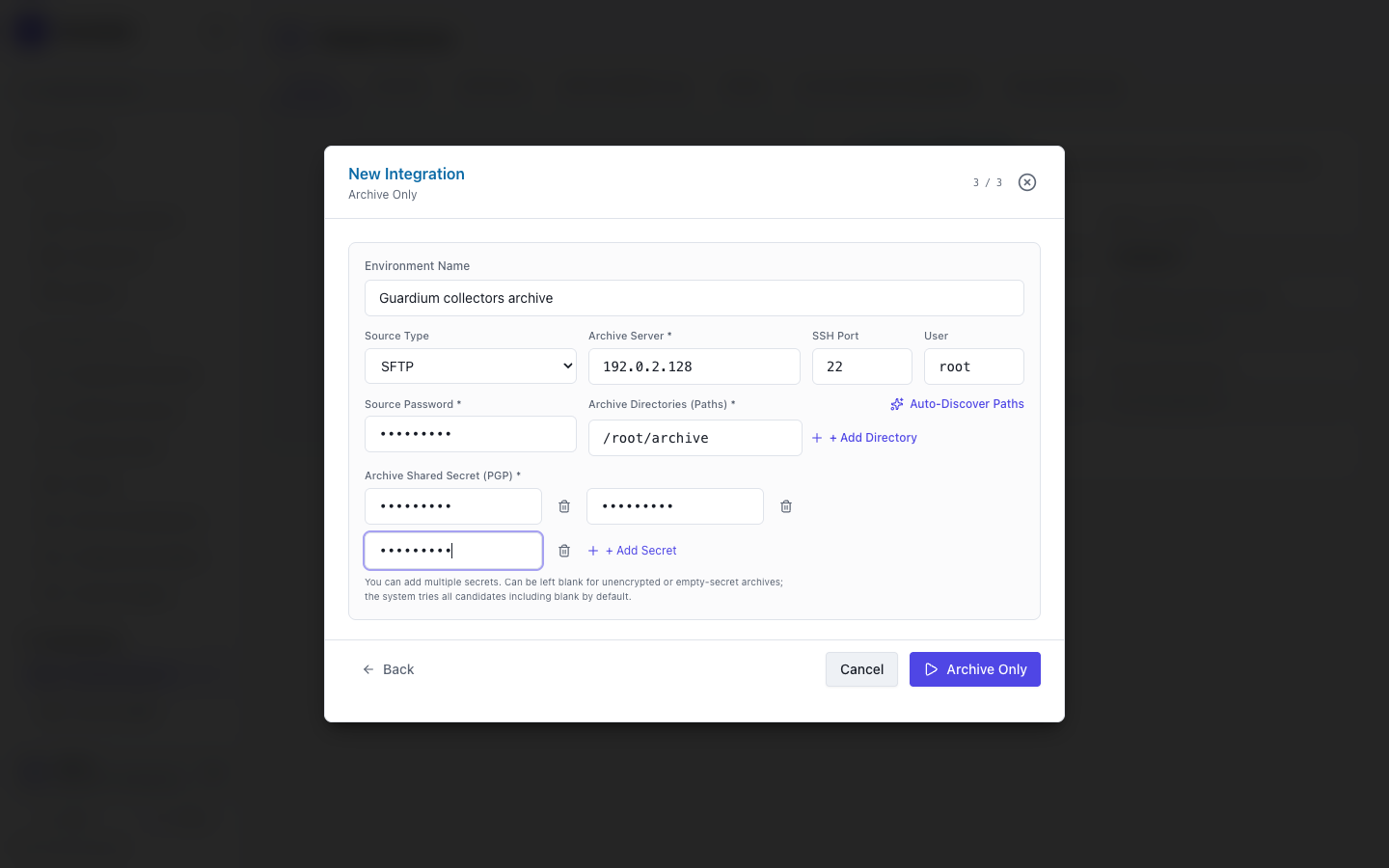
- Open Guardium → Archive import and press Add Environment. The form New Archive Environment opens (the button then reads Close Form).
- Fill in:
- Environment Name (e.g. Training CM).
- Source Type and the server: Archive Server (IP), SSH Port or SMB Port, SSH User or SMB User, Source Password; for SMB also Share Name and Domain (optional).
- Archive Directories (Paths). The form suggests
/archive; replace it with your archive directory if it differs. Use + Add Directory for more, or Auto-Discover Paths (not for SMB) to list directories that contain*.tar.gz.encfiles with a sample of the first 10 files. - One or more shared secrets with + Add Secret (a new environment starts with no secret row). When editing, new secrets are appended to the stored ones; Reset all and define from scratch replaces them.
- Press Connection Test, then Save.
- For SSH and SFTP, confirm the archive server's host key fingerprint when asked. No password is sent before you confirm.
Saving on Archive import stores the environment only; it does not scan the server or test the secrets. Press Scan Server (step 2) to list the files and check the shared secrets; files that match no secret are marked Invalid Shared Secret. (When the environment is created in the New Integration wizard, the wizard runs a scan right after saving, but that scan does not check the secrets.)
Step 2: restore files manually
- Under Archive Files, press Scan Server to list new files.
- Select files: Select Not Yet Restored, Select Available Only (verified files only, no error files), a Date range, or tick rows by hand. Narrow the list with the search box and the status filter.
- Press Restore Selected (N). The Load progress panel shows files, sessions and SQL statements loaded. If a restore was interrupted, Resume ({n}) in the same panel continues with the files of the last selection that are not yet done.
The file list columns are Data Date, Source Device, Path, File, Size, Fmt, Status, Session / SQL, Ignored, Duration and Integrity. Click a failed status to see Error Details: the error with Copy, a hint for secret, GPG or compression errors, and Restore This File to retry only that file.
Guardium archives its object, verb and access tables in full on the first day of each month. When you queue a file, QubeSight adds the matching month-start archive automatically.
Files that fail with a shared-secret error belong to an appliance whose secret is missing. Add the secret in the environment, or remove them from the list with Remove Shared Secret Errors.
Step 3: automate the daily restore (Enterprise)
- Edit the environment and turn on Automatic restore. (Administrators can also switch it on or off by clicking the Auto off / schedule pill on the environment card.)
- Choose Repeat: Daily, Weekly (pick Days of week) or Monthly (pick Day of month or Last day of month).
- Set the Time. The schedule time is interpreted in the Europe/Istanbul time zone (UTC+3), as shown next to the field.
- Save. The environment card shows the last run; Run Now triggers a scan and restore immediately.
The automatic run also retries the failed files of the last 7 data days on every run. Older failed days are retried manually from the file list.
Step 4: check the integrity proof
For every restored file QubeSight records two proofs:
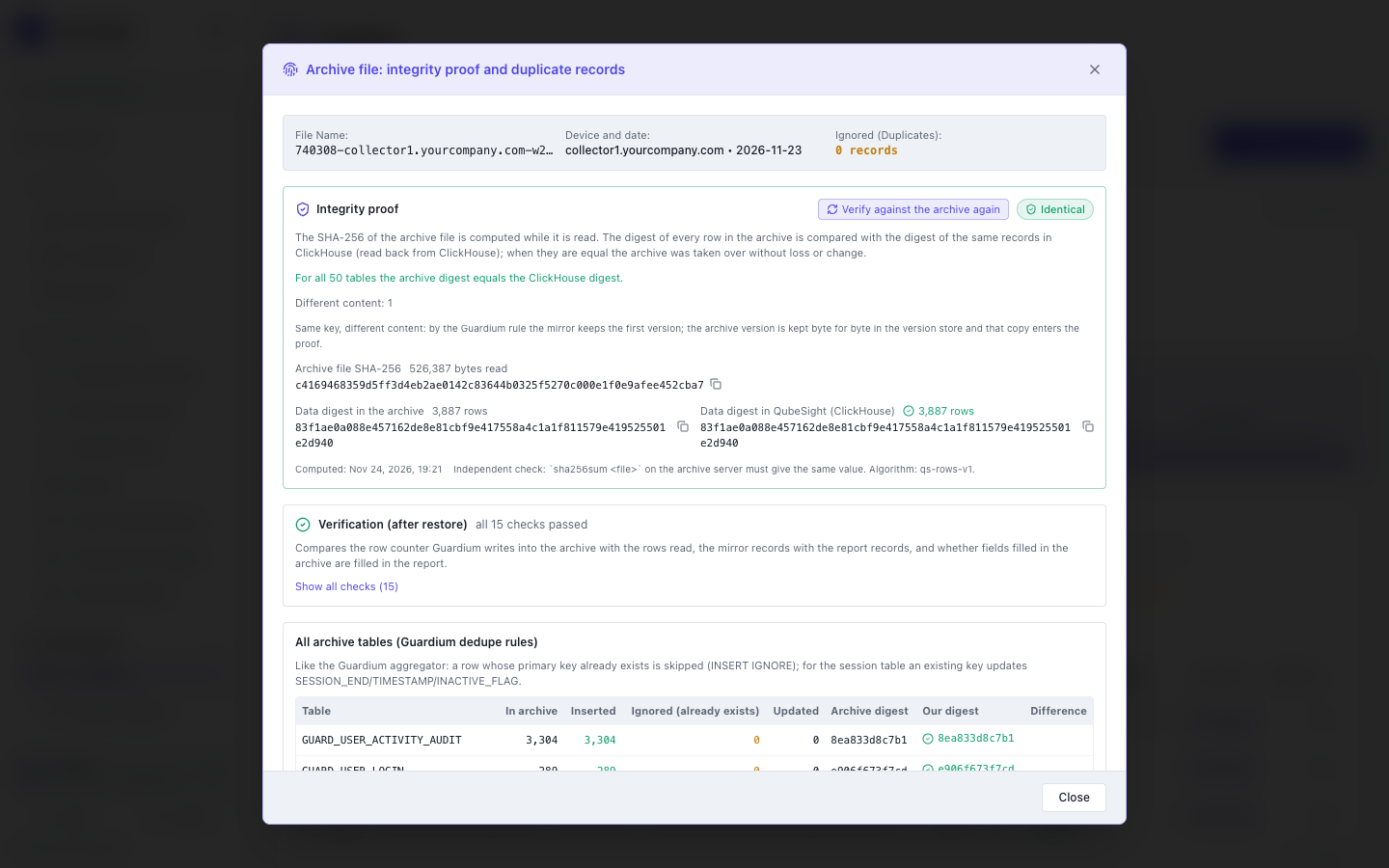
- File proof. The SHA-256 of the encrypted archive file (
*.tar.gz.enc) is computed while the file is read, together with the number of bytes read. The bytes read are compared with the size the source listed; a difference is shown in red. - Data proof. For each Guardium table in the archive, a digest of all rows read from the archive is compared with a digest of the same records as stored in ClickHouse. The stored digest is computed by ClickHouse itself on the rows read back after writing. The algorithm is named
qs-rows-v1.
Click a file's Integrity badge (or its Samples button) to see the Integrity proof card: Archive file SHA-256, Data digest in the archive, Data digest in QubeSight (ClickHouse) and a per-table list. Possible results:
| Result | Meaning |
|---|---|
| Identical | For all tables the archive digest equals the ClickHouse digest. |
| Identical · session updates | No row is missing or different; the only difference is session end times updated by a later archive, which is Guardium's own rule. |
| Differs | Digests differ in some tables. Missing rows and rows with the same key but different content are counted. |
| Partial proof / No proof | Not every table has a proof, or the file was restored before the feature existed. |
Rows with the same key but different content (for example catalog rows Guardium updates) are handled by Guardium's rule: the mirror keeps the first version, and the archive's version is stored byte for byte in a version store, which enters the proof. No archive row is lost.
The card Verification (after restore) adds content checks: Guardium's own row counter against the rows read, mirror records against report records, and whether fields that are filled in the archive are filled in the report. Its header reads all {n} checks passed or {n} of {total} checks failed; Show only failed checks and warnings / Show all checks ({n}) switches the list. A failing check raises the alert Guardium archive restored incompletely or incorrectly (guardium-restore-mismatch).
Independent check
Run sha256sum on the archive server and compare it with Archive file SHA-256:
Re-verify and repair
- Verify against the archive again (file detail) or Verify selected (N) (file list) reads the restored file from the archive server again and compares every row with its record in ClickHouse. It writes no data; it only updates the proof. Use it for files restored before the proof feature, or to answer "is it still the same today?".
- Fill missing rows from the archive writes archive rows that are missing from the mirror (for a keyless table the file's rows are rewritten) and recomputes the proof.
Verification uses the same lock as restore: while a restore runs, verification waits, and the other way round.
Verification of the import
- Status of the file is done and Integrity shows Identical.
- Platform → Pipeline → Parsing → Built-in parsers shows lines for Guardium archive restore.
- Reports show the day's sessions and full SQL with the device in the source column.
- If a live path exists, the live rows of that day are replaced (see SNMP live path).
Troubleshooting
| Symptom | Cause and action |
|---|---|
| Invalid Shared Secret | The archive belongs to an appliance whose secret is not stored. Add that appliance's secret in Edit Environment. |
| Connection test fails | Credentials, port, or the SSH host key was not confirmed. |
| No files found | Wrong directory. Use Auto-Discover Paths. |
| A day has failed files | Retry from the list. Enterprise retries the last 7 data days automatically. The Restore errors alert rule reports failures. |
| Alert Guardium archive restored incompletely or incorrectly | Open the file's Verification (after restore) card to see which check failed. |
Limitations
- The proof covers the data that is in the archive. Data Guardium did not put into the archive is outside it. If Guardium's archive does not contain session rows, session fields of the derived activity rows stay empty.
- Guardium does not add its own hash to the file, so the first hash is taken by QubeSight while reading. Compare it with
sha256sumon the archive server for independence. - The proof records are stored in ClickHouse; they are not signed and not in the immutable vault. Anyone can recompute them.
- The derived activity rows are not part of the digest chain. They are covered by the mirror proof, by each row's source file, and by the cold-tier verification (see Audit & Integrity).
- Restored rows do not raise alerts by default (see SNMP live path).
- The automatic schedule time is fixed to the Europe/Istanbul time zone.
- Restore and verification never run at the same time; one waits for the other.