Licensing
This page explains how QubeSight is licensed and how you install, check and renew a licence. It covers the two editions, the licence file, the grace period, how monitored databases are counted, what happens when a licence covers fewer databases than you monitor, what happens when a licence ends, and the marketplace trial.
Community Enterprise
Editions in short
QubeSight runs in one of two editions. The installation is the same; the licence decides which features are on.
| Community | Enterprise | |
|---|---|---|
| Licence needed | No | Yes: a licence file, a marketplace entitlement or a marketplace trial |
| Monitored databases and log volume | Unlimited | The licensed database count (ingest never stops on overage) |
| Typical deployment | A single server | Single server or high-availability cluster |
| Features | Core ingest, analysis, reports, alerts with email and webhook, backup, local users, MFA, LDAP | Everything in Community plus continuity (HA, DR, vault), enterprise identity (SSO, separation of duties), compliance (scheduled reports, audit export), Guardium management, cloud ingest, advanced channels |
The full feature table is in Editions (Community and Enterprise) and inside the product under Platform → Settings → License → Community and Enterprise.
Three rules hold in every edition and every licence state:
- Log ingestion never depends on the licence for syslog, Kafka, Filebeat and Guardium sources. Missing, expired or exceeded licences do not stop them.
- Stored data stays readable. Reports, dashboards and investigation keep working on the data you already have.
- Existing Enterprise settings are not deleted when Enterprise turns off. They are kept and resume when a valid licence is installed.
How the product decides the edition
The product runs as Enterprise when one of the following is true, in this order of precedence:
- A valid Enterprise licence file is installed and has not passed its end date plus the grace period.
- The installation runs from a cloud marketplace image whose entitlement grants Enterprise (AWS Marketplace entitlement or an Azure Marketplace Enterprise plan) and the last check succeeded recently enough.
- No real licence applies, and a marketplace trial is still running.
Otherwise it runs as Community. A real licence always wins over a trial.
In a cluster you install the licence once, on any node. The other nodes and workers pick it up within about a minute.
The licence file
An Enterprise licence is delivered as a digitally signed offline licence file with the .lic extension. The product verifies the signature with the vendor key built into the release; no internet connection is needed to activate or check it.
The file contains, among other things:
| Item | Shown on the License tab as |
|---|---|
| Licence identifier | License ID |
| Customer | Customer / organization |
| Edition | Edition |
| Start and end date | Validity window, Days remaining |
| Grace period in days | Used for the In grace period state |
| Maximum monitored databases | The limit in Monitored database servers (0 or none means unlimited) |
| Entitlements | Active entitlements and features |
| Optional binding to an installation or to nodes | Deployment ID, Node bindings |
To request a licence or an upgrade, contact QubeSight sales or support; the licence messages in the product show the contact address.
What the product checks on upload
When you upload a licence, the product checks, in order:
- The format is a signed licence token.
- The signing algorithm is allowed and the signing key is one the release trusts.
- The signature is valid.
- The licence identifier, customer and edition are present.
- The start date has been reached and the end date plus grace period has not passed.
- The system clock has not been moved back more than 5 minutes before the last time the product recorded.
- If the licence names a deployment, it matches this installation.
- If the licence names nodes, this node is one of them (
*allows any node).
If any check fails, the upload is rejected, a Rejected row is written to the licence audit trail with the reason, and the licence that was active before stays active unchanged.
Install or replace a licence
Prerequisites
- You are signed in with the admin role. Other roles see the License tab read-only.
- You have the
.licfile, or its text.
Steps
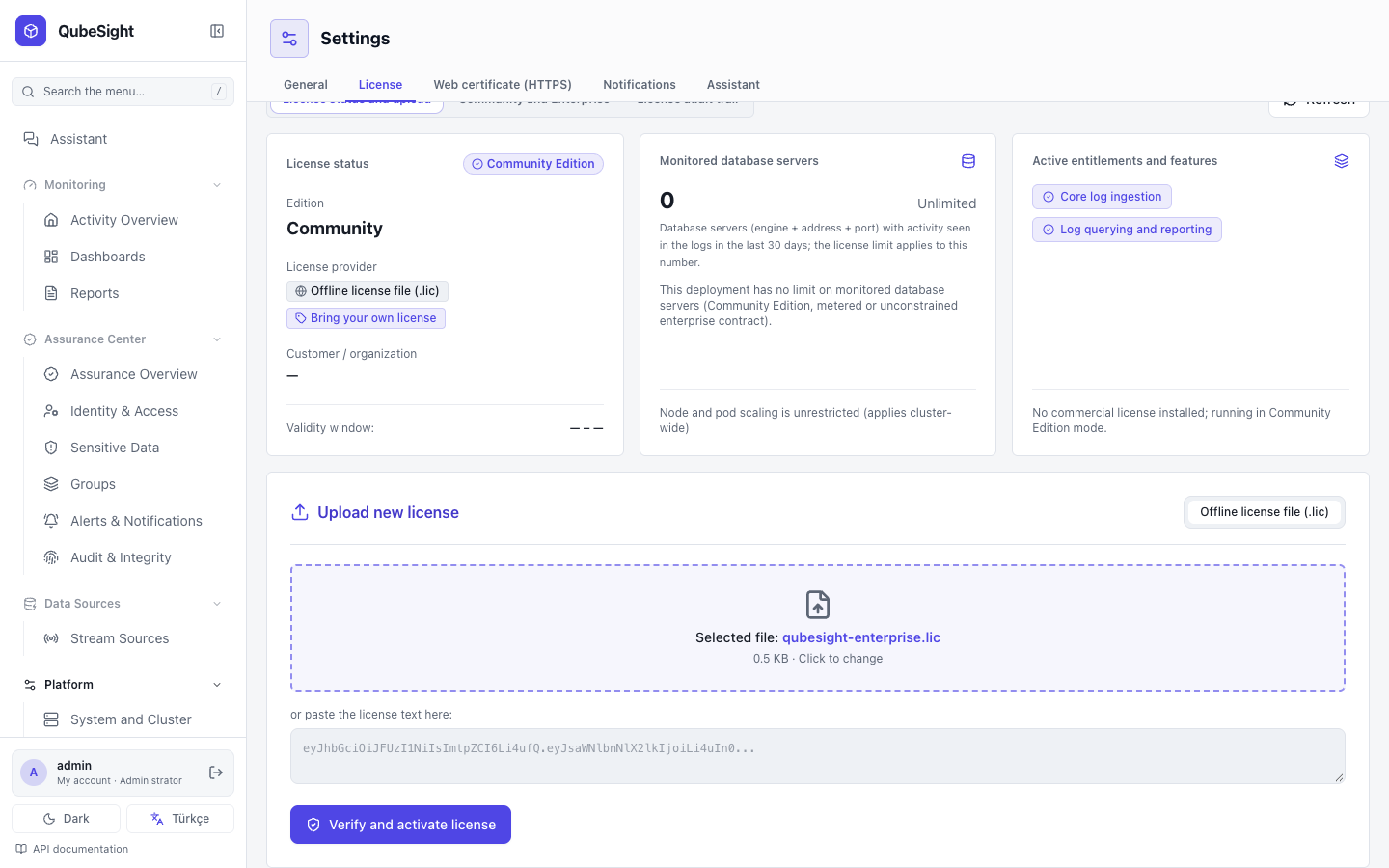
- Open Platform → Settings → License.
- Stay on the License status and upload sub-tab.
- Under Upload new license, click the drop area and choose the
.licfile, or drag the file onto it. Alternatively, paste the licence text into or paste the license text here. - Click Verify and activate license.
Verify the result
- A green box says "License successfully verified and activated."
- The status badge shows Active, Edition shows
enterprise, and the Validity window matches your licence. - License audit trail has a new Activation row with your user name.
- Menus and tabs for Enterprise features appear without a restart; reload the page if a tab is not yet visible.
Replacing a licence works the same way. The new licence becomes the active one; there is no need to remove the old one first.
If the upload fails
The red box shows the reason. Common causes:
| Message contains | Cause and action |
|---|---|
invalid license token format |
The text is not a complete licence. Upload the original file, or paste its full text without line breaks or extra characters. |
unknown or untrusted public key ID, signature verification failed |
The file was not signed with a key this release trusts, or it was altered. Ask for a new file and do not edit it. |
has expired and grace period has elapsed |
The licence end date plus its grace period has passed. Ask for a renewal. |
not yet valid |
The licence start date is in the future. Wait, or ask for a corrected file. |
system clock rollback detected |
The server clock is earlier than a time the product already recorded. Fix the system time (NTP) and try again. |
deployment_id does not match, not permitted by license node_bindings |
The licence is bound to another installation or node. Ask for a licence issued for this installation. |
How monitored databases are counted
The licence limit applies to monitored database servers. A database server is identified by its engine, address and port. It counts as monitored when activity from it was seen in the logs during the last 30 days.
- The count is shown on the License tab under Monitored database servers, with the limit and a Usage bar (amber from 70 %, red from 90 %).
- A database that stops sending activity leaves the count automatically after 30 days.
- Community and unlimited licences show Unlimited.
Over-entitlement: more databases than the licence covers
QubeSight never stops ingestion because of the database count. Two situations lead to over-entitlement:
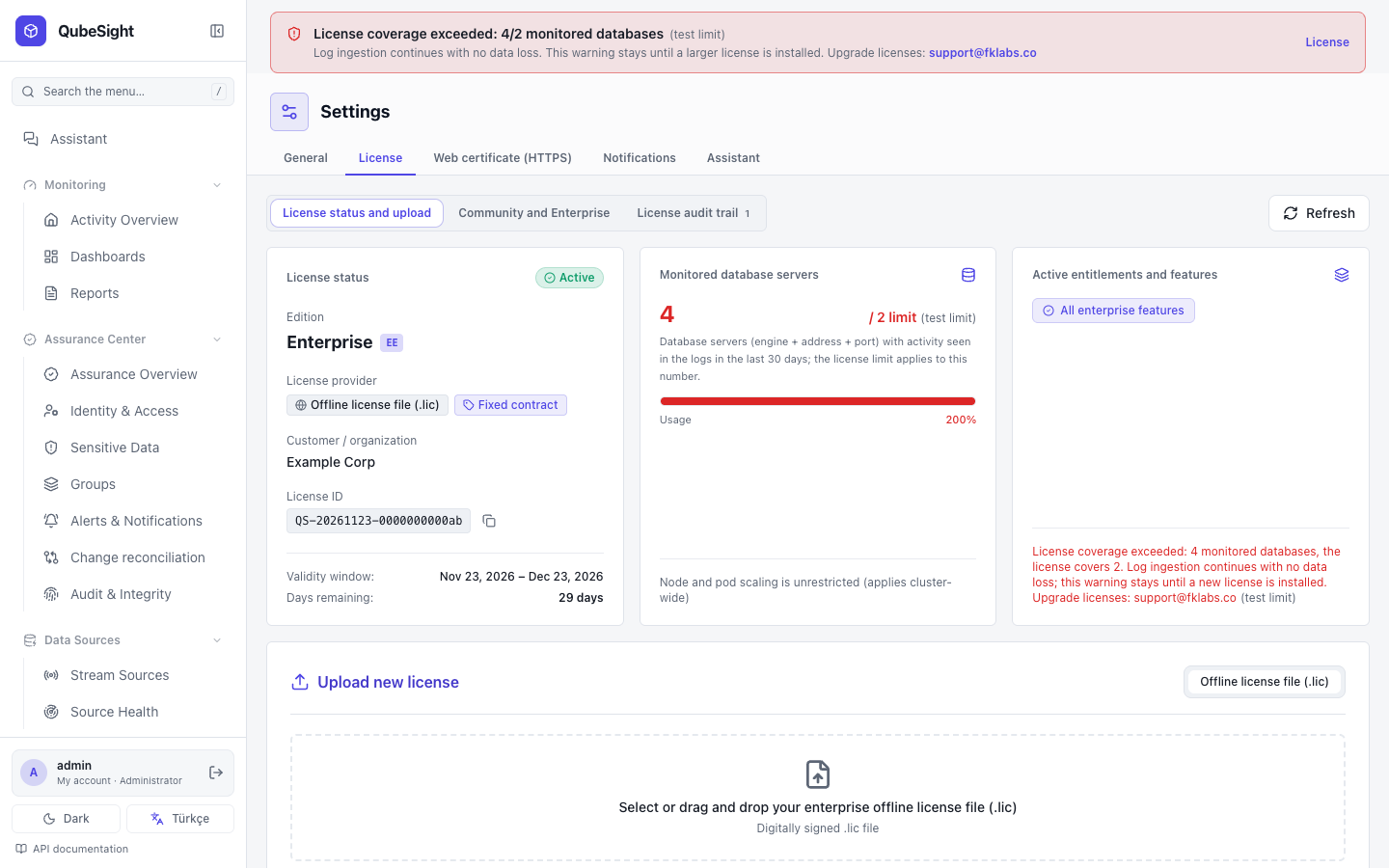
- You upload a licence that covers fewer databases than are monitored now. The licence is accepted and activated. The result box is amber and says the licence covers fewer databases than are monitored; the audit row records that it was accepted below current usage.
- The monitored count grows past the limit after the licence was installed.
While the count exceeds the limit:
- Log ingestion continues with no data loss, and all licensed features stay on.
- The License tab shows the count and the usage in red, with the message "License coverage exceeded: … monitored databases, the license covers …".
- A banner that cannot be dismissed, License coverage exceeded: c/m monitored databases, appears on every page, with a License link.
- The Assurance Overview shows a critical item, "Does the license cover all monitored databases?", with the count, the limit and the start time.
- A platform notification is sent when the overage starts and then about once a day, through every enabled notification channel whose minimum severity it reaches. A channel whose category list was limited through the API receives it only if that list includes the platform category.
- If the limit in use was lowered by a test setting, (test limit) is shown next to the limit, the status message and the banner.
The warning clears by itself when a larger licence is installed or when the count falls back under the limit.
Azure Marketplace plans
The plan of an existing Azure virtual machine cannot be changed. To raise the limit of an Azure Marketplace installation, install a licence file (for example from a private offer), or deploy a new virtual machine on a larger plan and restore your backup.
Grace period and expiry
Every licence carries a grace period after its end date. Licences are normally issued with a 30-day grace period; the value in your licence is the one that applies.
| Phase | What you see | What happens |
|---|---|---|
| Before the end date | License status badge Active; Days remaining; status message "License is active and valid." | Everything works. |
| After the end date, within the grace period | In grace period banner and badge: "Your license has expired, but the system is still running within its grace period…"; status message "License expired; operating under a n-day grace period." | Everything still works. Upload a new licence. |
| After the grace period | Expired banner and badge; status message "License has expired; running in Community Edition mode. …" | The product runs as Community. |
The License status badge follows these phases: Active, then In grace period, then Expired. A marketplace entitlement that has ended also shows Expired, and one that could not be verified for too long shows Invalid / inactive. The badge shows Community Edition only when no licence is installed and no trial is running. Edition keeps showing the edition written in the licence. During the grace period the Enterprise features stay on even though the badge is no longer Active.
Within the grace period, Settings → License shows the In grace period banner at the top, the In grace period badge next to License status and the grace-period status message under it; the upload area stays available.
When the product falls back to Community:
- Syslog, Kafka, Filebeat and Guardium ingestion continue. Stored logs remain accessible.
- Enterprise cloud ingest (Azure Event Hub, AWS Kinesis and AWS CloudWatch Logs) pauses without data loss: the Enterprise capability turns off, reading stops and the position does not advance, so events wait in the source for its retention period. The Event Hub, AWS Kinesis and AWS CloudWatch Logs tabs under Data Sources → Stream Sources are hidden while Enterprise is off; their settings are kept. When a licence is installed, the tabs return and reading resumes automatically where it stopped. While sources are paused, a banner, Enterprise license required: n ingest sources paused, appears on every page with a License link.
- Enterprise screens and tabs close or show an Enterprise feature lock card.
- Enterprise settings are kept. Scheduled report deliveries and active sensitive-data scan targets stop but keep their definitions and continue from their next scheduled time once Enterprise is back. Syslog, Slack, Teams and PagerDuty channels that already exist are kept and keep delivering alerts, but they can no longer be edited: only their Enabled switch, Test and delete work. No new channel of these types can be created.
Watch the source retention
Paused cloud sources keep events only as long as the source retains them (for example the Event Hub or Kinesis retention period). Install the new licence before that period ends to avoid losing events at the source.
Marketplace installations and the trial
Marketplace trial
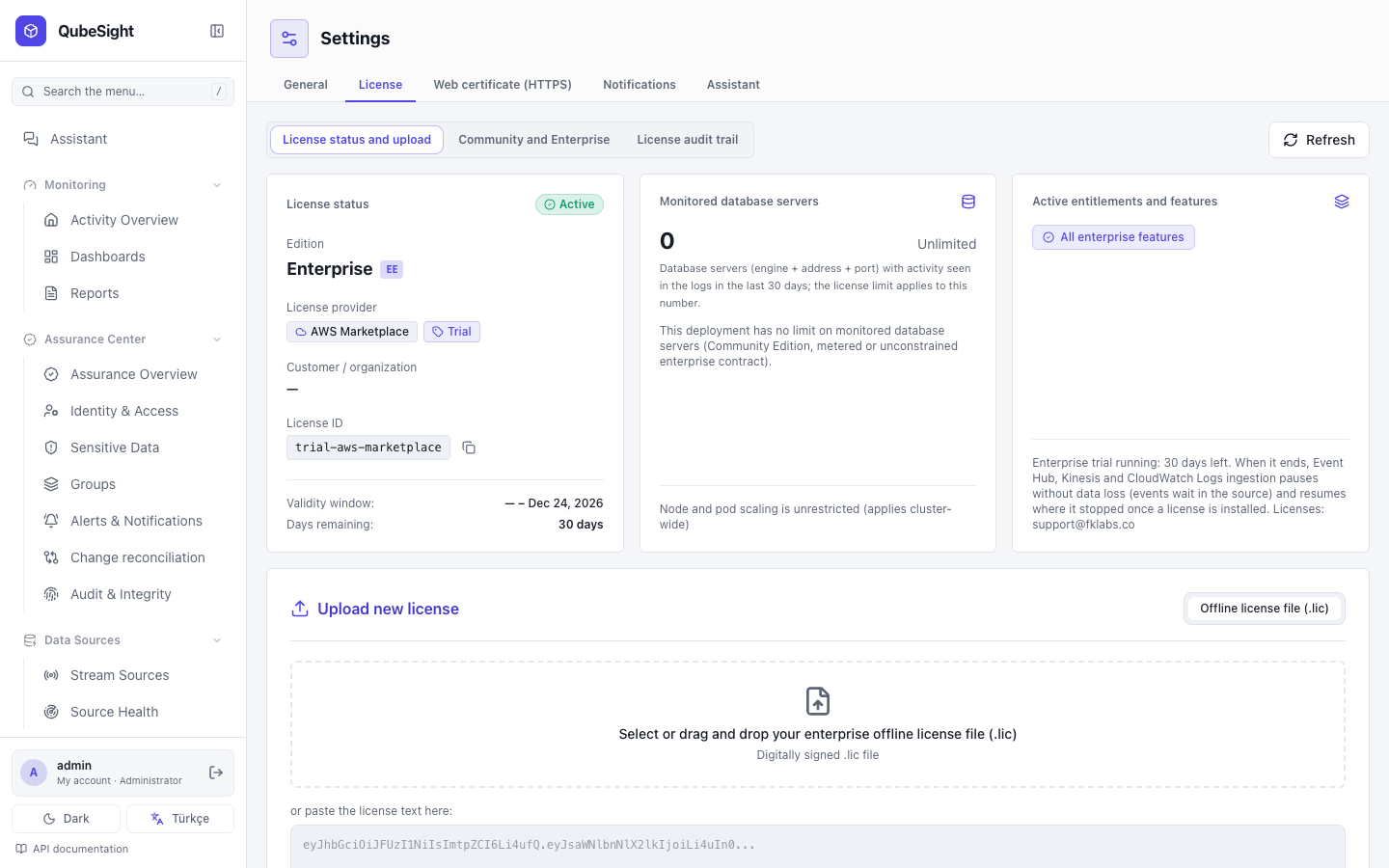
An installation created from the QubeSight AWS or Azure Marketplace image starts a 30-day Enterprise trial at its first boot. During the trial:
- The License tab shows Edition
enterprise, the offer Trial and the days left. - In the last 7 days a banner, Enterprise trial ends in n days, appears on every page. Platform notifications are sent when 7, 3 and 1 days are left, and once more when the trial ends without a licence.
When the trial ends, the product falls back to Community exactly as described under Grace period and expiry, with the message "The Enterprise trial ended on …". Installing a licence file at any time, during or after the trial, switches to the licence.
The trial is recorded in the installation's own database and is written once. Running the first-boot step again does not extend it.
Marketplace entitlements
On an AWS or Azure Marketplace installation, the License tab shows a marketplace card:
- AWS Marketplace entitlement: checked hourly through AWS License Manager. An administrator can run the check at once with Check now.
- Azure Marketplace plan: read hourly from the virtual machine's instance metadata. Enterprise plans carry the number of databases in the plan.
If the check cannot reach the marketplace, Enterprise stays on for 14 days after the last successful check. If AWS answers definitively that there is no active entitlement, Enterprise ends after 72 hours. A Community plan on Azure runs as Community; to get Enterprise, install a licence file or redeploy on an Enterprise plan and restore your backup.
Licence audit trail
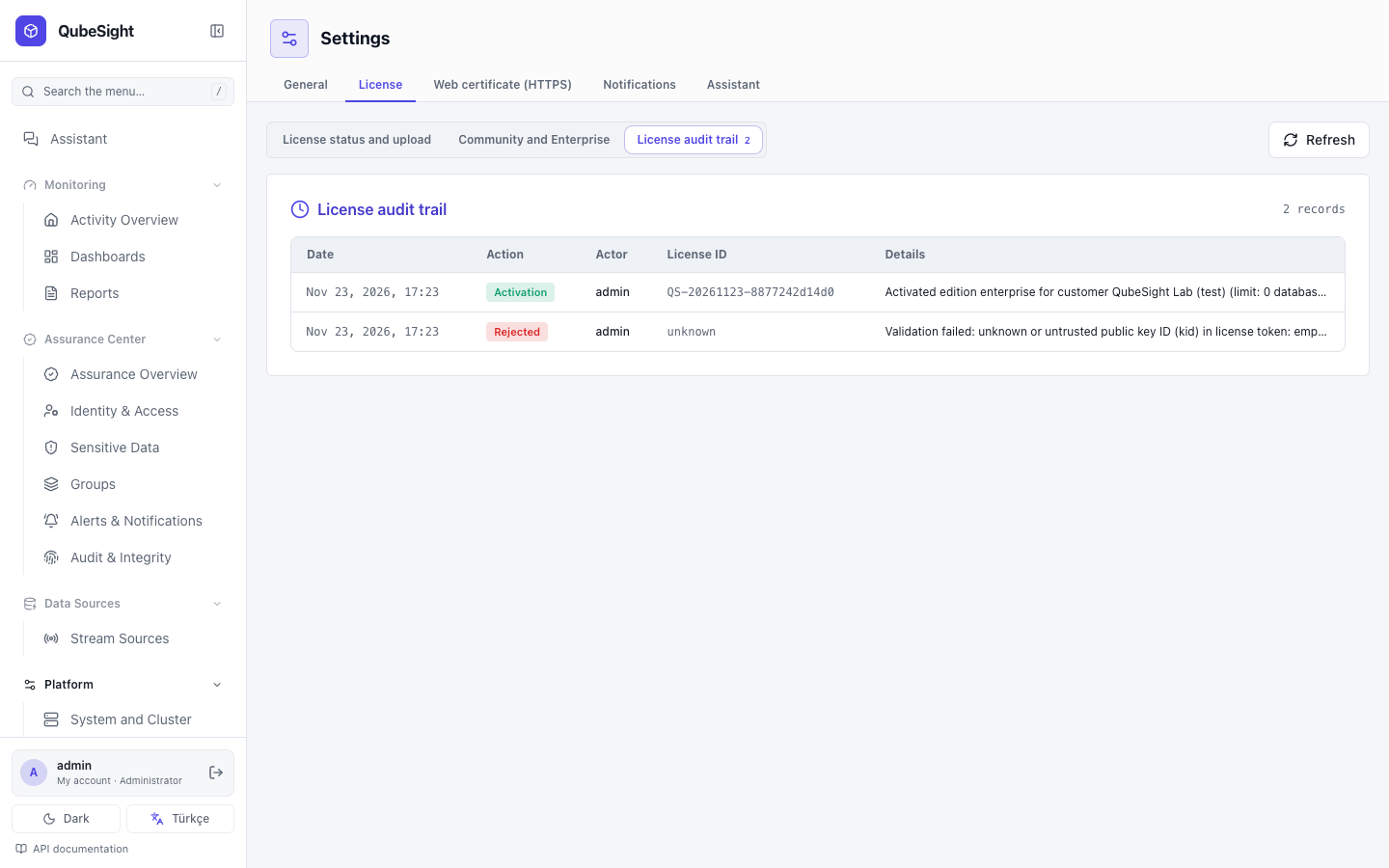
Every activation and rejection is recorded under Platform → Settings → License → License audit trail, with the date, the action (Activation or Rejected), the actor, the licence identifier and the details. The licence file itself and its text are not shown there.
Limitations
- Activating a licence through a cloud marketplace subscription form is not available in this version. Marketplace installations are recognised from the image; all other installations use the offline licence file.
- Google Cloud Marketplace is listed as a provider name, but no Google Cloud entitlement check is available in this version.
- The monitored database count depends on activity in the logs. A database that is configured but sends no activity is not counted; a database that stops sending activity is still counted until 30 days have passed.
- A licence bound to a deployment or to specific nodes does not activate on another installation. Request a new licence when you move to new hardware, unless your licence allows any node.
- A system clock moved back by more than 5 minutes blocks licence validation until the clock is correct.
- While Enterprise is off, the paused cloud sources cannot be viewed or edited, because their tabs are hidden; their settings are kept for when a licence is installed.
- The trial is stored in the installation's own database: reinstalling a marketplace server from scratch starts a new, empty installation.