Settings
This page describes the Settings hub (Platform → Settings): the product-wide settings for display time, the licence, the web certificate, outgoing notifications and the question-answering assistant. Use it as a reference for every tab, card, field and button, and follow the links for the step-by-step tasks.
Community Enterprise
The hub itself is available in both editions. Some parts inside the tabs belong to the Enterprise edition; they are marked below.
Tabs and who sees them
The tabs follow the same visibility rules as the menu. A tab that your role or edition cannot use is not shown. The Settings entry disappears from the menu only when none of its tabs is visible to you.
| Tab | Who sees it | Who can change it | Edition |
|---|---|---|---|
| General | Every role except access_manager | admin | Both |
| License | Every role except access_manager | admin | Both |
| Web certificate (HTTPS) | admin only | admin | Both |
| Notifications | admin, analyst, dba, auditor (needs the alerts capability) | admin | Both; some channel types are Enterprise |
| Assistant | admin, analyst, dba, auditor (needs the analytics capability) | admin | Both; large models and MCP access are Enterprise |
Non-administrators see the current values read-only. Where an action needs an administrator, the screen shows a short "admin only" note instead of the button. The server applies the same rule, so a request sent outside the interface is refused as well.
Each tab has its own address, for example /settings?tab=license. Older links still work and are redirected: tab=patch opens System and Cluster → Update, tab=benchmark opens System and Cluster → Capacity, tab=lifecycle opens Data and Backup → Retention, and tab=engine opens the Assistant tab.
General
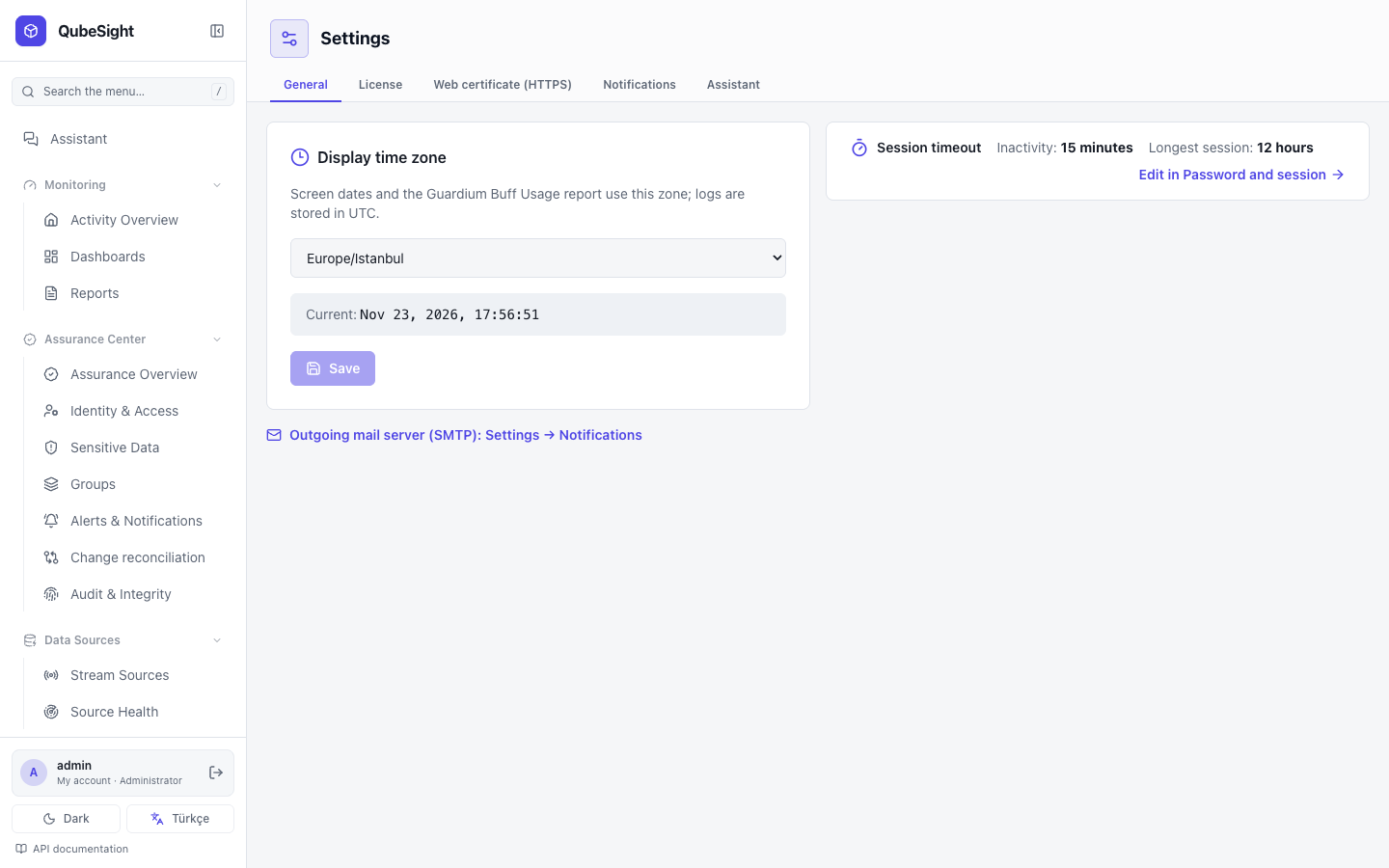
The General tab holds the display time zone and a summary of the session timeout.
Display time zone
Display time zone sets the zone in which the interface shows dates and times, and the zone used by the Guardium Buff Usage report. Logs are always stored in UTC; this setting only changes how they are displayed.
| Element | Description |
|---|---|
| Time zone list | One of: Europe/Istanbul, UTC, Europe/London, Europe/Berlin, America/New_York, America/Chicago, America/Los_Angeles, Asia/Dubai, Asia/Singapore, Asia/Tokyo. Until an administrator saves a zone, the interface uses the installation's time zone (the server's zone, written by the installer). If that zone is not in the list, it is added to the list and can be saved. Installations made before 2.0.109 without a saved zone use Europe/Istanbul. |
| Current: | The current date and time in the selected zone, so you can check the result before saving. |
| Save | Saves the zone for the whole installation. Enabled only when the selection differs from the saved zone. admin only; other roles see the list disabled and an "admin only" note instead of the button. |
| Result message | Next to Save: "Time zone saved." on success; otherwise the reason returned by the server, or "Could not save time zone". |
The setting is product-wide: it applies to every user, not only to you.
Session timeout
The Session timeout line is a read-only summary of two values from the password and session policy:
- Inactivity: the idle time after which a session is signed out. Unlimited means no idle timeout.
- Longest session: the maximum length of a session, shown in hours or days.
A warning icon appears when the inactivity timeout is unlimited or longer than 15 minutes. Its tooltip reads "PCI DSS 4.0 (8.2.8) requires at most 15 minutes of inactivity."
The link at the end opens Assurance Center → Identity & Access → Password and session, where the values are edited (Edit in Password and session for an administrator, View in Password and session for other roles). The values are edited only there, so two screens can never overwrite each other. See Identity & Access.
The values come from the password policy, which the server shows to the admin, access_manager and auditor roles only. A placeholder line is shown while they load. For the analyst and dba roles the line shows "Only an administrator can change this setting." instead of the values and the link; if loading fails for an administrator, the error text is shown instead.
Mail server pointer
On an Enterprise installation (alert delivery capability), the General tab also shows the link Outgoing mail server (SMTP): Settings → Notifications. The outgoing mail server is configured on the Notifications tab.
Related settings on other pages
Some settings that were once on this hub now live elsewhere:
| Setting | Where it is now |
|---|---|
| Web interface port (GUI access, Change port) | Platform → System and Cluster → Cluster. See System and Cluster. |
| Signed update packages and the update channel | Platform → System and Cluster → Update. See Upgrades, patches and the update channel. |
| Benchmark | Platform → System and Cluster → Capacity. See Capacity and benchmark. |
| Data retention and the disk guard | Platform → Data and Backup → Retention. See Data and Backup. |
| Guardium SNMP profile | Data Sources → Guardium. See Guardium. |
License
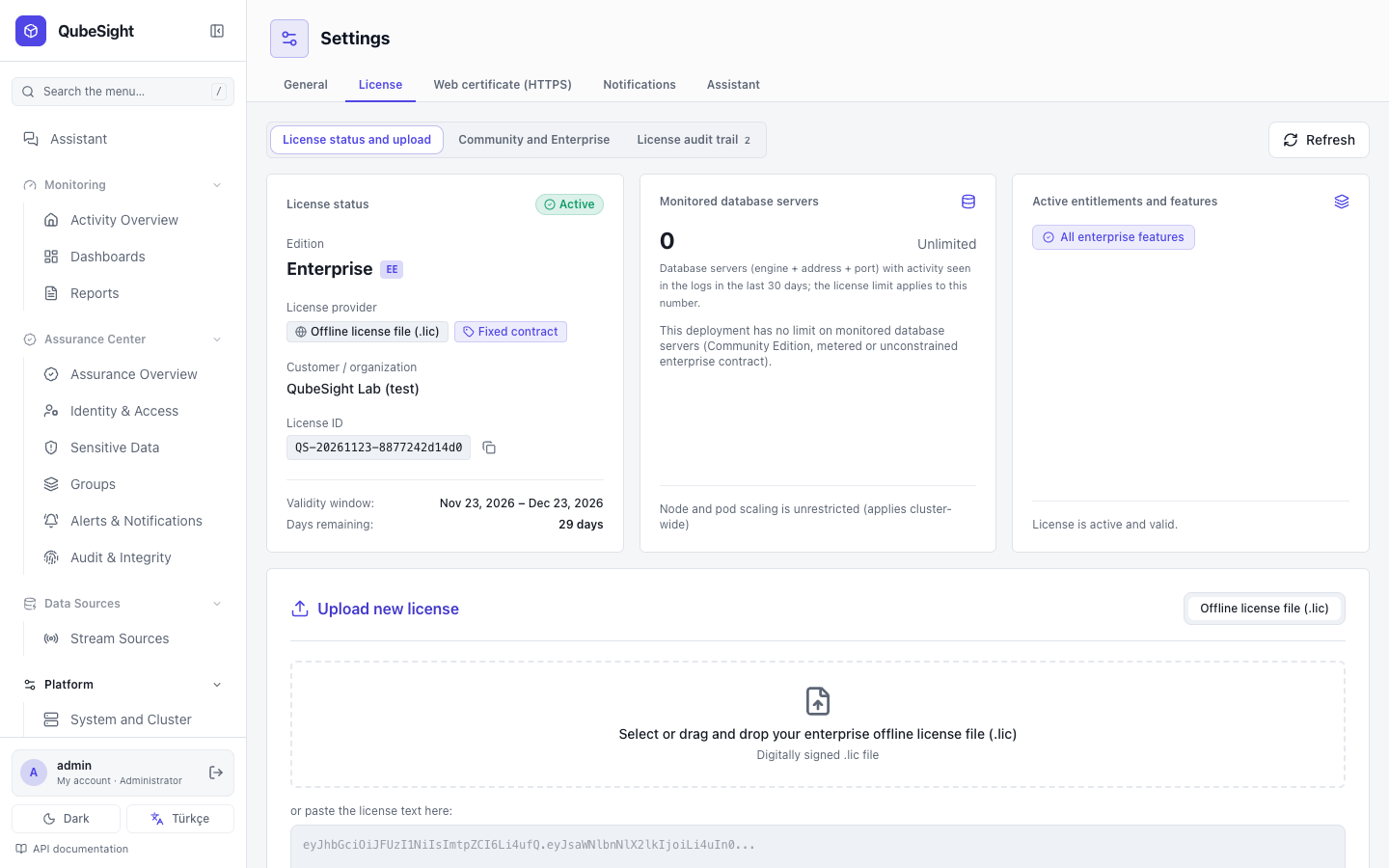
The License tab shows the licence state, the monitored database count, the active entitlements and the licence audit trail, and lets an administrator install a licence file. It has three sub-tabs and a Refresh button on the right.
| Sub-tab | Content |
|---|---|
| License status and upload | Status cards, the marketplace card (marketplace installations only) and the upload form. |
| Community and Enterprise | The edition comparison table. |
| License audit trail | Every activation and rejection, with a record count badge. |
For the concepts (editions, grace period, database counting, expiry) and the step-by-step upload, see Licensing.
While the licence state loads, the three status cards show placeholders ("Loading license status…"). If the state cannot be read, the first card shows "Could not load the license status. Try again with Refresh." and no default values are shown. Refresh reloads the licence state, the audit trail and your role.
Banners
| Banner | When it appears |
|---|---|
| In grace period | The licence end date has passed but the grace period has not. The text asks you to upload a new licence and gives the days left. |
| Expired | The licence and its grace period have both ended: "Your current license and its entire grace period have expired. Enterprise entitlements may be restricted." |
These banners, the License status badge, the status message at the bottom of the entitlements card and the Days remaining line show where the licence is in its lifecycle.
Status card
| Field | Description |
|---|---|
| License status badge | Shows the real state of the licence: Active (green) while an installed licence is before its end date and, for a marketplace entitlement, verified, or while a marketplace trial is running; In grace period after the end date but within the grace period; Expired after the grace period, or when a marketplace entitlement has ended; Invalid / inactive when a marketplace entitlement could not be verified for too long. Community Edition is shown when no licence is installed and no trial is running; this is a normal state, not an error. |
| Edition | community or enterprise (an EE tag is shown for Enterprise). For an installed licence this is the edition written in the licence, also after the licence has ended. |
| License provider | Offline license file (.lic), AWS Marketplace, Azure Marketplace or Google Cloud Marketplace. On a marketplace installation without a licence file, the marketplace is shown. |
| Offer badge | Bring your own license, Fixed contract, Usage-based or Trial. |
| Customer / organization | The customer named in the licence. |
| Plan ID, Subscription ID | Shown only for marketplace entitlements. |
| License ID | The licence identifier, with a copy button. |
| Validity window | Start and end date of the licence. |
| Days remaining | Shown while the licence has days left. |
| Deployment ID | Shown when the licence is bound to one installation. |
Monitored database servers card
| Field | Description |
|---|---|
| Count | The number of monitored database servers. It turns red when the licence limit is exceeded. |
| Limit | / N limit, or Unlimited when the licence has no limit (Community, usage-based or unconstrained contracts). With Unlimited, the card says "This deployment has no limit on monitored database servers (Community Edition, metered or unconstrained enterprise contract)." instead of the usage bar. |
| (test limit) | Shown after the limit, after the status message and in the coverage banner when the limit in use was lowered below the licence's own limit by a test setting. The licence itself is not changed. |
| Hint | "Database servers (engine + address + port) with activity seen in the logs in the last 30 days; the license limit applies to this number." |
| Usage bar | Count divided by the limit. The bar is amber from 70 % and red from 90 %. Above 100 % the real percentage is printed. |
| Node bindings | The nodes the licence is bound to, or "Node and pod scaling is unrestricted (applies cluster-wide)". |
Entitlements card
Active entitlements and features lists the entitlements in the licence, for example All enterprise features, Core log ingestion or Log querying and reporting. Without a commercial licence the list shows the Community defaults (core ingestion, querying and reporting). A licence without entitlements shows "No entitlement records found."
On a marketplace licence, the card also shows Marketplace usage queue while hourly usage records are waiting to be sent: an amber n queued pill, the line "n hourly usage records waiting to be sent." and a Send usage now button (Syncing… while it runs). On success the page shows "Metering records successfully delivered to the cloud provider."; a failure shows the reason in a red box. The section is hidden when no record is waiting.
The card ends with the licence status message, for example "License is active and valid.", "License expired; operating under a 30-day grace period." or the over-entitlement message. Without a message it shows "QubeSight licensing is active."
Marketplace card
On AWS or Azure marketplace installations a separate card shows the marketplace check:
| Field | Description |
|---|---|
| Title | AWS Marketplace entitlement or Azure Marketplace plan. |
| State | Verified, Not checked yet, Could not check (the last check failed), No active entitlement (AWS) or Not an Enterprise plan (Azure) (a definitive answer). |
| Check now | Runs the entitlement check immediately (Checking… while it runs). Shown to the admin role only. A failed request shows "The entitlement check failed" or the reason in a red box. |
| Databases purchased / Databases monitored | The marketplace quantity (— when the marketplace reports none) and the current monitored count. The monitored count turns amber when it is above the quantity. |
| Last successful check / Enterprise features on until | When the check last succeeded and until when Enterprise stays on (— when unknown). |
| Over-quantity warning | When more databases are monitored than purchased. AWS: "m databases are monitored but n are purchased. Monitoring continues; extend the contract in AWS Marketplace." Azure: the plan covers fewer databases; the plan of an existing virtual machine cannot be changed, so upgrade with a licence file or redeploy on a larger plan and restore your backup. |
| Last error: | The error of the last failed check, when there is one. |
The card states the fail-safe rule: the check runs hourly; if AWS or the Azure instance metadata cannot be reached, Enterprise stays on for 14 days after the last successful check. A definitive "no contract" answer from AWS ends Enterprise after 72 hours.
Upload new license
Upload new license has one method in this version: Offline license file (.lic).
| Element | Description |
|---|---|
| Drop area | "Select or drag and drop your enterprise offline license file (.lic)" and "Digitally signed .lic file". Click to choose, or drag and drop, a .lic (or .txt) file. After selection the area shows Selected file: with the file name and size, and Click to change. |
| or paste the license text here | Paste the licence text instead of choosing a file. |
| Verify and activate license | Verifies the signature and the rules, then activates the licence (Verifying… while it runs). Enabled once a file is chosen or text is pasted. Disabled for roles other than admin; those roles see "Only an administrator can change the license; your role (…) is read-only." |
A green box confirms "License successfully verified and activated." If the licence covers fewer databases than are monitored now, the box is amber: "License activated, but it covers m databases while c are monitored now. …". A failed check shows the reason returned by the server in a red box, or "License validation failed" / "An unexpected error occurred while uploading the license." when there is no reason; the previously active licence stays in effect.
Community and Enterprise
The card starts with the title Community and Enterprise and the intro "Community is free, with unlimited databases and log volume on a single server. Enterprise adds continuity, enterprise identity, compliance and Guardium management." The comparison table lists the features of each edition, grouped by Log collection, Analysis and reports, Alerts, Guardium, Sensitive data, Identity and access, Storage and continuity and Product; on a wide screen the groups are split into two tables side by side. The column of the edition this installation runs now is marked This installation. A tick means included, a dash means not included. A line under the table gives the pricing contact and the cloud marketplaces.
The in-app table is a summary and is shorter than the guide's comparison in Editions (Community and Enterprise):
- It has no row for the MCP server.
Use the guide's editions page as the reference.
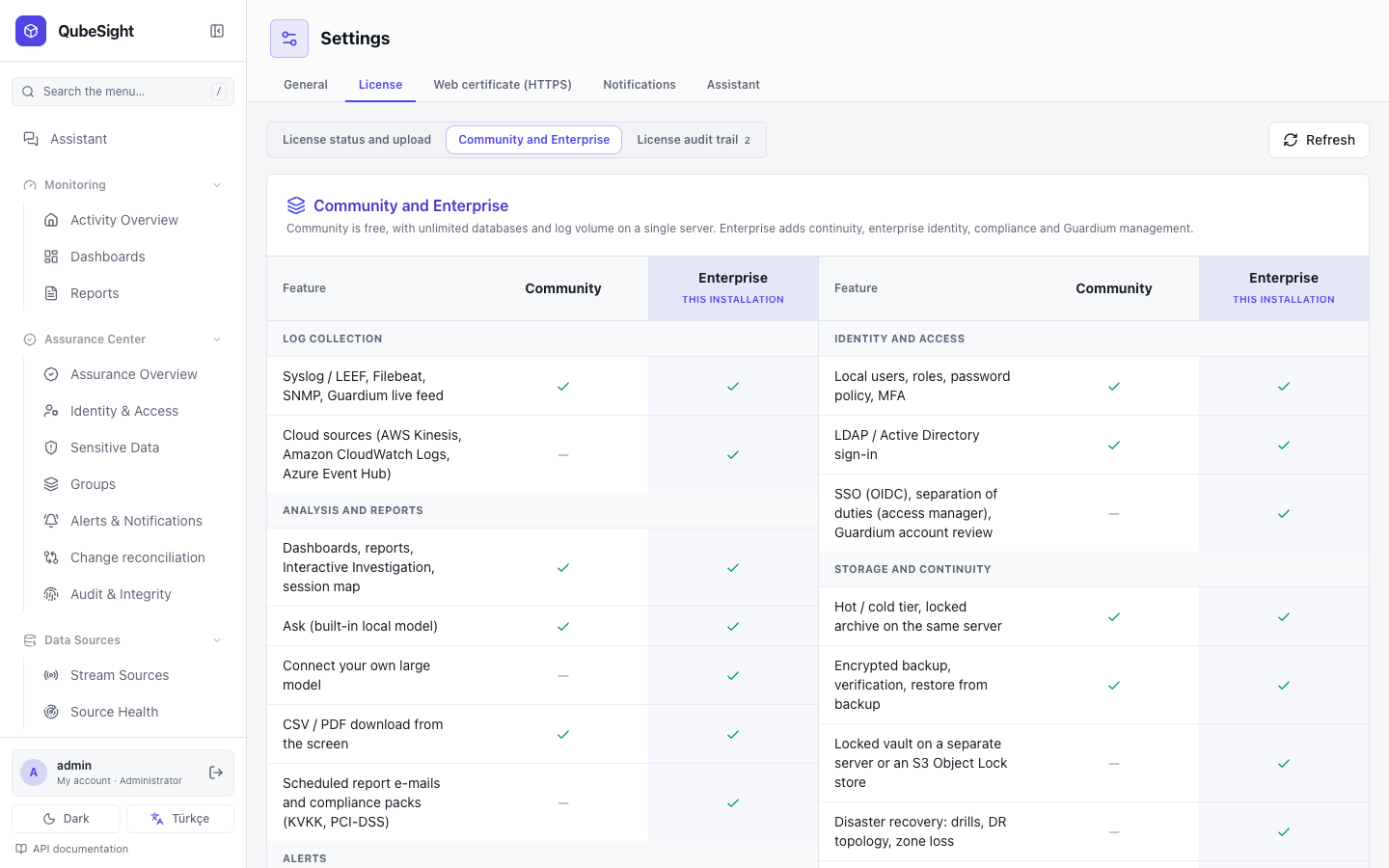
On a Community installation the same table marks the Community column with This installation. The rows with a dash under Community are the Enterprise-only features: cloud sources (AWS Kinesis, Amazon CloudWatch Logs, Azure Event Hub), connecting your own large model, scheduled report e-mails and compliance packs, Slack / Microsoft Teams / PagerDuty / syslog and SIEM forwarding, the source silence watchdog, change ticket reconciliation, automatic Guardium restore and Guardium management, the active sensitive-data scan, its assistant review, data masking, SSO with separation of duties and Guardium account review, a locked vault on a separate server or S3 Object Lock store, disaster recovery, the high-availability cluster, audit trail export with the signed evidence pack, and automatic updates. Databases and log volume are unlimited on Community; Enterprise is licensed per monitored database, adds business-hours or 24×7 support with an SLA, and uses a commercial subscription instead of the BSL 1.1 licence.
License audit trail
The card shows the number of records ("n records"); the same number is the badge on the sub-tab. When there are no records, the table shows "No license audit records found."
| Column | Description |
|---|---|
| Date | When the event happened. |
| Action | Activation or Rejected. |
| Actor | The user who uploaded the licence, or system. |
| License ID | The licence concerned (unknown for a file that could not be read, — when none is recorded). |
| Details | For example "Activated edition enterprise for customer … (limit: 100 databases)" or "Validation failed: …". |
Enterprise lock cards
In a Community installation, Enterprise parts of other screens show an Enterprise feature card: "{feature} is part of the Enterprise edition. This installation runs the Community edition." Its Compare editions link opens this tab.
Web certificate (HTTPS)
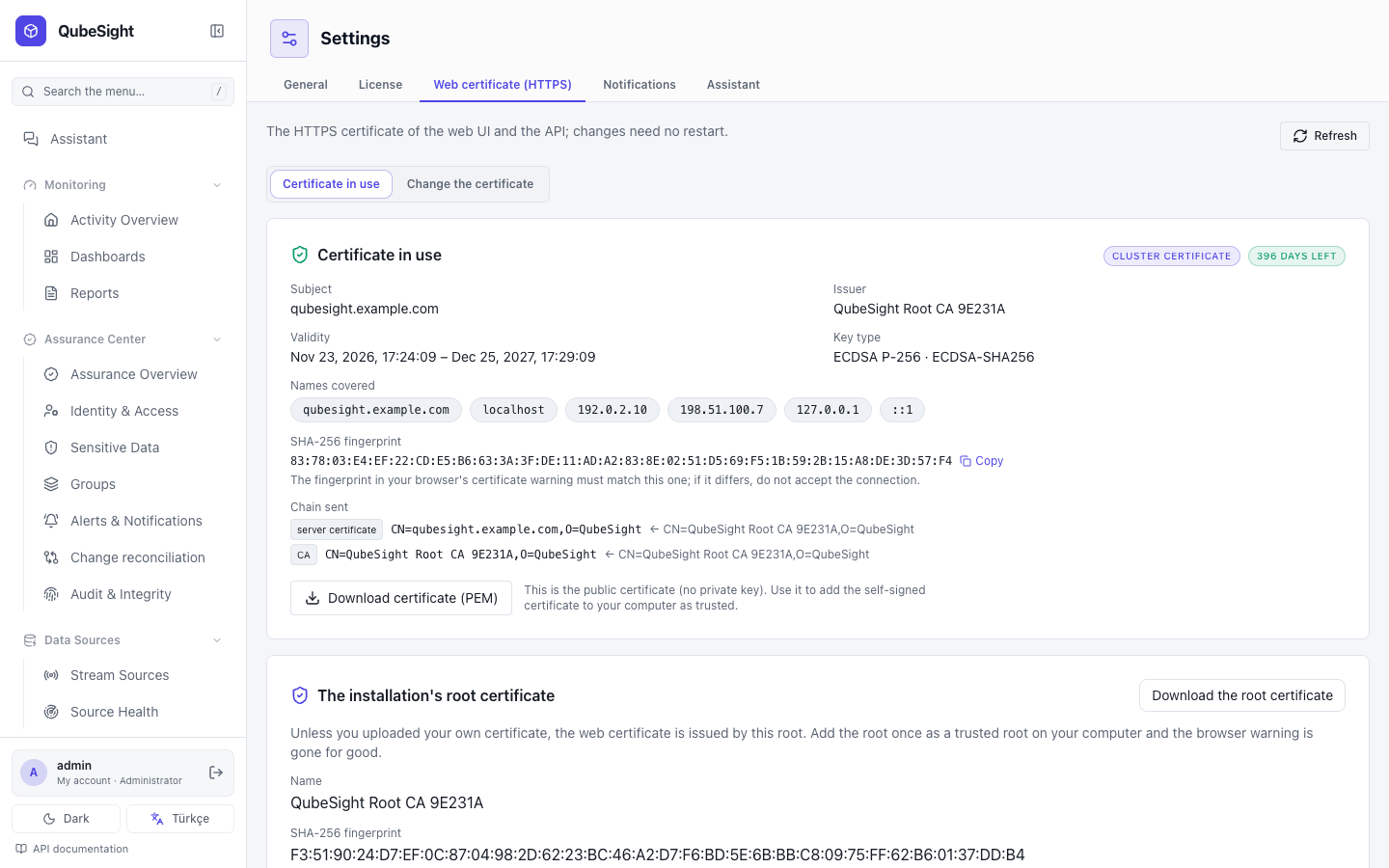
The Web certificate (HTTPS) tab manages the certificate the gateway presents for the web interface and the API. Changes take effect without a restart. The tab is visible to administrators only.
The top line reads "The HTTPS certificate of the web UI and the API; changes need no restart." with a Refresh button that reloads the certificate state. Placeholders are shown while the state loads; if it cannot be read, a red box gives the reason. If certificate management is not available, a card explains why instead of the sub-tabs (see Web certificate (HTTPS)).
It has two sub-tabs:
- Certificate in use: the active certificate (Subject, Issuer, Validity, Key type, Names covered, SHA-256 fingerprint, Chain sent), warnings, Download certificate (PEM), the installation's root certificate with Download the root certificate, the cluster state (in a cluster) and Return to the previous certificate.
- Change the certificate: Upload your own certificate (with Check, Activate certificate and Clear), Certificate signing request (CSR), Renew the self-signed certificate and the recovery instructions. This sub-tab is shown only while the gateway has an active certificate.
The source of the active certificate is shown as a badge: Self-signed (generated automatically), Provided at installation, Uploaded (custom) or Cluster certificate.
For every field, validation message and the step-by-step procedures, see Web certificate (HTTPS).
Notifications
The Notifications tab holds the connections through which alerts and reports are sent: the mail server, notification channels, SIEM forwarding, the notification language and the notification templates. An alert goes to every enabled channel whose minimum severity it reaches. The channel editor has no category field: a channel created on screen receives every category. A channel can be limited to certain categories only through the API (the channel's categories list). A link at the top, Delivery queue: Alerts & Notifications →, opens the delivery queue in Alerts & Notifications.
| Sub-tab | Who sees it | Content |
|---|---|---|
| Mail server and language | admin, analyst, dba, auditor | Outgoing mail server (SMTP) and Notification language cards. |
| Notification channels | admin, auditor | The channel list and the channel editor. |
| SIEM forwarding | admin, auditor | Forwarding destinations for stored database activity events. |
| Notification templates | admin, analyst, dba, auditor | Email and syslog templates. |
Only an administrator can save changes in any of these sub-tabs.
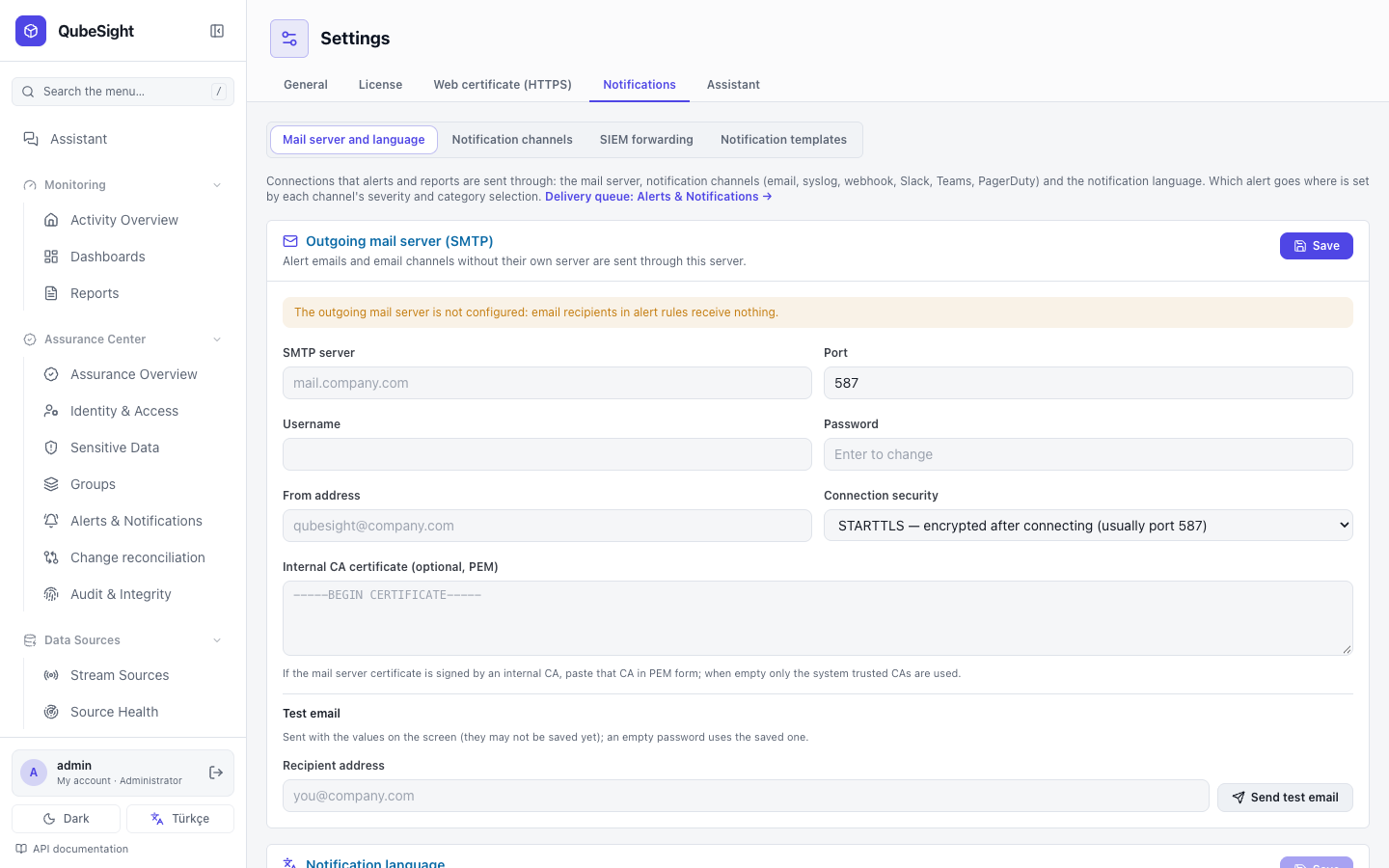
Outgoing mail server (SMTP)
Alert emails and email channels that have no server of their own are sent through this server.
| Field | Description | Default |
|---|---|---|
| SMTP server | Host name of the mail server, for example mail.example.com. |
Empty |
| Port | Server port. | 587 |
| Username | Sign-in name, if the server requires authentication. | Empty |
| Password | Write-only. "Saved — enter a new one to change it" is shown when a password is stored. | Empty |
| From address | Sender address, for example qubesight@example.com. |
Empty |
| Connection security | Unencrypted (not recommended), STARTTLS — encrypted after connecting (usually port 587) or SSL/TLS — encrypted from the start (usually port 465). | STARTTLS |
| Internal CA certificate (optional, PEM) | The internal CA that signed the mail server certificate. Empty uses the system trusted CAs. Hidden for unencrypted connections. | Empty |
A status line above the form says whether the server is ready, for example "Ready: mail.example.com:587 (TLS) — 3 enabled rule(s) have email recipients." If the server is not configured but enabled alert rules have email recipients, the line warns that those recipients receive nothing.
Test email (admin only) sends a test message to Recipient address with the values on the screen, even before you save them. An empty password field uses the saved password only when the server and username are unchanged; otherwise enter the password for the test. The result shows the server and the time taken, or the error.
Notification language
Notification language sets the language of alert and test notifications (email, Slack, Teams, PagerDuty, webhook, syslog text) and of the email and PDF of scheduled report deliveries. It is independent of the interface language, because recipients may never open QubeSight.
| Field | Values | Default |
|---|---|---|
| Language | Türkçe (Turkish) or English | The installation's language (chosen in the installer); Turkish on installations made before 2.0.109 |
Notifications still waiting in the outbox are also sent in the new language. Rule, channel and delivery names stay as written, and syslog/CEF field keys do not depend on the language. The card shows who made the last change and when.
Notification channels
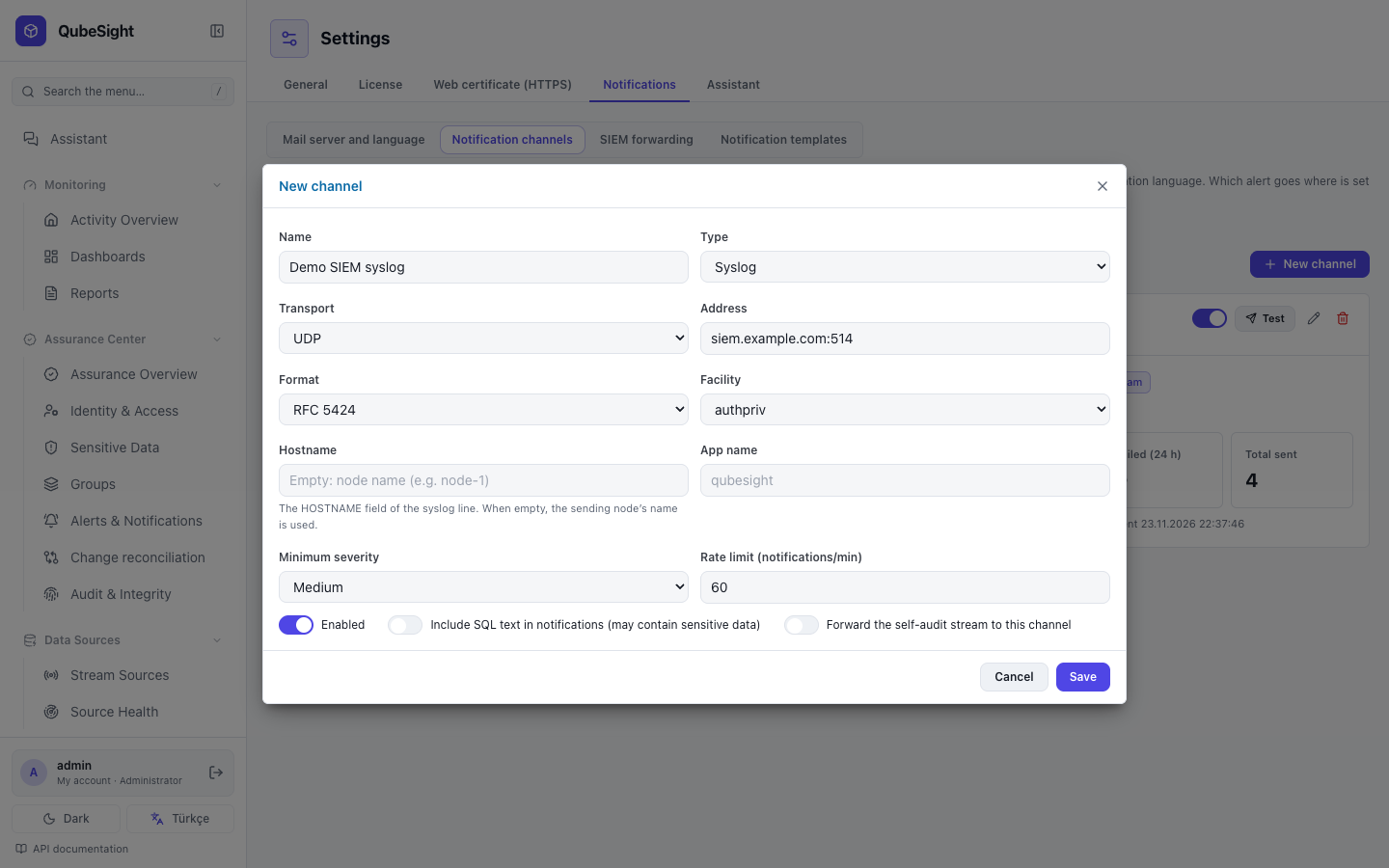
The channel list shows each channel with its type icon, an Enabled switch, Test, edit and delete buttons (admin only), and pills for Minimum severity, self-audit stream, includes SQL text and Last test. Delivery counters per channel are Pending, Sent (24 h), Failed (24 h) and Total sent. A separate panel, Alert rule email recipients, shows the same counters for mail sent to recipients set inside alert rules, through the shared SMTP server.
New channel opens the editor:
| Field | Applies to | Default |
|---|---|---|
| Name | All | Empty |
| Type | Email (SMTP), Syslog, Webhook, Slack, Microsoft Teams, PagerDuty. Cannot be changed after creation. | Email (SMTP) |
| SMTP server, Port, Security, From, Recipients, Username, Password, Subject prefix | Email. An empty SMTP server uses the shared outgoing mail server. | Port 25, security None (plain) |
| Transport, Address, Format, Facility, Hostname, App name, Server name in the certificate, Receiver CA certificate (PEM) | Syslog. Transport UDP, TCP or TLS; format RFC 5424 or CEF. | UDP, RFC 5424, authpriv |
| Address (URL), HMAC secret, Authorization header | Webhook | Empty |
| Incoming webhook URL | Slack, Microsoft Teams | Empty |
| Routing key | PagerDuty | Empty |
| Minimum severity | All: info, low, medium, high or critical. | info |
| Rate limit (notifications/min) | All, 1 to 6000. | 60 |
| Enabled | All | On |
| Include SQL text in notifications (may contain sensitive data) | All | Off |
| Forward the self-audit stream to this channel and Categories to forward | Syslog and Webhook. No category selected means all categories. | Off |
Stored secrets (passwords, HMAC secrets, webhook URLs, routing keys) are never shown again; leave the field empty to keep the stored value.
Enterprise Syslog, Slack, Microsoft Teams and PagerDuty channels need the Enterprise edition (alert delivery capability). In Community, the type list offers Email (SMTP) and Webhook, with the note "Slack, Teams, PagerDuty and syslog channels are part of the Enterprise edition." After Enterprise ends, channels of these types that already exist are kept and keep sending alerts, but they can no longer be edited: the server refuses a save from the channel editor because the type requires the Enterprise edition. The Enabled switch, Test and delete still work, and no new channel of these types can be created.
For setup steps and examples, see Mail (SMTP) and notification channels.
SIEM forwarding
Enterprise
SIEM forwarding continuously forwards stored database activity events to a Splunk HEC or syslog (TCP/TLS) destination, in the scope you choose. Forwarding is lossless: the cursor moves only after a successful send. The list shows each destination with its Scope, Lag, Waiting, Sent, Last sent and Last error. New destination, Test and edit need the Enterprise edition and the admin role; an administrator can delete a destination in either edition.
For the fields and the setup procedure, see SIEM forwarding (Splunk HEC, syslog CEF).
Notification templates
Notification templates customises the alert email subject, HTML body and plain-text body, and the message part of outgoing syslog lines, with Go templates. Every role that sees the tab can read the templates and use the live preview; only an administrator sees Load example, Back to built-in and Save (other roles see an "admin only" note). See Notification templates for every variable and function.
Assistant
The Assistant tab manages the local question-answering assistant and the related assistant settings. It is visible to the administrator, analyst, DBA and auditor roles; only the administrator can change settings. For other roles the local model, Morning briefing and Organization instructions cards show an "admin only" note; Large models says "Only an administrator can see and change large-model providers."; MCP access has no such note, because every role manages its own keys there.
Community Enterprise
The tab shows five cards, top to bottom: Question-answering assistant (Gemma 3 4B), Morning briefing, Organization instructions, Large models and MCP access.
Question-answering assistant (Gemma 3 4B)
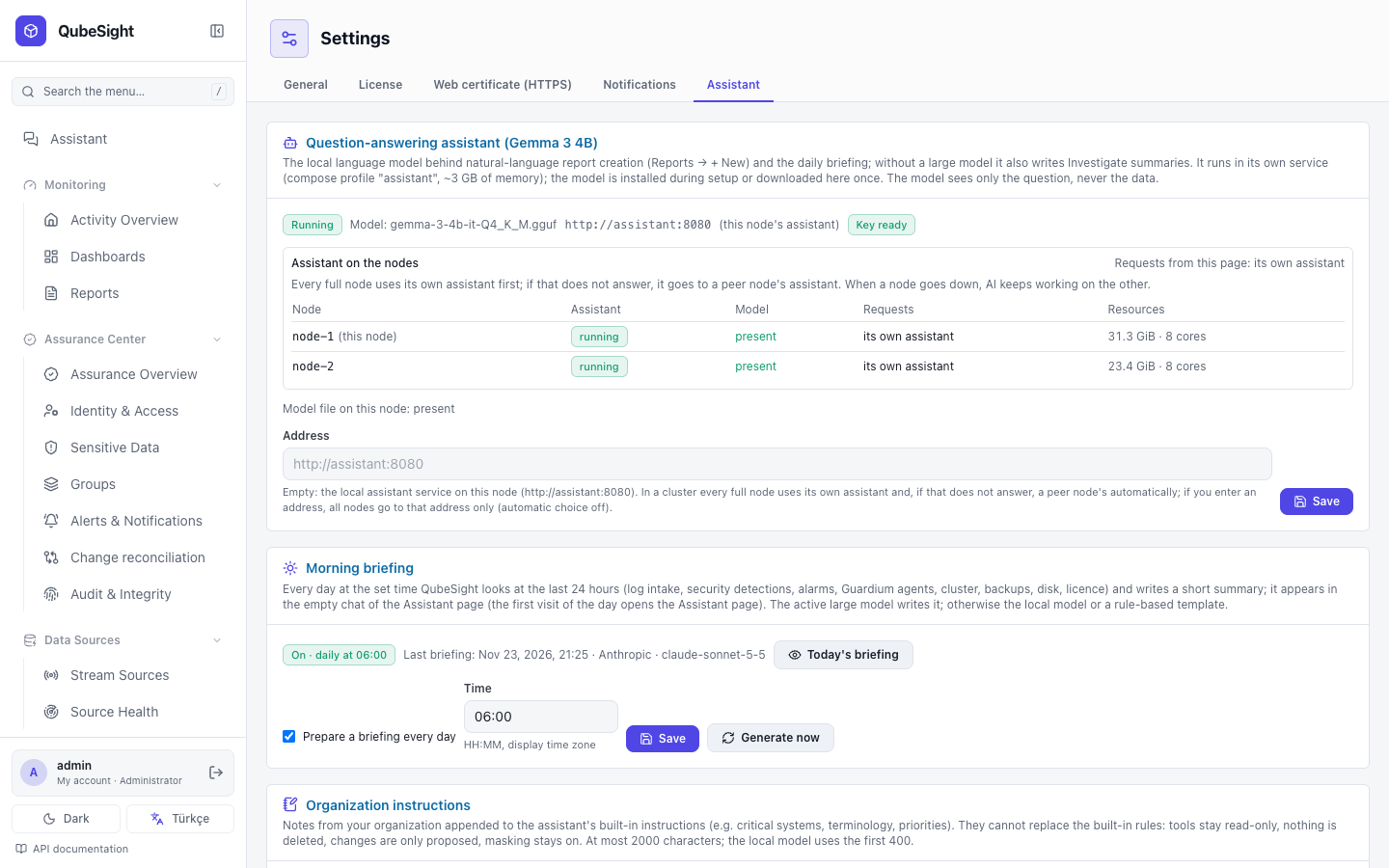
The local language model behind natural-language report creation (Reports → + New) and the daily briefing. Without a large model it also writes Investigate summaries. It runs in its own service and needs about 3 GB of memory. The model sees only the question, never the data.
| Element | Description |
|---|---|
| State pill | Running or Not reachable. Sleeping means the model was unloaded while idle; the next question loads it again in a few seconds. When the service is not reachable, a "Problem: …" line gives the reason. |
| Model: … | The model the service reports. |
| Address and source | The address in use and where it comes from: set on screen, from the environment, default (local service), this node's assistant or peer node …. |
| Key pill | Key ready, or No key yet (the key is created automatically). |
| Unencrypted link | Warning when the assistant runs on another machine over plain HTTP. |
| Model file on this node: present / missing | Whether the model file exists on this node. A node without a models volume shows "This node has no models volume; download the model on the node that runs the assistant service." instead. |
| Download the model (size) | Downloads the model once and verifies its SHA-256 checksum. Shown when the file is missing. admin only. Progress is shown as Downloading: … / …, then "Downloaded and verified (SHA-256)." or "Download failed: …". |
| Address | Optional. Empty uses the local assistant service on this node (http://assistant:8080). admin only. |
| Save | Saves the address. The time and the user of the last change are shown under it. |
In a cluster, the card also shows Assistant on the nodes with the line "Requests from this page: …" and a table with Node (this node is marked "this node"), Assistant, Model, Requests (which assistant the node uses) and Resources (memory in GiB and cores). Every full node uses its own assistant first and a peer node's assistant when its own does not answer. If you enter an address by hand, every node uses only that address, and the card says so.
| Assistant state | Meaning |
|---|---|
| running | The node's assistant answers. |
| installed, not answering | The service exists but does not answer health checks. |
| waiting for the model | The service waits until the model file is on the node. |
| off: not enough resources | The node has less than 11 GiB memory or fewer than 4 cores; the model is not started and the node's requests go to a peer. |
| no service or stopped | The node has no assistant service. |
| no data (2 min) | The node has not reported for two minutes. |
The Model column shows present or missing, copying from a peer while the model file is copied from another node, or copy failed (the reason is in the tooltip).
Morning briefing
Controls the daily briefing shown on the Assistant page.
| Element | Description |
|---|---|
| State pill | On · daily at HH:MM or Off. |
| "Last briefing: | When the last briefing was produced and who wrote it (provider · model, local model or rule-based template). |
| Preparing the briefing… | Shown while a briefing is being produced; the card refreshes every 5 seconds. |
| Today's briefing | Opens the briefing dialog with the latest briefing and the earlier days. |
| "The model could not be used, the template wrote it: …" | The model failed and the rule-based template wrote the briefing; the reason follows. |
| "Last generation error: …" | The last attempt failed. |
| Prepare a briefing every day | Checkbox that turns the daily briefing on or off. Default: on. admin only. |
| Time | HH:MM in the display time zone. Default 06:00. admin only. |
| Save | Saves both settings ("Saved."). |
| Generate now | Produces a briefing now: "The briefing is being prepared; about half a minute with a large model, a few minutes with the local model." Disabled while a briefing is being produced. admin only. |
Organization instructions
Notes from your organisation appended to the assistant's built-in instructions, for example critical systems, terminology or priorities. They cannot replace the built-in rules: tools stay read-only, nothing is deleted, changes are only proposed and masking stays on. Every change is written to the audit trail.
The card has one section per feature:
| Section | Applies to |
|---|---|
| Chat | The Assistant chat and the Investigate chat. |
| Today's briefing | The text of the morning briefing. |
| Investigate | The Investigate assessment on the Security dashboard. |
| Sensitive-data review | The assistant review of sensitive-data findings. Shown only when that Enterprise feature is available. |
Each section has a text box with an example placeholder and a character counter (n/2000). At most 2,000 characters are allowed per section; the local model uses only the first 400. The counter turns red and Save and Try are disabled above the limit. Other roles see the text read-only.
| Button | Description |
|---|---|
| Save | Saves the section. Enabled only when the text has changed. |
| Try | Runs the feature once with the text in the box, without saving it. For Chat it shows "Test question: …" with the answer; for Today's briefing it shows a sample briefing. A collapsible Block appended to the prompt shows the exact text that is added ("(empty: only the built-in instructions are used)" when empty) and, if different, the shortened block for the local model. |
| Back to default | Clears the saved text of the section. Shown only when text is saved. |
"Last change:
Large models
Enterprise
Only administrators see this card's content; other roles see "Only an administrator can see and change large-model providers."
| Element | Description |
|---|---|
| The assistant now uses: | A pill with the active provider and model, or Local model (Gemma 3 4B). Failed moments ago: local model for 60 s appears after a provider failure. |
| Back to the local model | Shown when a provider is active. Deactivates it ("The assistant uses the local model."). |
| "Last error ( | The last provider error. |
| Add provider | Opens Add a large-model provider. Shown only in Enterprise. |
| Providers table | Name (with an Active pill on the active provider), Kind, Model, Data (the data policy), Last test (OK · |
| Use | Activates a provider that is not active: " |
| Edit | Opens the |
| Delete (bin icon) | Asks Delete |
In the Community edition, the card shows "Large-model providers require the Enterprise edition. This installation uses the local model; saved providers can be deleted." Existing providers are still listed, and only the delete button is available. The provider dialog, its fields and the data policies are described in LLM providers.
MCP access
Enterprise
Personal API keys that let MCP-capable assistants connect to QubeSight. Every role that sees the Assistant tab can create and manage its own keys.
| Element | Description |
|---|---|
| MCP address: | The full MCP address of this installation, with a Copy button. |
| All users' keys | Toggle shown to administrators. Lists every user's keys and adds a User column. |
| Tools line | The tools available through MCP. |
| Keys table | Name, User (with All users' keys only), Key (prefix qsk_<prefix>_… with a read-only or write pill), Data (a drop-down for active keys, see below), Expires (the expiry time, or a Revoked or Expired pill), Last used (" |
| Data drop-down | Changes the data policy of an active key at once (Smart masking, Strict, Open). Open is selectable only by an administrator. |
| New key | Opens New MCP API key. Shown only in Enterprise. |
| Revoke | Asks Revoke key " |
| How to connect | Collapsible section with a Claude Code command and an MCP configuration file for this address. |
In the Community edition, the card shows "The MCP server requires the Enterprise edition. Existing keys are listed and can be revoked; new ones cannot be created." Key creation and use are described in MCP server.
API documentation
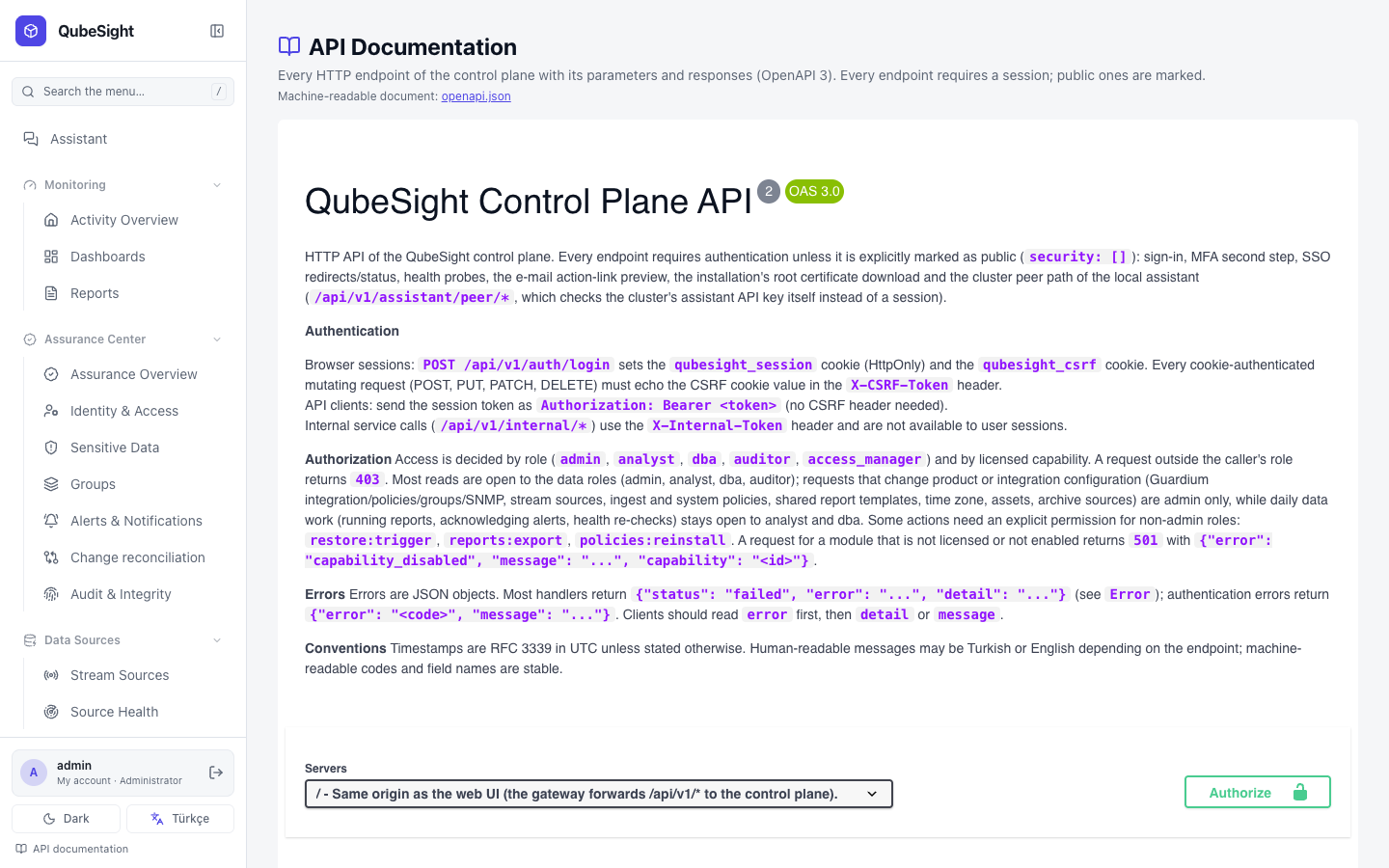
The API documentation link at the bottom of the sidebar (book icon) opens /apidocs, the API Documentation page. It lists every HTTP endpoint of the control plane with its parameters and responses (OpenAPI 3). Requests made from the page use your own session, so you can try endpoints with your role's permissions. The machine-readable document is available from the page as openapi.json (/api/v1/docs/openapi.json). The link is shown to every role except access_manager; that role can still open the page by its address, because the page and openapi.json are readable by every signed-in role. See REST API.
Limitations
- The display time zone list has ten fixed zones plus the installation's own zone; other zones cannot be selected in the interface.
- Session timeout values cannot be edited on the General tab; they are edited under Identity & Access → Password and session.
- Licence activation through a cloud marketplace subscription form is not offered in this version; marketplace installations are recognised automatically, and a licence file is installed through the offline upload.
- The web certificate covers web access only (the web interface and the API). Syslog, Kafka and other ingest ports use their own TLS settings; see Syslog and Kafka TLS.
- Notification templates apply to email and syslog only. Slack, Teams, PagerDuty and webhook messages use the built-in format.
- The notification language is either Turkish or English for the whole installation; it cannot be set per channel or per recipient.