Multi-factor authentication
This guide shows you how to use QubeSight's built-in two-step verification (MFA): a 6-digit time-based code from an authenticator app plus single-use recovery codes. It covers the administrator policy, user enrolment, resetting a lost device and the encryption key that protects MFA secrets. No separate identity provider is needed.
Community Enterprise
Built-in MFA applies to accounts that sign in with a password: local accounts and LDAP accounts. SSO accounts are exempt, because the identity provider performs MFA; see Single sign-on (OIDC).
Defaults
- MFA is on and not required: users can add it to their own account; anyone who has enrolled is asked for a code at sign-in.
- An administrator can require it for administrators (Administrator and Access manager) or for everyone.
Prerequisites
- The Administrator role to change the policy. Administrators, access managers and auditors can read it.
- A server encryption key. MFA secrets are encrypted with
QUBESIGHT_MFA_KEYif it is set (at least 16 characters), otherwise withGUARDIUM_SECRET_KEY, which the installer generates. In production mode, if neither is set, enrolment is refused with the message that neither key is set. - Each user needs an authenticator app that supports TOTP (RFC 6238), for example Google Authenticator, Microsoft Authenticator, Apple Passwords, 1Password, Bitwarden or Authy.
- The server clock must be correct (NTP). Codes from one 30-second step before or after are accepted.
Do not change the key after users enrol
If QUBESIGHT_MFA_KEY (or, when it is not set, GUARDIUM_SECRET_KEY) changes or is lost, stored MFA secrets cannot be decrypted. Sign-in for enrolled users is then refused until their MFA is reset. Back up the .env file with the keys. If an older installation never had GUARDIUM_SECRET_KEY, do not add it afterwards (other stored secrets would become unreadable); set only QUBESIGHT_MFA_KEY for the control plane, for example generated with openssl rand -hex 32.
Set the policy (administrator)
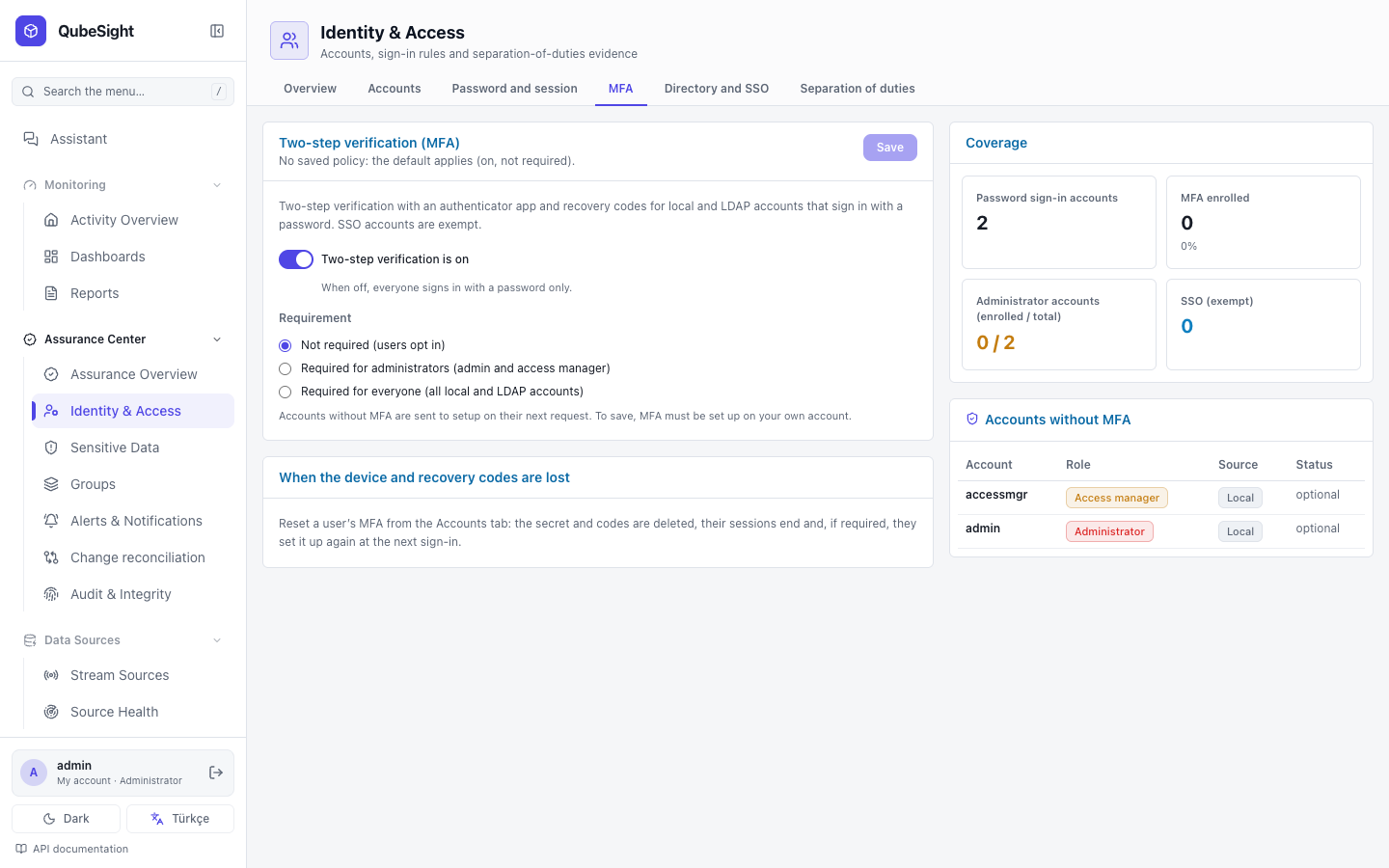
- Go to Assurance Center → Identity & Access → MFA.
- Two-step verification is on: the emergency switch. When off, everyone signs in with a password only and enrolled devices are not asked for a code.
- Under Requirement, choose:
- Not required (users opt in)
- Required for administrators (admin and access manager)
- Required for everyone (all local and LDAP accounts)
- Click Save. The panel subtitle then shows "Last changed:
·
To save a requirement that applies to you, enable MFA on your own account first (Open Account security). Otherwise the save is refused so that you cannot lock yourself out.
A requirement applies to open sessions too: an account without MFA is sent to the setup page on its next request and cannot open any other page or API until it has enrolled.
The Coverage panel shows Password sign-in accounts, MFA enrolled, Administrator accounts (enrolled / total), SSO (exempt) and the list Accounts without MFA, marking those that will be sent to setup on the next request.
Enrol a device (every user)
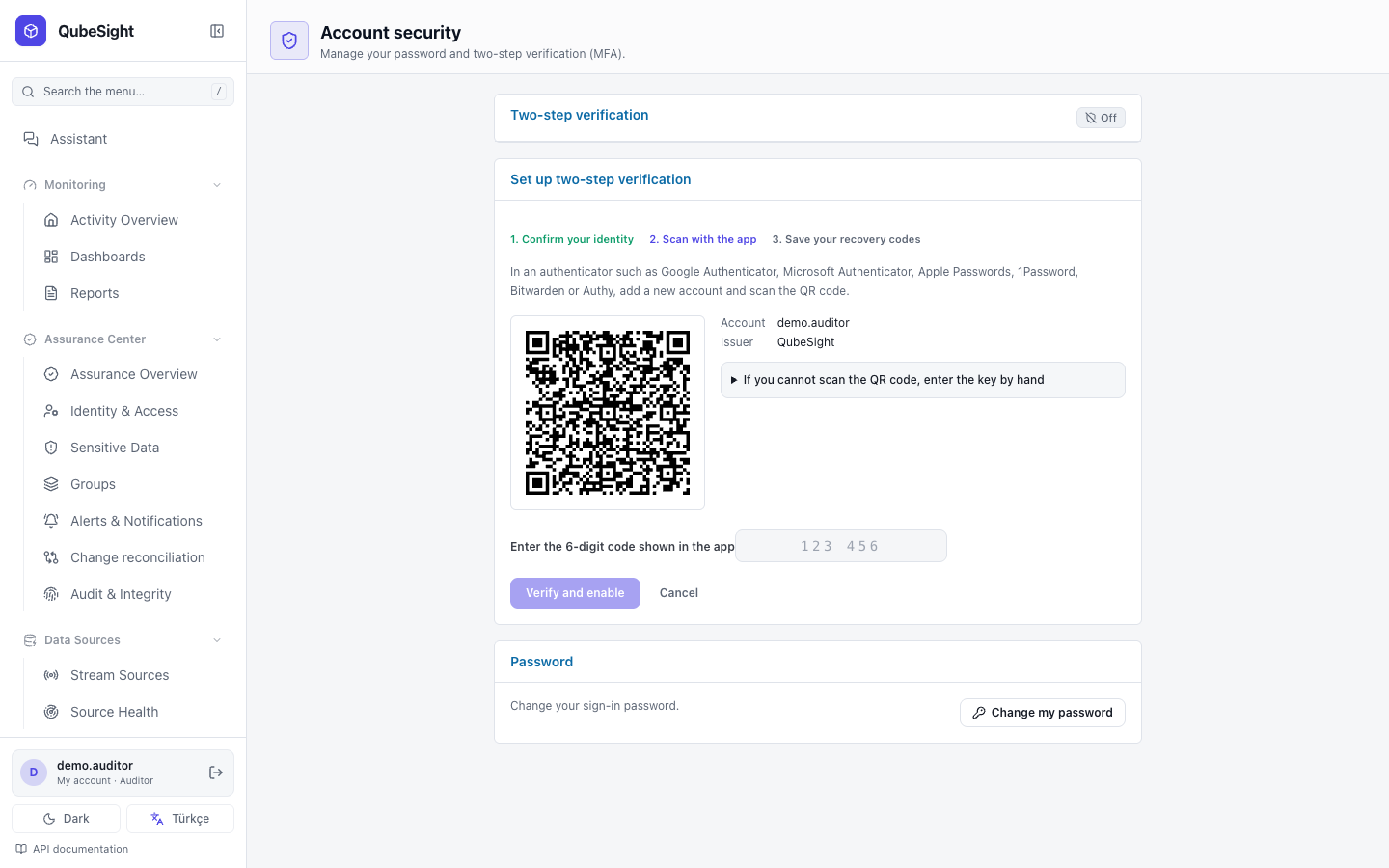
- Open My account in the sidebar to reach Account security.
- Click Set up two-step verification.
- 1. Confirm your identity: enter your password again.
- 2. Scan with the app: scan the QR code, or use If you cannot scan the QR code, enter the key by hand. Enter the 6-digit code and click Verify and enable. Nothing is stored until this code is verified.
- 3. Save your recovery codes: ten codes in the form
XXXXX-XXXXXare shown only once. Use Copy codes or Download (.txt), tick I saved the codes somewhere safe and click Finish.
From then on, sign-in asks for Verification code after the password. If you cannot reach your phone, choose Use a recovery code. Each recovery code works once; after using one you are taken to Account security, which shows how many are left.
Manage your MFA
On Account security, under Manage:
| Action | Effect |
|---|---|
| Replace device | Sets up a new phone or app. Needs your password and a current code (or a recovery code). The old device's codes and the old recovery codes stop working, and your other sessions are ended. |
| Regenerate recovery codes | Shows ten new codes once; the old ones stop working. |
| Turn off two-step verification | Needs your password and a code. Not possible when the administrator requires MFA for your account (replace the device instead). Your other sessions are ended. |
Reset a lost device (administrator or access manager)
When a user has lost both the device and the recovery codes:
- Go to Assurance Center → Identity & Access → Accounts.
- Find the account; the MFA column shows on, none, required, none or SSO.
- Click Reset MFA and confirm.
The secret and recovery codes are deleted and all the account's sessions are ended. If the policy requires MFA, the user enrols again at the next sign-in. This is an account-management action: when separation of duties is enforced only the access manager can do it; otherwise the administrator can. You cannot reset your own MFA here; use Account security. The reset is recorded as mfa_reset.
Verify
- Enrol a test account and sign out.
- Sign in: the Two-step verification step appears after the password.
- Enter a wrong code: the error The code is wrong or was already used appears. The same code cannot be used twice.
- Check the audit trail for
mfa_enrolled,mfa_challenge_issuedand the sign-in.
Automation accounts
Scripts that call POST /api/v1/auth/login with a username and password receive 401 mfa_required and a short-lived mfa_token when the account has MFA, and must complete POST /api/v1/auth/mfa/verify with a code. Required for everyone also applies to such accounts. Either generate TOTP codes in the script, or keep the requirement at the administrator level and give automation accounts a non-administrator role. See REST API.
Security behaviour
| Topic | Behaviour |
|---|---|
| Algorithm | TOTP, HMAC-SHA1, 6 digits, 30-second steps, one step of clock drift accepted. |
| Replay | Only a step later than the last accepted one is accepted; a code cannot be reused. |
| Second-step token | Valid 5 minutes, 5 code attempts per token, at most 3 pending tokens per user. Ended when the password changes or is reset. |
| Lockout | Wrong codes count towards the same lockout as wrong passwords, with a threshold of at most 10 for the second step (10 attempts per 30 minutes if lockout is off in the password policy). A locked account receives 423 and a retry time. |
| Storage | The TOTP secret is encrypted with AES-256-GCM; recovery codes are stored only as keyed hashes. |
| Fail closed | If MFA status cannot be read, sign-in is refused (Two-step verification is temporarily unavailable). |
Emergency procedures
If no administrator can sign in to reset MFA (for example all administrator devices are lost), an operator with database access can turn MFA off for one account or disable the policy. The exact statements are in the product's internal MFA documentation; contact support before you run them. The policy cache refreshes within about 10 seconds.
Troubleshooting
| Symptom | What to check |
|---|---|
| Codes are always rejected | The phone's clock and the server's clock must be correct (NTP). |
| Enrolment fails because neither GUARDIUM_SECRET_KEY nor QUBESIGHT_MFA_KEY is set | Set QUBESIGHT_MFA_KEY for the control plane and restart it. |
| Enrolled users cannot sign in after a key change | Restore the previous key, or reset their MFA. |
| A user cannot turn MFA off | The policy requires it for that account; use Replace device. |
| The policy cannot be saved | Enable MFA on your own account first. |
| SSO users are not asked for a code | Expected: SSO accounts are exempt. Enforce MFA at the identity provider. |
Limitations
- Only TOTP and recovery codes are supported. WebAuthn, passkeys, push and SMS are not available for local accounts.
- Someone with account-management rights can reset an administrator's MFA without a second approval.
- The QR code has been tested with an independent TOTP generator; a live phone scan is part of your acceptance test.
- The issuer name shown in the authenticator app is
QubeSight; it can be changed withQUBESIGHT_MFA_ISSUER(at most 64 characters) to tell installations apart.