Web installer
This page describes the browser-based setup wizard: how to start it, every step and field it shows, how it hands the port over to the product at the end, and its security model. It is the recommended way to install QubeSight on a single server.
Community Enterprise
The wizard does not contain a second installation engine. It collects your choices, validates them and runs install.sh with the matching options, showing its progress live. Everything this page describes can also be done with the terminal installer or unattended.
Prerequisites
- The QubeSight release unpacked on the server, for example in
/opt/qubesight. On a server without internet access, unpack the offline bundle and start the wizard from inside it; see Offline installation. - Docker Engine with Docker Compose v2 (or Podman with Docker CLI emulation), running, and usable by the current user.
- Node.js 20 or newer (the wizard has no other dependencies;
npm installis not needed). - A browser on the server, or on another computer that can reach the server.
Start the wizard
With the prerequisite checker (setup.sh)
setup.sh does not need Node.js. It checks, and on Ubuntu or Debian offers to fix:
| Check | Fix offered (Ubuntu/Debian, with sudo or as root) |
|---|---|
Node.js missing, older than 20, or npm missing |
Removes the distribution's old Node.js packages, installs Node.js 22 from NodeSource |
Interrupted package installation (dpkg --audit) or conflicting libnode-dev/libnode72 |
dpkg --configure -a, removes the conflicting packages |
| Docker Engine missing | Installs Docker Engine from Docker's installation script and enables the service |
| Docker installed but not running | Enables and starts the docker service |
| No permission to use Docker | Adds the user to the docker group; log out and in again, then re-run ./setup.sh |
| Docker Compose v2 missing | Installs docker-compose-plugin |
When everything passes, setup.sh starts the wizard. Options:
| Option | Effect |
|---|---|
--yes, -y |
Apply the fixes without asking |
--check-only |
Only check and report; change nothing and do not start the wizard |
| any other option | Passed on to the wizard (see below) |
On other distributions setup.sh reports what is missing; install it by hand or use ./install.sh.
Directly
The wizard checks Node.js, Docker Engine and Compose v2 when it starts. If something is missing it does not open and prints the command to install each missing item (--skip-engine-check skips this start-up check; the wizard's own System step still runs).
Wizard options
| Option | Default | Effect |
|---|---|---|
--port N |
3000 | Port to listen on. If 3000 is busy and you did not give --port, ports 3001 to 3010 are tried. 0 lets the system choose. |
--host ADDRESS |
127.0.0.1 when the machine has a desktop browser; 0.0.0.0 in an SSH session or on a headless server | Address to listen on |
--local-only |
off | Always listen on 127.0.0.1 only; use an SSH tunnel from your computer |
--allow-host NAME |
none | Additional host name to accept (reverse proxy or tunnel name). Repeatable. The name is also added to the wizard's certificate. |
--no-open |
off | Do not open a browser automatically |
--http |
off | Plain HTTP instead of HTTPS, for automation and tests. Accepted only when the wizard listens on 127.0.0.1 (for example with --local-only); otherwise the wizard does not start. |
--lang tr\|en |
from the system locale | Language of the terminal messages and the wizard's initial language |
--repo DIR |
this release directory | Release directory to install |
--skip-engine-check |
off | Skip the start-up Docker/Compose check |
-h, --help |
Print the help |
Open the link
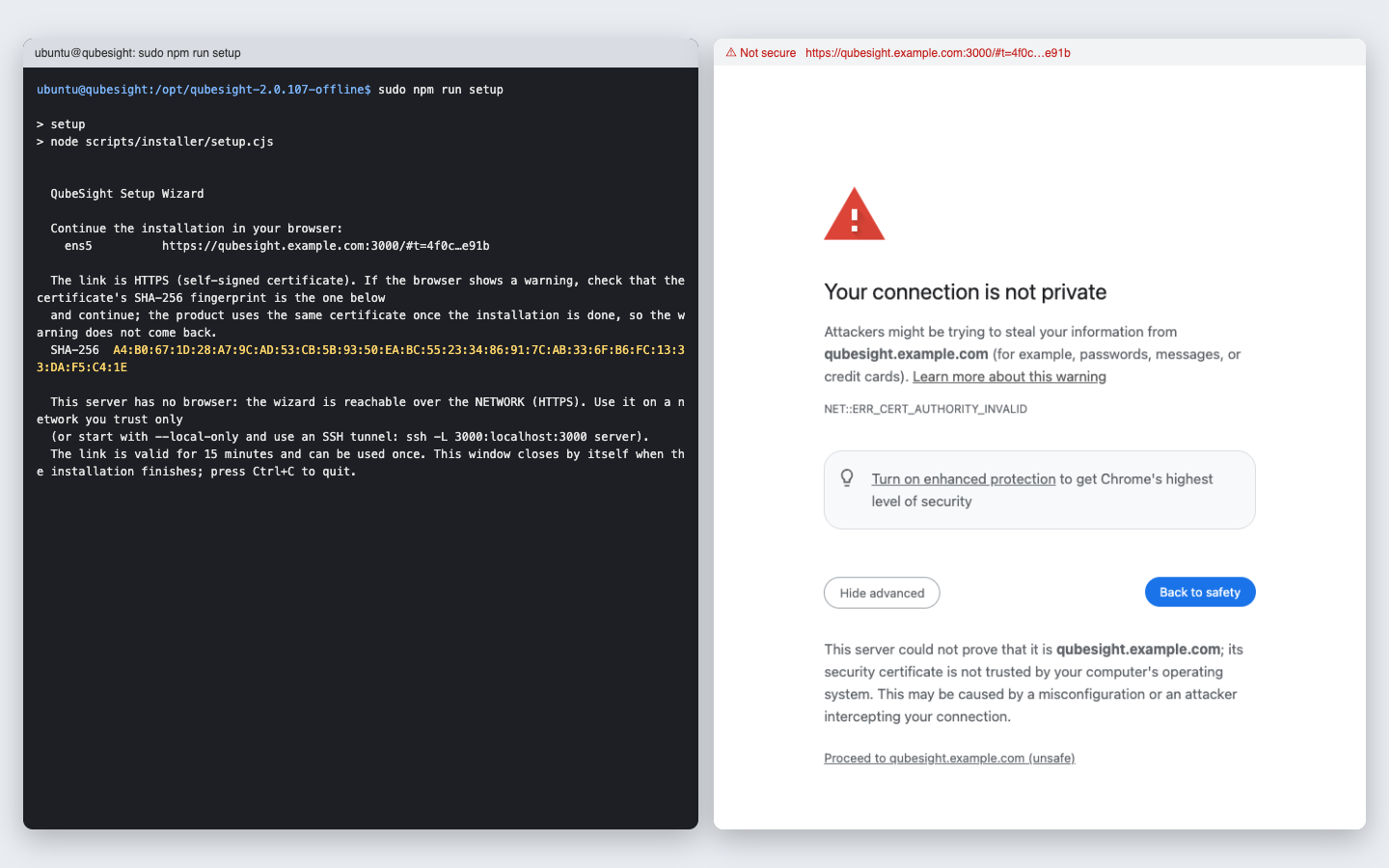
The terminal prints a link such as https://192.0.2.10:3000/#… and the SHA-256 fingerprint of the wizard's certificate. On a desktop the browser opens by itself.
The connection is HTTPS with a self-signed certificate, so the browser shows a certificate warning the first time. Compare the fingerprint in the warning with the one printed in the terminal (it is also shown at the bottom of the wizard page). Continue only if they match.
Remote server over SSH
On a server you reach over SSH, the wizard listens on the network so that you can open the printed link from your own computer. To keep it off the network, start it with --local-only and tunnel the port:
Steps of a new installation
Language. The language you use in the wizard becomes the product's default language on a new installation (since 2.0.109): the sign-in page and the interface open in it for users who have not chosen a language, and notifications use it until an administrator saves a notification language. See Product language and time zone.
The step list is shown at the top of the page (Step n of total). Back and Continue move between steps, and you can click a step you have already reached to return to it. Your choices are kept in the browser tab while it is open; passwords, keys and the backup passphrase are never stored in the browser, so after a page reload you enter them again. Continue stays disabled while a field on the step is invalid; the reason is shown in red under the field. The Türkçe button at the top right switches the wizard's language.
flowchart LR
  M[Type] --> S[System] --> A[Admin] --> N[Network] --> C[Components] --> R[Retention] --> L[Load] --> V[Summary] --> I[Install] --> D[Done]
The Admin step is skipped when the directory already holds an installation with an administrator.
Type
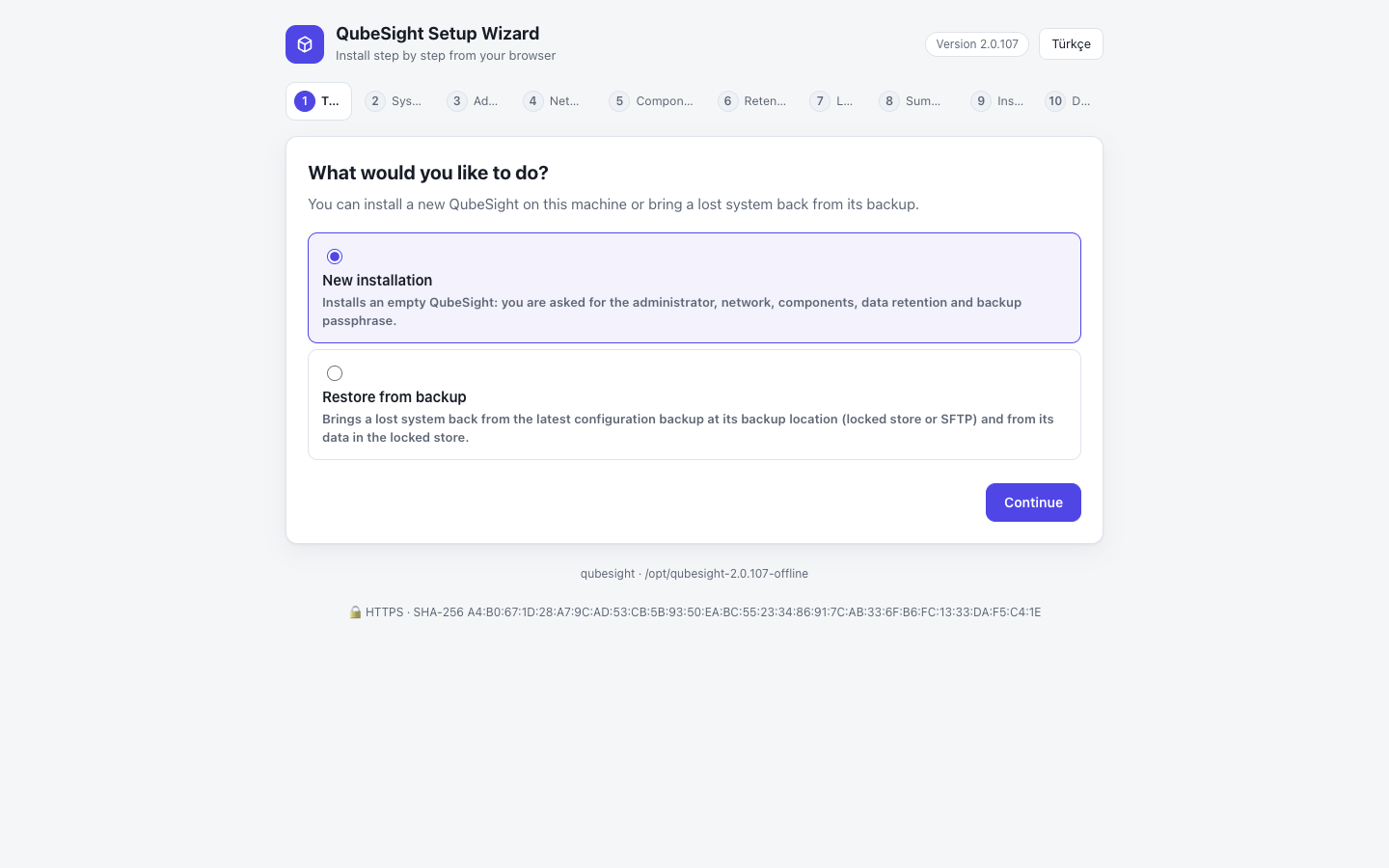
What would you like to do?
| Choice | Effect |
|---|---|
| New installation | Installs an empty QubeSight. You are asked for the administrator, network, components, data retention and backup passphrase. |
| Restore from backup | Brings a lost system back from its backup location. See Steps of a restore. |
System
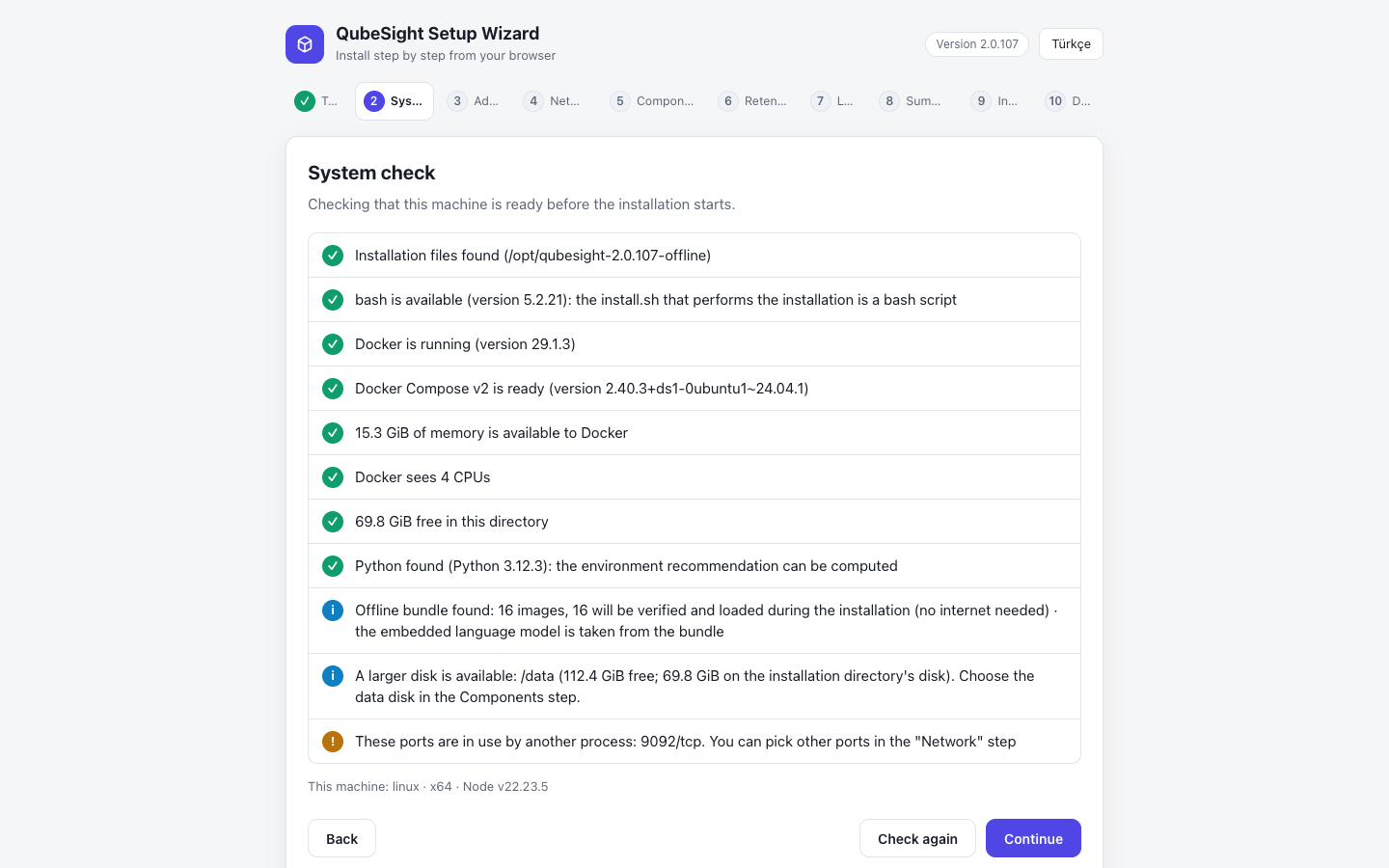
The wizard checks that the machine is ready. While the checks run the step shows Checking…. Each line is green (ok), amber (warning) or red (blocking), with the reason and, for Docker, the fix. Press Check again after fixing something. Continue is disabled while any line is red, and the step shows Fix the problems marked in red to continue. If the wizard itself cannot be reached, the step shows Cannot reach the wizard (it may have closed).
| Check | Passes when | When it fails |
|---|---|---|
| Installation files | install.sh, docker-compose.yml and .env.example exist |
Blocking: the release is incomplete |
| bash | bash is available (the version is shown) |
Blocking. On Windows use WSL or Git Bash. |
| Docker | Docker answers | Blocking, with the cause: not installed, no permission, not running, or not responding |
| Docker Compose v2 | docker compose version works |
Blocking |
| Memory | Docker has at least 6 GiB | Warning: ClickHouse and Redpanda may be slow or stop for lack of memory |
| CPUs | Information only: number of CPUs Docker sees | |
| Disk | At least 10 GiB free in the release directory | Warning below 10 GiB; blocking below 2 GiB |
| Python | Python 3 found | Warning: the recommendation in the Load step cannot be computed (installation still works) |
| Ports | Default ports are free | Warning: the busy ports are listed; change them in the Network step |
| Offline bundle | Shown when the wizard runs from an unpacked offline bundle. Green: "Offline bundle found: n images (all already loaded on this server)". Information: "Offline bundle found: n images, m will be verified and loaded during the installation (no internet needed)". Both add "· the embedded language model is taken from the bundle" when the bundle contains the model. | |
| Data disk | Information, on a new installation only: "A larger disk is available: mount (n GiB free; m GiB on the installation directory's disk). Choose the data disk in the Components step." | |
| Existing installation | Information: QubeSight is already running here (n of m services up). A box QubeSight is already installed explains that the administrator, secrets and data are kept, only the settings you choose are applied and missing services are started. Open the running QubeSight opens it (shown only when its interface port differs from the wizard's port). | |
| Previous configuration | Information: a previous installation left its .env; secrets and data are kept |
|
| Leftover data | Warning: data directories exist without .env. New secrets would be generated while the old data (with its old schema) is used. Move or delete the directories for a clean start. |
|
| Leftover volumes | Warning: Docker volumes of a previous project exist without .env. The database passwords live in those volumes and will not match new secrets, so the services will not start. Run the wizard from the old installation's directory, or remove the volumes (this deletes data). |
The step also shows This machine: platform, architecture and Node.js version.
Admin
Administrator account: the account used for the first sign-in.
| Field | Default | Rules |
|---|---|---|
| Username | admin |
Starts with a letter or underscore; letters, digits, dots, hyphens and underscores; at least 3 characters |
| Generate a strong password (recommended) | selected | The password is generated and shown once on the Done page |
| I will choose my own password | Shows Password and Password (again) |
Rules for your own password, checked live: At least 12 characters; At least three of: uppercase, lowercase, digit, symbol; No spaces, quotes, $, # or \ (the value is written to .env, a plain text file); Both passwords match.
When the directory already holds an administrator password, the Admin step is not shown at all: the existing account is kept, Summary shows the existing account is kept, and Done shows The existing account was kept: the password did not change. Change the password in the product after signing in.
Note
The password is handed to install.sh in an environment variable, never on a command line, and is masked in the installation log. Your own password is stored in .env in plain text, like the generated one. Change it after the first sign-in.
Network
Network and access: the address and ports QubeSight is reached on.
| Field | Default | Description |
|---|---|---|
| Server address | Detected address (or the value in an existing .env) |
Name or IP that remote log shippers (Filebeat, Kafka, Guardium) use to reach this server. Kafka advertises this address. Buttons under the field list this server's IPv4 addresses, its host name and localhost; click one to fill the field. Letters, digits, ., _, : and - only. |
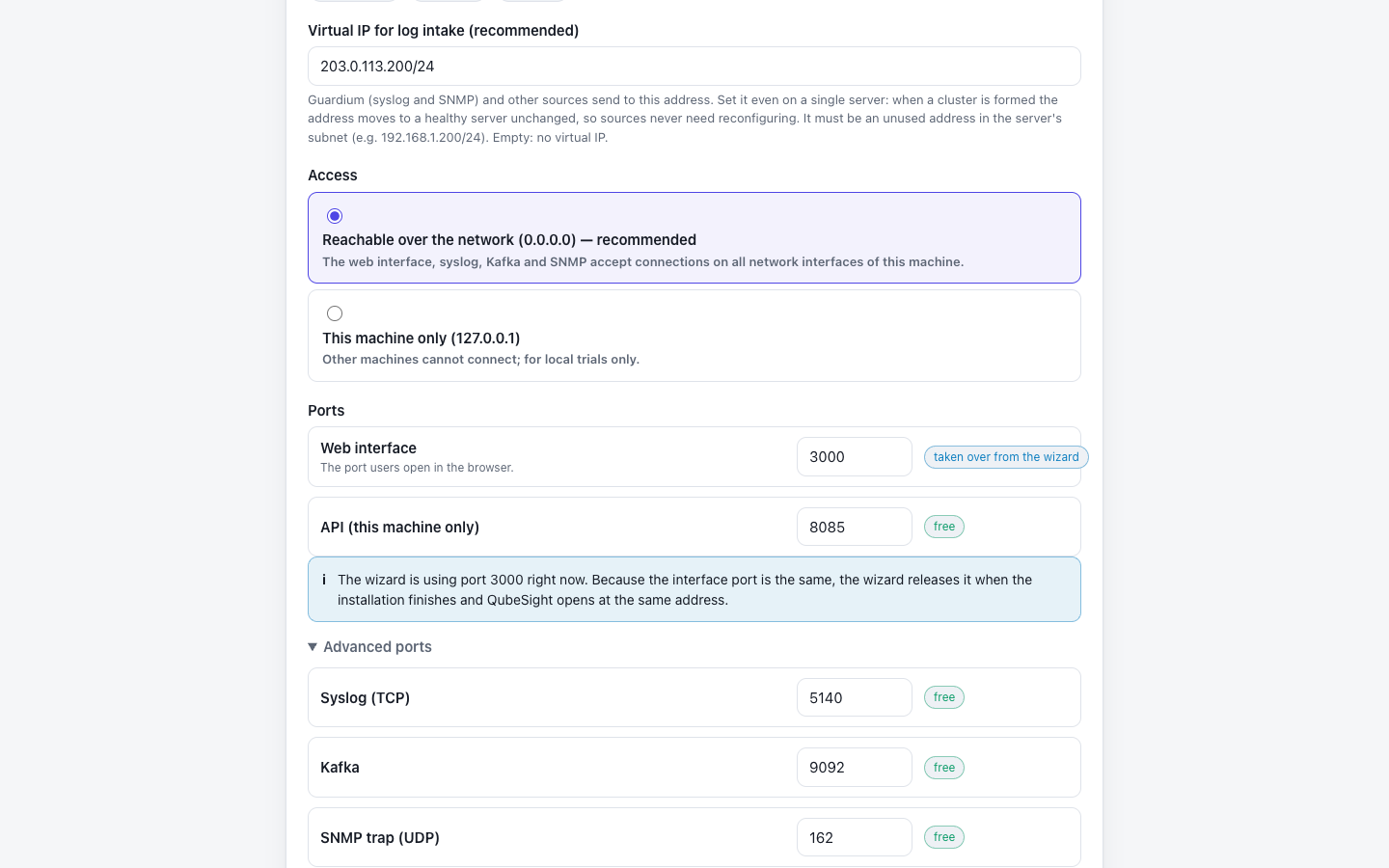
| Virtual IP for log intake (recommended) | empty | Address that Guardium (syslog and SNMP) and other sources send to. Recommended even on a single server: when a cluster is formed later the address moves to a healthy server unchanged. Must be an unused IPv4 address in the server's subnet, with an optional prefix between 8 and 30, for example 192.0.2.200/24. Empty: no virtual IP. It cannot be the server's own address and requires Reachable over the network (0.0.0.0) access; each of these rules has its own error message under the field. |
| Access | Reachable over the network (0.0.0.0) — recommended | The web interface, syslog, Kafka and SNMP accept connections on all interfaces. This machine only (127.0.0.1) is for local trials only. |
| Ports | see below | Each port is checked live: checking…, free, in use, or taken over from the wizard. A busy port gets a Use N suggestion. Two fields with the same port and protocol are both marked in use. Continue is disabled while any port is in use. |
| Time zone | The server's time zone (since 2.0.109; earlier releases proposed the browser's zone) | Time zone of the services and the product's default display time zone (report and dashboard times) |
Web interface and API (this machine only) are always shown. The other five ports are under Advanced ports, which is collapsed by default:
| Port field | Default | Shown | Reachable from |
|---|---|---|---|
| Web interface | 3000/tcp | Always | Network (HTTPS) |
| API (this machine only) | 8085/tcp | Always | This machine (HTTPS) |
| Syslog (TCP) | 5140/tcp | Advanced ports | Network |
| Kafka | 9092/tcp | Advanced ports | Network |
| SNMP trap (UDP) | 162/udp | Advanced ports | Network |
| ClickHouse HTTP (this machine only) | 8123/tcp | Advanced ports | This machine |
| ClickHouse native (this machine only) | 9002/tcp | Advanced ports | This machine |
When the web interface port equals the wizard's own port (the default, 3000), the step notes that the wizard releases the port when the installation finishes and QubeSight opens at the same address. See Port hand-over.
Components
The core services are always installed: ClickHouse, Redpanda (Kafka), Vector, worker, control-plane, PostgreSQL, SNMP trap receiver, web interface and gateway, and the update service used by Platform → System and Cluster → Update.
| Toggle | Default | Description |
|---|---|---|
| Guardium archive restore | on | MySQL used to restore and inspect old Guardium archives (about 2 GiB of memory) |
| ClickHouse S3 tier (MinIO, advanced) | off | Moves ClickHouse's own older data parts to MinIO instead of local disk. This is separate from the locked cold storage chosen in the next step. |
| Embedded language model (Gemma 3 4B) | on when Docker has at least 11 GiB of memory and 4 CPUs, otherwise off | Lets Ask, the daily briefing text and short Investigate explanations work without an external model provider; the model runs on this server and no data leaves it. The model (about 2.5 GB) is verified and installed during the installation (from the offline bundle, or downloaded), uses about 4 GB of memory only while answering, and is unloaded after 15 idle minutes. Below the toggle the step states the memory and cores Docker has; when they are below the recommendation an amber warning says that turning the model on may slow down queries and log ingestion. On a re-run the toggle follows the existing .env. |
| Build the images from source | off when the wizard runs from an offline bundle or when the images of this version are already on the server; otherwise on | Builds the QubeSight images (a few minutes on the first installation, needs network access). The note under the switch gives the reason for the default (see below). On passes --build, off passes --no-build to install.sh. |
The note under Build the images from source reads:
- with an offline bundle: "Offline bundle found (n images; m will be verified with SHA-256 and loaded during the installation): no build and no internet needed, so this is off by default.", followed by "The embedded language model is also taken from the bundle (not downloaded)." when the bundle contains the model;
- when the product images of this version are already on the server: "The images of this version (version) are already on this server: no build needed, so this is off by default. Turn it on to build changes in the source code.";
- otherwise: "The images of this version are not on this server: they are built from source (network access needed). On a server without internet, use the offline bundle."
When the wizard runs from an offline bundle that contains the model, the embedded model is taken from the bundle and verified; it is not downloaded.
Data disk. Below the toggles, Data disk chooses where the growing data is written: ClickHouse, Redpanda, the Vector disk buffer, PostgreSQL, the backups and the embedded model. The installation directory stays where it is. See Data disk for which disks are offered and what moves.
| Choice | Description |
|---|---|
A larger disk, shown as <mount>/qubesight with "mount · n GiB free / m GiB" |
One line per mounted disk that is larger than the installation directory's disk. The first, with the most free space, is marked recommended (largest) and is the default on a new installation. |
| Keep it in the installation directory | The data stays in the release directory; the line shows that disk's free and total space. |
| Another directory (absolute path) | A path you type, for example /data/qubesight. An invalid path shows "Enter an absolute path (e.g. /data/qubesight): letters, digits, ".", "_", "-" and "/"; not the root directory." |
The hint under the choices says that the choice is made only on the first installation and cannot be changed later, and that if the disk is not mounted at boot (fstab) the services do not start rather than silently writing to the root disk.
The section shows only a note in these cases:
- no suitable larger disk: "No mounted disk larger than the installation directory's disk (n GiB free) was found: data stays in the installation directory (path)."
- an installation with a data directory: "Data directory: path (chosen at installation; cannot be changed)."
- an installation that already has data in the installation directory: "Data is in the installation directory (path): this installation already has data, so the data disk cannot be changed later". The rest of that note refers to the product's internal installation notes; for moving data, see Data disk.
If a different data directory is sent for an installation that already has data, the wizard refuses to start the installation. The Summary step shows the choice as Data directory (the path, or "installation directory").
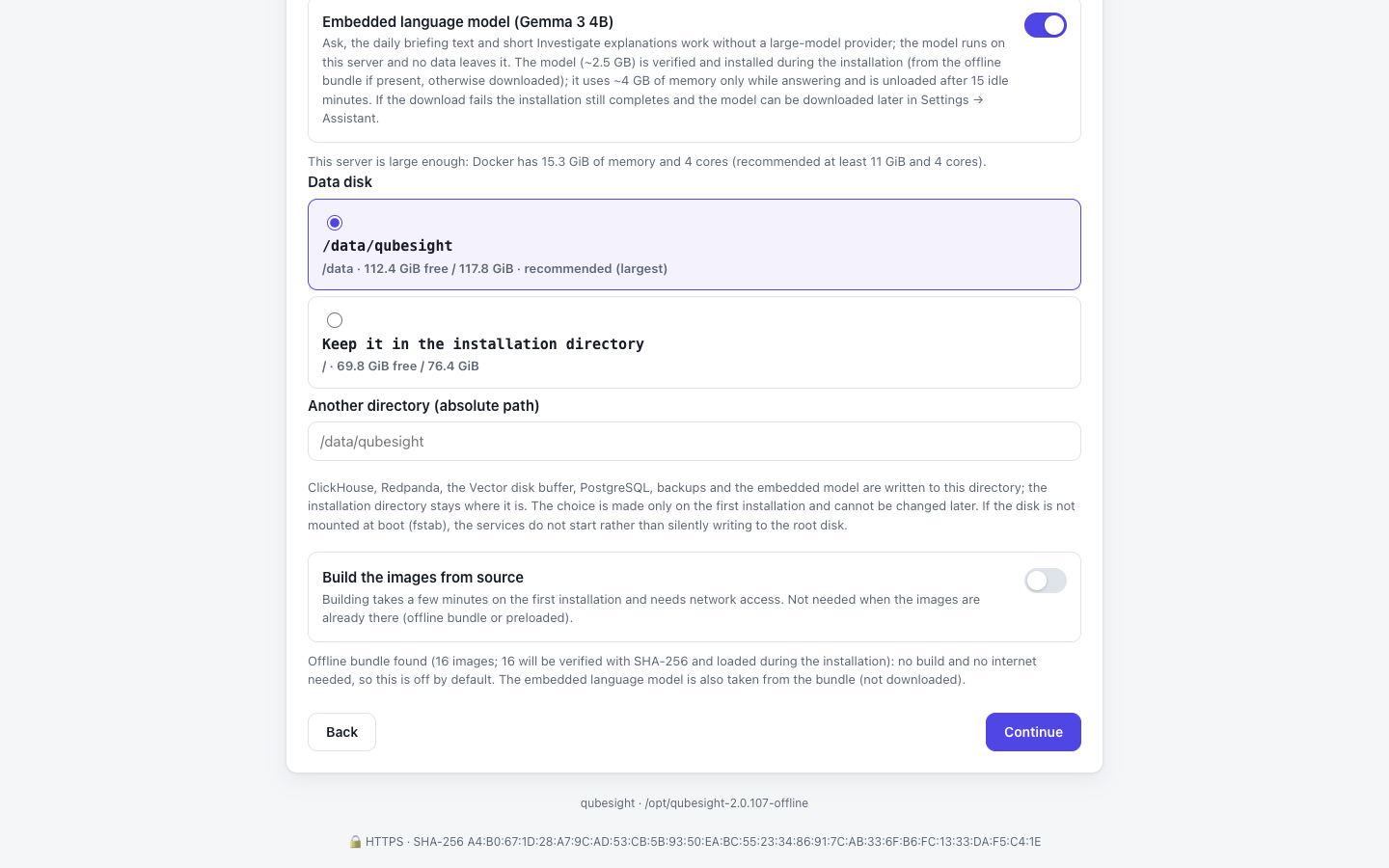
If the model download fails, the installation still completes and the model can be downloaded later in Platform → Settings → Assistant.
Retention
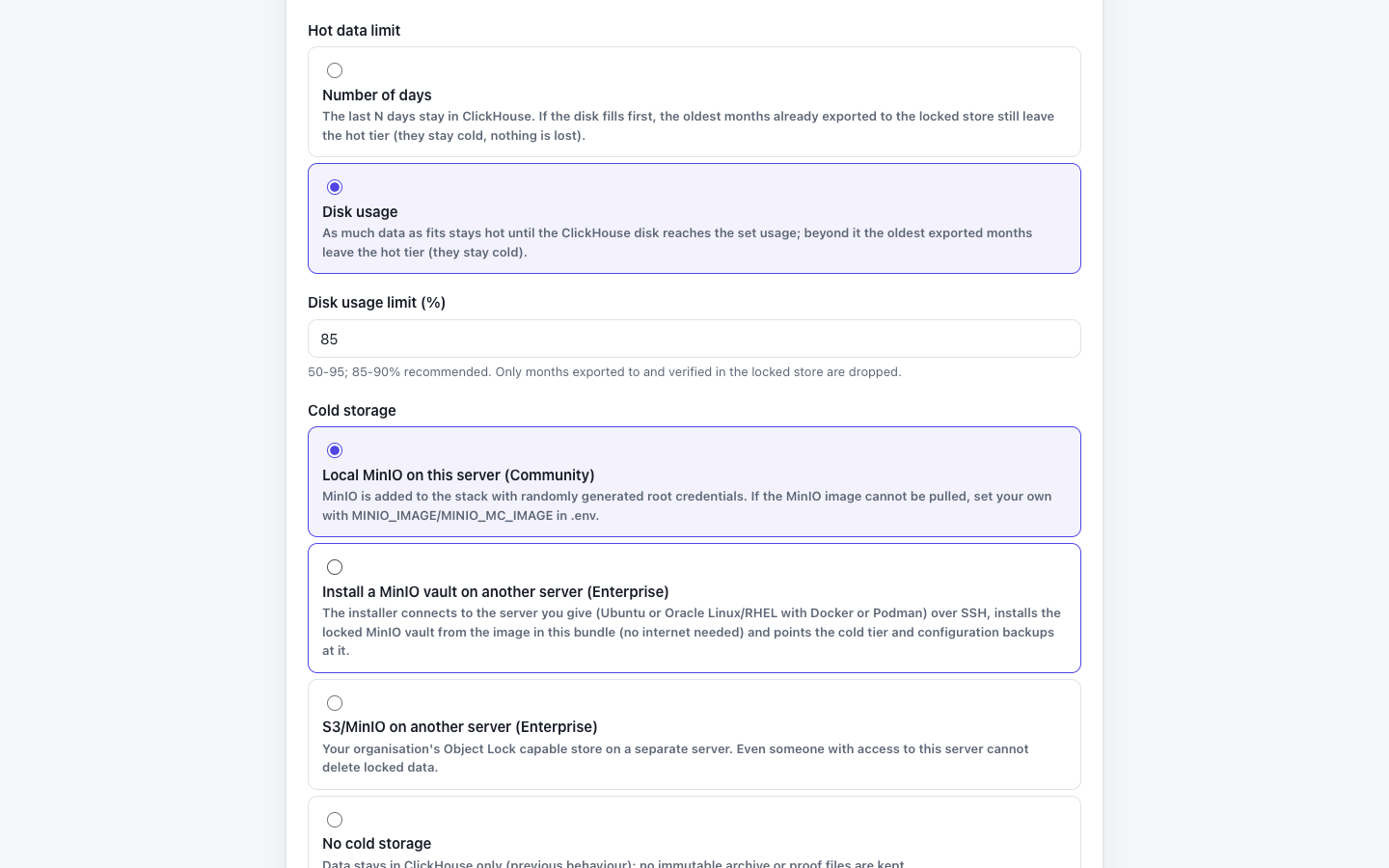
Data retention: hot and cold. Hot data stays in ClickHouse for fast queries. In cold storage every 10-minute block is written as a Parquet file to an S3/MinIO bucket locked with Object Lock (COMPLIANCE). The choices are applied when the product first starts; afterwards they are managed in Platform → Data and Backup → Retention. See Hot and cold storage tiers.
Hot data
| Field | Default | Rules and meaning |
|---|---|---|
| Hot data limit | Disk usage | Number of days: the last N days stay in ClickHouse. Disk usage: as much data as fits stays hot until the ClickHouse disk reaches the limit. In both modes only months already exported to and verified in the locked store leave the hot tier. |
| Hot data (days) | 365 | 7 to 3650. Shown for Number of days. |
| Disk usage limit (%) | 85 | 50 to 95 (85 to 90 recommended). Shown for Disk usage. |
Hot-data default
The installer's hot-data choice (--hot-mode, --hot-days, --hot-disk-percent, or the web installer's hot-data step) is stored by the control plane on its first start, while no retention setting has been saved yet; after that you change it in Platform → Data and Backup → Retention. Without an installer value the control plane uses days mode, 365 days. An existing installation keeps its saved setting when it is upgraded; see Upgrading from 2.0.106.
Cold storage
| Choice (as labelled in the wizard) | Edition | What happens |
|---|---|---|
| Local MinIO on this server (Community) | Community | MinIO is added to the stack with randomly generated root credentials. Protects against application and database administrators, not against the server's root user. |
| Install a MinIO vault on another server (Enterprise) | Enterprise | The installer connects to another server over SSH, installs a locked MinIO vault there from the image on this server (no internet needed) and points cold storage and configuration backups to it. A warning note under the choice says: "The vault (locked store on another server) is an Enterprise feature (immutable_vault). The installer sets it up without a licence; managing or changing the vault later needs an Enterprise licence." |
| S3/MinIO on another server (Enterprise) | Enterprise | Your own Object Lock capable store on a separate server. |
| No cold storage | Data stays in ClickHouse only; no immutable archive or proof files. The hot-day setting applies only once cold storage is turned on later. |
Default: Local MinIO on this server (Community) on a new installation. On a re-run the choice stored in .env is preselected; an installation made before cold storage existed preselects No cold storage.
Fields for every choice except No cold storage:
| Field | Default | Rules |
|---|---|---|
| Lock period (years) | 5 | 1 to 30 |
| Bucket | qubesight-worm |
3 to 63 characters: lowercase letters, digits, . and -, starting and ending with a letter or digit. The product creates the bucket with Object Lock. |
Additional fields for Install a MinIO vault on another server (Enterprise):
| Field | Default | Notes |
|---|---|---|
| Vault server (IP or name) | Ubuntu or Oracle Linux/RHEL with Docker or Podman | |
| SSH port | 22 | |
| SSH user | root |
|
| SSH host key fingerprint | SHA256:…. Read from the server reads it for you; compare it with ssh-keygen -lf /etc/ssh/ssh_host_ed25519_key.pub on the server's console. If the server's key does not match, the password is not sent. |
|
| SSH password | Used once to install the product's SSH key; not stored and never on the installer's command line |
Read from the server shows Reading… and then every host key type with its fingerprint, and fills in the ED25519 fingerprint; if the key cannot be read it says so (check the address, the SSH port and that the server is up). Test the connection shows Testing… and must succeed before you continue (again whenever the details change). Its results: the connection and password are correct; the server did not accept the user name or password; the server's host key does not match the fingerprint (the password was not sent); the server could not be reached over SSH; or no image to test with. The vault's S3 port is 9400/tcp; if firewalld or ufw is active on the vault server, the installer opens it. The vault is installed after the services start (stage Installing the vault server). On an online installation the images are built later, so the test may report that there is no image to test with; the details are then tried in the vault stage.
Additional fields for S3/MinIO on another server:
| Field | Rules |
|---|---|
| Store address (HOST:PORT) | IP or DNS name and port, for example 198.51.100.20:9100. The name cannot contain an underscore (S3 addressing rule). |
| Connect over HTTPS | Turn on if the store serves TLS |
| Access key | 3 to 128 characters; no spaces, quotes, $, # or \ |
| Secret key | 8 to 128 characters, same forbidden characters. On a re-run, leave empty to keep the stored secret key. |
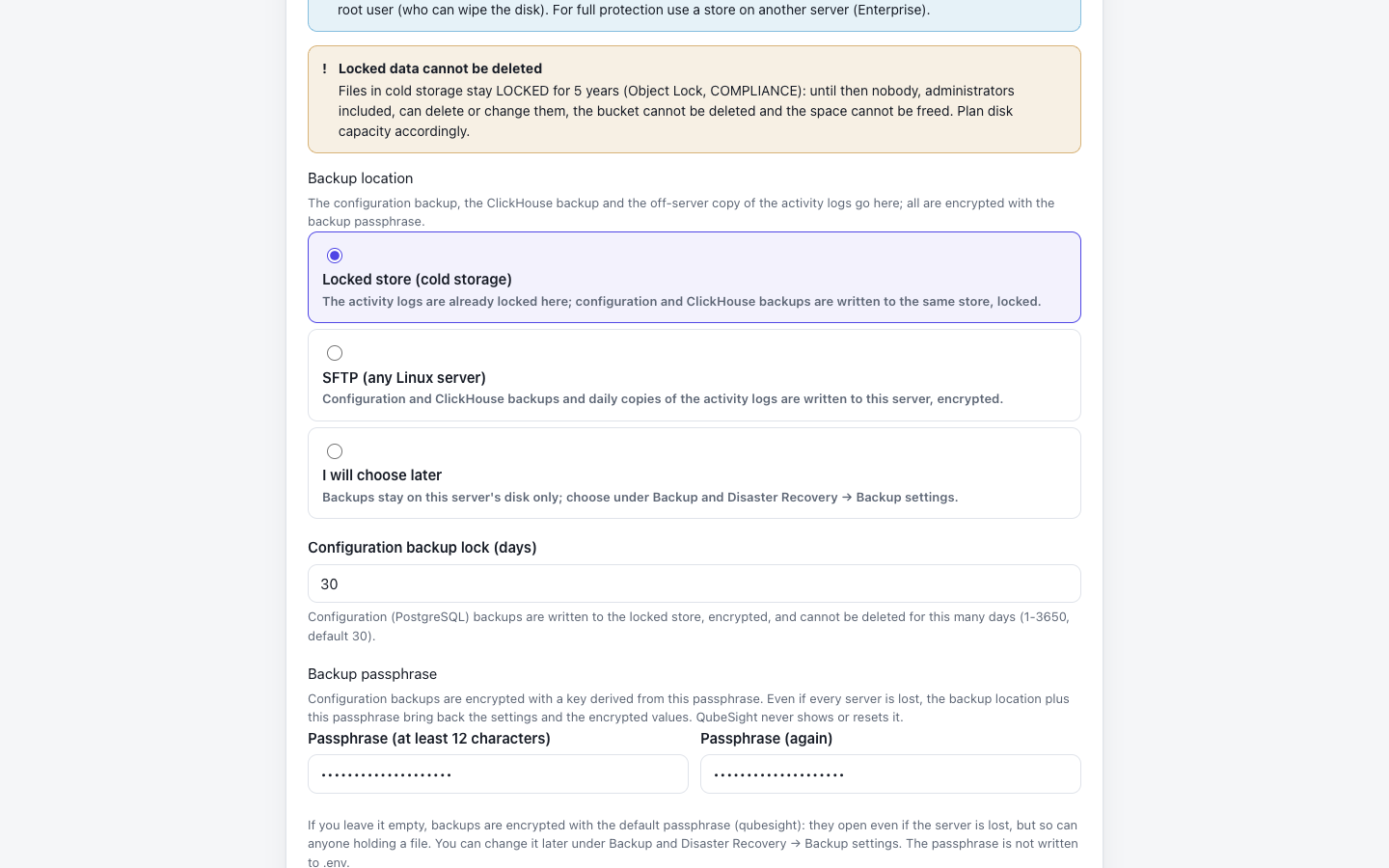
The step shows Locked data cannot be deleted: files stay locked for the chosen number of years; nobody, administrators included, can delete or change them, the bucket cannot be deleted and the space cannot be freed. Plan capacity accordingly.
Backup location: where the configuration backup, the ClickHouse backup and the off-server copy of the activity logs go. All are encrypted with the backup passphrase.
| Choice | Description |
|---|---|
| Locked store (cold storage) | Only when cold storage is on. Activity logs are already locked there; configuration and ClickHouse backups are written to the same store, locked. Field Configuration backup lock (days): 1 to 3650, default 30. |
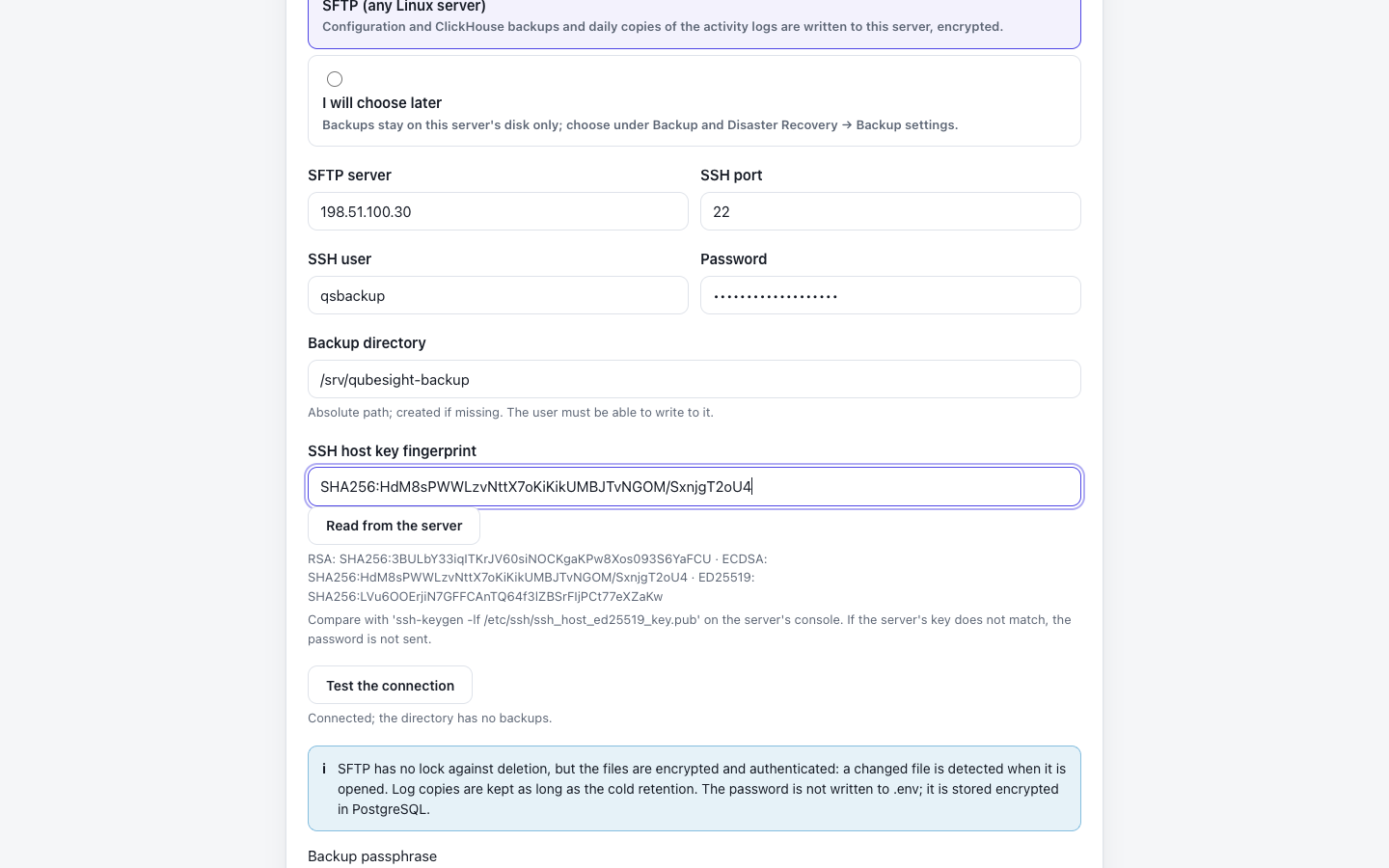
| SFTP (any Linux server) | Configuration and ClickHouse backups and daily copies of the activity logs are written to this server, encrypted. |
| I will choose later | Backups stay on this server's disk only and are lost with the server. Choose a location later in Platform → Data and Backup → Backup settings. |
Default: Locked store (cold storage) when cold storage is on, otherwise I will choose later. The locked-store choice is hidden when No cold storage is selected. With I will choose later an amber warning repeats that the backups are lost together with the server.
SFTP fields: SFTP server (IP or name), SSH port (default 22), SSH user, Password, Backup directory (absolute path, default /srv/qubesight-yedek; letters, digits, ., _, - and / only, no . or .. segments; created if missing; the user must be able to write to it) and SSH host key fingerprint, read with Read from the server and confirmed. Test the connection must succeed before you continue (again whenever the details change). It reports an empty directory, a directory that already holds other backups (a separate directory is recommended), a host key mismatch (with the fingerprint the server presented), a connection failure, or, without an offline bundle, that the connection cannot be tested yet because the images are not loaded (it is then tested at the end of the installation). When the wizard runs from an offline bundle, it verifies and loads only the control-plane image from the bundle for this test (also for the vault and restore checks), so the test works on a server where nothing is installed yet. Since 2.0.109 the test also works against servers whose confirmed key is ECDSA or RSA: the client uses the type of the confirmed key. SFTP has no lock against deletion, but files are encrypted and authenticated, so a changed file is detected when it is opened. Log copies are kept as long as the cold retention. The SFTP password is stored encrypted in PostgreSQL, never in .env.
Backup passphrase: configuration backups are encrypted with a key derived from this passphrase. With the backup location and the passphrase you can restore even if every server is lost. QubeSight never shows or resets it.
| Field | Rules |
|---|---|
| Passphrase (at least 12 characters) | At least 12 characters; must not start or end with a space |
| Passphrase (again) | Must match |
If you leave it empty, backups are encrypted with the default passphrase qubesight. They still open after a server loss, but so can anyone holding a backup file. Set your own passphrase later in Platform → Data and Backup → Backup settings. The passphrase is never written to .env.
Load
Expected event rate (optional). Enter the events per second you expect, and the wizard computes the environment from measured performance coefficients (the same model as Platform → System and Cluster → Capacity).
| Field | Default | Choices |
|---|---|---|
| Events per second (TPS) | empty | 1 to 1,000,000 |
| How events arrive | Guardium / syslog | Guardium / syslog (parsed by Vector) or Filebeat, Event Hub, Kinesis, direct Kafka |
| SQL type | Short SQL | Short SQL (typical) or Long / bulk SQL (ORM, bulk INSERT, large IN lists) |
| Apply the recommended resource limits | on | Writes the limits to .env; they never exceed the number of cores on this machine. Shown only after a recommendation has been computed. |
After you enter a rate the step shows Computing… and then a Component / Resources table (worker, Vector for the syslog path, Redpanda, ClickHouse with recommended and minimum values, Total (recommended)), the ClickHouse disk need per day and for the retention period, This machine as Docker sees it, and a verdict: sufficient, borderline (the minimum is met, the recommendation is not), or not enough (even the minimum is not met; you can still install). When one worker cannot reach the rate, the step tells you how many worker replicas and Kafka partitions are needed; that scaling is done by hand after installation (see Capacity and benchmark). If the computation fails, an amber box shows The recommendation could not be computed with the reason.
While the field is empty the forward button reads Skip for now; press it to keep the target undefined. You can set it later in Platform → System and Cluster → Capacity. Without Python 3 the recommendation is not computed, but the target is still saved.
Summary
Summary and installation lists your choices: administrator, address, access, ports, virtual IP, components, data retention, backup location, target rate, images and time zone, followed by What will happen:
- Docker and the environment are checked, secrets are generated (
.env,secrets/). - Images are built (5 to 15 minutes on the first installation), or existing images are used.
- Services are started and awaited until healthy.
- The API and the administrator sign-in are verified.
- The QubeSight web interface opens.
About 10 GiB of disk is needed. Press Start installation. If the installation cannot start, a red box under the summary says why and you stay on Summary: These ports are in use: … Change them in the "Network" step., Some values are not valid: followed by the field names, or The installation could not be started with the error. Use Back or the step list to correct the value.
Install
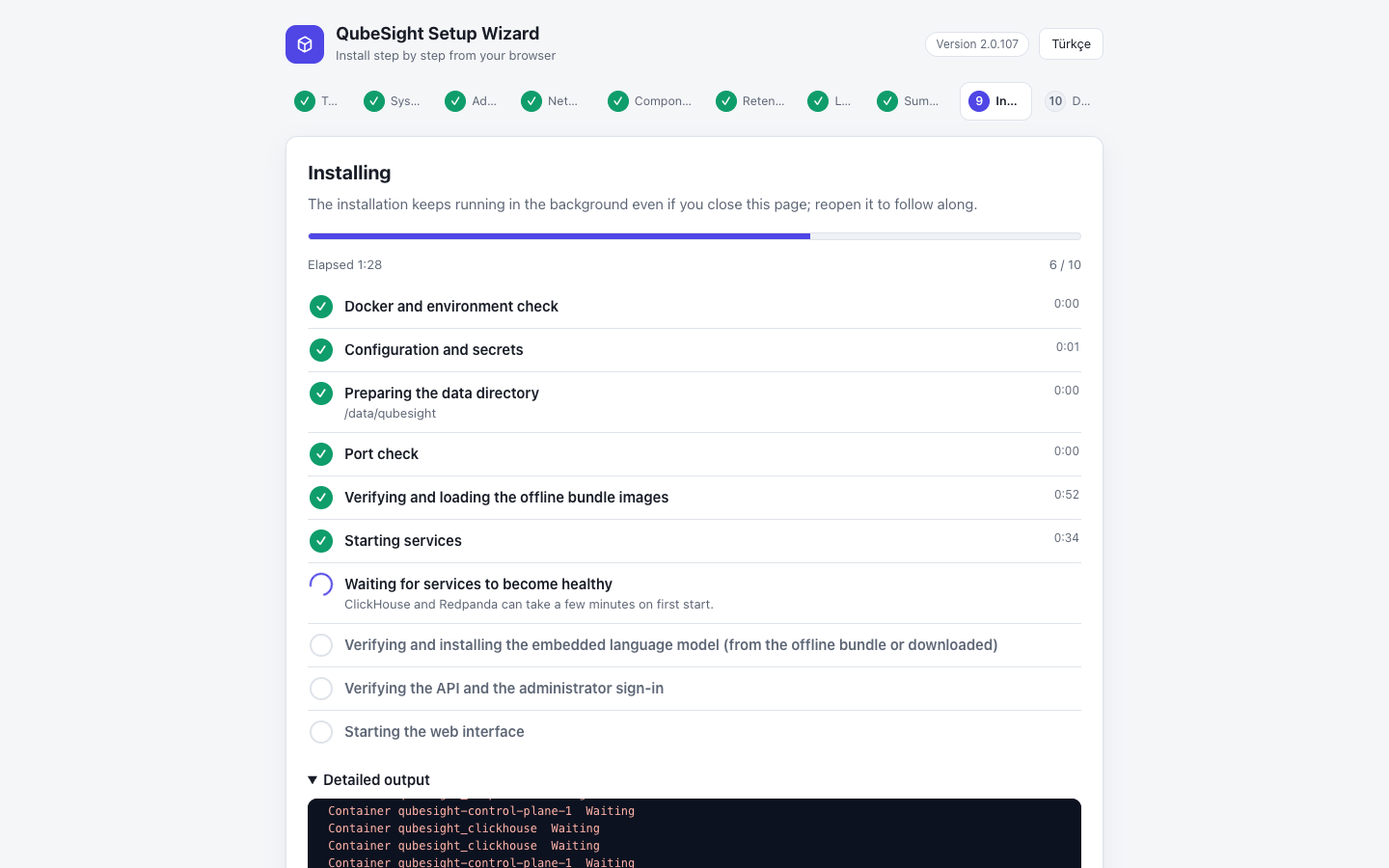
Installing shows a progress bar, the elapsed time, the number of finished stages (n / total), the stages with live status and duration, plus Detailed output (the install.sh output; collapsed while the installation runs, opened when it fails; No output yet… before the first line). The installation keeps running if you close the page; reopen the wizard in the same browser to follow it. Stopping the wizard itself (Ctrl+C in its terminal) while the installation runs stops the installation.
| Stage | When |
|---|---|
| Docker and environment check | Always |
| Configuration and secrets | Always |
| Preparing the data directory | When a data directory was chosen |
| Applying the resource recommendation | When a target rate was entered |
| Port check | On a first start |
| Verifying and loading the offline bundle images | When the wizard runs from an offline bundle |
| Building images | When Build the images from source is on |
| Starting services | Always |
| Waiting for services to become healthy | Always (ClickHouse and Redpanda can take a few minutes on first start) |
| Setting the backup passphrase | When a passphrase was entered |
| Saving the SFTP backup location | When SFTP was chosen |
| Installing the vault server | When a vault was chosen |
| Verifying and installing the embedded language model (from the offline bundle or downloaded) | When the model is on |
| Applying the virtual IP and checking the log port through it | When a virtual IP was entered |
| Verifying the API and the administrator sign-in | Always |
| Starting the web interface | When the port is handed over; it runs after the Done page opens, when you press Open QubeSight |
Cancel installation stops it after a confirmation; a partial installation is resumed with Try again and no data is deleted. When a stage fails the page names the stage and gives a hint based on the output: port in use, disk full, no Docker permission, image pull denied or rate-limited, a bundle file that could not be verified (SHA-256) or is missing ("Download and unpack the bundle again."), required images missing on a server without internet (unpack the offline bundle and start the wizard from inside it), network or DNS error, out of memory, container name conflict, services not healthy in time, build failure. Buttons: Try again, Back to settings, Copy output, and Fix the vault details for a vault failure. Retrying is always safe: existing data and secrets are kept.
The output is also appended to install.log in the release directory (masked; file mode 0600, readable only by the user who runs the wizard), so the full error stays on the server even if the browser closes.
Done
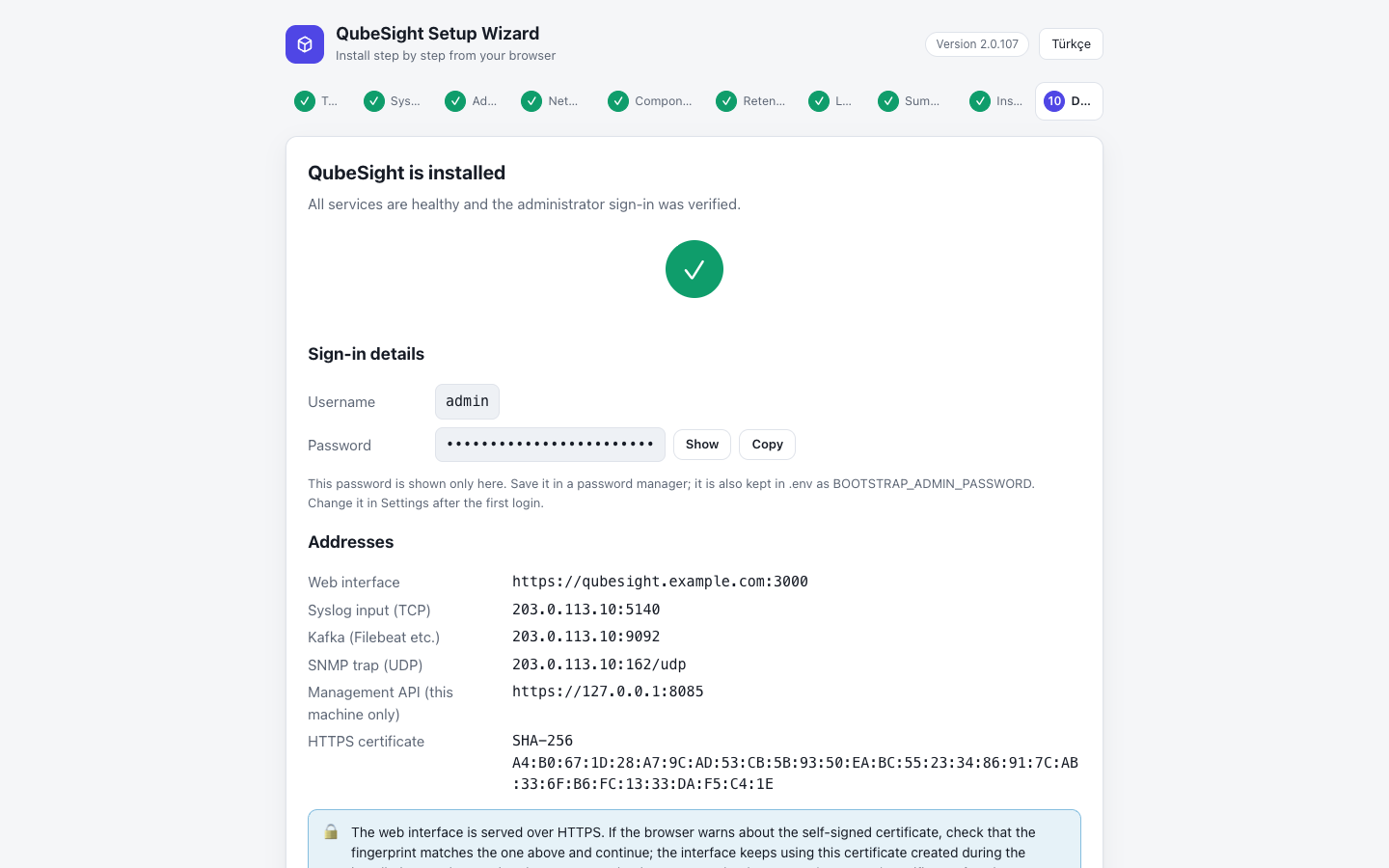
QubeSight is installed: all services are healthy and the administrator sign-in was verified.
- Sign-in details: Username and Password (with Show and Copy). A generated password is shown only here; save it in a password manager before you continue. It is also kept in
.envasBOOTSTRAP_ADMIN_PASSWORD. - Addresses: Web interface, Syslog input (TCP), Kafka (Filebeat etc.), SNMP trap (UDP), Management API (this machine only).
- HTTPS certificate: the fingerprint of the certificate the product serves. It is the same certificate the wizard used, so the browser warning does not come back.
- Next steps: measure capacity, point log sources at the addresses above, back up
GUARDIUM_SECRET_KEYfrom.env, install your own certificate and, for production, setENVIRONMENT=productionin.env. - When the interface port is the wizard's own port, an information box says that the web interface has not been started yet, and the only button is Open QubeSight, which performs the port hand-over. Save the password first: the page is not shown again after the wizard closes.
- When the interface port differs, Open QubeSight opens the product in a new tab and Close the wizard stops the wizard (The wizard is closed. You can close this tab.).
If you chose your own password, the page shows it with The password you chose. If the automatic sign-in check did not succeed, an amber box shows The administrator sign-in could not be verified automatically (HTTP code) and refers you to BOOTSTRAP_ADMIN_PASSWORD in .env.
Soft failures are reported here without failing the installation: the backup passphrase could not be saved, the SFTP location could not be saved, or the model could not be downloaded. Each message says where to finish the task in the product.
Port hand-over
The wizard and the product's web interface both use port 3000 by default. Only one process can hold it, so when the two ports are equal:
install.shinstalls and verifies everything except the gateway, which is deferred.- When you press Open QubeSight, the wizard closes its listener.
install.sh --start-gatewaystarts the gateway on the same port.- The page shows Switching to the web interface…, waits a few seconds and redirects to the sign-in page at the same address. After 90 seconds it adds the address to open by hand.
If the gateway does not start, the wizard takes the port back, shows The web interface could not be started with the error and offers Try again. If you stop the wizard with Ctrl+C after a finished installation that was not handed over, the gateway is started anyway. When the interface port differs from the wizard's port, no hand-over is needed: the gateway starts immediately and the wizard links to it.
Steps of a restore from backup
When you choose Restore from backup, the steps are Type → System → Backup → Network → Components → Load → Summary → Install → Done. Admin and Retention are not asked: users, retention, backup settings and the passphrase come from the backup. When Test the backup finds that the server rejoins a running cluster and the backup holds this server's install settings, Network and Components are skipped as well; without those settings in the backup they are asked.
The Backup step fields, the Test the backup button, the product SSH key confirmation and the cluster-aware outcomes are described in Restore from a backup.
Security model
| Control | Behaviour |
|---|---|
| One-time key | A random 256-bit key is generated at start, valid for 15 minutes and usable once. It travels in the # fragment of the link, so it never reaches server logs or Referer headers, and is removed from the address bar. A ?token= query parameter is always refused. |
| Session | After the key exchange the session uses an HttpOnly, SameSite=Strict, Secure cookie, valid for 6 hours and bound to the first client's address. |
| Request checks | Every change needs a CSRF header; the Host header must be one of this machine's names or addresses (or --allow-host), which blocks DNS rebinding; failed key attempts are rate-limited. |
| Transport | HTTPS with a self-signed certificate kept in secrets/tls/. Plain http:// requests on the same port are redirected to https://. A certificate placed there by someone else is never overwritten. The product's gateway imports the same certificate on its first start. If the directory is not writable or holds files the wizard did not create, a temporary certificate is used and the page footer says so; the browser warning may then appear once more at the hand-over. |
| Secrets | Passwords and keys go to install.sh only in environment variables, are masked in the log, and are never written to the browser's storage or the URL. |
| Idle exit | An unused wizard closes itself: the link expires after 15 minutes, and the wizard exits after 1 hour without activity. |
If the browser shows The link is invalid or has expired, the page names the reason (link already used, 15 minutes over, invalid key, too many failed attempts, session expired, session belongs to another computer, or no open session in this browser) and offers Try again, which reloads the page. To get a new link, run the start command again on the server: a fresh link is printed.
Limitations
- The wizard installs on the machine it runs on; it does not install on other servers (cluster nodes are added later from the product).
- The SFTP backup location accepts a password in the wizard; a private key is accepted only by the terminal installer (
--backup-sftp-key-file). - TLS options (
--no-tls,--tls-cert,--tls-key) are not offered in the wizard; use the terminal installer or replace the certificate after installation. setup.shfixes prerequisites automatically only on Ubuntu and Debian.- The data disk is chosen only on the first installation and cannot be changed in the wizard later.
- Windows is not a supported installation host (
install.shis a bash script and the product images are Linux amd64).