Data and Backup
Platform → Data and Backup is where you protect QubeSight's data: you see and run backups, choose where backups go and how they are encrypted, check disaster-recovery (DR) readiness and drills, and decide how long event data is kept and what happens when the disk fills up. This page describes every tab, field and button. Step-by-step procedures are in the operations guides linked from each section.
Community Enterprise
Backup, backup settings and retention exist in both editions. The DR tab, restore drills and a locked store on a separate server are Enterprise features.
Tabs at a glance
| Tab | Who sees it | Edition | What it is for |
|---|---|---|---|
| Backup | admin, auditor (auditor read-only) | Both | Backup health, run backups now, verify, history |
| Backup settings | admin, auditor (auditor read-only) | Both | Backup passphrase, backup location (locked store or SFTP), schedule, retention, RPO/RTO, S3 copy, ClickHouse backup |
| DR | admin, auditor (auditor read-only) | Enterprise | DR readiness, zone-loss simulation, drills, zone topology |
| Retention | admin | Both (separate-server locked store: Enterprise) | Data retention, disk guard, hot / cold storage |
The Backup and Backup settings tabs require the backup capability (always on); DR requires disaster_recovery. On Community the DR tab is not shown. Older links (?tab=drills, ?tab=topology, ?tab=lifecycle) open the matching DR section or Retention.
What is backed up
QubeSight keeps three kinds of data, and each has its own protection:
| Data | Where it lives | How it is protected |
|---|---|---|
| Settings (users, rules, integrations, all configuration) | PostgreSQL | Settings backup, encrypted with the backup passphrase; on its own it restores all settings |
| Activity logs (database activity events) | ClickHouse (hot) and, when enabled, the locked store (cold) | The locked store (immutable archive) and, with an SFTP backup location, daily encrypted copies |
| Other ClickHouse tables (dashboard rollups, Guardium archive mirror, state and health tables) | ClickHouse | ClickHouse backup |
See Hot and cold storage tiers for the storage model and Backup and restore for procedures.
Backup
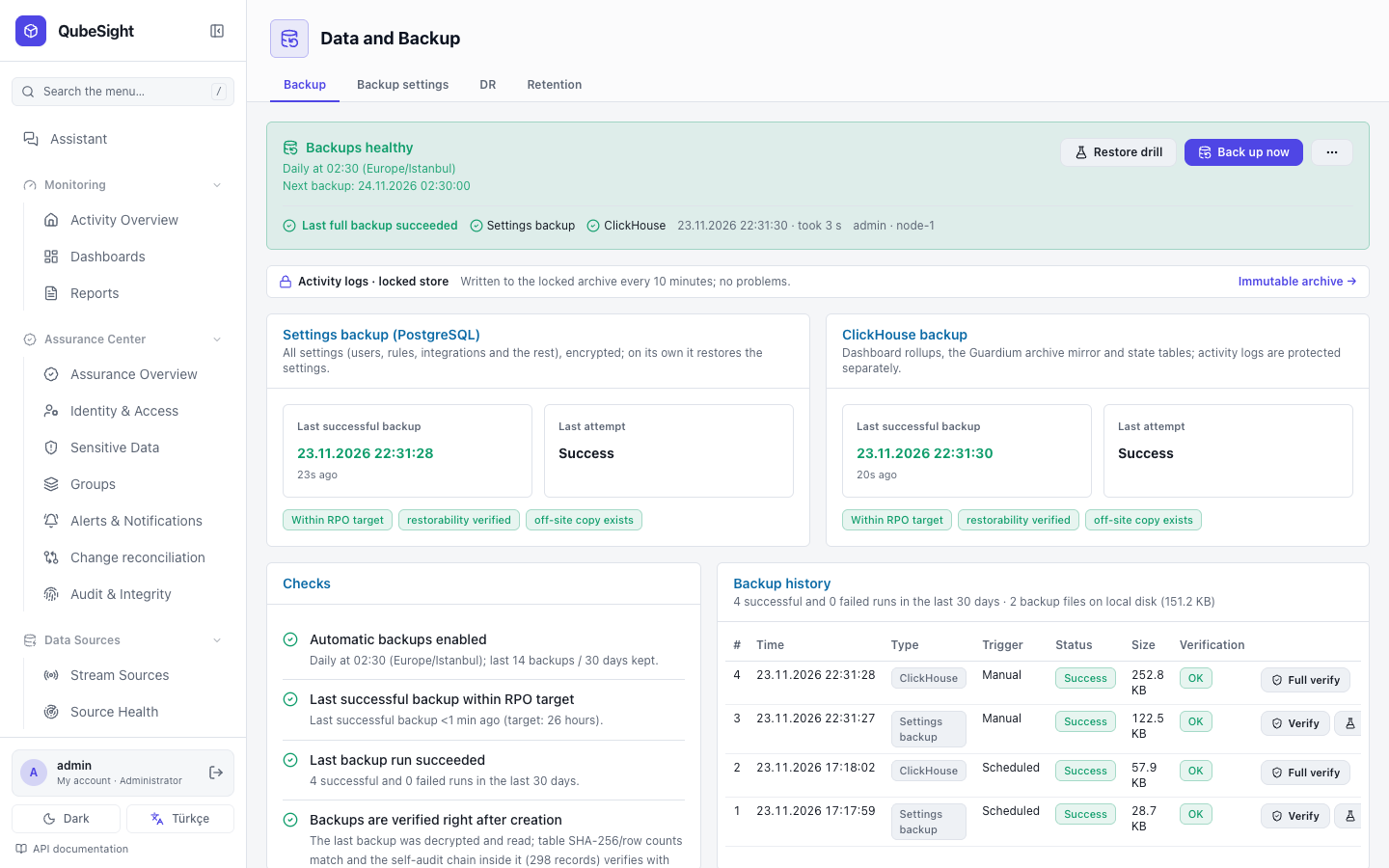
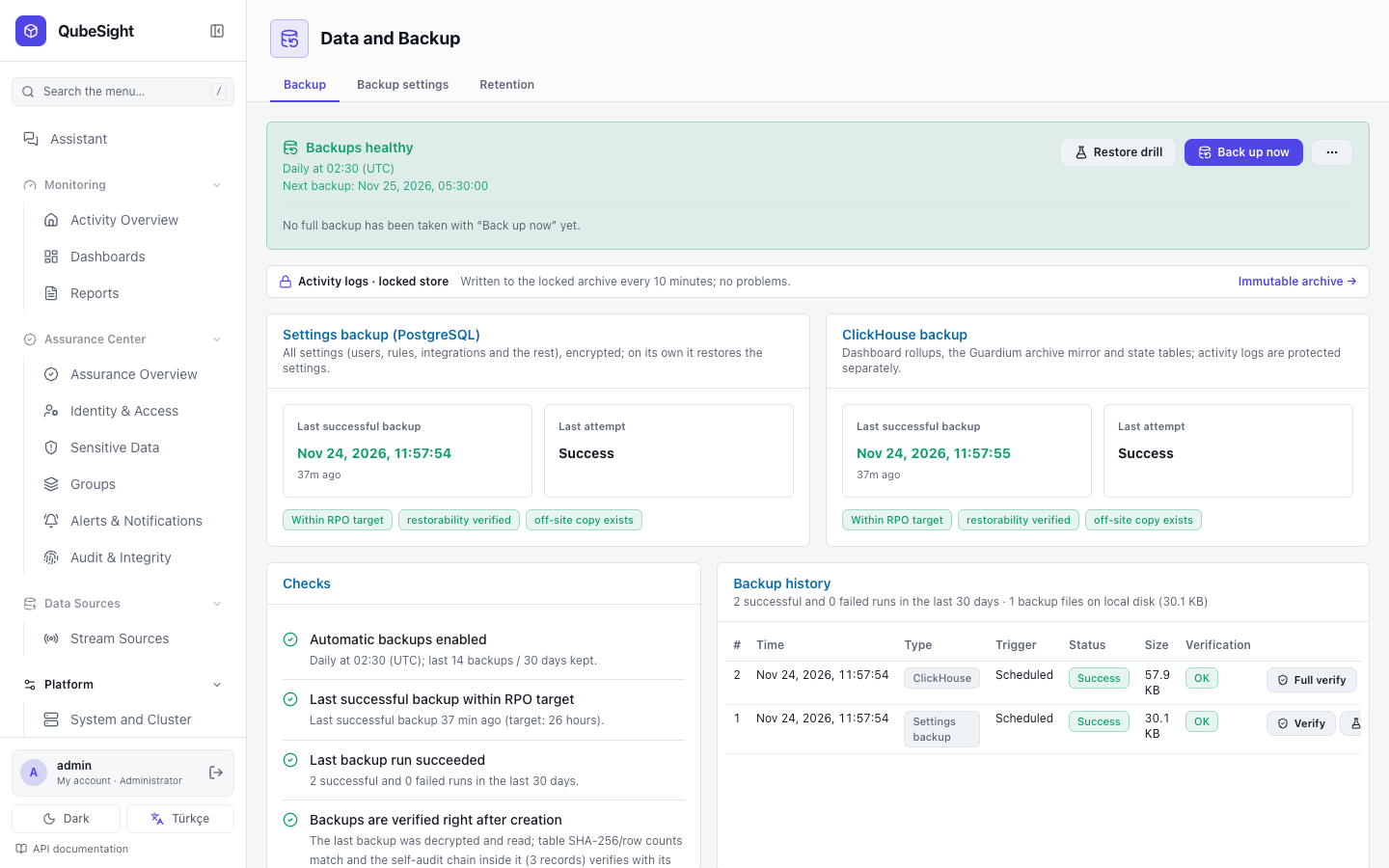
The Backup tab shows whether backups are healthy and lets an administrator run them.
Status header
The header reads Backups healthy, Attention: {n} item(s) to review or Backups have {n} problem(s); when there are items to review, their check titles are listed under it. Then come the schedule and Next backup: {time}. If no settings were saved yet, Default settings are in use; save them on the "Backup settings" tab. is shown.
Administrator buttons:
| Button | What it does |
|---|---|
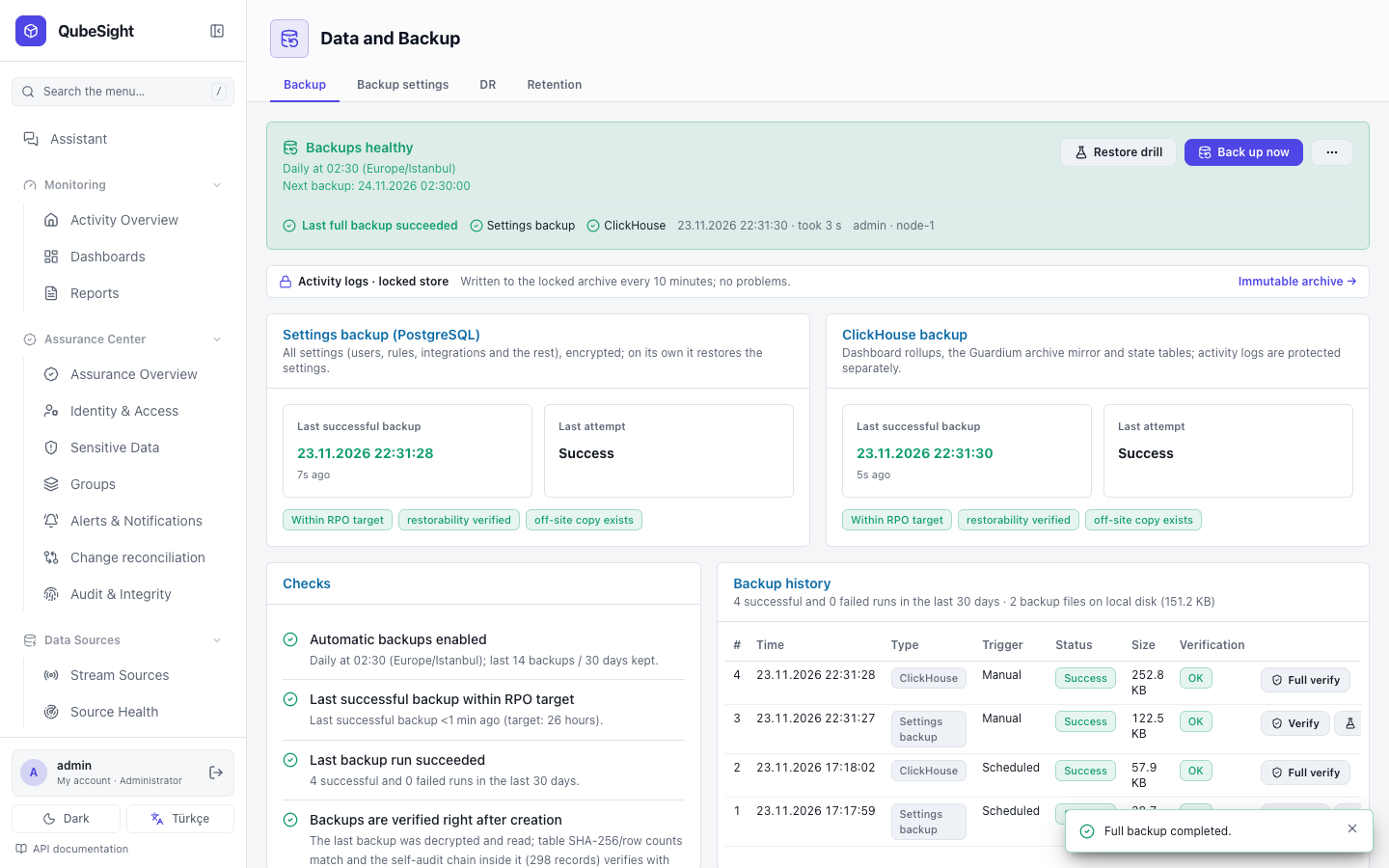
| Back up now | Asks for confirmation (Start a full backup now?), then starts a full backup: settings, then ClickHouse, and with an SFTP location also the daily activity-log copies. The job runs on the server; you can leave the page. While it runs the button reads Backing up…. |
| Back up one part (the ⋯ button next to it) | Opens a menu with Back up settings only and Back up ClickHouse only |
| Restore drill | Restores the latest settings backup into a scratch schema, verifies it and reports tables, rows, duration and measured RPO in a result box under the cards (Restore drill succeeded or Restore drill failed, with any problems listed). Requires Enterprise (disaster_recovery); on Community the button is shown but the server refuses the request. |
While Back up now runs, the single-part menu items and Copy now are disabled (The "Back up now" job is running; available when it ends.).
Full backup line
A line under the header shows the last or running Back up now job. Each stage (Settings backup, ClickHouse, Log copies) has a state icon (waiting, running, done, failed, skipped); a skipped stage is struck through, and a finished Log copies stage shows the number of days copied and how many are still queued. The line ends with the elapsed time (or the finish time and duration), the user and the node, and the error of a failed stage.
| Line | Meaning |
|---|---|
| No full backup has been taken with "Back up now" yet. | No full backup job has run |
| Full backup running | A job is in progress (the page polls every 3 seconds) |
| Last full backup succeeded | Every stage finished |
| Last full backup failed | A stage failed; the stage and its error are shown |
| Last full backup was interrupted | The job stopped before it finished because the control plane running it stopped, restarted or became unreachable; the unfinished stage made no backup. The reason is shown; start the backup again. |
| This server was restored from the last full backup's settings backup | The server was restored from the settings backup that this job took while it was running. The settings stage is that backup; the outcome of the other stages is not in it. Take a new full backup. |
Cards
| Card | Content |
|---|---|
| Activity logs · locked store | One line: Written to the locked archive every 10 minutes; no problems., The locked archive has something that needs a look. (violations, store unreachable, an export error, more than an hour behind, or tampering detected), or The immutable archive is off: activity logs have no locked copy. When the archive is on, Immutable archive → opens Audit & Integrity; when it is off, users who can open Retention (administrators) see Go to hot / cold storage settings instead. |
| Activity logs · SFTP copy | Only with an SFTP backup location: Days copied (first and last day, or no copy yet), Size on SFTP (files and rows), Location, state (Up to date, {n} queued, Copy is failing, Waiting for the first round), last round {time}, the error text when copying fails, and the permanent note No lock against deletion on SFTP. Copy now (administrator) copies pending days; the result is The log copies are up to date. or Copying continues in the background: {n} files/months queued. |
| Settings backup (PostgreSQL) | Last successful backup (time and age, or never backed up), Last attempt (status and error), and pills Within RPO target / RPO target exceeded, restorability verified / not verified, off-site copy exists / no off-site copy |
| ClickHouse backup | Same fields for the ClickHouse backup |
Checks and history
Checks lists every backup check with its result (for example passphrase, location, RPO, last verification). With no checks it shows No records.
Backup history shows {ok} successful and {failed} failed runs in the last 30 days · {files} backup files on local disk ({size}) and one row per run (No records when there is none):
| Column | Content |
|---|---|
| # | Run number |
| Time | Start time |
| Type | Settings backup or ClickHouse |
| Trigger | For example Scheduled, Manual, Automatic |
| Status | Success, Failed, Running |
| Size | Backup size |
| Verification | OK, Failed, running, or — when not verified |
| Actions (administrator) | Verify and Drill on a successful settings backup whose file is still on this server's disk; file gone instead when the local file was removed (by retention or because it was taken on another node); Full verify on a successful ClickHouse backup that was not written to SFTP |
Verify checks decryption, chains and consistency with the live system; the result is a message (Backup verified: decryption, chains and consistency with the live system are fine or Backup verification failed: …). Drill runs the restore drill on that backup and, like Restore drill, requires Enterprise. Full verify restores every data table of a ClickHouse backup into a separate temporary database, counts rows, measures time and drops the temporary database; live tables are untouched and it does not start if the disk would not suffice. It runs in the background (Full verification started: {n} tables are being restored into a temporary database…); the result appears in the list and under DR → Drills.
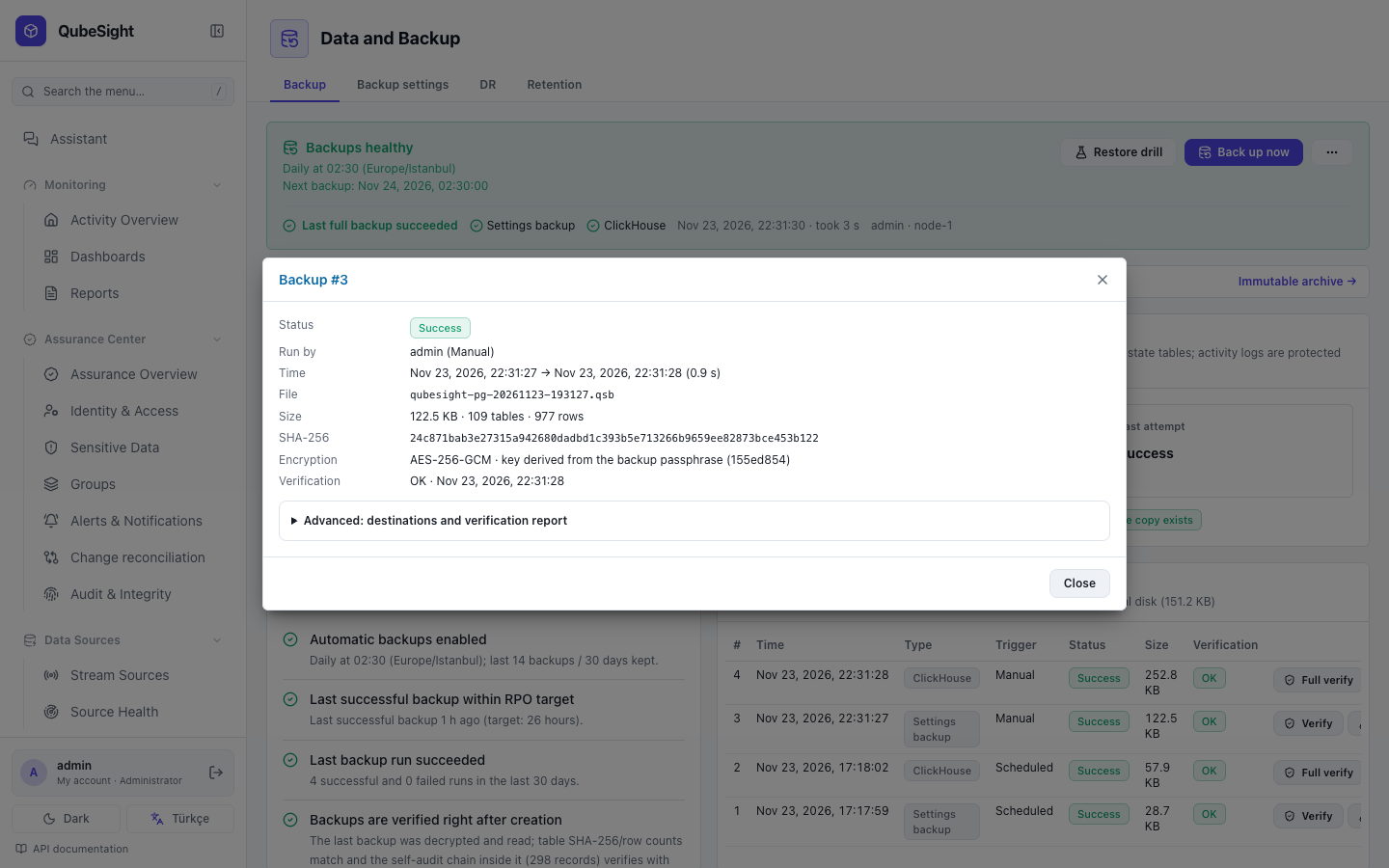
Click a row to open Backup #{n}: Status, Run by (with the trigger), Time (start → end and duration), File (with a note when the local file is gone), Backup type (Full or Incremental (base: …), ClickHouse runs), Size (size, tables and rows), SHA-256, Encryption (settings backups) and Verification (result and time). A failed run shows its error. Advanced: destinations and verification report shows where the file was written and the full report. Close closes the dialog.
The Encryption line tells you which key protects a settings backup:
| Text | Meaning |
|---|---|
| key derived from the backup passphrase | Your own passphrase; opens even if the server is lost |
| the default backup passphrase (qubesight) | Opens even if the server is lost, but anyone holding the file can open it |
| the server's own key | Taken without a passphrase; cannot be opened if the server is lost |
Backup settings
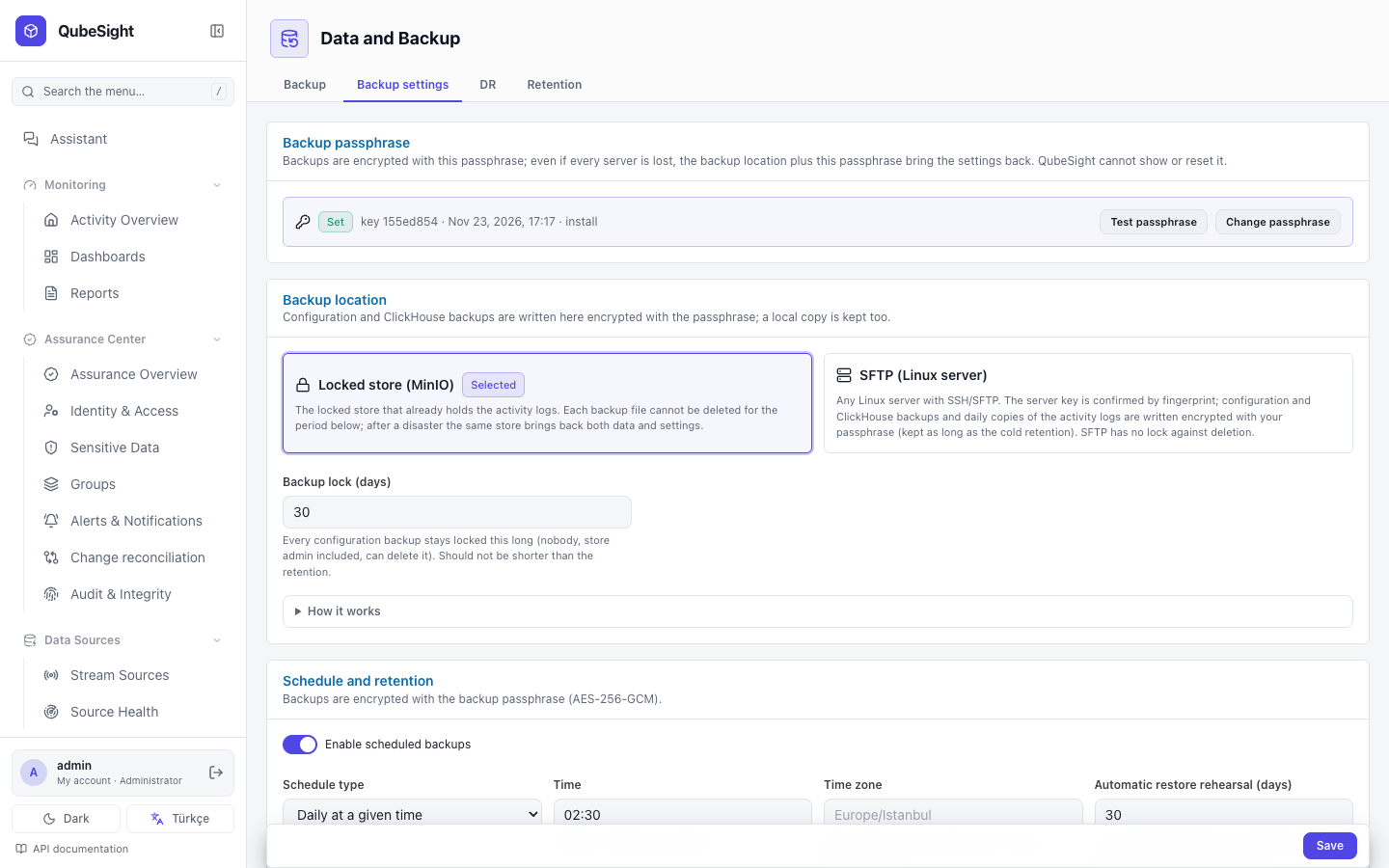
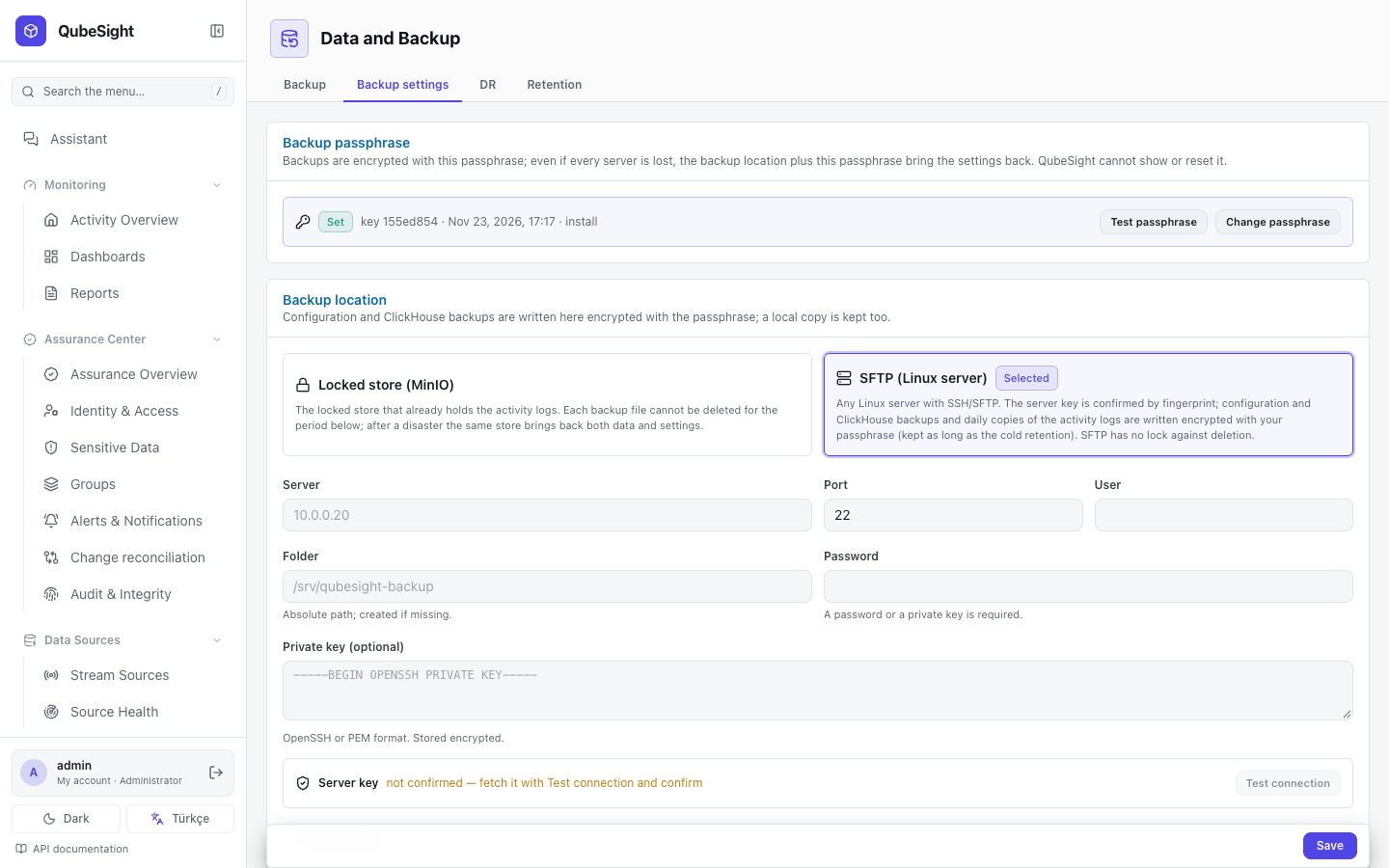
The Backup settings tab holds every backup setting. An auditor sees all fields read-only. The backup passphrase panel saves on its own; all other changes are saved with Save in the bar at the bottom.
Backup passphrase
Backups are encrypted with this passphrase (AES-256-GCM). Even if every server is lost, the backup location plus this passphrase bring the settings back. QubeSight cannot show or reset it.
| State | Meaning |
|---|---|
| Set | Key id, date and user; hint: {note} when a reminder note was saved; and {n} earlier passphrase(s) (older backups open with them) when you changed it before. Administrators see Test passphrase and Change passphrase. |
| Default passphrase | Backups use the default passphrase qubesight: anyone holding a file can open it. Set your own. |
| No passphrase yet | No backup passphrase yet: the first backup will be encrypted with the default passphrase (qubesight). Set your own. |
With the default passphrase or no passphrase, the form to set one is shown directly to administrators. To set or change it (administrator):
- Select Change passphrase (when your own passphrase is already set).
- Enter Passphrase and Passphrase (again): at least 12 characters; a sentence of a few words works well. The field warns Must be at least 12 characters or Passphrases differ, and Save passphrase stays disabled until both are valid.
- Optional: Reminder note (optional), up to 120 characters. It is stored in clear next to the backups; never write the passphrase or part of it.
- Select Save passphrase (or Cancel when changing). New backups use the new passphrase; earlier backups keep opening with the old one, so keep that too.
Test passphrase (administrator, only when your own passphrase is set) checks whether a passphrase opens the newest settings backup at the backup location, as a disaster restore would. Enter the passphrase and select Test. Nothing is changed and the passphrase is not stored. Possible results:
| Result | Meaning |
|---|---|
| Passphrase is correct: the newest backup ({backup}) opens with it… | The backup location and this passphrase are enough after a disaster |
| The same, plus However, the server keys in this backup differ from the current ones… | No backup was taken since the server keys were rotated; take a backup now |
| This passphrase does not open the backup. | It may have been encrypted with another (or an older) passphrase |
| No backup location is selected, or it cannot be reached. | Select or fix the backup location |
| There is no passphrase-protected settings backup at the backup location yet: take a backup first. | No usable backup at the location |
| The latest backup still uses the default passphrase (qubesight)… | Your passphrase applies from the next backup; take one with Back up now and test again |
| The backup could not be read. | Any other failure, with the error detail in brackets |
Keep the passphrase safe
Store the passphrase in a vault or password manager. If it is lost, backups encrypted with it cannot be opened.
Backup location
Configuration and ClickHouse backups are written here, encrypted with the passphrase; a local copy is kept too. Select one (the chosen card shows Selected):
| Location | Behaviour |
|---|---|
| Locked store (MinIO) | The locked store that already holds the activity logs. Each backup file cannot be deleted for Backup lock (days) (default 30, 1–3650; should not be shorter than the retention). After a disaster the same store brings back both data and settings. Available only when the locked store is on; otherwise the card is disabled and reads The locked store is off. Turn it on first in Data and Backup → Retention → Hot / cold storage. |
| SFTP (Linux server) | Any Linux server with SSH/SFTP. Configuration and ClickHouse backups and daily copies of the activity logs are written encrypted (kept as long as the cold retention). SFTP has no lock against deletion. |
SFTP fields: Server, Port (default 22), User, Folder (absolute path; created if missing), Password or Private key (optional) (OpenSSH or PEM; stored encrypted; one of the two is required; a stored secret is kept when the field is left empty) and Server key (not confirmed — fetch it with Test connection and confirm until you confirm one). Test connection needs Server, User and Folder. When the server key is not yet confirmed, the test shows the fingerprint; check it with the server's administrator (compare with ssh-keyscan output) and select Confirm this fingerprint. With a confirmed key, a successful test reports Connection and test write succeeded and writes a test file. If the key differs from the confirmed one, the panel warns in red that this may be an attack. Changing Server or Port clears the confirmed server key, so you must test and confirm it again. Settings with an SFTP location cannot be saved until a server key is confirmed.
If no location is selected, a note says that backups exist only on this server's disk, or, when the extra S3 copy is on, that backups are also uploaded to the S3 target. Once you have selected a location and saved, the panel offers no way to return to "no location"; you can only switch between the two locations. A backup passphrase must be set before a location can be written to (Set a backup passphrase before writing to a backup location.). The How it works note at the bottom of the panel explains how each kind of data is encrypted at each location.
Schedule and retention
| Field | Default | Range / notes |
|---|---|---|
| Enable scheduled backups | On | Saving with backups on requires a passphrase: Save is disabled with Set a backup passphrase before saving |
| Schedule type | Daily at a given time | Or At a fixed interval |
| Time | 02:30 | HH:MM in the time zone below (daily schedule) |
| Interval (hours) | 24 | 1–168 (interval schedule; the API accepts up to 336) |
| Time zone | Empty | Empty uses the server time zone, which the hint names |
| Automatic restore rehearsal (days) | 30 | 0–365; 0 = off; the latest backup is restored into a scratch schema and verified at this interval |
| Backups to keep | 14 | 1–365 (the field accepts larger numbers, but saving rejects them) |
| Maximum retention (days) | 30 | 1–3650 |
| RPO target (hours) | 26 | 1–720; an alert is raised when the last successful backup is older than this |
| RTO target (min) | 120 | 1–10080; compared with the time measured in a restore drill |
| Automatically verify after every backup | On |
Save in the bar at the bottom saves every field on this tab except the passphrase (Backup settings saved); a validation error appears at the top of the tab.
The RPO and RTO targets shown on the DR tab are edited here.
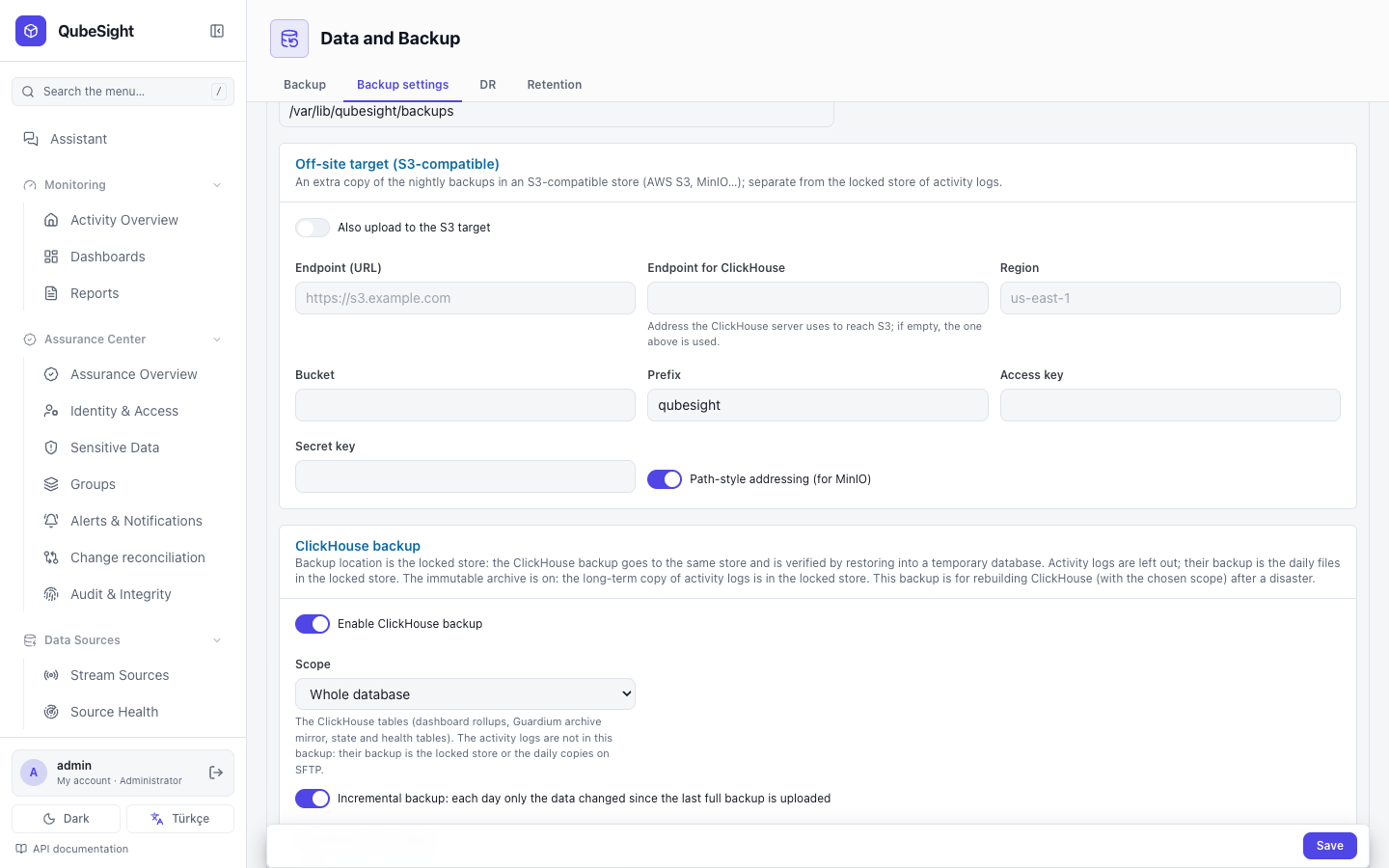
Advanced: local directory, extra S3 copy and ClickHouse backup
Most installations need no change here. The section is collapsed unless the S3 copy or the ClickHouse backup is on.
| Field | Meaning |
|---|---|
| Local backup directory | Where local copies are kept (default data/backups) |
| Off-site target (S3-compatible) | Also upload to the S3 target, Endpoint (URL), Endpoint for ClickHouse (if ClickHouse reaches S3 through a different address), Region, Bucket, Prefix (default qubesight), Access key, Secret key, Path-style addressing (for MinIO) (on by default). This copy is separate from the locked store of activity logs. |
| Enable ClickHouse backup | Off by default |
| Scope | Small state tables (default; health, reconciliation and measurement history), Selected tables (with Tables, comma separated) or Whole database |
| Incremental backup | Each day only the data changed since the last full backup is uploaded; Full backup every (days) default 7 (1–90). Not available with SFTP, where each ClickHouse backup is full. |
Where the ClickHouse backup goes depends on the location: to the locked store (activity logs left out; their backup is the daily files in the locked store), to SFTP as one encrypted file verified by reading it back (activity logs go as separate daily copies), or, with no location, to the S3 target (which must be enabled; otherwise saving is refused). With an S3 copy on, Endpoint (URL), Bucket and Access key are required.
DR
Enterprise
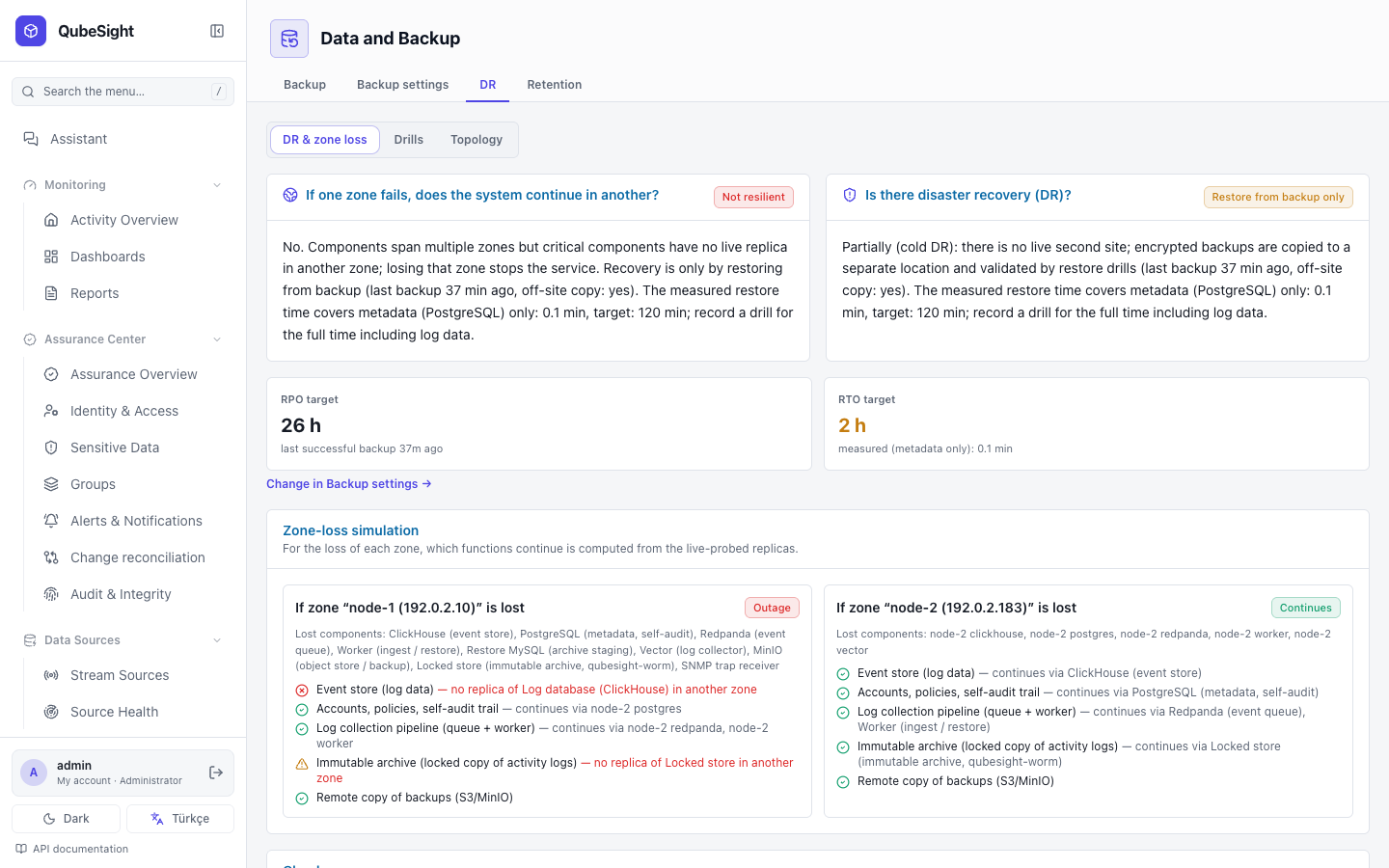
The DR tab answers two questions: If one zone fails, does the system continue in another? and Is there disaster recovery (DR)? It has three sections: DR & zone loss, Drills and Topology. Administrators can edit; auditors see everything read-only. Concepts: High availability and disaster recovery. Procedures: Disaster-recovery drill and Set up a disaster-recovery site.
DR & zone loss
If no zone topology is declared, a note says the answer relies on live probes only, with Declare topology.
| Panel | Content |
|---|---|
| Zone question | Verdict Fully resilient, Partially resilient or Not resilient, and an explanation |
| DR question | Mode Active / replicated, Warm standby (fed from backups), Restore from backup only or No DR, and an explanation |
| RPO target / RTO target | Targets from Backup settings, the time since the last successful backup, and the measured RTO (log data on this server, or metadata only) or not measured yet. Change in Backup settings → for administrators. |
| Zone-loss simulation | For each zone, If zone "{n}" is lost: verdict Continues, Degraded or Outage, the Lost components, and per function whether it continues via a replica or has no replica in another zone. No records when no zone is declared. |
| Checks | DR checks with results |
| Component instances | Every declared primary component and replica: Component (critical components marked with *), Zone, Role (with replication mode), State (Up / Down), Probe (probed live or declared only), Detail. For a reachable ClickHouse or PostgreSQL replica that is not a standby server, Detail also shows replication verified or replication not verified: whether working replication was actually seen on the primary. A replica that is not verified is not counted in the zone-loss simulation and raises a failed check. |
Drills
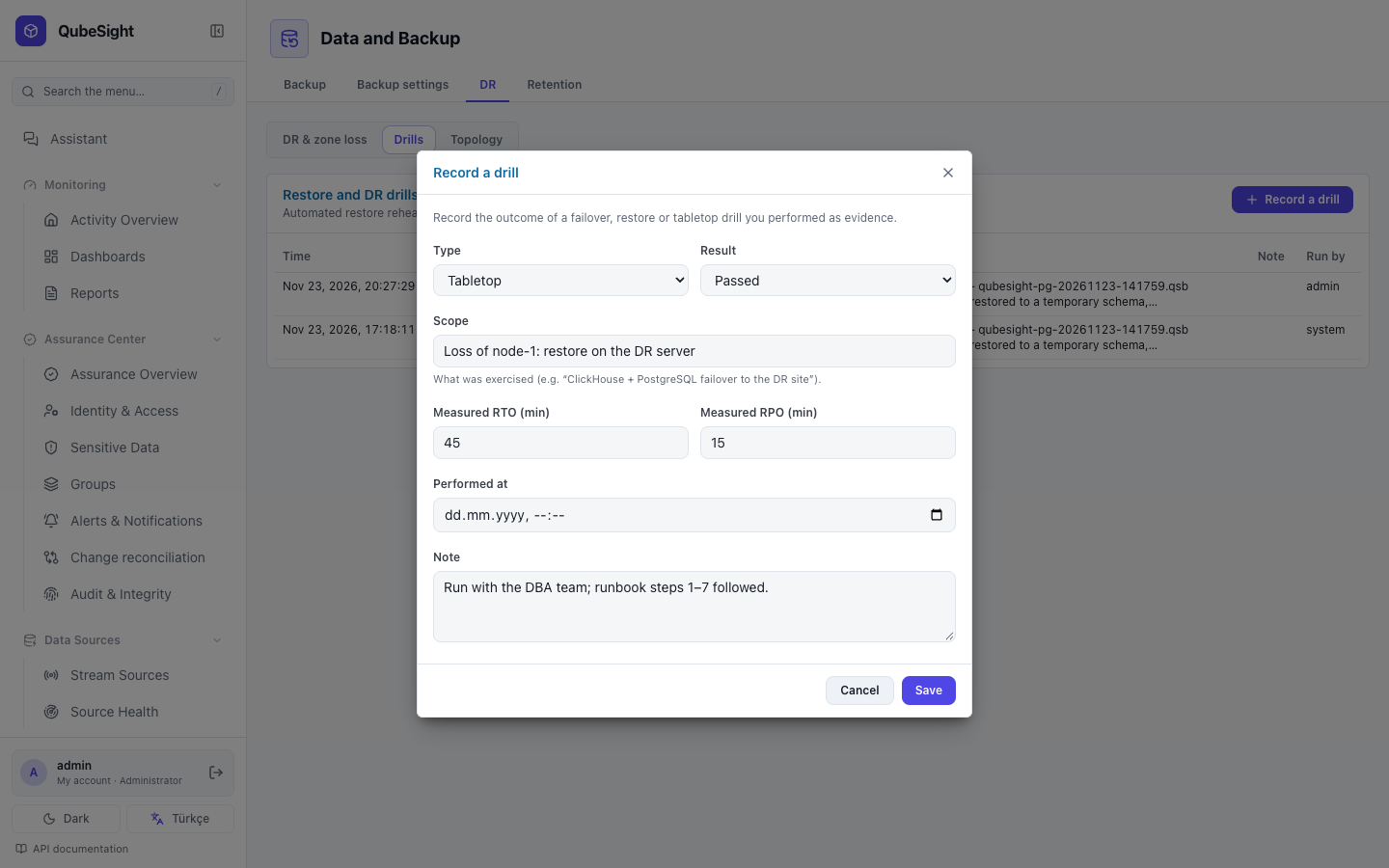
Restore and DR drills lists automated restore rehearsals and manually recorded drills with measured RTO/RPO (the latest 100). Records cannot be changed. Columns: Time, Type, Source (for example Automatic or Manual), Result, RTO, RPO, Scope, Note, Run by. With no records the list shows No drill records yet.
Record a drill (administrator) records the outcome of a drill you performed as evidence:
| Field | Values |
|---|---|
| Type | Failover (switch to standby zone) (default), Restore, Tabletop |
| Result | Passed (default), Partially passed, Failed |
| Scope | Required. What was exercised, for example "ClickHouse + PostgreSQL failover to the DR site" |
| Measured RTO (min), Measured RPO (min) | 0 or more; may be left empty |
| Performed at | Date and time; empty means now; cannot be in the future |
| Note | Free text |
Save records the drill (Drill recorded); Cancel closes the dialog.
Topology
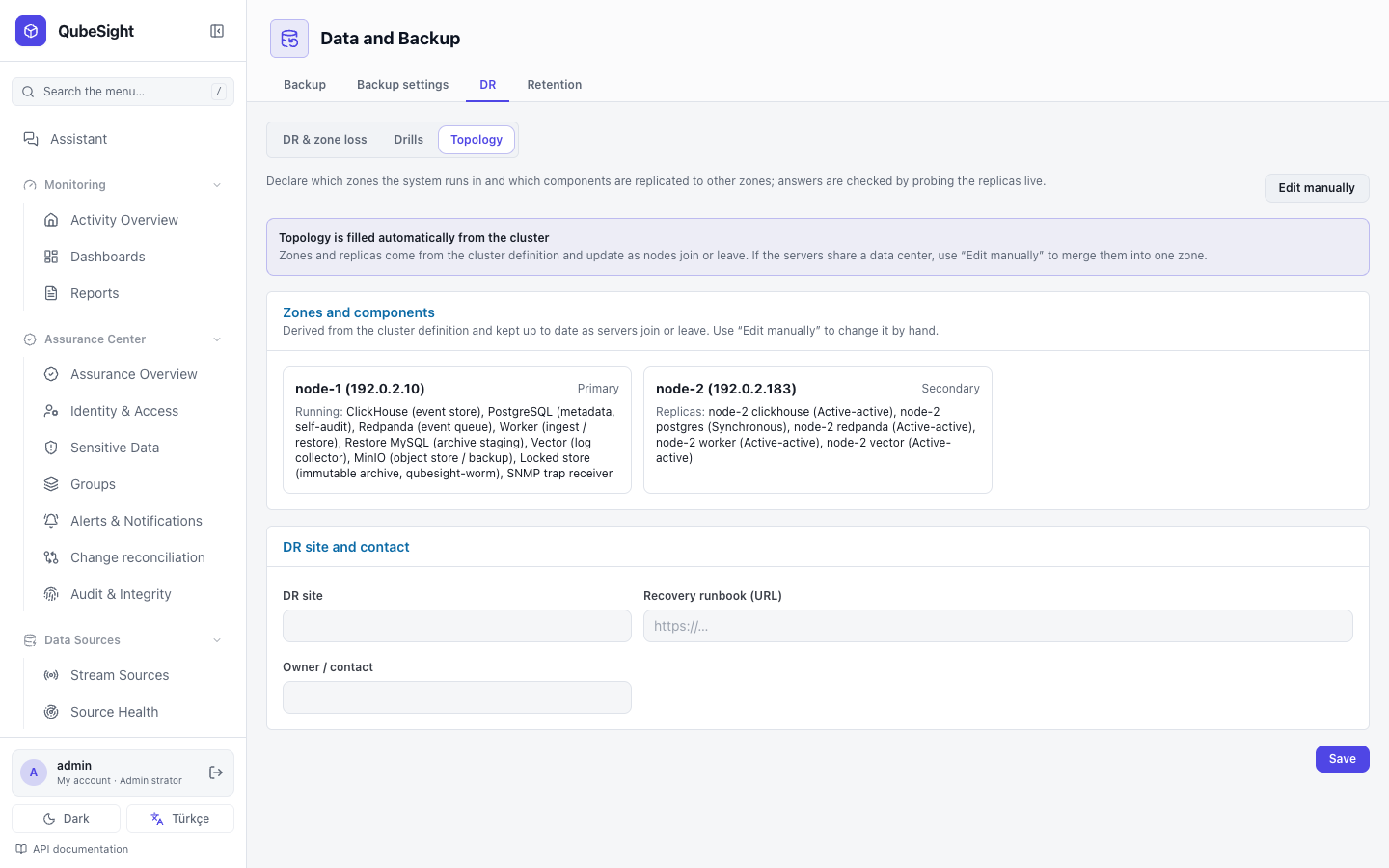
Declare which zones the system runs in and which components are replicated to other zones; replicas with an endpoint are probed live.
On a cluster (ha_cluster capability), an administrator can select Fill automatically from cluster. This loads a suggestion derived from the cluster definition into the form, with notes, and the message A suggestion from the cluster definition was loaded; not saved yet. Review it and press Save. Automatic mode takes effect only after you select Save. In automatic mode the panel Topology is filled automatically from the cluster is shown, zones and replicas update as nodes join or leave, and a read-only Zones and components summary (per zone: Running components and Replicas) replaces the zone, placement and replica forms; only DR site and contact stays editable. Edit manually switches back to manual declaration (also saved with Save), for example to merge servers that share a data center into one zone.
| Section | Fields |
|---|---|
| Zones (Add zone) | ID, Name, Type (Primary, Secondary, DR site), Location (data center, availability zone or cloud region); a delete button while more than one zone exists |
| Component placement | Per component (critical components marked with *): Zone, Role (Standalone, Primary, Cluster (multi-zone)), Note |
| Replicas (Add replica) | ID, Name, Replicated component, Zone, Replication mode (Synchronous, Asynchronous, Active-active, Standby server (fed from backups)), Endpoint (host:port, used for probing), Note; a delete button |
| DR site and contact | DR site, Recovery runbook (URL), Owner / contact |
With no replica declared, the page warns No replica declared: after a zone loss only restore from backup is possible. Save (administrator) stores the topology (Topology saved).
Retention
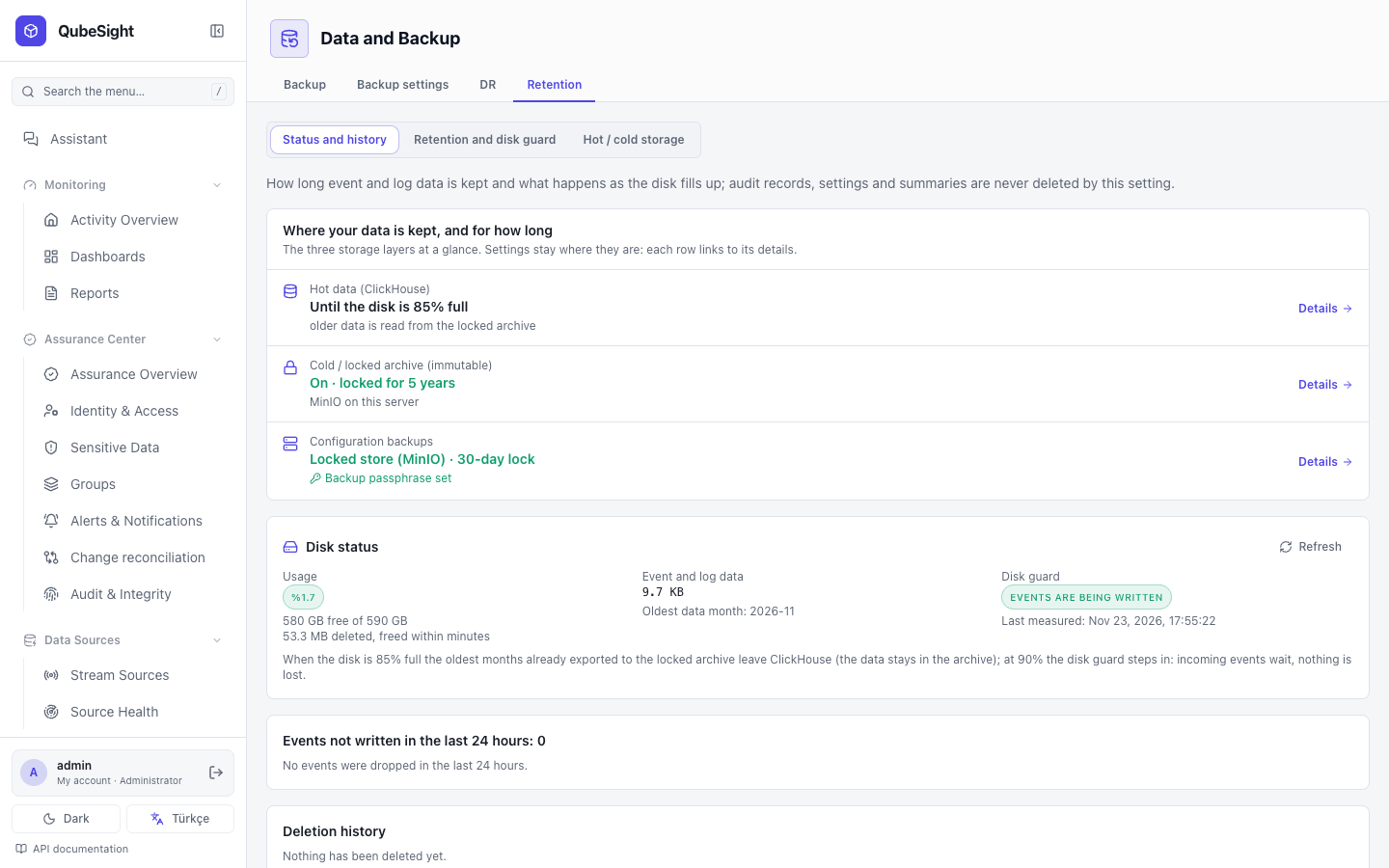
The Retention tab (administrator only) decides how long event and log data is kept and what happens as the disk fills up. Audit records, settings and summaries are never deleted by this setting. It has three sub-tabs: Status and history, Retention and disk guard, and Hot / cold storage. Procedures: Data lifecycle and retention.
Status and history
| Section | Content |
|---|---|
| Where your data is kept, and for how long | Three rows. Hot data (ClickHouse): Last {days} days, Until the disk is {pct} full or Unlimited (with the locked archive on: older data is read from the locked archive). Cold / locked archive (immutable): On · locked for {years} years with the mode, or Off (Logs are not copied to the locked store.). Configuration backups: Locked store (MinIO) · {days}-day lock, SFTP · {host}, S3 copy · {bucket} or This server's disk only, plus Scheduled backup off when applicable and the passphrase state (Backup passphrase set, Default backup passphrase (qubesight) or No backup passphrase (the default one will be used)). The configuration-backup row needs the disaster_recovery capability; without it, it shows Not enabled in this installation or license. A row that cannot be read shows Could not be read. Details → links open the matching sub-tab, Audit & Integrity → Immutable archive, or Backup settings. |
| Disk status | Refresh reloads the tab. Usage (percentage, {free} free of {total}, and {bytes} deleted, freed within minutes while parts are being removed), Event and log data and Oldest data month: {month}, Disk guard state (Events are being written, Incoming events are held (no loss) or Incoming events are dropped (lost)) and Last measured: {time}. Before the first measurement: Not measured yet (measured every minute). Under the figures: the reason for the current state, any error, and a line that explains what happens at which disk percentage with the saved settings (for example When the disk is 90% full the disk guard steps in: incoming events wait, nothing is lost., or The disk guard is off.). With the locked archive in disk mode and a hot limit at or above the guard threshold, a warning says the hot limit should be below the threshold. |
| Events not written in the last 24 hours: {total} | Always shown. Lists DB user, Source, Events, Window for events dropped by the disk guard, or No events were dropped in the last 24 hours. |
| Deletion history | Time, Reason (Retention expired or Disk guard), Table, Month, Rows, Size, or Nothing has been deleted yet. |
While the tab loads it shows Loading…; if the setting cannot be read it shows Could not read the data lifecycle setting.
Retention and disk guard
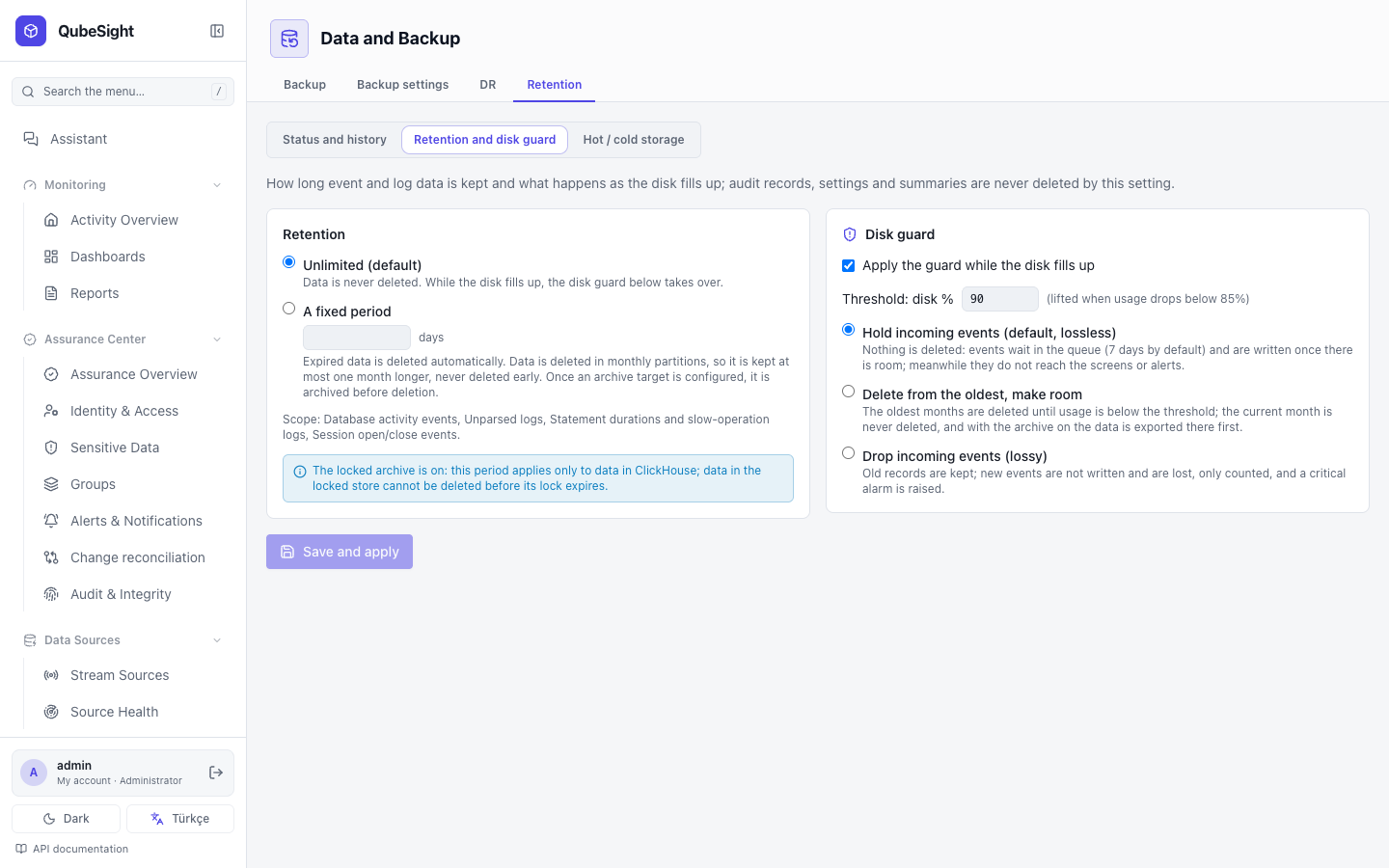
Retention:
| Option | Behaviour |
|---|---|
| Unlimited (default) | Data is never deleted; the disk guard takes over as the disk fills |
| A fixed period | Retention period (days), 1–36500 (365 is filled in when you select this option). Expired data is deleted automatically in monthly partitions, so it is kept at most one month longer, never deleted early. An empty or zero value shows Enter the number of days (at least 1). |
The scope is shown under the field: Scope: Database activity events, Unparsed logs, Statement durations and slow-operation logs, Session open/close events. When the locked archive is on, a note says the period applies only to data in ClickHouse; data in the locked store cannot be deleted before its lock expires.
Disk guard:
| Field | Default | Notes |
|---|---|---|
| Apply the guard while the disk fills up | On | With the guard off, the threshold and actions are disabled and a warning says a full disk stops ClickHouse from writing and ingestion stops |
| Threshold: disk % | 90 | 50–98; (lifted when usage drops below {pct}%), 5 points below the threshold |
| Action | Hold incoming events (default, lossless) | See below |
| Action | What happens |
|---|---|
Hold incoming events (default, lossless) (pause_new) |
Nothing is deleted. Events wait in the queue (7 days by default) and are written once there is room; meanwhile they do not reach the screens or alerts. |
Delete from the oldest, make room (free_oldest) |
The oldest months are deleted until usage is below the threshold; the current month is never deleted, and with the archive on the data is exported there first. |
Drop incoming events (lossy) (drop_new) |
Old records are kept; new events are not written and are lost, only counted per DB user and source, and a critical alarm is raised. |
Save and apply is enabled once something has changed. When the change may delete data (setting or shortening the retention period, switching to Delete from the oldest, make room, or lowering its threshold), the first click turns the button into Confirm: save and apply with Cancel and the text This change may delete expired or the oldest data right away; deleted data cannot be recovered. After saving, the page shows Saved and applied. or Saved; {n} monthly partitions were deleted.
Hot / cold storage
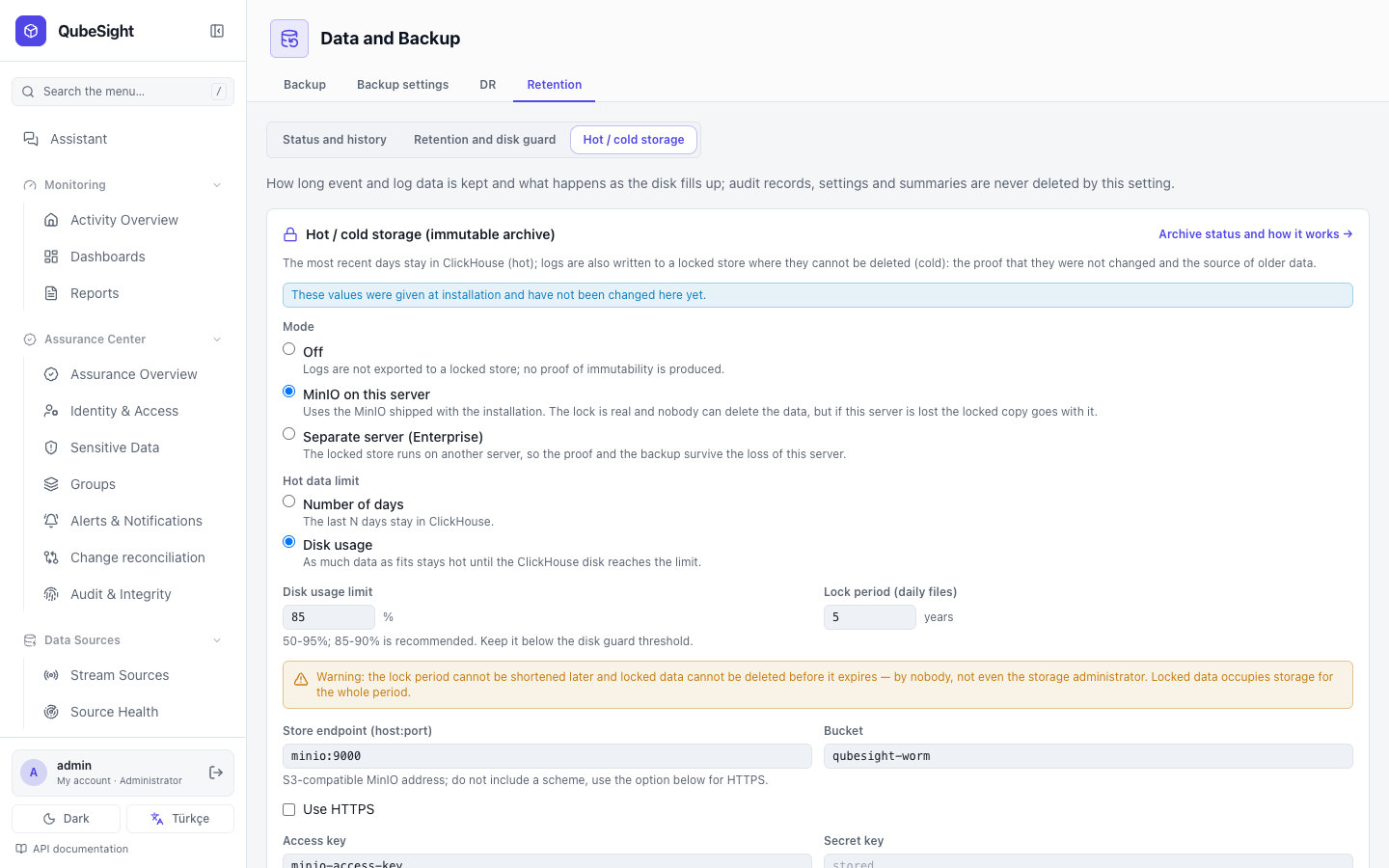
The most recent days stay in ClickHouse (hot); logs are also written to a locked store where they cannot be deleted (cold), which is both the proof that they were not changed and the source of older data. See Hot and cold storage tiers and Audit & Integrity.
Only an administrator can change this setting; the Retention tab is shown to administrators only.
The card title Hot / cold storage (immutable archive) has the link Archive status and how it works →, which opens Assurance Center → Audit & Integrity → Immutable archive. Under the intro, These values were given at installation and have not been changed here yet. appears while the installation values are unchanged; after a change, Last change: {time} · {user} is shown instead.
| Field | Meaning |
|---|---|
| Mode | Off; MinIO on this server (the lock is real, but if this server is lost the locked copy goes with it); Separate server (Enterprise) (survives the loss of this server; requires the immutable_vault capability; without it the option is disabled with Your licence does not include the Enterprise immutable vault feature; a separate server cannot be selected.) |
| Hot data limit | Number of days (the last N days stay in ClickHouse; runtime default: days mode, 365 days) or Disk usage (as much as fits until the disk reaches the limit) |
| Hot window (ClickHouse) / Disk usage limit | Days (the server accepts 7–3650), or 50–95 % (starts at 85 % when you select disk mode; 85–90 % recommended; keep it below the disk guard threshold) |
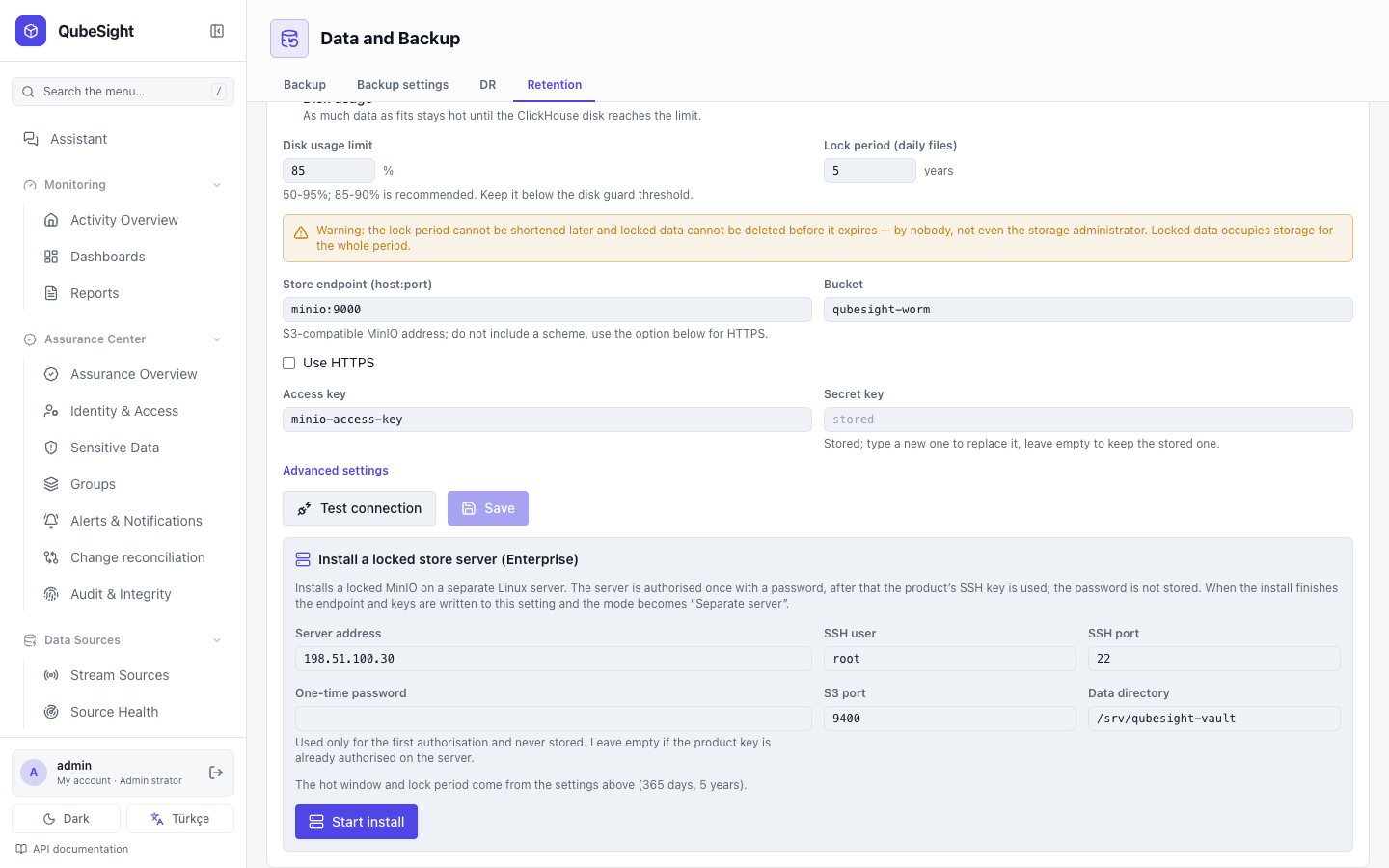
| Lock period (daily files) | Years, 1–30 (default 5), checked on every save. A warning under the field states that the lock period cannot be shortened later, and locked data cannot be deleted before it expires by anyone, including the storage administrator. Entering a shorter period than the saved one adds The lock period cannot be shortened: data locked so far stays locked for {n} years; the server may reject this change. |
| Store endpoint (host:port), Use HTTPS, Bucket, Access key, Secret key | Shown in every enabled mode (MinIO on this server and Separate server (Enterprise)). The endpoint has no scheme (use Use HTTPS instead) and its placeholder is minio:9000. The secret is write-only: once stored, the field shows stored; leave it empty to keep the stored one. |
| Live row finalisation window (under Advanced settings) | Hours (12–336, default 36) to wait for Guardium live (SNMP) rows to be merged with the archive before they are locked |
With the mode on, Test connection and Save stay disabled while a value is invalid: Days, years and hours must be at least 1; endpoint, bucket and access key cannot be empty and a secret key is required.
Hot-data default
The installer's hot-data choice (--hot-mode, --hot-days, --hot-disk-percent, or the web installer's hot-data step) is stored by the control plane on its first start, while no retention setting has been saved yet; after that you change it in Platform → Data and Backup → Retention. Without an installer value the control plane uses days mode, 365 days. An existing installation keeps its saved setting when it is upgraded; see Upgrading from 2.0.106.
Test connection (shown when the mode is on) runs four checks and reports All checks passed or Test failed with the error:
- Store reachable
- Bucket ready with object lock enabled, followed by the lock line {mode} · 10-minute files {d} days, daily files {n} years (for example
COMPLIANCE · 10-minute files 30 days, daily files 5 years) - Deleting the test object was refused (the lock really works)
- ClickHouse could write to and read from the store
Save is enabled once something has changed. When you turn the store on for the first time, change the lock period or change the bucket, the first click turns it into Confirm: save with Cancel and the text Once saved, exported data cannot be deleted or changed for {n} years; the lock period cannot be shortened later. A successful save shows Hot / cold storage setting saved.
Install a locked store server (Enterprise) (administrators with the immutable_vault capability) installs a locked MinIO on a separate Linux server. Fields and their starting values: Server address (required; Server address is required. while empty), SSH user (root), SSH port (22), One-time password (used once, never stored; leave empty if the product key is already authorised), S3 port (9400) and Data directory (/srv/qubesight-vault). While the mode is Off, the form also asks for Hot window (ClickHouse) and Lock period (daily files), starting with the current values, and repeats the lock warning; while the mode is on, it takes both from the settings above and says so. Start install (then Installing…) runs the steps Connect to the server, Container runtime, MinIO image, Start MinIO, Locked bucket, Lock probe and Write the setting, each shown as pending, running, done or failed and refreshed every 2 seconds. Under Last install: {host} the job state is shown; on success, Locked store installed: {endpoint} appears and the mode becomes Separate server (Enterprise).
Limitations
- The DR tab, the Restore drill and Drill buttons and recorded drills require Enterprise (
disaster_recovery). Automatic topology from the cluster also requiresha_cluster. - The Backup location panel has no option to go back to "no location" once a location is saved.
- A locked store on a separate server requires Enterprise (
immutable_vault); MinIO on this server does not protect against the loss of the server. - SFTP has no lock against deletion, and the ClickHouse backup to SFTP is always full (no incremental).
- A backup made with the default passphrase
qubesightcan be opened by anyone holding the file. A backup made without any passphrase (older installations) uses the server's own key and cannot be opened if the server is lost. - QubeSight cannot show or reset the backup passphrase. Earlier backups need the passphrase they were made with.
- The lock period of the locked store and of locked backups cannot be shortened later.
- Disk-guard hold and drop apply only to the worker's live ingest (Kafka, Event Hub, Kinesis). Guardium archive restore and other direct write paths do not pass through the guard; do not start a restore while the disk is full.
- Holding events is limited by the queue's own retention (7 days by default) and by the queue growing on the same disk.
- A clock difference larger than 5 minutes between the control plane and the worker breaks the disk-guard state; use NTP.
- Restoring a Guardium archive older than the retention period: those rows are deleted again within a minute. Extend the retention first.
- On clustered ClickHouse installed with a limited (SELECT/INSERT only) account, partition deletion is refused; the error appears on this page.