Upgrades, patches and the update channel
This how-to guide explains how QubeSight is updated: how a signed patch package is verified, how it is applied side by side with the running version, how to roll back, how automatic updates from the update channel work, and how updates reach every node of a cluster.
Community Enterprise
Manual patch upload is available in both editions. Automatic updates from the update channel are Enterprise only.
How an update works
A QubeSight release is delivered as a single signed file with the extension .qspatch. It contains the container images of the product services and a signed manifest that lists every file with its SHA-256 digest.
flowchart LR
  A[Upload or download .qspatch] --> B[Verify signature and digests]
  B --> C[Pre-flight checks]
  C --> D[Back up settings database]
  D --> E[Load images, check image ids]
  E --> F[Schema update, additive only]
  F --> G[Start new replica next to old]
  G --> H[Health and version probe]
  H --> I[Move traffic, retire old replica]
  I --> J[Write version to configuration]
  H -- failure --> R[Automatic rollback]
The update service (updater) runs the update. It is the only component with access to the container engine, it accepts only fixed, allow-listed operations and it listens on an internal network only.
What is verified
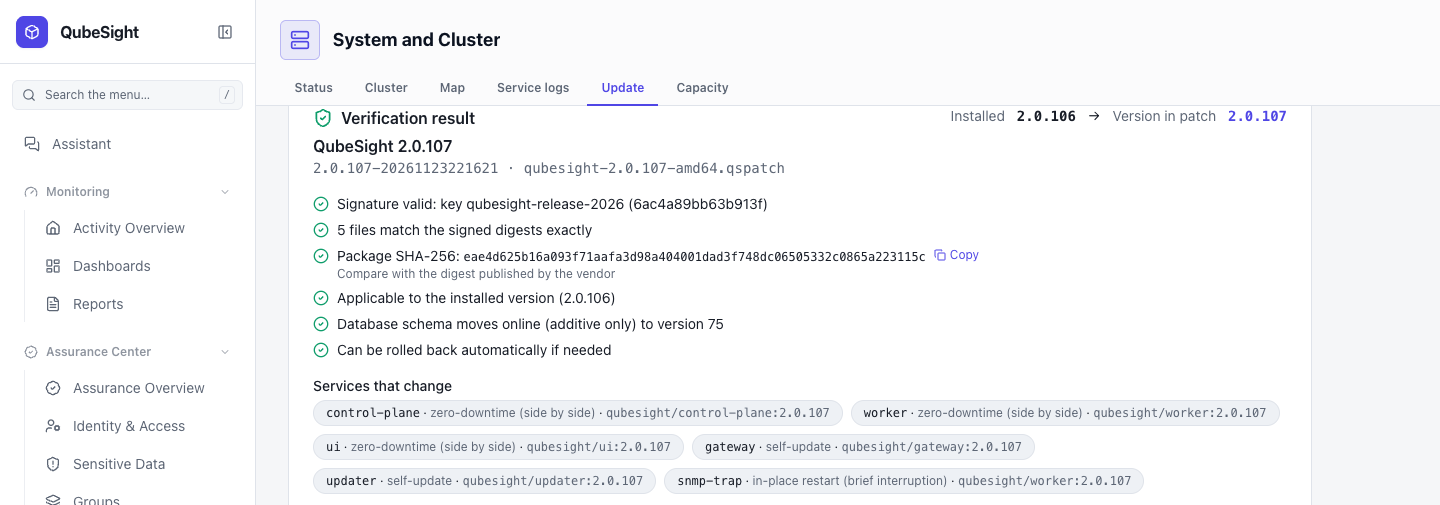
- Signature. The manifest must be signed with a key in the update service's trust store. The trust root is embedded in the product. A package signed with an unknown, revoked or self-supplied key is rejected. The key is never taken from the package itself.
- Digests. Every file in the package must be listed exactly once in the manifest and match its size and SHA-256 digest.
- Package digest (optional). If you paste the package SHA-256 published with the release, the uploaded file is also compared with it.
- Image identity. After the images are loaded, the id of every image is compared with the signed manifest, and checked again immediately before each new replica starts. Images are never pulled from a registry.
- Compatibility. The package states the installed versions it can be applied to and the CPU architecture. Downgrades and re-applying the installed version are refused.
A package that fails any check is rejected and nothing from it remains on disk.
Service strategies
| Service | Strategy | Effect during the update |
|---|---|---|
worker |
Side by side (blue/green) | The new replica joins the same Kafka consumer group; the old one drains gracefully. Delivery is at least once with deterministic event ids, so nothing is lost and duplicates collapse. |
control-plane |
Side by side | The gateway moves traffic to the new replica when it is healthy; open requests on the old replica finish first. |
ui |
Side by side | Open browser tabs show "A new version was installed. Reload the page…". |
snmp-trap |
In-place restart | The UDP trap listener is down for a few seconds. SNMP traps sent in that window are lost (UDP senders do not retry). The verification result warns about this. |
gateway |
Self-update | The front door is replaced; connections can be refused for a fraction of a second. |
updater |
Self-update | A helper container recreates the update service; the run continues from its journal. |
Third-party components (ClickHouse, Redpanda, PostgreSQL, Vector, MySQL) are not updated by a patch. The settings-database schema is part of the patch and is updated online. Schema changes are additive only, so the previous version keeps working against the new schema and a rollback does not need a schema rollback.
Full and delta packages
A release is published as a full package and, where possible, a delta package. A delta package leaves out image layers that did not change since the previous release and takes them from the images already on the host. It is much smaller, but it can be applied only to the exact release it was built from, and only on a server whose images came from the previous release's patch. Servers installed from the AWS or Azure image or from the offline bundle have separately built images, so the layers a delta leaves out are missing there. If a required layer is missing on the host, the pre-flight check stops with a clear message before anything is changed: install the full package instead. The update channel does this for you (see Behaviour and safeguards); for a manual upload on such a server, always use the full package.
The verification result states when a package is a delta ("Delta patch: … unchanged image layer(s) are not in the package").
Prerequisites
- The update service is installed. It is on by default. If Platform → System and Cluster → Update says "This installation has no update service", run
./install.sh --with-updateron the server. - You are signed in as admin. Other roles do not see the Update tab.
- Free disk space for the update service: about twice the package size plus 20 %.
- ClickHouse, Redpanda and PostgreSQL are healthy. An update does not start on unhealthy infrastructure.
Apply a patch manually
- Obtain the
.qspatchfile and its published SHA-256 digest from your QubeSight release distribution. - Go to Platform → System and Cluster → Update and open the Upload patch sub-tab.
- Optionally paste the digest into Expected package SHA-256 (optional) first, then click Choose file and select the package. The upload starts as soon as the file is chosen.
- Wait for Verifying package… to finish. The upload runs in the background: you can open other pages while it continues, and a floating indicator at the bottom of the screen shows its progress with Cancel and, at the end, Open patch management. Do not close or reload the tab.
- Review the Verification result: signing key, package SHA-256, number of files that match, Applicable to the installed version, schema change, delta, rollback safety, Services that change (with strategies), Release notes, Notes and the collapsible Apply plan. If several packages are on the server, choose one under Uploaded packages.
- Click Start and confirm with Yes, start.
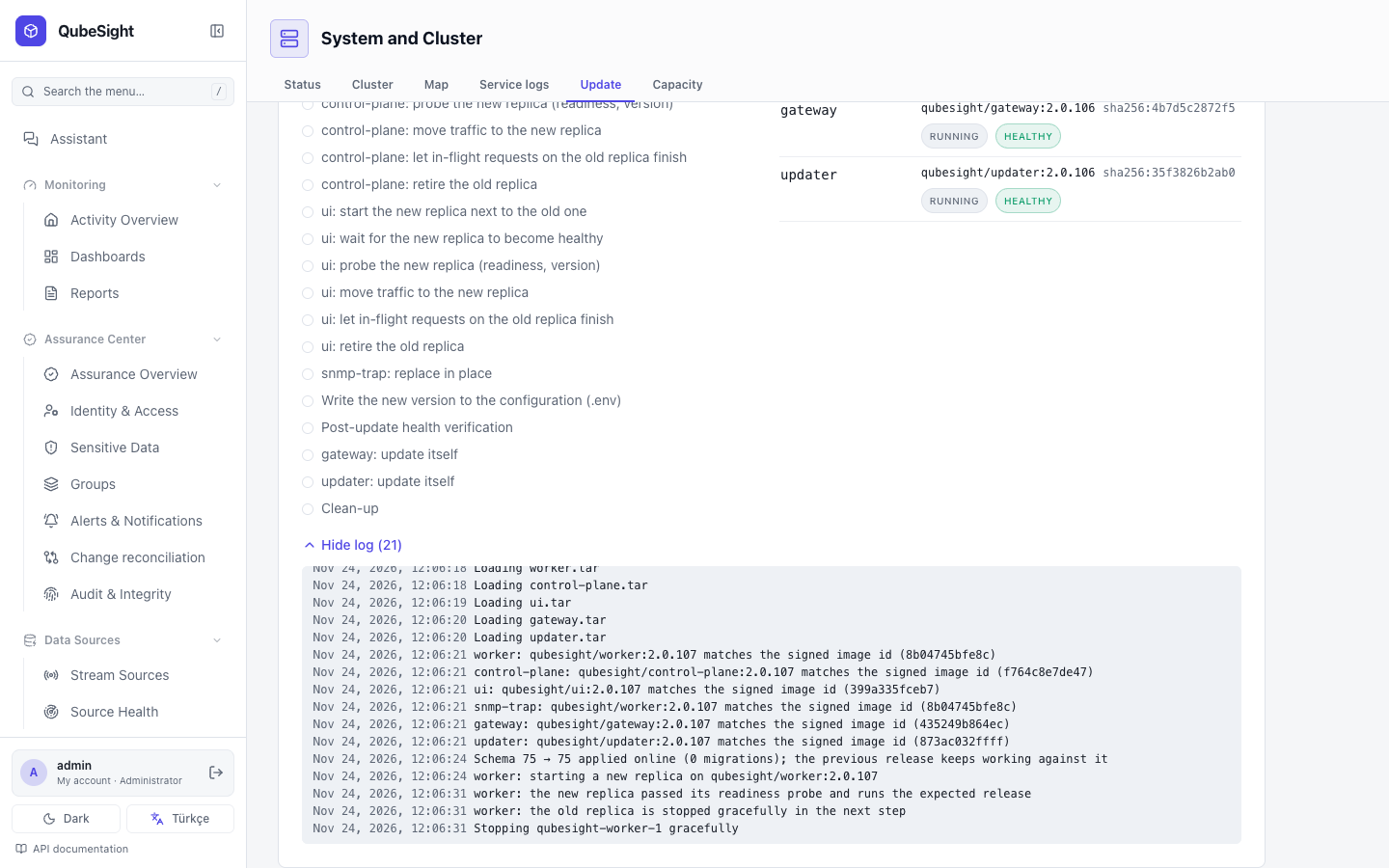
- Follow progress on the Run sub-tab: steps, per-replica service table and the event log (Show log). If the console or API replica switches, the page shows Reconnecting and resumes by itself.
- When Update completed appears, the run is finished; the box also shows the schema change (Schema {before} → {after}) when there was one. If the patch replaced the web interface, a banner asks you to reload and the page reloads by itself after 8 seconds.
Interrupted uploads
Packages are uploaded in parts and the upload is resumable:
- If the connection drops, the upload retries by itself and keeps what was already received.
- If the tab was closed, choose the same file again: the upload continues where it stopped. A partial upload is kept on the server for 1 hour.
- Only one upload runs per node. Running and interrupted uploads shows who started an upload, when, and how much arrived. An administrator can stop any upload with Cancel upload. An upload that receives no data for 60 seconds releases its slot.
- If the update service on the node is older than 2.0.4, the package is sent in a single request and an interrupted upload starts again from the beginning; the Upload patch card warns about this. Apply a patch that also updates the update service.
Verify the result
- The Installed version sub-tab shows the new version, the services with their replicas and the Trusted signing keys.
- The History sub-tab lists every run (patch and rollback) with date, user, versions, result and signing key.
- Each action is also written to the self-audit trail (for example
patch_upload,patch_start,patch_rollback).
Roll back
| Situation | What to do |
|---|---|
| A step fails during the run | Nothing. The system rolls back automatically and shows Update rolled back with the Failed step and the Reason. |
| You want to stop a running update | Click Stop and roll back. This is possible until the new version is written to the configuration; after that point the button is no longer shown, and a stop request is refused ("The update can no longer be aborted"). The result is Update stopped and rolled back. |
| The update succeeded but you want the previous version | On the Installed version sub-tab use Return to previous version. It is shown only if the patch is marked rollback-safe. The same side-by-side method is used; the schema stays. |
| The update service restarted during a run | Nothing. The run continues from its journal (up to three times). If it cannot continue and the version was not yet committed, it rolls back automatically using the recorded image ids. |
| Update did not complete (automatic rollback also failed) | On the server run docker compose ps to see which service runs which image, and read the update service log (docker compose logs updater). Contact support with a support bundle. |
Apply a patch from the command line
If the web interface is not reachable, copy the package into the installation directory and run the same verification and steps from the update service container:
cd /opt/qubesight          # your installation directory
docker compose exec updater qubesight-updater apply --sha256 <package-sha256> "$PWD/patches/<package>.qspatch"
docker compose exec updater qubesight-updater status
docker compose exec updater qubesight-updater rollback
The run also appears on the Update tab.
Automatic updates (update channel)
Enterprise
With automatic updates, the product checks the QubeSight update channel at https://updates.qubesight.io, downloads new signed packages, verifies them and applies them in a maintenance window with exactly the same mechanism as a manual patch, including automatic rollback.
Trust rests on signatures, not on TLS: the channel manifest and every package are verified with the embedded release keys. A TLS-inspecting proxy or a compromised CDN cannot make the product install a modified, unsigned or older package. Downloads are authorised only against an Enterprise proof: the installed licence file or, on AWS and Azure Marketplace deployments, the instance identity of the marketplace offer.
Network requirements
| Requirement | Value |
|---|---|
| Outbound | updates.qubesight.io, TCP 443 (HTTPS). No other address is needed; redirects to other hosts are refused. |
| DNS | The name must resolve. Allow the name, not IP addresses (CDN addresses change). |
| Proxy | Set under Advanced (address, proxy, root CA, pinning) in the channel settings, or leave empty to use the control plane's HTTPS_PROXY environment variable. |
| TLS inspection | Paste the inspecting proxy's root certificate into Extra root certificate (for corporate TLS inspection, PEM). |
| Internal mirror | Set Channel address to the mirror's HTTPS address. Copy the files unchanged; signatures are bound to the content. |
Configure
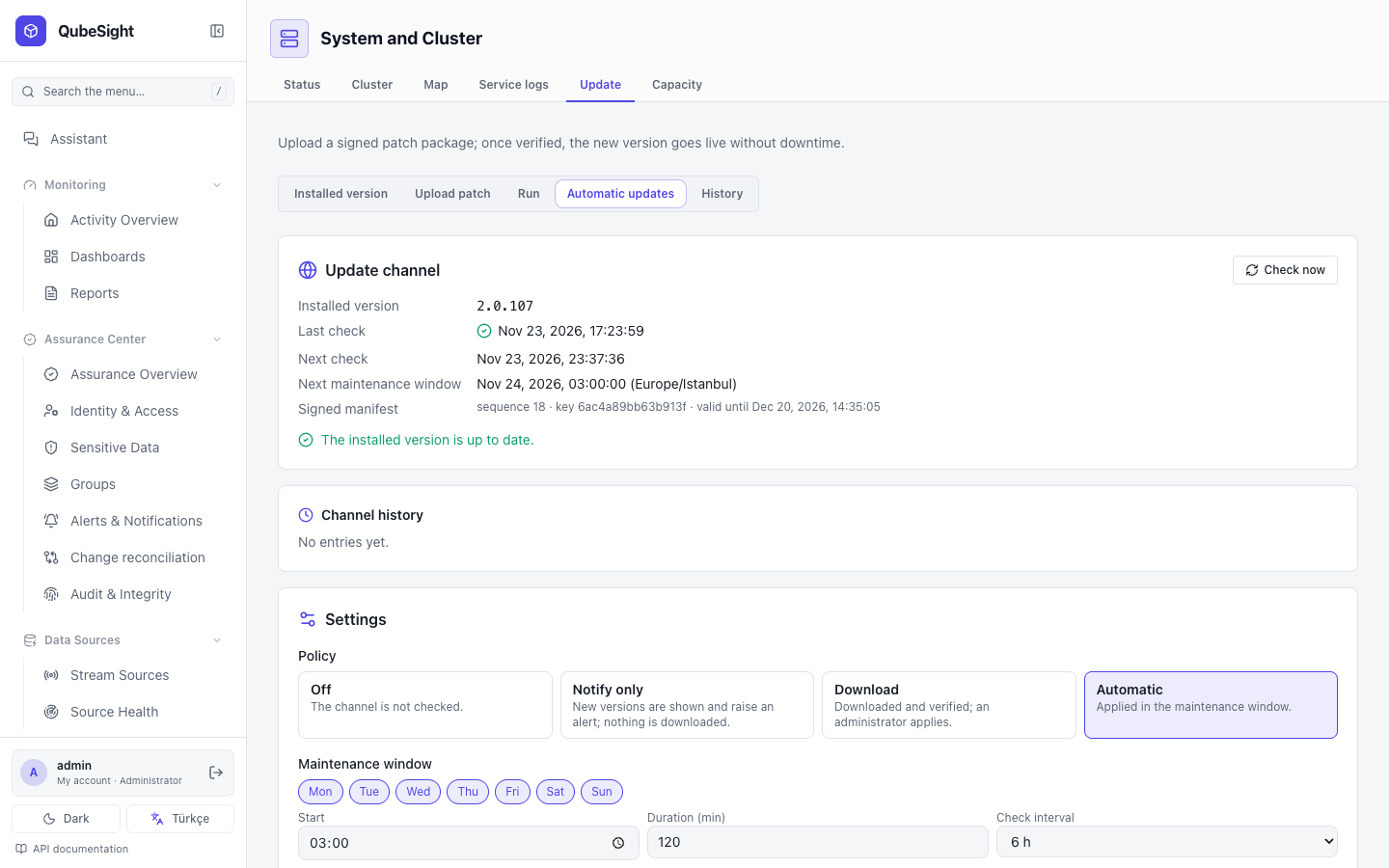
- Go to Platform → System and Cluster → Update → Automatic updates.
-
Choose a Policy:
Policy Behaviour Off The channel is not checked. Notify only New versions are shown and raise a low-severity Automatic updates alert; nothing is downloaded. Download The package is downloaded and verified; an administrator starts it with Apply now. Automatic The package is downloaded, verified and applied in the maintenance window. -
Set the Maintenance window: days, Start and Duration (min) (30–720). Times are in the server time zone. A window that crosses midnight belongs to the day it starts.
- Optionally change the Check interval: 1, 3, 6, 12 or 24 hours (default 6 hours; every installation is offset by up to ±10 %). The API accepts any value from 60 to 10,080 minutes (7 days); such a value is shown in minutes in the list.
- Optionally, under Advanced (address, proxy, root CA, pinning), set a Pinned version (nothing newer is selected) or Skipped versions (comma separated) (at most 50), the proxy and its credentials, or an extra root certificate. A stored proxy password is not shown; tick Delete the stored password to remove it.
- Click Save (Settings saved.). Discard returns unsaved changes to the stored values. Use Check now to check immediately (not available with policy Off).
Defaults: a new installation starts with Automatic and a daily window at 03:00 for 120 minutes. An installation that existed before the update channel was introduced starts with Notify only, so nothing is applied until an administrator chooses otherwise.
Behaviour and safeguards
- Never a downgrade. Only versions newer than the installed one are selected.
- Multi-step upgrades. If the newest version has no package for this installation, the newest applicable intermediate version is selected; the channel is checked again a minute after a successful update.
- Delta preferred, full package as fallback. When a delta package for the installed version exists, it is used. Since 2.0.110, if the server cannot apply the delta (typically a server installed from the AWS or Azure image or from the offline bundle), the update service stops at its pre-check without changing anything, the downloaded delta is deleted and the attempt is not counted. In the next round, about 30 seconds later, the full package of the same version is downloaded and, with policy Automatic inside the maintenance window, applied right away. The update history shows an information line saying that the delta cannot be applied on this server and the full package is used instead. Installations on 2.0.109 or older never see delta packages in the channel and always take the full package.
- Failure handling. A failed automatic update rolls back and raises a high-severity Automatic updates alert. The same version is tried automatically at most twice, never twice in the same window. After that it can only be applied or skipped manually.
- Check failures. A failed check is retried after 30 minutes. If the channel cannot be checked for 3 days, or the manifest is invalid or expired, a medium-severity alert opens.
- Manifest protection. An older manifest, a different manifest with the same sequence number, a manifest for another channel or an expired manifest is rejected. The status shows the reason, for example "The manifest has expired (not re-signed by the publisher, or the server clock is wrong)".
Community edition
On Community the channel is not checked and nothing is downloaded. The Automatic updates sub-tab is read-only with an Enterprise notice. Apply signed patches manually as described above.
Offline (air-gapped) installations
Automatic updates need outbound access to the channel. In an air-gapped environment, transfer the .qspatch file and its SHA-256 digest through your approved media and apply it with Upload patch or the command line. The package is self-contained: all images are inside it.
Clusters: rolling apply
Enterprise
In a high-availability cluster the update service runs on the source node only. Upload and apply the patch there (from any node, the upload is relayed to the source node).
- The patch is applied to the source node as described above.
- Every two minutes the source node compares the other full nodes with the cluster definition. A node that runs a different version is updated automatically, one service at a time: worker → SNMP trap receiver → control-plane → UI → gateway. Missing images are copied from the source node. A service that does not come up healthy returns to its previous image.
- A node whose update failed is not retried for one hour. You can start it at once with Update on the node row in Platform → System and Cluster → Cluster.
The Update tab shows "Cluster nodes: x/y up to date" with a link to the Cluster tab. Database and coordination services (ClickHouse, Keeper, etcd, PostgreSQL/Patroni, Redpanda) are not changed by this process.
Version consistency
- Worker and SNMP receiver are always included. The worker runs background jobs that share code with the control plane (for example Guardium health and restore scheduling). Release packages therefore always contain the worker and the SNMP trap receiver together with the control plane.
- Image drift alert. If a QubeSight container runs a different image than the installed release, or a node's compose file differs from the running containers, a per-node alert opens.
- No accidental downgrade in a cluster. A node that comes back on an older version cannot pull the cluster definition back to that version; it is brought up to the cluster version instead.
- Do not run
docker compose up -dby hand. The patch pins all service images in.env, but a different Compose version on the host can compute a different configuration hash and recreate running services. For day-to-day work usedocker compose start,stop,restart,logsandps. If you must runup, add--no-recreate../install.shhandles this on patch-managed installations; use--recreateonly when you intend to apply.envchanges to running services.
Upgrading from 2.0.109
2.0.110 follows 2.0.109 directly. It contains no settings-database migration (schema 75) and changes no stored setting.
- Which package. The full patch works on every installation. The update channel publishes the full package and a delta from 2.0.109; installations on 2.0.109 take the full package from the channel. The delta patch is only for installations that reached 2.0.109 through the 2.0.109 patch; on any other server (AWS or Azure image, offline bundle) its pre-check refuses it and nothing changes, so upload the full patch there.
- During the update. Network syslog lines that arrive while the worker is handed over are delivered again from Kafka to the new worker; nothing is lost.
| Area | In 2.0.109 | After upgrading to 2.0.110 |
|---|---|---|
| Automatic updates with a delta package | A delta that the server could not apply (cloud image or offline bundle installation) stopped at the pre-check without changing anything, and the channel did not switch to the full package by itself. | The channel switches to the full package of the same version in the next round (about 30 seconds); no attempt is counted, and the update history shows an information line. |
| Cluster jobs in the English interface | Some step details and errors of cluster jobs were still Turkish. | Step details and errors of first node, join, update, GUI port change and rejoin jobs are English. |
Upgrading from 2.0.107
2.0.109 follows 2.0.107 directly. 2.0.109 contains no settings-database migration (schema 75), and existing installations keep their hot-data mode, display time zone and languages: a stored value always wins.
- Which package. The full patch works on every installation, and the update channel offers only the full patch for this release. The delta patch is only for installations that reached 2.0.107 through the 2.0.107 patch.
- During the update. Network syslog lines that arrive while the worker is handed over (about 10 seconds) are delivered again from Kafka to the new worker; nothing is lost.
| Area | In 2.0.107 | After upgrading to 2.0.109 |
|---|---|---|
| Outgoing mail server | Settings → Notifications → Outgoing mail server (SMTP) could not be saved on a new installation (the unconfigured Guardium SNMPv3 profile was validated). | Saves normally; a half-entered SNMPv3 profile is still refused. |
| E-mail bridge Vector address | The default address was a development address. | Derived from the installation (vector:5140); an old stored default is corrected automatically. |
| Access manager | Could not open Identity & Access → Directory and SSO on a new installation; Test connection in the LDAP and SSO dialogs discarded unsaved edits. | The tab opens; a test keeps your edits. |
| MCP proposals | A proposal stayed in Pending changes after its key was revoked and could still be approved. | Revoking a key cancels its pending proposals; approval re-checks the key. See MCP. |
| Sessions on a cluster | An active session could be ended as idle when a request reached the other node. | Activity counts on every node. |
| Rejected sources | Dropped sources appeared only after later allowed traffic arrived. | Rejected-source summaries arrive within seconds; the counters are written about 2 seconds after a rejection. |
| Update screen | The next maintenance window was shown in the display zone with the server zone's label; the server zone could be named "Local"; failed channel messages could be Turkish in the English interface. | The window time is shown in the zone it is labelled with; channel history is English in the English interface. |
| English interface | Kinesis and Event Hub test results, LDAP test texts and cluster job steps were Turkish; Event Hub, Kinesis and CloudWatch cards without events showed "Jan 1, 1970"; the cluster preflight column could show a raw key. | All English; cards without events say "No events yet". |
| Cluster join on cloud images | A GUI join on a first node from the AWS or Azure image failed at Transfer images (missing keepalived image). | The images contain every image a join transfers. |
| Installer | ./install.sh without options stopped after the first question; SELinux-enforcing hosts could not finish; a half-finished first run was treated as an existing installation. |
All fixed; see Known issues of 2.0.107. If an installation of yours stopped half-way and was completed later, check the ingest allowlist and the backup location. |
New installations (not upgrades) also get the server's time zone and the installer's language as product defaults; see Product language and time zone.
Upgrading from 2.0.106
2.0.107 contains no settings-database migration. Upgrading changes no stored setting and does not move any data. The table lists what was different in 2.0.106 and what to check after the upgrade.
| Area | In 2.0.106 | After upgrading to 2.0.107 |
|---|---|---|
| Hot-data limit chosen at installation | The installer passed only the number of hot days (--hot-days) to the control plane. The mode and percentage (--hot-mode, --hot-disk-percent, or Disk usage in the web installer) were lost, so an installation where you chose Disk usage runs in days mode with the chosen number of days. |
The stored setting does not change. If you chose disk mode at installation, open Platform → Data and Backup → Retention and set Disk usage and the percentage there. New 2.0.107 installations store the installer's mode and percentage. |
| License status badge | Active for every installed licence, also after its end date and grace period. | The badge shows the real state: Active, In grace period, Expired or Invalid / inactive. An installation whose licence has ended now shows that state; the licence and the enabled features themselves do not change. |
| SIEM forwarder validation messages | In Turkish, also in the English interface. | In English in the English interface, except the checks of a syslog destination's address and facility. |
| Guardium archive environment | The form for a new environment suggested /arsiv. |
A new environment suggests /archive. Existing environments keep their saved directories. |
| Vault on another server in the installers | Labelled "(Community)". | Labelled "(Enterprise)", with a note. Nothing changes for an installed vault: managing it already needed the immutable_vault entitlement. |
| Offline installation | No offline bundle; images were saved, copied and loaded by hand, and the installer built from source unless --no-build was given. |
The offline bundle qubesight-2.0.107-offline.tar.gz and the no-build default are available for new installations and re-installations. See Offline installation. |
| Data disk | No data-directory option; all data in the installation directory or in engine volumes. | An existing installation keeps its data where it is. The data directory can be chosen only on a new installation; moving data is a maintenance task (see Data disk). |
| Cluster map | A red component did not say why. | The reason is shown on the card and in the detail panel. |
| ClickHouse open-file limit (single server) | Not set in the Compose file; some container engines give 1,024 open files. | The 2.0.107 Compose file sets 262,144. A patch replaces the product services and does not recreate ClickHouse; check the limit as described in ClickHouse open-file limit on a single server. |
| Witness log messages | The topology probe left a half-closed TLS connection on each broker about every 10 seconds. | The probe closes its TLS connections properly once every node runs 2.0.107. |
Organisation-signed patches
By default only packages signed with the embedded QubeSight release key are accepted. To accept packages signed by your own organisation, copy the publisher's public key into the update service's trust directory; no restart is needed:
Never place a private signing key on a QubeSight server.
Limitations
- Only
control-plane,workeranduiare replaced without interruption.snmp-trap,gatewayandupdaterhave a brief interruption; SNMP traps sent during the few seconds the trap listener restarts are lost. - Short-lived in-memory state (for example a report export being prepared, sign-in rate-limit counters) does not move to the new replica; clients retry. Sessions are stored in PostgreSQL and survive.
- Third-party images (ClickHouse, Redpanda, PostgreSQL, Vector, MySQL) and the host operating system are not updated by patches. See Host operating-system updates.
- Automatic updates through an HTTPS proxy or a TLS-inspecting proxy are implemented with standard proxy support but have not been verified in a customer environment.
- A delta package can be applied only to the release it was built from, and only on a server whose images came from that release's patch. On servers installed from the AWS or Azure image or from the offline bundle, use the full package (the update channel switches to it automatically).
Troubleshooting
| Symptom | Cause and action |
|---|---|
| "This installation has no update service" | The update service was disabled at install time. Run ./install.sh --with-updater. |
| "The update service is not reachable" | Check docker compose ps updater and docker compose logs updater. The page recovers automatically. |
| "The package is not signed with a trusted key" | Use an official package, or add your organisation's public key (above). |
| "Cannot be applied: … downgrades are refused" | The package is not newer than the installed version. Check the installed version on the Installed version sub-tab. A package already applied shows "This package was already applied". |
| Pre-flight "… is not healthy" | Fix that component first; see Runtime problems. |
| Pre-flight refuses a delta package because unchanged image layers are missing on this host | The server was installed from the AWS or Azure image or from the offline bundle, or did not reach the base release through its patch. Nothing was changed. Upload the full package of the same version. With automatic updates (2.0.110 and later) the channel switches to the full package by itself. |
| "There is not enough free disk space on the server" | Free space for about twice the package size plus 20 %, then choose the same file again. |
| "The update channel could not be reached (network, DNS, firewall or proxy)" | Check outbound HTTPS to updates.qubesight.io, DNS and proxy settings. See Runtime problems. |
| "The channel server did not authorize the download: a valid Enterprise licence is required" | Check Platform → Settings → License; on marketplace deployments the instance must be launched from the QubeSight offer. |