Single sign-on (OIDC)
This guide shows you how to let users sign in to QubeSight through your organisation's OpenID Connect identity provider, such as Okta, Microsoft Entra ID, Keycloak or any standards-compliant OIDC provider. Passwords, MFA, passkeys and Touch ID are then handled on the provider's own page; QubeSight only verifies the signed result and assigns a role from the provider's groups or roles.
Enterprise
SSO requires the capability enterprise_auth. In Community, the SSO part of the Directory and SSO tab shows an Enterprise lock. SSO works alongside local accounts, not instead of them.
How it works
QubeSight uses the OIDC authorization code flow with PKCE (S256).
sequenceDiagram
    participant B as Browser
    participant Q as QubeSight
    participant P as Identity provider
    B->>Q: Sign in with SSO
    Q-->>B: Redirect (state, nonce, PKCE challenge)
    B->>P: Sign-in page (password, MFA, passkey)
    P-->>B: Redirect to callback with code
    B->>Q: /api/v1/auth/oidc/callback
    Q->>P: Exchange code (PKCE verifier)
    Q->>Q: Verify ID token (signature, issuer, audience, expiry, nonce)
    Q->>P: userinfo (only if claims are missing)
    Q-->>B: Session, role from mapping
Three network paths must work:
| Path | Purpose |
|---|---|
| Browser → QubeSight | Sign-in page, authorize and callback addresses |
| Browser → identity provider | The provider's sign-in page |
| QubeSight server → identity provider | Discovery document, signing keys (JWKS), code exchange and userinfo. The control plane must resolve and reach the provider address. |
Prerequisites
- An Enterprise licence.
- The Administrator or Access manager role to change settings and run the connection test. Only an administrator can run a test sign-in. Auditors can read the settings.
- At least one active local Administrator or Access manager account. SSO cannot be enabled without one, because it is the only way in if the provider is unavailable.
- QubeSight published over HTTPS with a domain name (for example
https://qubesight.example.com). The session cookie is markedSecure, and passkeys (WebAuthn) only work over HTTPS with a valid certificate and a domain name. - When separation of duties is enforced, only the access manager can change the provider identity (issuer, client ID, TLS trust, username or group claim) or add a mapping that grants Administrator or Access manager.
Step 1: register QubeSight at the identity provider
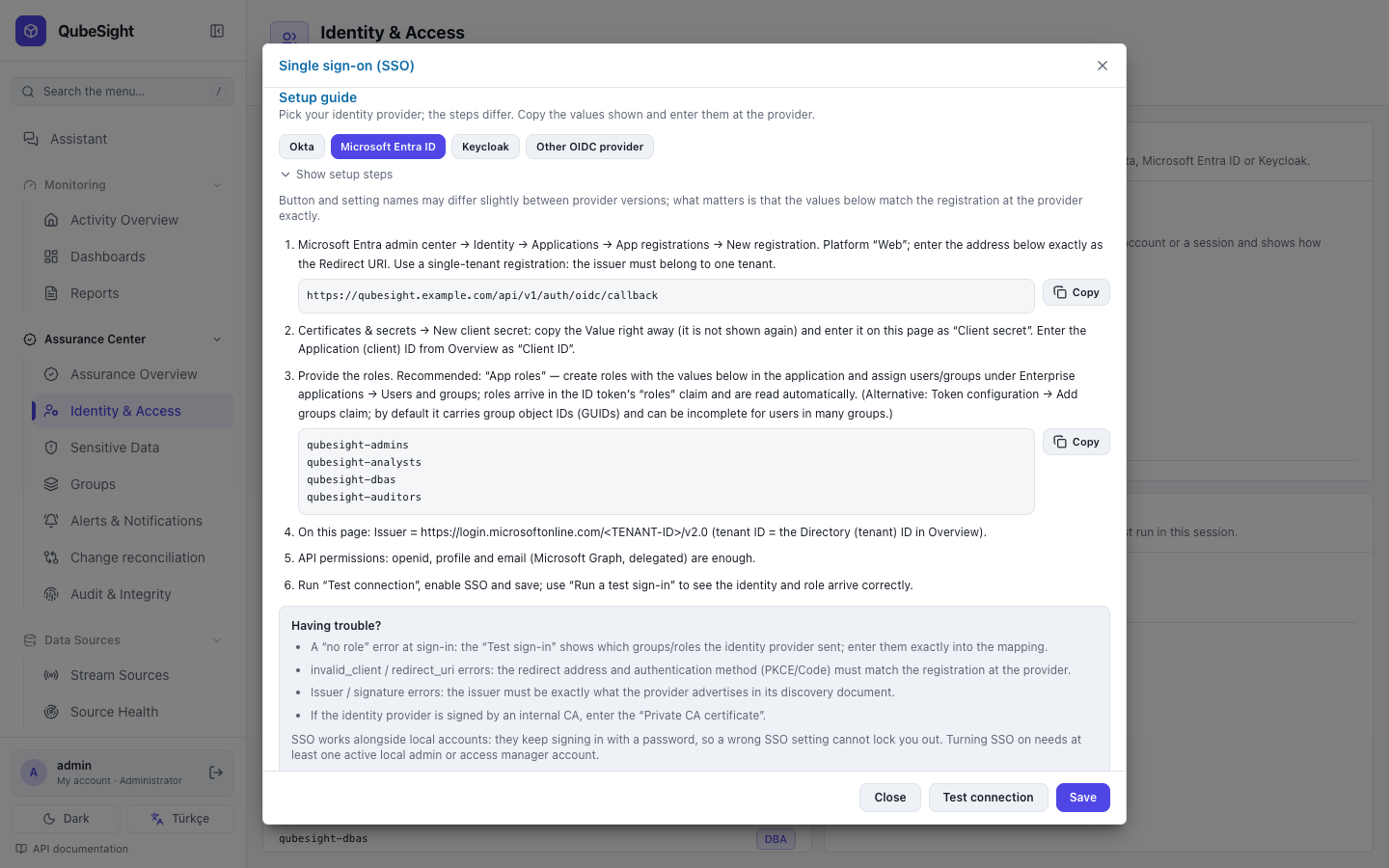
The Setup guide on the SSO tab (Show setup steps) gives provider-specific steps for Okta, Microsoft Entra ID, Keycloak and Other OIDC provider, together with values you can copy. In general terms:
- Create an OIDC web application (client) that uses the authorization code flow with PKCE (S256).
- Add the Redirect address shown on the SSO tab exactly as the redirect (sign-in) URI. It is
<application public address>/api/v1/auth/oidc/callback, for examplehttps://qubesight.example.com/api/v1/auth/oidc/callback. - Grant the scopes
openid profile email. - Put group or role information in the ID token (or in userinfo). QubeSight reads the claims
groups,rolesandrealm_access.rolesautomatically. -
Create groups or roles whose names match the mapping in QubeSight and assign users. The suggested names are:
Group or role at the provider QubeSight role qubesight-adminsAdministrator qubesight-analystsAnalyst qubesight-dbasDBA qubesight-auditorsAuditor -
Note the issuer (exactly as it appears in the provider's
/.well-known/openid-configurationdocument), the client ID and, for a confidential client, the client secret.
Typical issuer formats:
| Provider type | Issuer format | Where roles arrive |
|---|---|---|
| Okta | https://<org>.okta.com or, with a custom authorization server, https://<org>.okta.com/oauth2/default |
A groups claim added to the ID token |
| Microsoft Entra ID (single tenant) | https://login.microsoftonline.com/<tenant-id>/v2.0 |
App roles in the roles claim (recommended); a groups claim carries group object IDs |
| Keycloak | https://<server>/realms/<realm> |
Realm roles in realm_access.roles, or a groups claim with a Group Membership mapper |
The provider-specific steps were written from the providers' documentation and have not been tested by the vendor against live Okta, Entra ID or Keycloak tenants. Use Run a test sign-in to confirm what your provider sends.
Step 2: configure SSO in QubeSight
- Go to Assurance Center → Identity & Access → Directory and SSO and open the SSO settings.
-
Fill in the fields:
Field Description Default Button label Shown on the sign-in page as "Sign in with …". SSOIdentity provider address (issuer) Exactly the issuer from the discovery document. — Client ID The application's client ID. — Client secret (optional) Leave empty for a public client using PKCE only (recommended). If set, it is stored encrypted and never shown again. If you change the issuer or client ID, the stored secret is deleted when you save. empty Application public address Scheme and host your browser uses, for example https://qubesight.example.com. Use this browser's address fills it in. The redirect address is derived from it.— Scopes Space separated; openidis required.openid profile emailGroup / role claim name Empty: groups,rolesandrealm_access.rolesare tried. Enter a name (dotted paths allowed) for another claim; the value may be an array, an object whose keys count as roles, or comma-separated text.empty Username claim Empty: preferred_username, thenemail, thensub.empty Private CA certificate (PEM) CA that signed the provider certificate, if internal. empty Ask for re-authentication at the provider on every sign-in Sends prompt=login, so an existing provider session does not sign the user in silently.off Allow a plain-HTTP provider (not recommended) Required for an http://issuer that is not localhost. Only for a closed test network.off Timeout (s) Requests to the provider. 8 -
Under Group / role → QubeSight role, map each Group / role key to a role. If a user matches several mappings and the roles conflict under separation of duties, the least privileged role is used; otherwise the role of the first matching mapping in the list is used, so order matters.
- Set Default role when nothing matches to Analyst, DBA or Auditor, or keep Sign-in is refused (recommended). Administrator and Access manager cannot be the default.
- Click Test connection. The test checks Settings, Discovery (the issuer matches), PKCE, Signing keys (JWKS), Authorization endpoint (the client ID and redirect address are accepted) and Token endpoint, and lists the Provider endpoints.
- Switch on SSO enabled and click Save. Enabling is refused unless the connection test passes.
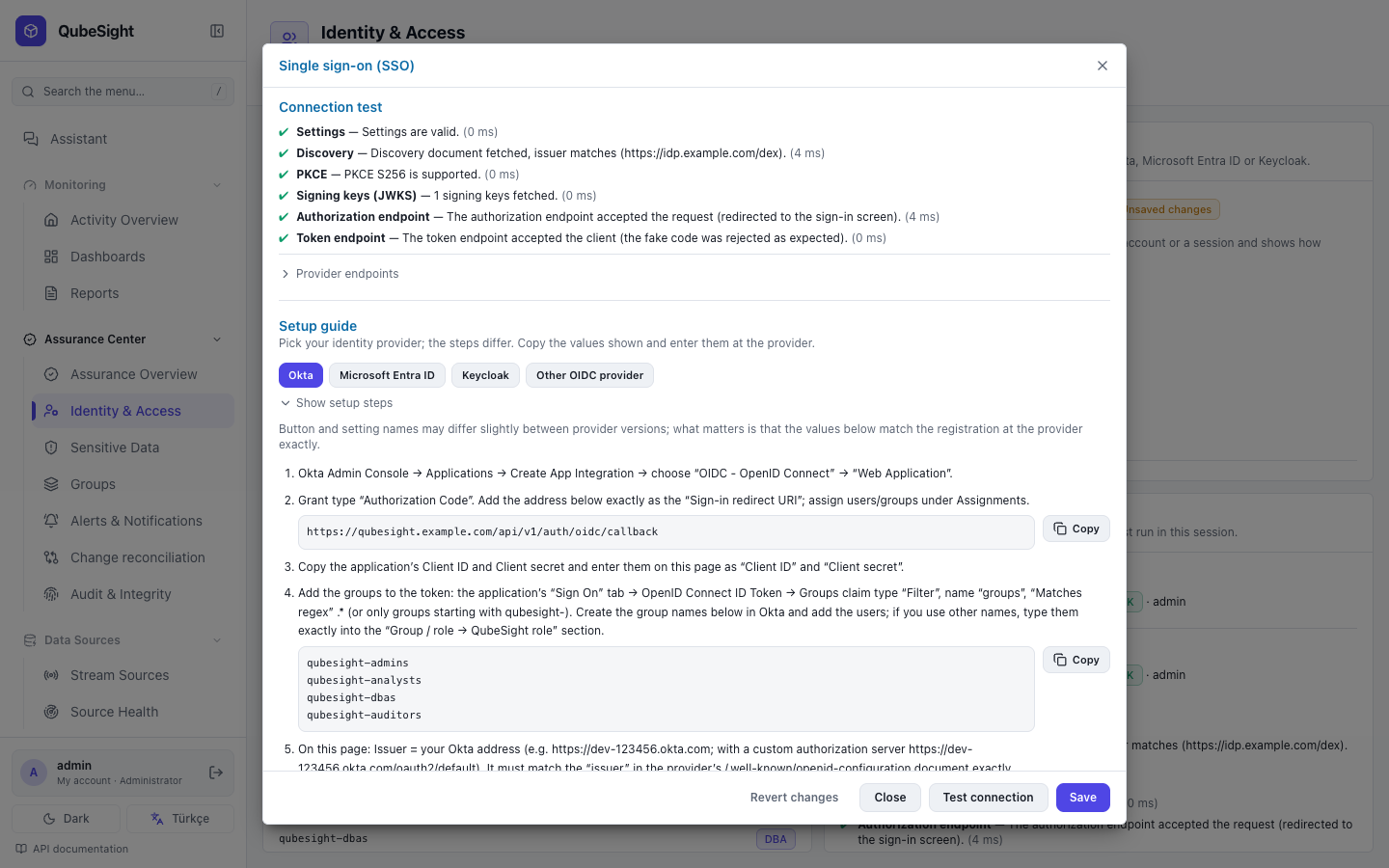
Step 3: run a test sign-in
- Save the settings first; the test sign-in uses the saved settings.
- Click Run a test sign-in. You are sent to the provider, sign in, and return to QubeSight without an account or a session being created.
- The Test sign-in result shows Username, Email, Groups / roles received, Matching mappings, Role to be assigned, whether the default role was applied, the Claims seen, whether userinfo was used, and whether the QubeSight account already exists, will be created or is disabled.
If Groups / roles received is empty, add the group or role claim to the ID token at the provider, or set Group / role claim name.
How SSO accounts behave
- Just-in-time accounts. The account is created at first sign-in, has no password and is identified by the issuer and the
subclaim, so it stays the same if the username changes at the provider. - Role refresh. The role is recalculated at every sign-in. Removing a user from all mapped groups refuses the next sign-in and ends their open sessions. Other provider changes reach an open session only when it expires or is ended.
- No takeover. If the provider's username collides with an existing local or LDAP account (for example
admin), sign-in is refused with username_conflict and the existing account is not touched. - Read-only role. The role of an SSO account cannot be edited on the Accounts tab; change the mapping instead.
- MFA. SSO accounts are exempt from QubeSight's built-in MFA. Enforce MFA in the provider's policy. See Multi-factor authentication.
- Sign-out. Signing out of QubeSight does not end the provider session. After signing out of an SSO session, the next SSO sign-in asks for re-authentication (
prompt=login). RP-initiated logout at the provider is not supported. - Disabling SSO ends all SSO sessions; local sessions are not affected. While SSO is on, the last active local Administrator or Access manager cannot be deleted, disabled or demoted.
Verify
- On the sign-in page, the button Sign in with appears.
- The Status panel on the SSO tab shows SSO enabled, Provider, Mappings, SSO accounts, Open SSO sessions, Last SSO sign-in and Last test.
- The audit trail records each settings change, test, test sign-in and sign-in.
Troubleshooting
The sign-in page shows the error in plain language. The table lists the cause behind each message.
| Error | What to check |
|---|---|
| The identity provider could not be reached | DNS and network access from the QubeSight server to the provider, and the Private CA certificate. Run Test connection. |
| Your sign-in session is invalid or has expired | The page was opened twice or the back button was used, cookies are blocked, or QubeSight was opened at an address other than the Application public address. |
| Verification with the identity provider could not be completed | The redirect address must match exactly; check the client ID, client secret and the client type (PKCE or confidential). |
| The ID token could not be verified | The issuer must match exactly, including any trailing slash advertised by the provider; clocks must be within about 2 minutes; only RS256 and ES256 signatures are accepted. |
| You were authenticated but have no role | Run a test sign-in, see which groups arrived and enter them exactly in the mapping. |
| The identity provider reported an error | Check the provider logs; the test sign-in shows details such as a userinfo error. |
| Your username collides with an existing account | Rename the local or LDAP account, or change the username at the provider. |
| Too many attempts | Wait one minute. |
| Touch ID or a passkey is not offered | The provider must be served over HTTPS with a domain name. The SSO tab warns when the issuer is http://. |
Limitations
- Only OpenID Connect is supported; SAML is not.
- One identity provider can be configured at a time.
- RP-initiated logout (signing the user out at the provider) is not supported.
- Directory (LDAP) and SSO accounts have no local QubeSight password, so they cannot run cluster operations or apply masks, which ask for the local password again. Keep a local administrator account for these tasks; see Users, roles and permissions.
- Signing keys must use RS256 or ES256.
- QubeSight-native passkeys for local accounts are not available; passkeys work only through the provider.
- The flow has been verified with a standards-compliant test provider and an open-source OIDC server; Okta, Entra ID and Keycloak tenants and providers behind a TLS-terminating proxy have not been tested by the vendor.