Disaster-recovery drill
This how-to guide explains how to prove that your installation can be recovered: how QubeSight measures restore readiness, which drills it runs on its own, and how to run and record a full restore drill on a separate server.
Enterprise
Backup verification and Full verify are available in both editions. The DR tab (readiness, topology, zone-loss simulation and drill records) and the manual Restore drill are Enterprise only.
Readiness at a glance
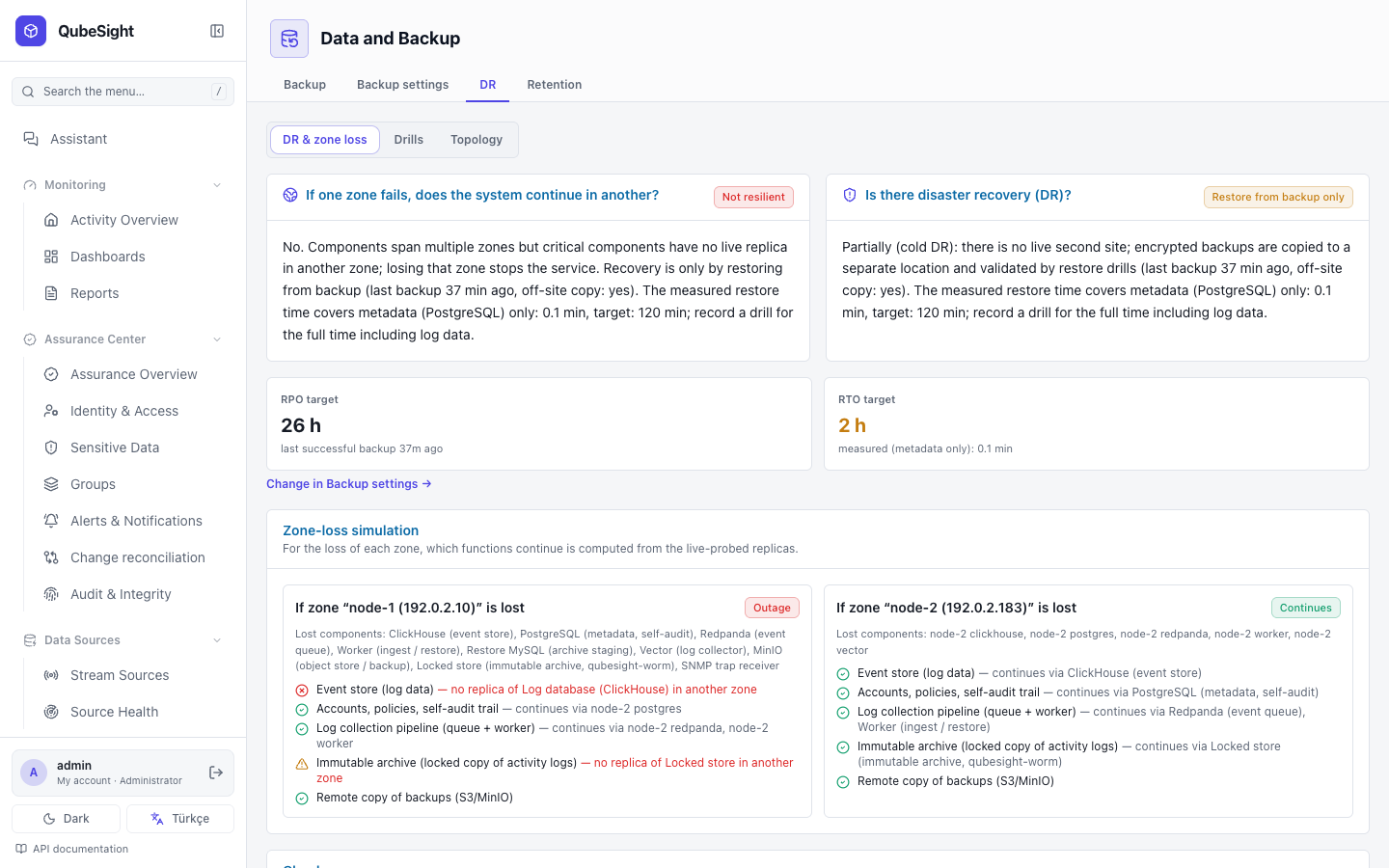
Platform → Data and Backup → DR answers two questions with live evidence:
- If one zone fails, does the system continue in another? (Fully resilient, Partially resilient or Not resilient)
- Is there disaster recovery (DR)? (Active / replicated, Warm standby (fed from backups), Restore from backup only or No DR)
The tab has three sections:
| Section | Purpose |
|---|---|
| DR & zone loss | RPO and RTO targets compared with the last successful backup and the last measured restore time; the DR Checks; Component instances with live probe results (for ClickHouse and PostgreSQL replicas also replication verified or replication not verified); Zone-loss simulation, which shows for each zone which functions continue (Continues, Degraded, Outage) based on live-probed replicas. |
| Drills | Restore and DR drills: automated restore rehearsals and manually recorded drills with measured RTO/RPO. Records cannot be changed. |
| Topology | Zones, component placement and replicas. In a cluster, Fill automatically from cluster loads a suggestion from the cluster definition; it takes effect when you click Save, and then follows nodes as they join or leave. Edit manually (also confirmed with Save) switches back to a hand-maintained declaration. |
The RTO targets and RPO targets come from Backup settings → Schedule and retention (defaults: RPO 26 hours, RTO 120 minutes).
Where "measured RTO" comes from
The DR tab shows one measured RTO and names its source, in this order of preference:
- Full recovery: a restore or failover drill recorded manually under Drills in the last 400 days.
- Log data, this server: the result of Full verify on a backup. It includes no copy to another server and no service start, so it is shown as a warning, not as meeting the target.
- Metadata only: the automatic settings-database rehearsal. Also not counted as meeting the target.
To show a real RTO, run the full drill below and record it.
Drills the product runs for you
| Drill | What it proves | How often |
|---|---|---|
| Automatically verify after every backup | The backup decrypts and its chains are consistent. For ClickHouse, the smallest non-empty table is restored into a temporary table. | After every backup (default on) |
| Automatic restore rehearsal | The latest settings backup restores into a scratch schema and verifies. | Every 30 days by default (Automatic restore rehearsal (days); 0 turns it off). A Restore drill overdue alert opens when the last drill is older than twice the interval. |
| Full verify (on demand) | Every data table of a backup restores into a temporary database; rows are counted and the time is measured. | When you click it |
| Restore drill (on demand) | Restores the latest settings backup (or, with Drill on a row of Backup history, that backup) into a scratch schema and reports tables, rows, duration and measured RPO. | When you click it on the Backup tab |
These drills run on the production server and never touch live tables. They do not prove that a new server can be built from the backup location alone. Only the full drill below proves that.
Run a full restore drill
The safest drill restores the latest backup onto a separate, isolated test server and compares it with production. Do not wipe production for a drill unless you accept the downtime.
Prerequisites
- A test server that meets the system requirements, with the same QubeSight version (or newer) installation package.
- Network access from the test server to the backup location (locked store or SFTP server) only. Block outbound access from the test server to Guardium, LDAP, mail, SIEM and ticketing systems: the restored settings contain the production integrations, and a drill server would otherwise send duplicate notifications or act on production systems.
- The backup location's access details and the backup passphrase.
Steps
- Prepare production.
- On Platform → Data and Backup → Backup, click Back up now and wait for it to finish.
- On Backup settings, click Test passphrase with the passphrase you will use in the drill.
- Record a reference inventory: number of users, alert rules, reports and ingest policies, and the activity event count for a closed past day (for example with a report on that day). Note the time of the backup.
- Start the restore on the test server with the web installer (Restore from backup) or
install.sh --restore-from …, as described in Backup and restore. Note the start time. - Disable scheduled backups on the test server immediately after you can sign in (Backup settings → Enable scheduled backups off), so that the drill server does not write into the production backup location or prune production backups.
- Wait for the background restore to finish. The banner on every page shows progress; when it disappears, the ClickHouse restore is complete. Note the end time.
- Verify (see the checklist below).
- Record the drill on production: DR → Drills → Record a drill, with type Restore, the Result, the Scope (for example "Settings and ClickHouse restore to a test server from the locked store"), Measured RTO (min) (start of step 2 to end of step 4), Measured RPO (min) (age of the backup used) and Performed at.
- Dispose of the test server or keep it isolated. It holds a copy of production settings and secrets.
Verification checklist
| Check | Expected result |
|---|---|
| Sign in with a production account | Succeeds with the production password (users and password hashes are restored). |
| Users, alert rules, reports, ingest policies | Same counts as the reference inventory. |
| Activity event count for the reference day | Same as production. |
| Older data in reports | Months older than the restored hot window are read from the locked store. |
| Platform → System and Cluster → Status | All components up. |
| Backup history on the test server | The backup the drill restored from appears as completed, not as running. |
| A test syslog line sent to the test server | Appears in reports. Send it from a test host only. |
Cluster drills
In a cluster, you can also exercise failover:
- Node loss. Stopping or powering off one full node of a three-vote cluster must not stop ingestion or lose data. See Cluster operations for the expected behaviour and what to check.
- Rejoin. Reinstall the stopped node with Restore from backup: while the cluster is running, the node rejoins in its own place and its data comes from the cluster, not from the backup.
Record such drills with type Failover (switch to standby zone).
Limitations
- The drill server keeps the production integrations and, after a restore, scheduled backups stay enabled because the restored server is treated as the new primary. Isolate it and turn off scheduled backups as described.
- Measured RTO depends on data volume; restoring ClickHouse through the version-tolerant copy path is much slower than a direct restore of the same data on the same version.
- There is no one-click failover to a separate DR site outside a cluster; recovery is a restore from backup.
- Failback (returning from the restored server to the original one) is the same restore procedure in the opposite direction.