LLM providers
This guide explains the language models behind QubeSight's assistant features and shows you how to install the built-in local model and how to connect an external large-model provider such as OpenAI, Anthropic, Azure OpenAI, Google Gemini, Mistral, AWS Bedrock, Ollama or any OpenAI-compatible server. It also covers what data reaches the model, timeouts, fallback and cluster behaviour.
Community Enterprise
The built-in local model (Gemma 3 4B) is available in both editions. External large-model providers, the Assistant chat and the assistant review of sensitive-data findings require Enterprise.
What the models do
| Feature | Local model (Gemma 3 4B) | Active large model (Enterprise) |
|---|---|---|
| Ask a question and natural-language report creation (Reports → + New) | Plans the query | Plans the query |
| Daily briefing on the Assistant page | Writes the text | Writes the text |
| Investigate summaries on security events | Writes a short summary | Writes a fuller assessment |
| Assistant chat (questions, tools, proposed changes) | — | Required |
| Sensitive-data Assistant review | Optional engine | Optional engine |
For questions, the model only receives the question and today's date: it produces a query plan, and QubeSight builds the SQL and the answer with the same definitions as reports. The model never writes SQL and does not see the data for that step. Investigate summaries, the chat and the sensitive-data review do send event or finding data, filtered by the data policy described below.
The local model
How it runs
- The model file is
gemma-3-4b-it-Q4_K_M.gguf(about 2.5 GB, verified with SHA-256). It runs in its own assistant service, which needs about 3 GB of memory and is unloaded from memory after 15 minutes without requests. - The installer enables the assistant by default when the host has at least 11 GiB of memory and 4 CPU cores. Use
./install.sh --with-assistantor--no-assistantto change this, and--assistant-model <file>to install the model from a file on an offline host. When you install from an offline bundle that contains the model, the installer uses the bundled model automatically (verified with SHA-256, not downloaded). See install.sh options and Offline installation. - In a cluster, every full node runs its own assistant and, if it does not answer, uses a peer node's assistant automatically. Nodes with less than 11 GiB or 4 cores do not start the model and use a peer.
- Requests to the local model may take minutes on a CPU-only server; QubeSight waits up to 9 minutes for an answer.
Install or check the local model
- Go to Platform → Settings → Assistant.
- The Question-answering assistant (Gemma 3 4B) card shows the state: Running, Not reachable or Sleeping, the model and the model file state on this node.
- If the model file is missing, click Download the model. The file is downloaded from the public model repository and verified (Downloaded and verified (SHA-256).). This needs outbound HTTPS from the node; on an offline host use the offline bundle's model or
--assistant-modelinstead. An internal mirror can be set at installation time withQUBESIGHT_ASSISTANT_MODEL_URL. - Address is normally empty, which means the local assistant service on each node (
http://assistant:8080). If you enter an address, all nodes use only that address and automatic peer selection is off. - The Assistant on the nodes table lists each node with its assistant state, model, resources and which assistant serves its requests.
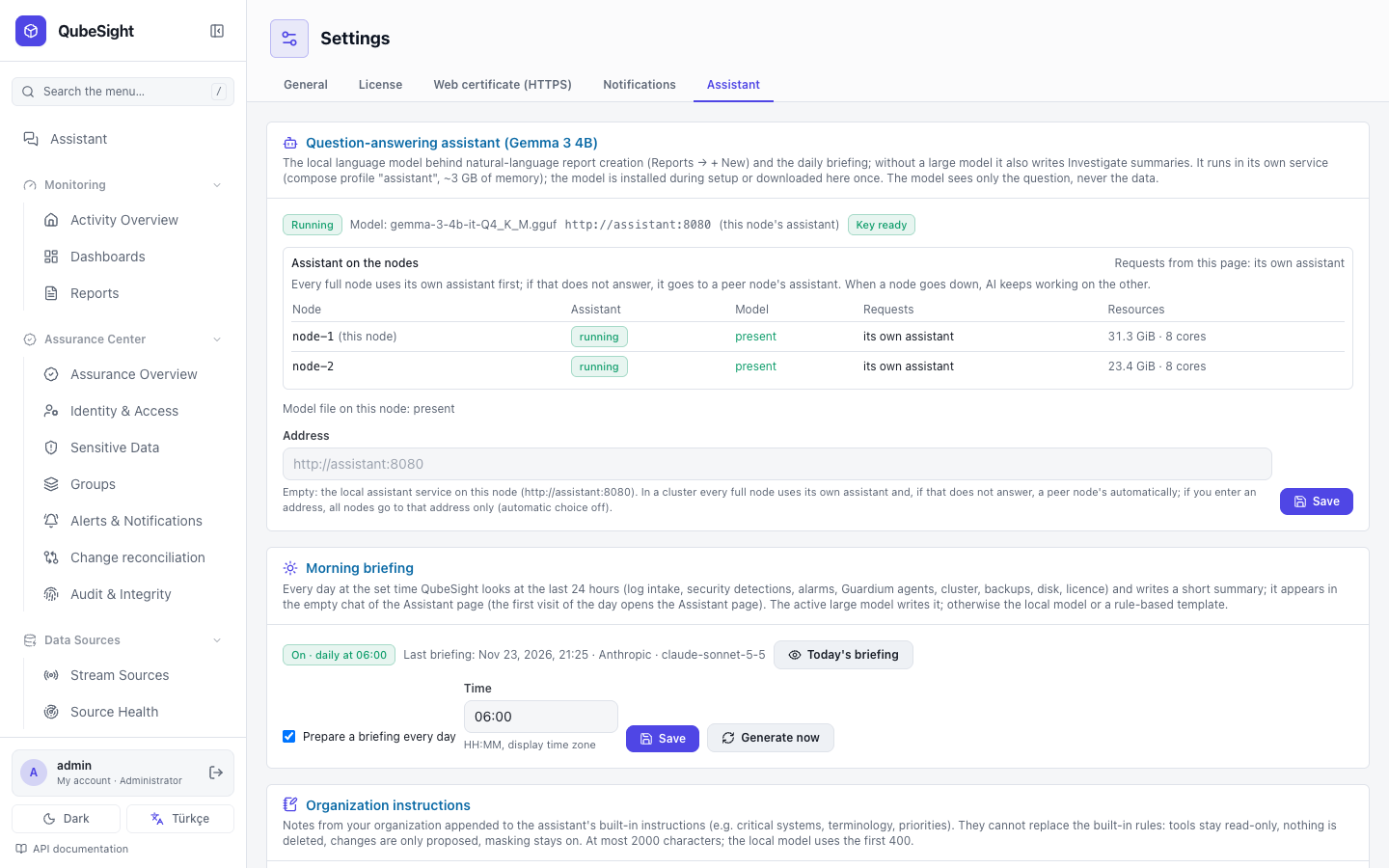
If the card shows Unencrypted link, the assistant runs on another machine over plain HTTP: questions and answers, including user and object names, cross the network unencrypted. Run the assistant on the QubeSight server or isolate that network.
After a patch, the assistant container is updated with the release. If a QubeSight container (such as the assistant) keeps running an image that differs from the installed release, the component status raises an alarm for that node; see Monitoring and health.
External large-model providers
Supported providers
| Provider | Authentication | Address field | Extra fields |
|---|---|---|---|
| OpenAI | API key | Base URL (optional) | Organization ID, Project ID (optional) |
| Anthropic | API key (admin keys are rejected) | Base URL (optional) | Workspace ID (when the key is not scoped to a workspace) |
| Azure OpenAI Service | API key, Microsoft Entra ID (service principal) or managed identity (Azure VM) | Resource endpoint | Deployment name, API version, Tenant ID, Client ID (application), Client secret, Entra address |
| Azure AI Foundry | Same as Azure OpenAI | Inference endpoint | Same as Azure OpenAI |
| Google Gemini | API key (Google AI Studio) | Base URL (optional) | — |
| Mistral | API key | Base URL (optional) | — |
| AWS Bedrock | Access key ID + secret access key (SigV4, optional session token), or a Bedrock API key, or the server's IAM role when both are empty | Endpoint (VPC endpoint) (optional) | Region |
| Custom OpenAI-compatible | API key (optional) | Base URL (including /v1) | Organization ID, Project ID |
| Ollama | None | Ollama address | — |
All providers also accept Extra HTTP headers (up to 20, values stored encrypted; hop-by-hop, Host, Content-Length, Content-Type, Accept-Encoding, Expect, Proxy-* and Sec-* are rejected) and an Extra root certificate (PEM) for servers signed by an internal CA. Overriding an authentication header such as Authorization is allowed with a warning.
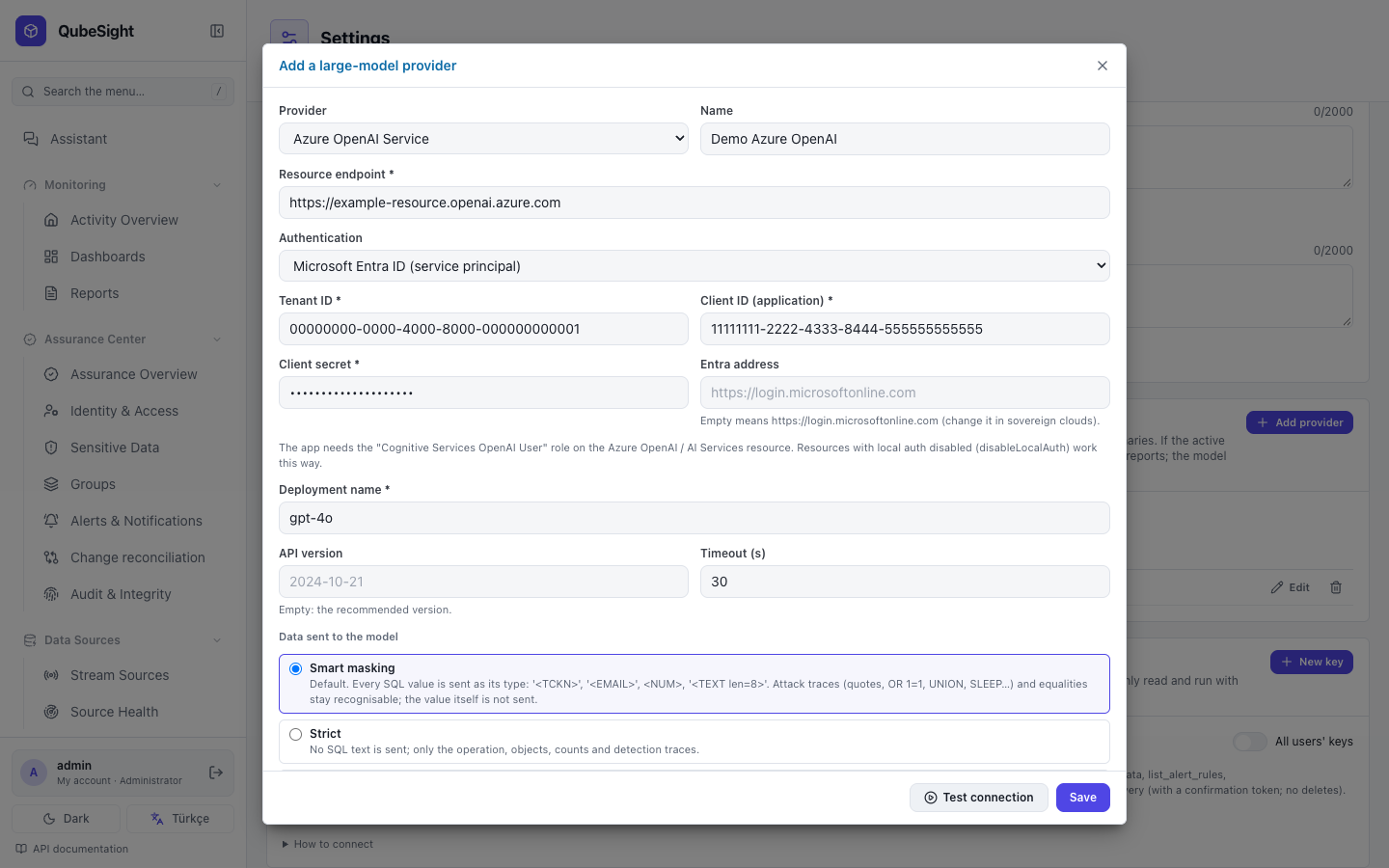
For Azure with Entra ID or managed identity, give the identity the Cognitive Services OpenAI User role on the resource. Resources with local authentication disabled work only this way. In sovereign clouds, change Entra address (default https://login.microsoftonline.com).
Prerequisites
- An Enterprise licence.
- The Administrator role. Other roles cannot see the providers list.
- An account and key (or identity) at the provider, and a model or deployment name.
- Outbound HTTPS from every QubeSight node to the provider endpoint.
- Approval in your organisation for the data policy you choose (see below).
Add a provider
- Go to Platform → Settings → Assistant and find Large models.
- Click Add provider.
- Select the Provider and enter a Name (up to 80 characters).
- Enter the address (if needed), the key or identity fields and the Model (or Deployment name for Azure). Fetch models lists the models the provider offers where it supports listing.
- Choose Data sent to the model (see below).
- Set Timeout (s): 5–120 seconds, default 30.
- Optionally add Extra HTTP headers (Add header) or, for an internal CA, an Extra root certificate (PEM).
- Click Test connection. The test sends one real request (the plan for "who ran the most queries yesterday?"), which the provider bills. The result reads "Works:
ms · · / tokens" or "Failed ( ms)" with the reason. - Click Save. Test connection and Save stay disabled until the required fields (marked
*) are filled; Save also needs a Name. The panel confirms "saved."
If no provider is active yet, a provider you create is activated automatically. This happens only when a provider is created, not when you edit an existing one. To switch later, click Use on another provider ("
Manage providers
The providers table lists Name, Kind, Model, Data, Last test and the row actions. The active provider carries an Active pill.
| Action | Effect |
|---|---|
| Use | Activates the provider. Shown on providers that are not active. |
| Edit | Opens the |
| Delete (bin icon) | Asks Delete |
In the Community edition (for example after an Enterprise licence ends), the panel shows "Large-model providers require the Enterprise edition. This installation uses the local model; saved providers can be deleted." The saved providers stay listed, Add provider, Use and Edit are hidden, and delete still works so that you can remove stored keys.
Data sent to the model
Each provider has a data policy. The same three choices apply to MCP keys; see MCP server.
| Choice | What the model receives |
|---|---|
| Smart masking (default) | Every SQL value is replaced by its type, for example '<TCKN>', '<EMAIL>', <NUM>, '<TEXT len=8>'. Attack traces (quotes, OR 1=1, UNION, SLEEP and similar) and equalities stay recognisable; the values themselves are not sent. |
| Strict | No SQL text; only the operation, objects, counts and detection traces. |
| Open | Values as they are. Choose it only for models allowed to receive the data, such as an in-house or on-premises model. Only an administrator can choose it. |
The providers table shows the policy in the Data column. Keys and secrets are stored encrypted on the server, never returned to the screen and never written to logs.
Fallback and cooldown
If the active provider does not answer, returns an error, times out or the Enterprise licence lapses, the local model answers instead. After a failure, QubeSight uses the local model directly for 60 seconds (Failed moments ago: local model for 60 s) and shows the Last error. Features that need a large model, such as the Assistant chat, are not available while no provider is active.
Verify
- The Large models panel shows The assistant now uses: followed by the provider and model, or Local model (Gemma 3 4B).
- Each provider row shows the Last test result as OK ·
ms or Failed. - Ask a question on the Assistant page; the answer shows which model planned it.
- The audit trail records
llm_provider_created,llm_provider_activatedand related events.
Troubleshooting
| Symptom | What to check |
|---|---|
| The local assistant shows Not reachable | The assistant service may be off (./install.sh --with-assistant) or the node lacks memory or CPU; check the Assistant on the nodes table. |
| Download the model fails | The node needs outbound HTTPS to the model repository; otherwise install from a file with --assistant-model. |
| Test fails with 401 or 403 | Wrong key, or the key lacks access to the model. For Anthropic, enter a Workspace ID or use a workspace key. |
| Test fails with 404 on Azure | Check the Deployment name and API version. |
| Test fails with 429 | The provider's rate limit or quota is exceeded. |
| DNS, TLS or timeout errors | Outbound access from the nodes, proxy settings, Extra root certificate (PEM), Timeout (s). |
| The answer says the local model answered | The provider failed or is cooling down; see Last error. |
| The Assistant chat is unavailable | Requires Enterprise and an active large-model provider. |
Limitations
- Gemini through Vertex AI (Google service accounts, Workload Identity) is not supported; Gemini works only with an AI Studio API key.
- Real Azure Entra ID and Anthropic workspace authentication have been tested only against simulated endpoints by the vendor.
- Only one provider is active at a time.
- The local model runs on CPU; answers can take minutes, and a complex question may be planned less accurately than by a large model.
- Calling external MCP servers from QubeSight is not supported; QubeSight only acts as an MCP server.
Related pages
- Assistant
- MCP server
- Sensitive-data scan targets (assistant review)
- Editions