AWS (AMI and CloudFormation)
This page explains how to run QubeSight on Amazon Web Services from the QubeSight AMI with a CloudFormation template: the prerequisites, every template parameter, what the first boot does, the first sign-in, the Enterprise trial, day-2 operations, and high availability across three Availability Zones.
Community Enterprise
What you get
A single EC2 instance (Ubuntu 24.04 LTS, amd64) with:
- a separate, encrypted gp3 data volume that holds everything stateful (Docker data,
.env,secrets/, ClickHouse, Redpanda, PostgreSQL, certificates). The root volume holds only the operating system and the image bundle and is disposable; - the full QubeSight stack, installed unattended on the first boot by
install.shfrom images that are already on the AMI (nothing is built or pulled); - a security group that opens the web interface (and SSH, only when you choose a key pair) to your admin range and the log-intake ports to your log-source range only;
- an AWS Secrets Manager secret named
<stack-name>/qubesight-initial-credentialsthat receives the initial credentials generated on your instance; - an IAM instance role with the permissions the selected features need.
The stack reaches CREATE_COMPLETE only after QubeSight is installed and its web interface answers: the instance signals a CloudFormation wait condition after install.sh has verified the API and the administrator sign-in.
Ways to launch
| Way | Template | Licence |
|---|---|---|
| AWS Marketplace listing (bring your own licence) | Single node, BYOL | Community edition, free for production use with no time limit; Enterprise features with your Enterprise licence, uploaded in Platform → Settings → License (the first 30 days include an optional Enterprise evaluation) |
| One-click CloudFormation quick-create link from QubeSight | Same BYOL single-node template, with the AMI and version pre-filled | Same as above |
| AWS Marketplace listing, delivery option High availability (three Availability Zones) (bring your own licence) | HA, BYOL: two full nodes and a witness behind an internal Network Load Balancer | Enterprise licence from FK Labs (high availability is an Enterprise feature); see High availability from the AWS console |
| AWS Marketplace Enterprise contract, where offered | Single node with an Edition parameter | Enterprise through AWS License Manager |
Availability
Marketplace listing visibility (limited or public) and the regions offered are decided per release. If the listing is not visible in your account, ask QubeSight for the quick-create link of the current version.
Before you start
- Network path to your log sources. Guardium collectors, database servers and Filebeat agents send to the instance's private IP. Connect your network to the VPC with Site-to-Site VPN, Direct Connect, Transit Gateway or VPC peering. Do not expose Guardium or the ingest ports to the internet.
- Outbound HTTPS from the subnet to AWS APIs: Secrets Manager and S3 always; License Manager for the Enterprise contract; Kinesis, CloudWatch Logs and KMS if you use them. Use a public subnet with a public IP, a NAT gateway, or VPC interface endpoints (
secretsmanager,license-manager) plus an S3 gateway endpoint. Automatic updates (Enterprise) also need outbound HTTPS toupdates.qubesight.io. - Two CIDR ranges: the admin range allowed to open the web interface (3000/tcp) and SSH, and the log-source range (5140/tcp, 9092/tcp, 162/udp). Never
0.0.0.0/0in production.
Install from the AWS console, step by step
The steps below were recorded with version 2.0.107 in us-east-1; they are the same for 2.0.110. The 2.0.110 AMI in us-east-1 is ami-0362fa735c7099fd6 (the listing or the quick-create link selects it for you). The whole installation takes about 20 to 25 minutes, most of it the unattended first boot. Account IDs, addresses and names in the pictures are examples.
Step 1: open the listing and subscribe
-
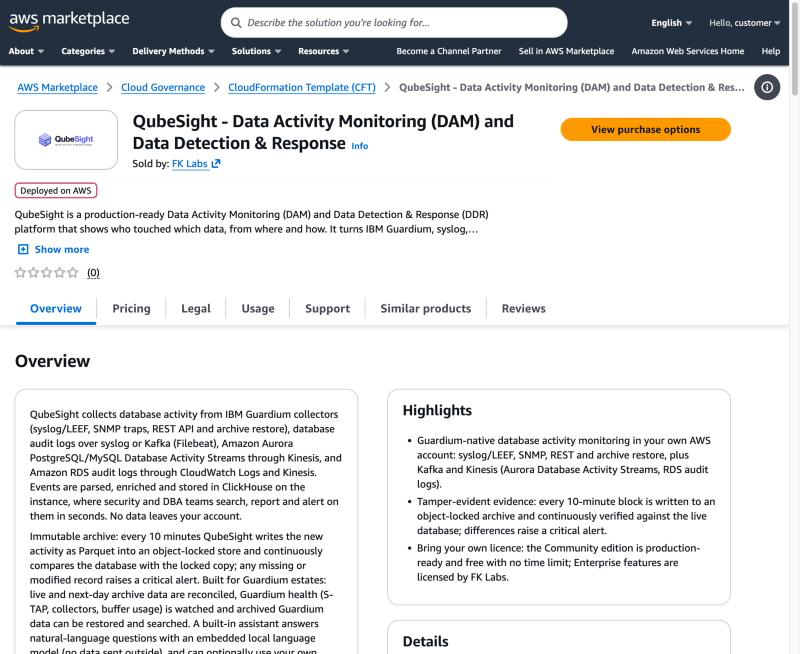
In AWS Marketplace, search for QubeSight and open the listing QubeSight - Data Activity Monitoring (DAM) and Data Detection & Response. The listing shows the delivery method (CloudFormation template), the description, pricing (bring your own licence), the usage instructions and support.
-
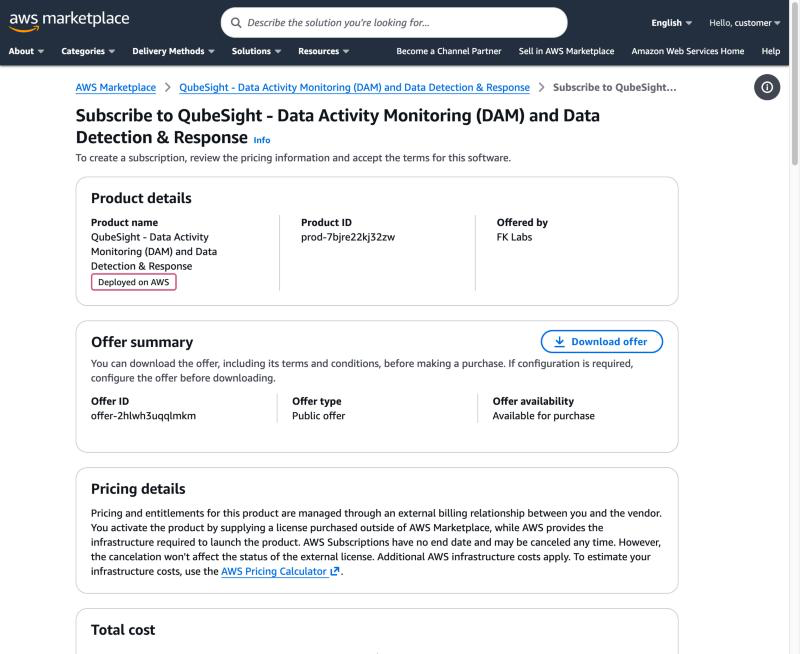
Choose View purchase options. The Subscribe page shows the product, the public offer, the pricing (the software costs nothing in AWS; you pay only for the AWS infrastructure, and Enterprise is licensed by FK Labs) and the terms. Read the EULA, then choose Subscribe. Subscribing accepts the offer terms for your AWS account; it is a decision for your account owner and is done once per account.
-
After the subscription is active, choose Continue to Configuration, select the fulfillment option CloudFormation Template, the software version (the newest one the listing offers, for example
2.0.109; a new release can reach the listing a few days after it is published, and the quick-create link always installs the current version) and your Region, then Continue to Launch. Under Choose action select Launch CloudFormation and choose Launch. The CloudFormation console opens with the template and the AMI of that version and Region already filled in.
Quick-create link
For evaluations, or when the listing is not visible in your account yet, QubeSight can send you a CloudFormation quick-create link for the current version. It opens the same template on a single page with the AMI filled in; enter the same values as in steps 2 to 4 below, tick the IAM acknowledgement and choose Create stack. A quick-create link only works in the account and Region it was made for, because the AMI is regional.
Step 2: specify the template
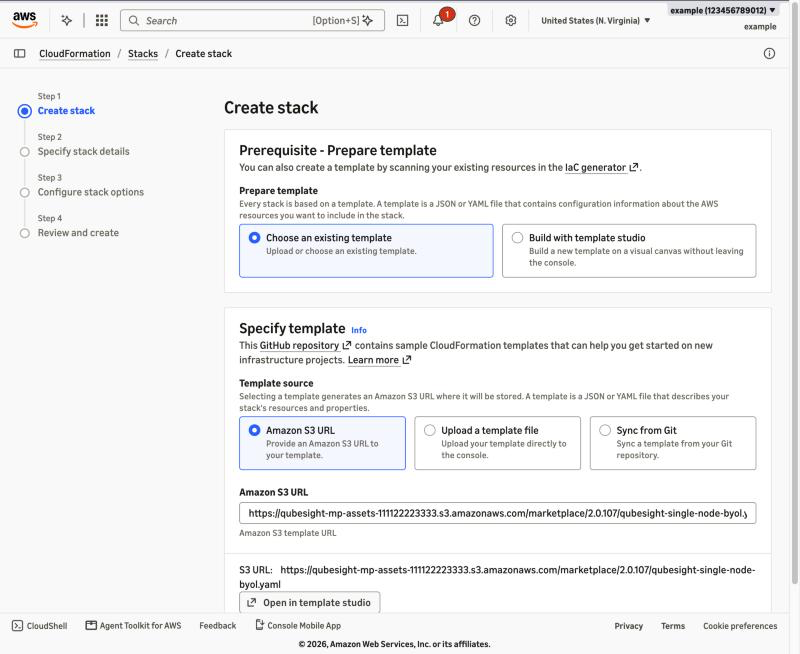
The Create stack page opens with Choose an existing template and Amazon S3 URL already selected and the URL of the QubeSight template filled in. Do not change it. Choose Next.
Step 3: specify stack details
- Stack name: for example
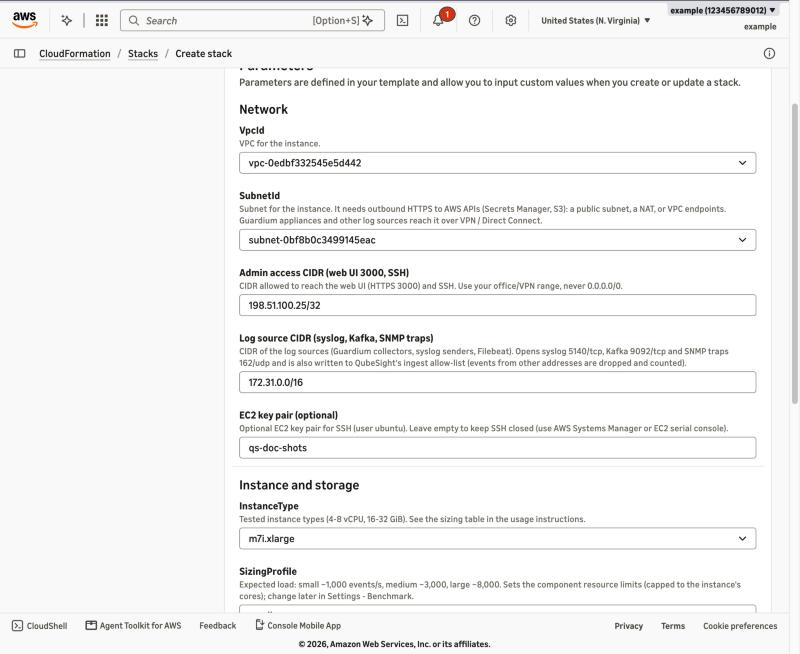
qubesight. The name is also used for the Secrets Manager secret (<stack name>/qubesight-initial-credentials) and for the resource names. - Network: choose the VpcId and a SubnetId with outbound HTTPS (see Before you start). Enter the Admin access CIDR (who may open the web interface and SSH) and the Log source CIDR (who may send logs). Leave EC2 key pair empty to keep SSH closed, or enter the name of an existing key pair.
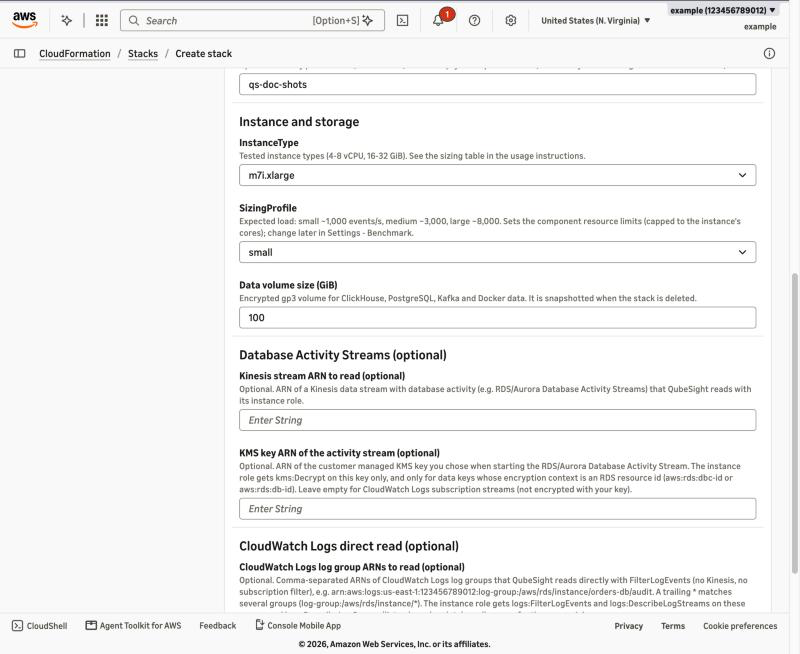
- Instance and storage: keep InstanceType
m7i.xlargeand SizingProfilesmallfor up to about 1,000 events per second, or choose larger values; set Data volume size (GiB) for your retention. - Database Activity Streams and CloudWatch Logs direct read: leave empty unless you already know the stream or log groups to read. You can add sources later in the product; these fields only grant the instance role read access to them.
- ImageId is filled in by the listing. Choose Next.
Every parameter is explained in Parameters below.
Step 4: configure stack options
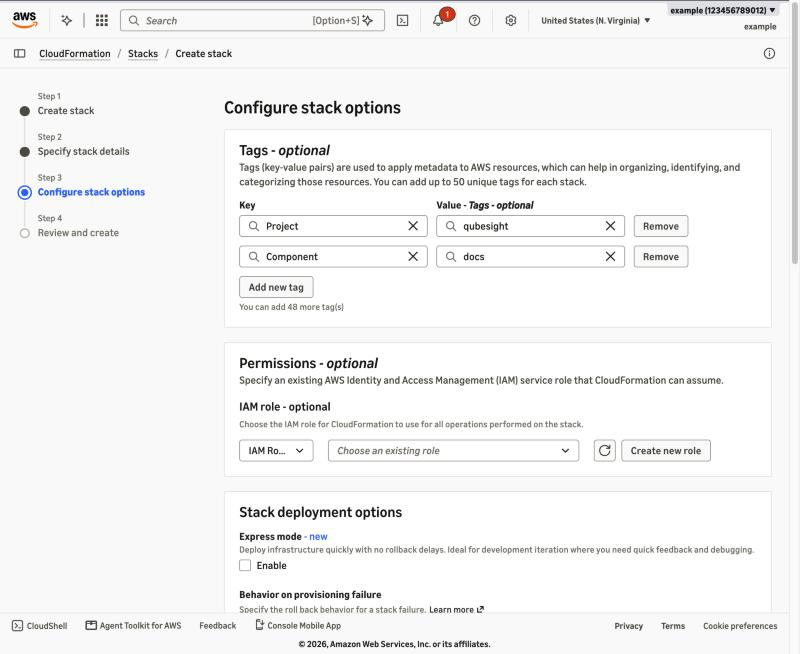
- Tags (optional): add your cost-allocation tags, for example
Project=qubesight. CloudFormation copies stack tags to the instance, volumes and other resources. - Keep Behavior on provisioning failure at Roll back all resources. To investigate a failed first boot, create the stack again with Disable rollback so that the instance stays (see Troubleshooting).
- At the bottom, under Capabilities, tick I acknowledge that AWS CloudFormation might create IAM resources. The template creates one instance role with the permissions listed in What you get. Choose Next.
Step 5: review and create
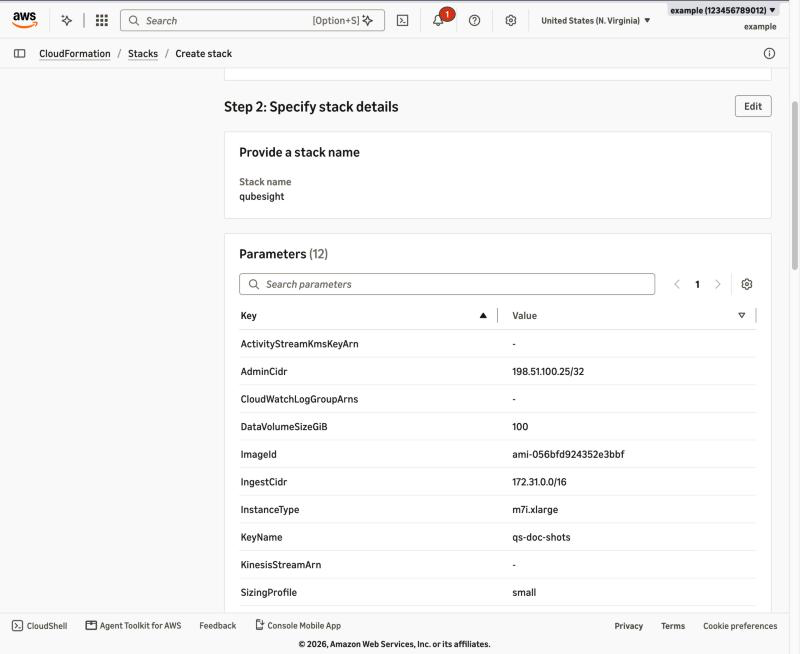
Check the template URL, the parameters and the tags, then choose Submit.
Step 6: watch the stack events
The stack page opens on the Events tab. The security group, secret, role, instance and data volume are created within about two minutes. InstallComplete then stays at CREATE_IN_PROGRESS while the instance installs QubeSight (typically 15 to 20 minutes): it is the wait condition that the first boot signals when the web interface and the administrator sign-in work. Choose the refresh button to update the list. When the stack reaches CREATE_COMPLETE, QubeSight is ready.
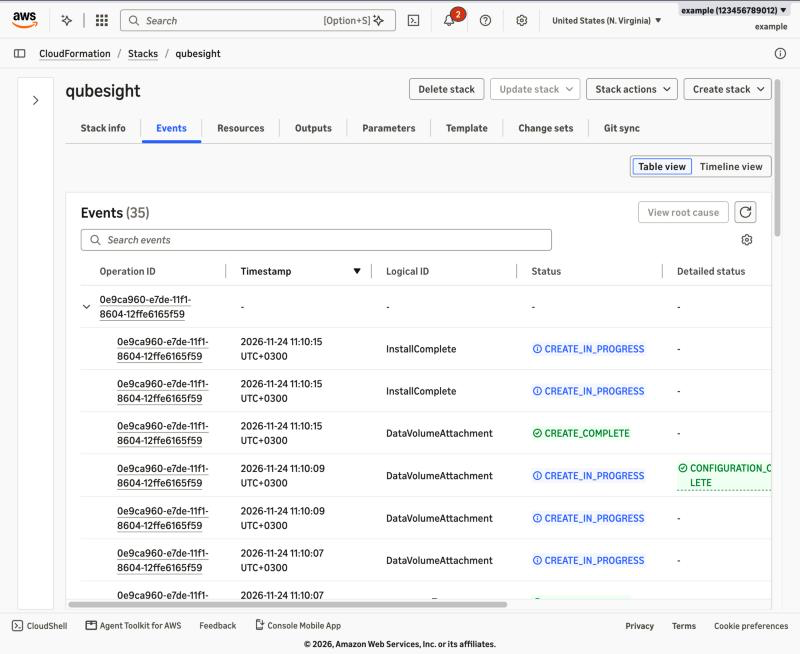
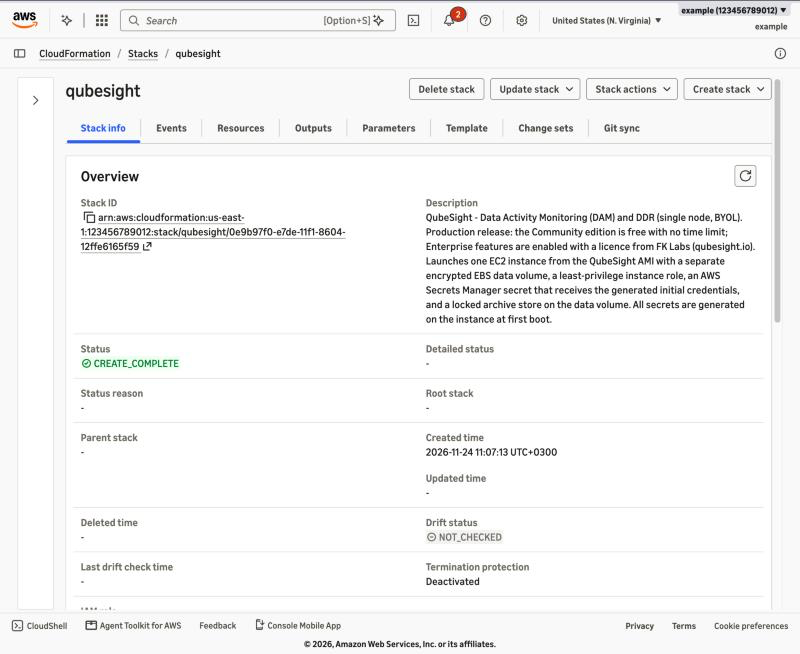
If the stack ends in ROLLBACK_IN_PROGRESS or CREATE_FAILED, the Status reason of InstallComplete carries the first-boot error; see Troubleshooting.
Step 7: read the outputs and the initial password
-
Open the Outputs tab.
WebUiPublicDns(in a public subnet) orWebUiUrlis the address of the web interface;IngestEndpointslists where to send logs.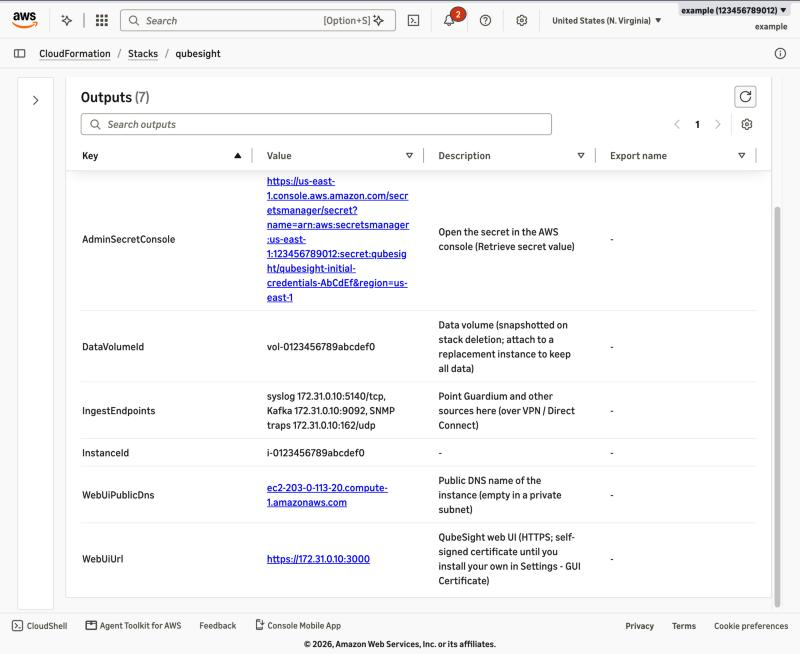
-
Open the
AdminSecretConsolelink and choose Retrieve secret value. Copypassword(the initial administrator password) and storebackup_passphrasein your password vault.
Step 8: first sign-in
- Browse to the web address. The certificate is self-signed and generated on the instance, so the browser warns once; accept it, or install your own certificate later.
-
The sign-in page says where the initial password is. Sign in as
adminwith the password from the secret.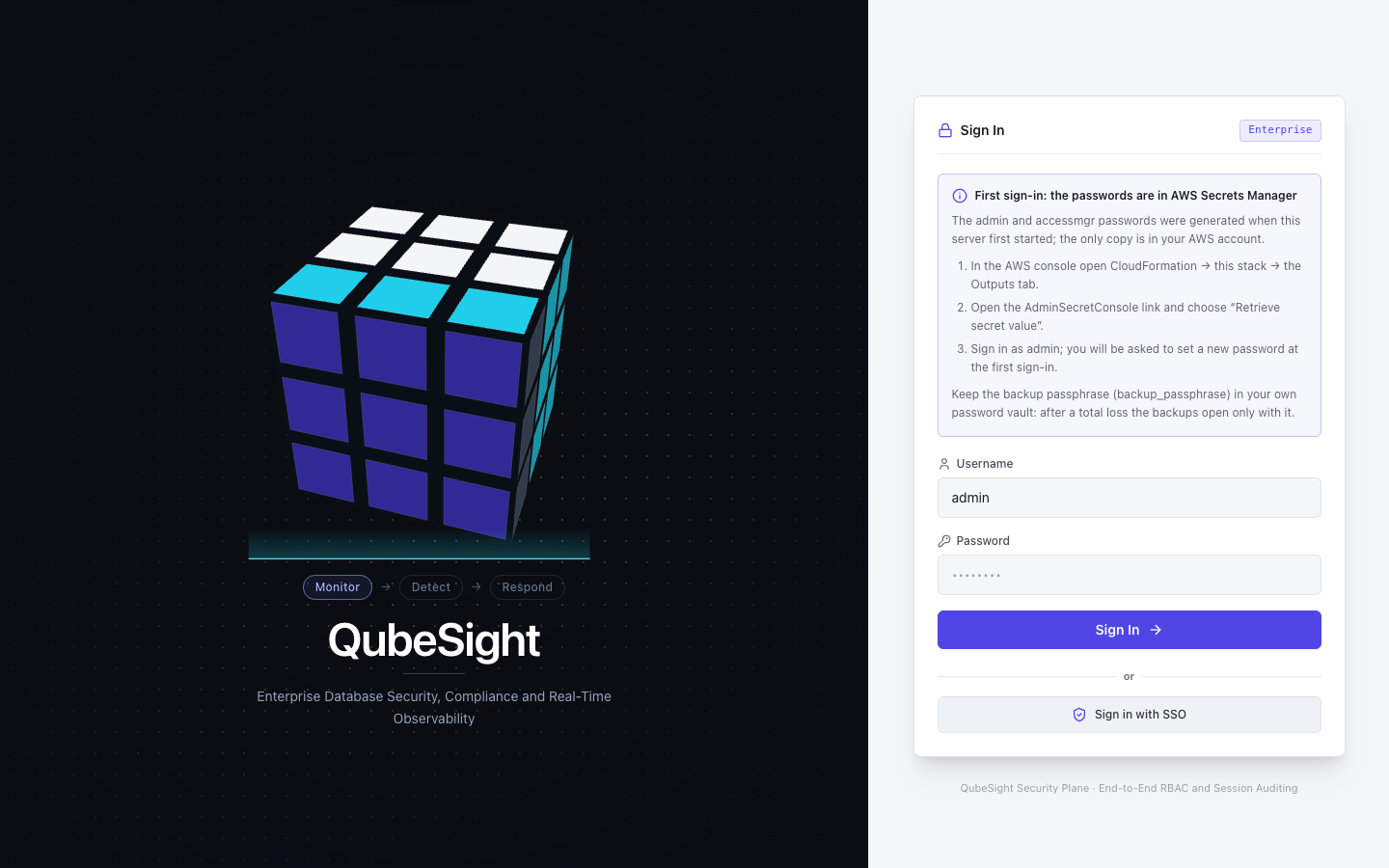
-
The Change password page opens before anything else. Enter the current (initial) password and a new password twice; the checklist under the fields turns green when the password meets the policy. Choose Change password. The same applies later to
accessmgr.
Step 9: check the licence
Open Platform → Settings → License. A new AWS installation runs the optional 30-day Enterprise evaluation: Edition Enterprise, licence provider AWS Marketplace with the Trial badge and the days remaining. Upload an Enterprise licence file here at any time; when the evaluation ends without one, the product continues as the Community edition, which is free for production use with no time limit. See Enterprise trial and Licensing.
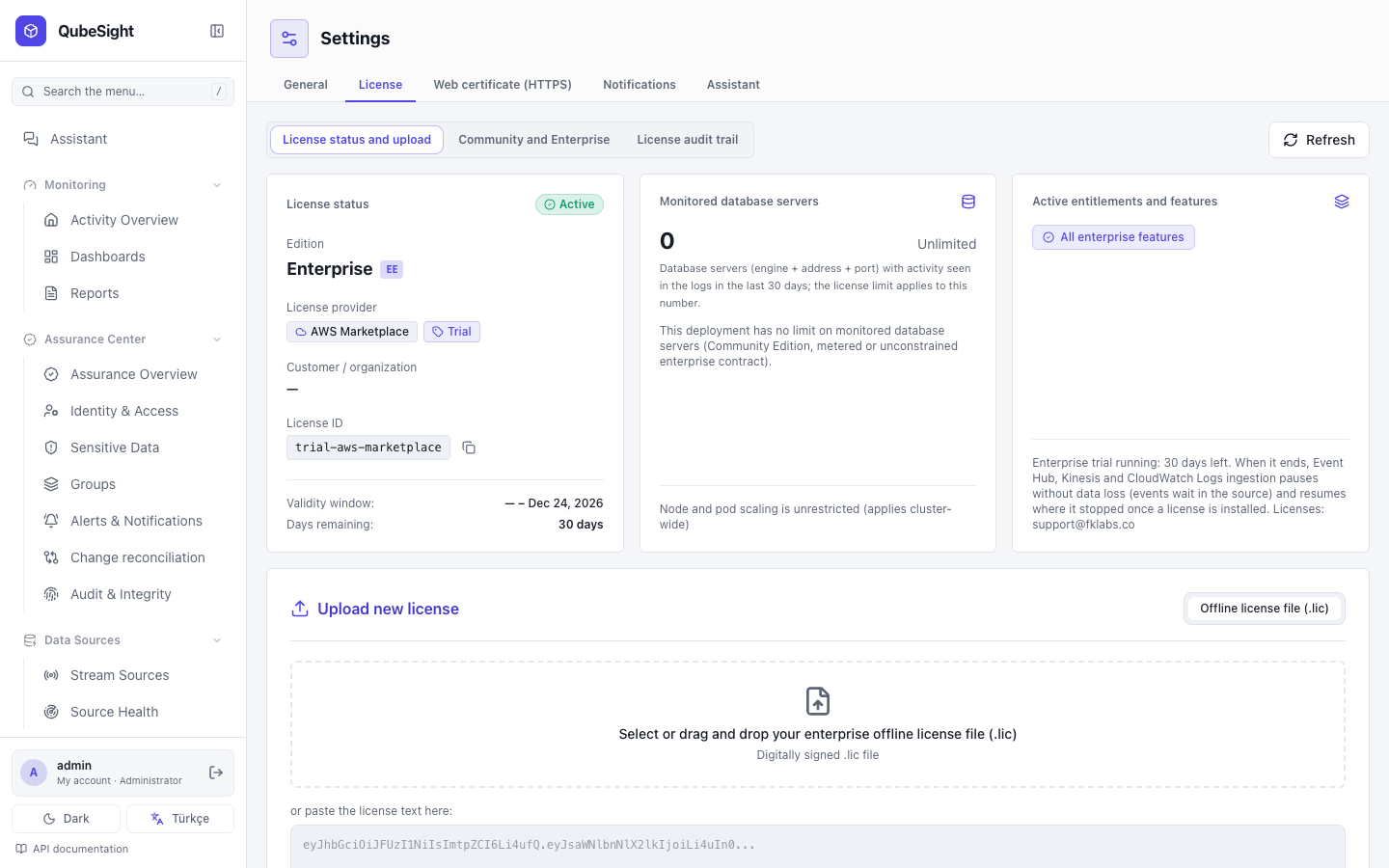
Continue with After installation.
High availability from the AWS console
Enterprise
The listing's second delivery option, High availability (three Availability Zones), creates a QubeSight cluster in one stack: two full nodes and a witness, each in its own Availability Zone, and an internal Network Load Balancer (NLB) that log sources and browsers use instead of a virtual IP. The nodes form the cluster on the first boot with no manual step. The template is created from scratch and tested with each release since 2.0.101; with 2.0.110 the cluster formed in about 24 minutes with no manual step, and a full node stopped during ingest and a Kafka outage longer than 8 minutes lost no event.
What the HA stack creates
| Resource | Details |
|---|---|
| node-1, node-2 | Full nodes (PostgreSQL with Patroni, ClickHouse replica, ClickHouse Keeper, etcd, Redpanda broker, the web interface and the workers), one per Availability Zone, each with an encrypted gp3 data volume (snapshotted when the stack is deleted) |
| witness | Votes only (ClickHouse Keeper, etcd, a Redpanda broker that keeps a copy of the queue); no log storage or search. Third Availability Zone |
| Internal Network Load Balancer | Web interface 3000, syslog 5140, syslog TLS 6514, SNMP traps 162/udp to both full nodes; Kafka TLS 19190, 19191 and 19192 to the broker of node-1, node-2 and the witness. Health checks every 10 seconds |
| S3 Object Lock bucket | Immutable archive and backups, accessed with the instance role. Kept when the stack is deleted |
| Secrets Manager secret | <stack name>/qubesight-initial-credentials, written by node-1 on the first boot |
| SSM parameters | /qubesight/<stack name>/cluster/…: the product's SSH public key and the host key fingerprints that the nodes exchange while forming the cluster (no secrets) |
| Security group, IAM role | Web interface and SSH from the admin range, log intake from the log-source range, all cluster traffic only between the members (TLS) |
Losing one full node, or the Availability Zone it runs in, keeps log intake, search and the web interface running on the other full node through the NLB; the stopped node rejoins by itself when it starts again. The queue keeps three copies (replication factor 3), so a broker loss does not lose events.
Before you start (HA)
- Enterprise licence. High availability is an Enterprise feature. Have the licence file from FK Labs ready; the cluster forms on the first boot and the licence is uploaded after the first sign-in (step 8).
- Three subnets in three Availability Zones of one VPC, with outbound HTTPS to Secrets Manager, SSM Parameter Store and S3: private subnets with a NAT gateway (or VPC endpoints for
secretsmanagerandssmplus an S3 gateway endpoint), or public subnets. Automatic updates also needupdates.qubesight.io. - The VPC CIDR (for example
10.0.0.0/16): the NLB health checks and the Kafka connections through the NLB come from the NLB's private addresses in this range. - Network path to the NLB. The NLB is internal: Guardium collectors, database servers, Filebeat agents and browsers reach it over Site-to-Site VPN, Direct Connect, Transit Gateway or VPC peering.
- Instance types. Full nodes
m7i.xlarge(default),m7i.2xlarge,m6i.xlarge,m6i.2xlargeorr7i.xlarge; the witnessm7i.large(default),m6i.largeorm7i.xlarge. Three instances run at all times.
Step 1: choose the HA delivery option
Open the listing, subscribe if your account has not yet (see Step 1 above), and choose Continue to Configuration. Under Fulfillment option select CloudFormation Template, then the delivery option QubeSight high availability (three Availability Zones, BYOL), the software version and your Region. Choose Continue to Launch, select Launch CloudFormation and choose Launch. The Create stack page opens with the HA template's S3 URL filled in; choose Next.
Step 2: specify the HA stack details
| Parameter | What to enter |
|---|---|
| Stack name | For example qubesight-ha. Also used in the secret, SSM parameter and resource names |
ImageId |
Filled in by the listing; all three instances use it |
VpcId, VpcCidr |
The VPC and its CIDR |
SubnetA, SubnetB, SubnetC |
One subnet in each of three different Availability Zones (node-1, node-2, witness) |
AdminCidr |
Who may open the web interface (3000) and SSH, for example your VPN range. Never 0.0.0.0/0 |
IngestCidr |
Where your log sources are. Opens syslog 5140/6514 and SNMP 162/udp (the NLB keeps the client address, so this range is also QubeSight's ingest allowlist) and Kafka TLS 9093 |
KeyName |
Optional EC2 key pair for SSH as ubuntu from the admin range. Empty keeps SSH closed |
NodeInstanceType, WitnessInstanceType |
See Before you start (HA) |
SizingProfile |
small about 1,000 events/s, medium about 3,000, large about 8,000 |
DataVolumeSizeGiB, WitnessVolumeSizeGiB |
Data volume of each full node (default 200 GiB) and of the witness (default 50 GiB) |
ArchiveRetentionYears, ArchiveLockMode |
How long daily archive files stay locked in the S3 Object Lock bucket; COMPLIANCE for production, GOVERNANCE only for evaluation |
KinesisStreamArn, ActivityStreamKmsKeyArn, CloudWatchLogGroupArns |
Optional, as for the single node: grant the instance role read access to an activity stream or log groups |
Choose Next.
Step 3: options, review and create
Add your cost-allocation tags, tick I acknowledge that AWS CloudFormation might create IAM resources and choose Submit.
Step 4: wait for ClusterFormed
The stack creates the network load balancer, the bucket, the secret and the three instances in a few minutes. ClusterFormed then stays CREATE_IN_PROGRESS: node-1 installs QubeSight (about 15 minutes) while node-2 and the witness prepare; node-1 then makes itself the first node and joins node-2 and the witness through the same cluster jobs as the Cluster tab (about 5 minutes), turns on ingest TLS, and signals the wait condition. Expect CREATE_COMPLETE about 25 minutes after you choose Submit. If a cluster job fails, ClusterFormed fails with the job's error and the stack rolls back (create it again with Disable rollback to keep the instances for investigation; the first-boot log is /var/log/qubesight-firstboot.log on each instance).
Step 5: outputs and the initial password
| Output | Content |
|---|---|
WebUiUrl |
https://<NLB DNS name>:3000, the web interface through the NLB |
IngestAddress |
The NLB DNS name: point Guardium, syslog, SNMP traps and Filebeat here |
AdminSecretArn |
Secrets Manager secret with username, password and backup_passphrase (and the accessmgr credentials once created) |
ArchiveBucketName |
S3 Object Lock bucket of the archive and backups (kept when the stack is deleted) |
Node1PrivateIp, Node2PrivateIp, WitnessPrivateIp, …InstanceId, …DataVolumeId |
The members |
Retrieve the secret value in Secrets Manager, store backup_passphrase in your password vault, then rotate or delete the secret value.
Step 6: first sign-in
Browse to WebUiUrl from the admin range (the certificate is self-signed and contains the NLB name; accept it once, or install your own in Platform → Settings → Web certificate (HTTPS)). Sign in as admin with the password from the secret and set a new password.
Step 7: check the cluster
Open Platform → System and Cluster → Cluster. Expect Cluster mode on, two log database replicas, three Keeper votes, two settings database members, three queue brokers with replication 3, every node member and the same version on both full nodes. The cluster map shows the NLB as the ingest address with 2/2 targets.
Step 8: upload the Enterprise licence
Open Platform → Settings → License and upload the licence file from FK Labs. The licence applies to the whole cluster within a minute. See Licensing.
Step 9: connect the log sources
| Source | Address |
|---|---|
| Guardium syslog / LEEF | <IngestAddress>:5140 TCP, or :6514 TLS (the certificate contains the NLB name) |
| Guardium SNMP traps | <IngestAddress>:162 UDP |
| Filebeat (MongoDB, Couchbase) | the three addresses <IngestAddress>:19190, :19191 and :19192, Kafka TLS with SASL/SCRAM. Data Sources → Filebeat generates the complete filebeat.yml with these addresses and the root certificate link; list all three |
On every Filebeat server, set net.ipv4.tcp_retries2 = 6 (the Filebeat page shows the command; see Filebeat (Kafka)). When the node that leads the Filebeat topic stops, the NLB drops Filebeat's open connection to it silently; with the Linux default Filebeat notices only after about 15 minutes (nothing is lost, sending waits), with 6 within about half a minute.
Run Filebeat on the database servers or a log collector, not on a QubeSight instance. HA templates before 2.0.111 kept the client address on the Kafka listeners, so a client running on a QubeSight member could not reach its own broker through the NLB; the 2.0.111 template turns that off.
HA operations on AWS
- Stop or lose a full node: nothing to do. The other full node becomes the PostgreSQL leader within seconds, the NLB stops sending to the stopped node after two failed health checks (about 20 seconds), and log intake continues; Filebeat moves to the new partition leader (within about half a minute with
tcp_retries2 = 6, see Step 9). When the node starts again it rejoins as a replica by itself. - Updates: Platform → System and Cluster → Update updates both full nodes one after the other (signed patches, no downtime).
- Change an instance type: update the stack's
NodeInstanceTypeorWitnessInstanceTypefor one stack update at a time; CloudFormation stops, changes and starts the instances. - Delete the stack: the three data volumes are snapshotted and the archive bucket is kept (audit evidence must survive). Delete the snapshots and empty the bucket yourself when retention allows.
Parameters
BYOL single node
| Parameter | Default | What to enter |
|---|---|---|
ImageId |
filled by the listing or the link | The QubeSight AMI of the chosen version and Region |
VpcId |
VPC for the instance | |
SubnetId |
Subnet with outbound HTTPS to AWS APIs (see above) | |
AdminCidr |
IPv4 CIDR allowed to reach the web interface (HTTPS 3000) and SSH, for example 10.20.0.0/16 |
|
IngestCidr |
IPv4 CIDR of your log sources. Opens 5140/tcp, 9092/tcp and 162/udp and becomes QubeSight's ingest allowlist (events from other addresses are dropped and counted). | |
KeyName |
empty | Optional EC2 key pair for SSH as ubuntu. Empty keeps SSH closed (use Systems Manager Session Manager or the serial console). |
InstanceType |
m7i.xlarge |
One of m7i.xlarge, m7i.2xlarge, m6i.xlarge, m6i.2xlarge, r7i.xlarge (4 to 8 vCPU, 16 to 32 GiB) |
SizingProfile |
small |
Expected load: small about 1,000 events/s, medium about 3,000, large about 8,000. Sets the component resource limits, capped to the instance's cores. To size for a different load later, Platform → System and Cluster → Capacity measures the throughput and shows the resource values for a target rate. |
DataVolumeSizeGiB |
100 | 50 to 16384. Encrypted gp3 data volume; snapshotted when the stack is deleted. |
KinesisStreamArn |
empty | Optional Kinesis stream to read with the instance role, for example an RDS or Aurora Database Activity Stream |
ActivityStreamKmsKeyArn |
empty | Optional, Database Activity Streams only: the KMS key the activity stream uses. The role gets kms:Decrypt on this key only, for RDS data keys only. |
CloudWatchLogGroupArns |
empty | Optional comma-separated CloudWatch Logs log group ARNs that QubeSight reads directly (a trailing * matches several groups) |
Enterprise contract template (additional parameters)
This template has no ImageId parameter: the AMI is selected for the Region by the listing. All other parameters are the same as for the BYOL template.
| Parameter | Default | Meaning |
|---|---|---|
Edition |
Community |
Community or Enterprise. Enterprise enables the AWS License Manager check and creates the S3 Object Lock archive bucket |
ArchiveRetentionYears |
5 | 1 to 30. How long daily archive files stay locked in the stack's S3 Object Lock bucket |
ArchiveLockMode |
COMPLIANCE |
COMPLIANCE for production; GOVERNANCE only for evaluation (authorized identities can delete) |
What the first boot does
The qubesight-firstboot service runs on every boot and is safe to re-run:
- Finds the data volume, formats it only if it has no file system, and mounts it at
/var/lib/qubesight-data. - Starts Docker with its data root on the data volume and loads any missing image from the AMI's bundle (checksums verified).
- On the first boot only: generates the initial administrator password and backup passphrase on the instance, writes them to the stack's Secrets Manager secret, then runs
install.sh --yes --no-buildwith options derived from the parameters:- server address = the private IP; no virtual IP;
--expected-tpsfromSizingProfile(1000, 3000 or 8000), syslog ingest path;- hot data in disk mode (until the ClickHouse disk is 85 % full; since 2.0.109, earlier images kept 365 days), time zone UTC; cold-storage lock 5 years in
COMPLIANCEmode (Enterprise contract template:ArchiveRetentionYearsandArchiveLockMode); - ingest allowlist =
IngestCidr; - administrator
admin, forced to change the password at the first sign-in; - the product's cluster SSH key for the
ubuntuaccount (root SSH is disabled on the AMI); - Community and BYOL: cold storage and backups in a locked MinIO store on the data volume. Enterprise contract: cold storage and backups in the stack's S3 Object Lock bucket, accessed with the instance role (no keys);
- embedded language model on when the instance has at least 11 GiB of memory and 4 vCPUs (from the model file on the AMI, nothing is downloaded).
- Starts the optional 30-day Enterprise evaluation as soon as the web interface answers (see Trial).
- Signals CloudFormation SUCCESS, or FAILURE with the reason.
Typical duration is 10 to 20 minutes after the instance starts. The stack's wait condition times out after 60 minutes; the stack then fails. The log is /var/log/qubesight-firstboot.log (no passwords are written to it).
First sign-in
- Open the stack's Outputs.
WebUiUrlishttps://<private-ip>:3000(WebUiPublicDnswhen the subnet assigns public addresses). - Open
AdminSecretConsole(or Secrets Manager → the secret inAdminSecretArn) and choose Retrieve secret value. It containsusername(admin),password,backup_passphrase,url(the web address) and, once created,access_manager_username(accessmgr) andaccess_manager_password. - Browse to the URL. The certificate is self-signed and unique to the instance; accept it once, or install your own in Platform → Settings → Web certificate (HTTPS).
- Sign in as
admin. You must set a new password before anything else opens; the same applies toaccessmgr. Until the generated password is changed, the sign-in page itself points to the secret (it names no secret and shows no value). - Store
backup_passphrasein your password vault: after a total loss the backups open only with it. Then rotate or delete the secret value; the instance needs it only on the first boot.
Continue with After installation.
| Output | Content |
|---|---|
WebUiUrl |
Web interface (HTTPS) |
WebUiPublicDns |
Public DNS name (empty in a private subnet) |
AdminSecretArn |
Secrets Manager secret with the initial credentials |
AdminSecretConsole |
Console link to the secret |
IngestEndpoints |
Where to point Guardium and other sources |
ArchiveBucketName |
Enterprise contract template with Edition Enterprise only: the S3 Object Lock bucket that holds the immutable archive and the backups. It is retained when the stack is deleted. |
InstanceId |
The EC2 instance |
DataVolumeId |
The data volume (attach to a replacement instance to keep all data) |
Enterprise trial
The product you install from AWS Marketplace is the production QubeSight release. Without a licence it runs as the Community edition, which is free for production use with no time, user or data-volume limit. On top of that, every AMI installation includes an optional 30-day Enterprise evaluation (shown as Trial in the product) that starts on the first boot. The trial is written once; re-running the first boot does not extend it. A real licence (uploaded file or AWS License Manager entitlement) always takes precedence. Warnings appear 7, 3 and 1 days before the end. When the trial ends the product continues as Community: log ingestion and stored data are never affected, only Enterprise features switch off. See Licensing.
With the Enterprise contract, QubeSight checks AWS License Manager at start and then hourly:
- more databases monitored than purchased: everything keeps working; Platform → Settings → License shows a warning;
- License Manager unreachable: Enterprise features stay on for 14 days after the last successful check;
- contract expired or cancelled: Enterprise features switch off 72 hours later and come back when the contract is renewed.
Operations on AWS
- Stop, start, reboot: safe; the data volume is mounted again and all services restart. The private IP stays the same.
- Change the instance type: update the stack's
InstanceType; CloudFormation stops the instance, changes its type and starts it again (the data volume stays attached). - Replace the instance (for example a new AMI): stop the instance, detach the data volume, launch a new instance from the new AMI, attach the volume as
/dev/sdfand start. The first boot finds the existing installation and does not reinstall. - Updates: apply signed patches in Platform → System and Cluster → Update (zero downtime). New AMI versions are only needed for operating-system refreshes.
- Delete the stack: the data volume is snapshotted and, with the Enterprise contract, the archive bucket is kept (audit evidence must survive). Delete the snapshot and empty the bucket yourself when retention allows.
- Re-run a failed first boot after fixing the cause:
sudo systemctl restart qubesight-firstboot.
Troubleshooting
| Symptom | Check |
|---|---|
| Stack fails at the install wait condition | Stack events show the reason; /var/log/qubesight-firstboot.log on the instance (launch again with rollback disabled to keep the instance). Usual causes: no outbound HTTPS from the subnet, data volume not attached. |
The secret still says pending |
The instance could not reach Secrets Manager. |
| No events arrive | Security group and IngestCidr, VPN routes, and the dropped counter in Data Sources → Access allowlist (Syslog/SNMP) |
| Enterprise contract shows Community | Platform → Settings → License → Check now shows the error. The subnet needs a route to license-manager.<region>.amazonaws.com; open the License Manager console once in the Region to create its service-linked role. |
Limitations
- Ingest TLS (6514, Kafka TLS) is not enabled on a single node; use VPN or Direct Connect for the log path.
- CloudWatch Logs shipping of the first-boot and container logs is not configured; logs stay on the instance.
- A replacement instance from an older AMI than the data volume's patched release keeps working, but the AMI's bundle is not loaded over newer images.
- A virtual IP for log intake relies on VRRP, which does not work inside an Amazon VPC. On AWS, high availability uses the HA template with an internal Network Load Balancer instead (see High availability from the AWS console); do not use Join cluster with a virtual IP between single-node AWS instances.
- Community uses a locked MinIO store on the same data volume; it does not protect against loss of that volume. Use an SFTP backup location or the Enterprise S3 archive for off-instance copies.