Backup and restore
This how-to guide explains what QubeSight backs up, how to choose a backup location and protect backups with a passphrase, how to take and verify backups, and how to bring a lost system back from its backups.
Community Enterprise
Encrypted backups, verification, restore and SFTP log copies are available in both editions. A locked store on a separate server is Enterprise only (see Hot and cold storage tiers).
What is protected, and how
QubeSight keeps settings and data in different stores, and each is protected differently:
| What | Where it lives | How it is protected |
|---|---|---|
| All settings: users and passwords, roles, rules, integrations, Guardium connections, retention and backup settings, cluster definition | PostgreSQL (settings database) | Settings backup: an encrypted file (.qsb) taken on a schedule. On its own it restores every setting. |
| Activity logs (database activity events) | ClickHouse, hot tier | The locked store (immutable archive) or, with an SFTP backup location, daily encrypted log copies on the SFTP server. |
| Dashboard rollups, Guardium archive mirror, health and state tables | ClickHouse | ClickHouse backup (optional, scope configurable). |
| Root keys that decrypt stored secrets | Server .env |
Sealed with the backup passphrase inside every backup location (key descriptor). |
flowchart LR
  PG[(Settings DB)] -->|settings backup, encrypted| LOC[Backup location]
  CH[(ClickHouse)] -->|ClickHouse backup, without activity table| LOC
  CH -->|every 10 min, locked| VAULT[Locked store]
  CH -->|daily copies, SFTP only| LOC
  LOC --- KEY[Key descriptor sealed with passphrase]
With the backup location and the backup passphrase alone you can rebuild a lost installation: settings come back from the settings backup, recent activity data is reloaded from the locked store or the SFTP log copies, and older data is read from the locked store in reports.
The backup passphrase
Backups are encrypted with AES-256-GCM using a key derived from the backup passphrase (scrypt). The server keeps the derived key encrypted so that scheduled backups run without prompting. QubeSight cannot show or reset the passphrase.
- Minimum length: 12 characters. A sentence of a few words works well.
- If you never set one: backups use the default passphrase
qubesight. Such backups open even if the server is lost, but anyone who obtains a backup file can open it too. The backup screens show a warning until you set your own. - Changing it: new backups use the new passphrase; earlier backups keep opening with the old one. Keep the old passphrase as long as you keep those backups.
- Reminder note: optional, stored in clear next to the backups. Never write the passphrase or part of it.
Set or change the passphrase
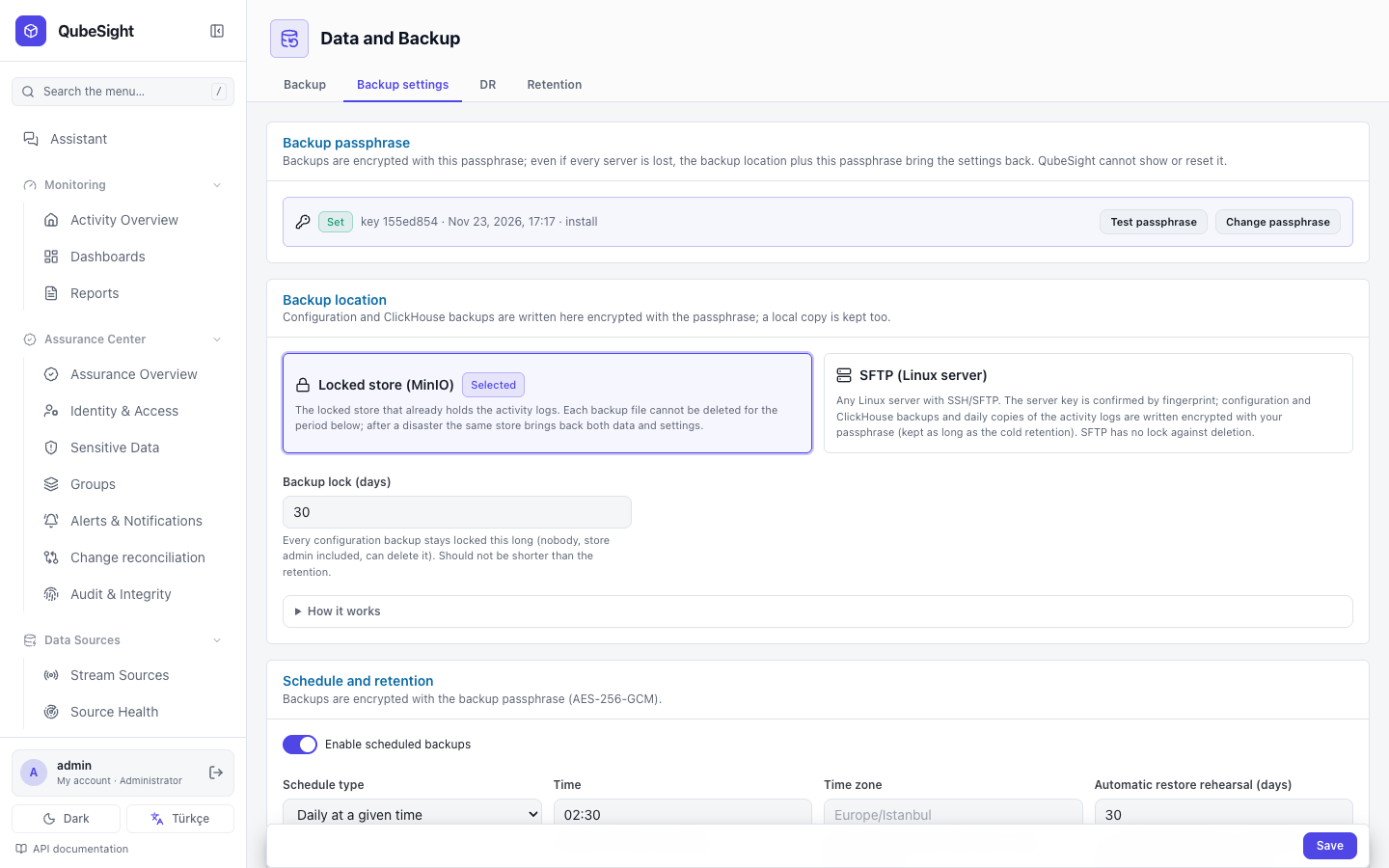
- Go to Platform → Data and Backup → Backup settings.
- In Backup passphrase, click Change passphrase (or set it for the first time), type it twice and click Save passphrase.
- Take a new backup with Back up now on the Backup tab.
- Use Test passphrase, enter the passphrase and click Test: it opens the newest settings backup at the backup location exactly as a disaster restore would, changes nothing and does not store the passphrase. "Passphrase is correct…" confirms that the location and the passphrase are enough to recover. Other results name the problem: the passphrase does not open the backup, no location is selected or reachable, there is no passphrase-protected backup yet, or the latest backup still uses the default passphrase (take a backup and test again). See Data and Backup for the full list.
Warning
Store the passphrase in a vault or password manager outside QubeSight. Without it, the backups cannot be opened.
Choose a backup location
Set the location in Platform → Data and Backup → Backup settings → Backup location. A passphrase must be set first.
| Location | What goes there | Protection against deletion |
|---|---|---|
| Locked store (MinIO) | Settings backups under backups/postgres/, ClickHouse backups under backups/clickhouse/ (without the activity table, whose backup is the locked daily files already in the store). |
Every settings backup is locked for Backup lock (days) (default 30). Nobody, including the store administrator, can delete it earlier. Requires the hot/cold storage to be on (Data and Backup → Retention → Hot / cold storage). |
| SFTP (Linux server) | Settings backups, ClickHouse tables as one encrypted stream (without the activity table) and daily encrypted copies of the activity logs, kept as long as the cold-tier lock period. | None on SFTP. A modified file is detected when it is opened. |
| No location | Backups exist only on the server's local disk. | If the server is lost, the settings are lost too. |
For SFTP, enter Server, Port, User, Folder (absolute path) and a Password or Private key (optional), then click Test connection. Compare the displayed fingerprint with the server's administrator (for example with ssh-keygen -lf /etc/ssh/ssh_host_ed25519_key.pub), click Confirm this fingerprint, and then click Save at the bottom of the tab; the settings cannot be saved with an SFTP location until a server key is confirmed. If the key later differs, the test warns that this may be an attack and the product refuses to connect. Changing Server or Port clears the confirmed key, so test and confirm again.
Once a location is saved, the panel offers no way back to "no location"; you can only switch between the locked store and SFTP.
An optional Off-site target (S3-compatible) under Advanced: local directory, extra S3 copy and ClickHouse backup uploads an extra copy of the nightly backups to any S3-compatible store.
Schedule and retention
Backup settings → Schedule and retention controls scheduled backups. Defaults:
| Setting | Default |
|---|---|
| Enable scheduled backups | On |
| Schedule type | Daily at a given time, 02:30 (server time zone unless Time zone is set). Alternative: At a fixed interval (default 24), 1–168 hours in the interface; the API accepts up to 336. |
| Backups to keep | 14 (1–365) |
| Maximum retention (days) | 30 (1–3650) |
| RPO target (hours) | 26 (1–720). A Backup overdue alert opens when the last successful backup is older. |
| RTO target (min) | 120 (1–10080). Compared with the time measured in restore drills. |
| Automatically verify after every backup | On |
| Automatic restore rehearsal (days) | 30 (0–365). The latest backup is restored into a scratch schema and verified at this interval; 0 turns it off. |
ClickHouse backup
Enable ClickHouse backup and choose a Scope:
- Small state tables (default): health, reconciliation and measurement history.
- Selected tables: only the tables you choose.
- Whole database: all ClickHouse tables. With the locked store or SFTP as backup location, the activity table is left out because its backup is the locked daily files or the SFTP log copies.
With Incremental backup on, the first backup is full and the following ones contain only the data changed since the last full backup. A new full backup is taken every Full backup every (days) (default 7). Every increment depends directly on its full backup, so a restore reads at most two backups. Retention counts whole chains and never splits one.
Take and verify a backup
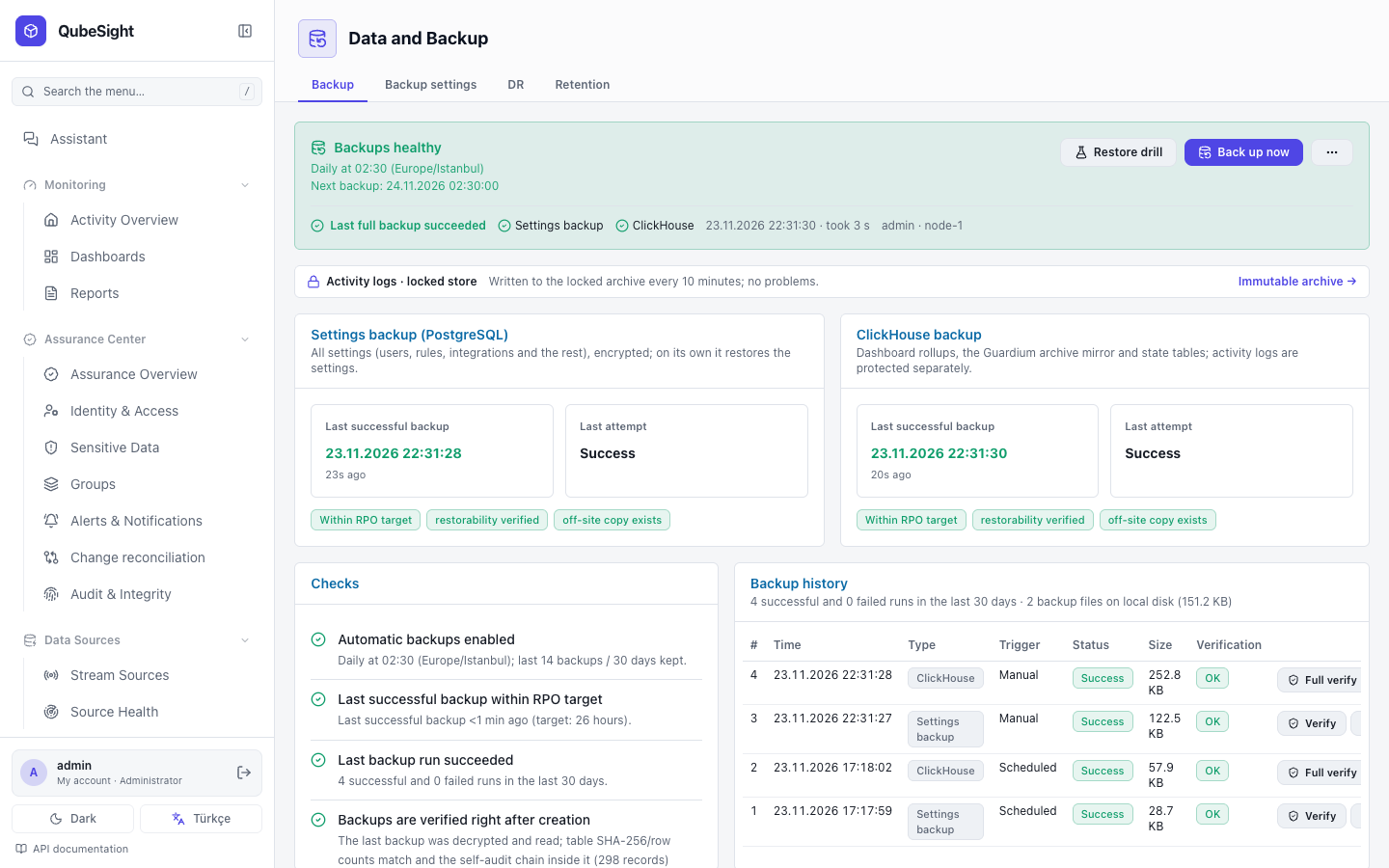
- Go to Platform → Data and Backup → Backup.
- Click Back up now and confirm. The job backs up the settings, then ClickHouse, then (with SFTP) any missing daily log copies. It runs on the server; you can leave the page. Its stages and durations are shown in the backup summary on every node.
- To back up one part only, use Back up one part (Back up settings only, Back up ClickHouse only).
- In Backup history, click Verify on a successful settings backup row: decryption, chains and consistency with the live system are checked. Click the row itself to see the details of the run.
- Full verify (on a successful ClickHouse backup row that was not written to SFTP) restores every data table of the backup into a separate temporary database, counts the rows, measures the time and drops the temporary database. Live tables are not touched, and it does not start if the disk would not suffice. The result also appears on DR → Drills.
With an SFTP location, the Activity logs · SFTP copy card shows the copied days, size on SFTP and queue. Copy now starts a round immediately.
From the command line (for example before maintenance):
docker compose exec control-plane ./control-plane -run-backup --kind all
# --kind postgres | clickhouse | logs | all
Only one full backup job runs at a time in a cluster. While it runs, the scheduled backup and the restore rehearsal do not start, and the single-part buttons return a conflict.
Restore a lost installation
Use this procedure when the server (or every server of a cluster) is lost. You need the backup location's access details and the backup passphrase. The detailed installer steps are in Restore from a backup; this section explains what happens.
Start the restore
- On the new server, start the web installer (
npm run setup) and choose Restore from backup. - Under Backup location and passphrase, choose Locked store (MinIO / S3) (address, bucket, access and secret key) or SFTP (server, user, password, backup folder and the server key fingerprint).
- Enter the Backup passphrase of the source system. Leave it empty only if no passphrase was ever set; the default passphrase is then tried.
- Optionally set Recent days to load into ClickHouse (7–3650). If empty, the value from the restored settings is used.
- The installer tests the latest backup and the passphrase before installing. Users, integrations, retention and backup settings come from the backup, so the administrator and a new passphrase are not asked.
QUBESIGHT_BACKUP_PASSPHRASE='<backup-passphrase>' \
QS_RESTORE_S3_ACCESS_KEY='<access-key>' QS_RESTORE_S3_SECRET_KEY='<secret-key>' \
  ./install.sh --yes --public-host qubesight.example.com \
    --restore-from minio --restore-endpoint 198.51.100.20:9000 --restore-bucket <bucket>

# From SFTP instead:
#   --restore-from sftp --restore-sftp-host 198.51.100.30 --restore-sftp-user <user> \
#   --restore-sftp-path /srv/qubesight-yedek --restore-sftp-host-key SHA256:<fingerprint>
#   with the password in QS_RESTORE_SFTP_PASSWORD
Secrets are passed only through environment variables; they never appear on a command line or in .env.
What happens
- The latest settings backup is opened with the passphrase, and the source server's root keys are written to
.envbefore the services start. - The settings are loaded into PostgreSQL in a single transaction. If the source was a cluster, the restore decides from the backup's cluster definition whether this server comes back as a single server, as the first cluster node, or rejoins a running cluster. See Cluster operations.
- The services start. ClickHouse data is restored in the background: the ClickHouse backup, the locked-store catalogue written after it, and the recent days of activity data from the locked store (or, with SFTP and no reachable locked store, all daily log copies).
- While the background restore runs, the system is in restore mode: incoming logs wait in Kafka (nothing is lost), and dashboard rollups, alert evaluation, notifications, sensitive-data scans, archive export, scheduled backups and the disk guard pause. A banner on every page shows progress.
- Failed attempts are retried after 30 seconds, 2, 5 and 15 minutes. After the fifth failure the job is marked failed, restore mode ends and ingestion continues normally. Retry in the banner reloads only the tables that did not come back.
Version and safety checks
- Backup newer than the installer. If the backup was taken by a newer version than the installation package, the restore stops before any service starts and states the minimum version needed ("at least version X").
- Product SSH key. When a cluster backup is restored, the product's SSH key from the backup is added to the server only after you confirm its fingerprint (interactive prompt, wizard checkbox, or
--trust-backup-ssh-key SHA256:...). - Scheduled backups to the source location. The restored server becomes the primary; review the backup location afterwards so that it does not overwrite or prune backups you still need.
What .env keeps
| Kind | Example | After a disaster |
|---|---|---|
| Root keys | GUARDIUM_SECRET_KEY, QUBESIGHT_MFA_KEY, BACKUP_ENCRYPTION_KEY |
Restored from the escrow sealed with the passphrase. |
| Database access | database passwords, secrets/ files |
Generated by the new installation. |
| Machine-specific wiring | resource limits, image versions, service tokens, Kafka passwords | Generated by the new installation. |
| Installation profile | ports, bind address, time zone, components, public host, virtual IP, HTTPS | Also stored in PostgreSQL per server; used as the defaults of the restore. |
| First-start answers | hot/cold and backup choices, expected TPS | The saved settings in PostgreSQL take precedence. |
Limitations
- RPO. Settings changed after the last settings backup are lost; the default daily schedule allows up to 24 hours (shorten the interval for a smaller RPO). Activity data in the locked store is at most about 10–12 minutes behind.
- Guardium live rows. Guardium live (SNMP) rows that are not yet finalised (default window 36 hours) are not in the locked store and do not come back in a disaster. The next-day Guardium archive restore brings them back.
- Local MinIO. A locked store on the same server is lost together with the server. For disaster recovery, the locked store must run on a separate server.
- SFTP. No deletion lock; the ClickHouse backup over SFTP is always full (no increments).
- Incremental ClickHouse backups to S3. ClickHouse writes the base backup's S3 access key and secret in clear text into the increment's metadata file. Use a separate, bucket-scoped key for backups and take a new full backup when the key changes.
- The
qubesight-setup(Go) wizard does not offer SFTP as a backup location; use the web installer orinstall.sh. - There is no continuous replication to a standby server outside a cluster; see Disaster-recovery drill and High availability and disaster recovery.