Assistant
The Assistant page is the first entry in the menu. It shows today's briefing (a short summary of the last 24 hours) and lets you chat with a large language model about database activity. This page explains the page layout, the briefing, the chat, the change proposals the assistant can make, and what each edition requires.
Community Enterprise
The page and the briefing are available in both editions. The chat requires the Enterprise edition and an active large-model provider.
Who can open it: administrator, analyst, DBA and auditor. The access manager cannot use the Assistant.
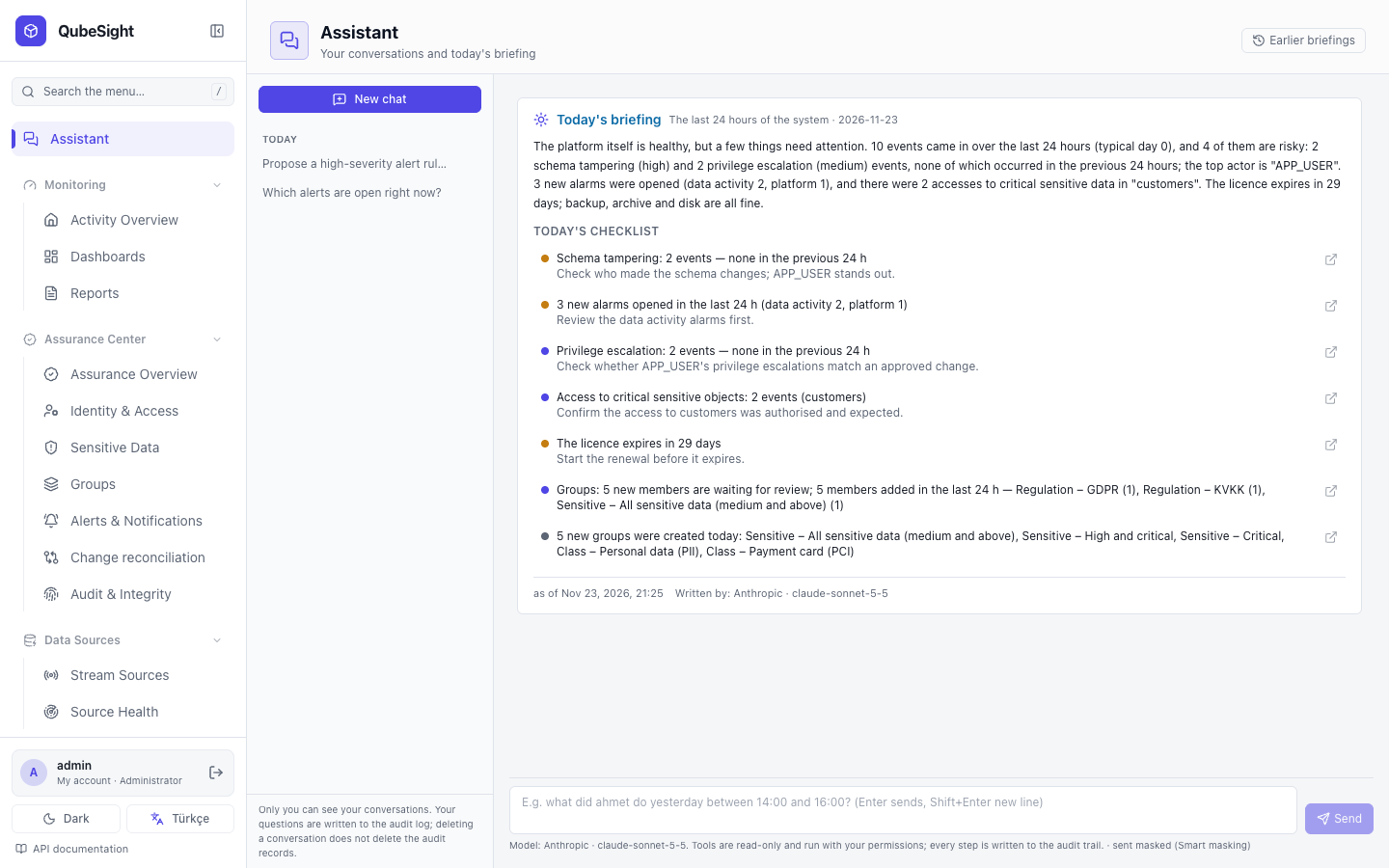
Page layout
| Area | Elements |
|---|---|
| Header | Title Assistant, subtitle "Your conversations and today's briefing", and the Earlier briefings button. |
| Left column (top strip on a phone) | New chat button and your saved conversations, grouped Today, Yesterday and Older, newest first. A note at the bottom explains privacy (hidden on phone-width screens). |
| Main area | A new chat shows today's briefing; an opened conversation shows its messages. The question box is at the bottom. |
First visit of the day
The first time you open the home page (/) on a given day in a browser, QubeSight takes you to the Assistant page so that you see the briefing. This happens only for roles that can see the Assistant, and only when you arrive at the home page; a sign-in that returns you to a specific page (for example from a link) is not redirected.
Conversations
Conversations are stored on the server and belong to you alone. Nobody else can open them, including administrators.
| Action | How |
|---|---|
| Start a conversation | Click New chat, or type a question in the empty chat. The first question creates the conversation; its title comes from the question ("Untitled chat" if empty). |
| Continue an earlier conversation | Click it in the list. The history loads and the chat continues where it stopped. The last 20 messages are sent to the model as context. |
| Delete a conversation | Hover the row, click the bin icon, then confirm with Delete ("Delete this conversation permanently?"). Cancel keeps it. |
The privacy note reads: "Only you can see your conversations. Your questions are written to the audit log; deleting a conversation does not delete the audit records." Questions are written to the audit trail in masked form. Opening and deleting conversations are audited too.
When no conversation exists yet, the list shows "No conversations yet. Your first question starts one and it is kept here." While the list or an opened conversation loads, Loading… is shown; if the list or a conversation cannot be read, the server's error text is shown in red in its place.
Today's briefing
Every day at a set time (default 06:00 in the display time zone), QubeSight looks at the last 24 hours and writes a short summary. It covers log intake, security detections, alerts, Guardium agents, the cluster, backups, disk and the licence. The licence appears in the checklist as a critical item only when an Enterprise licence is invalid or in its grace period; an installation without a licence (Community) gets no licence item.
| Element | Meaning |
|---|---|
| Today's briefing with the date | Title and the day the briefing covers ("The last 24 hours of the system · |
| "(today's briefing is not ready yet; showing the latest)" | Shown when today's briefing has not been produced yet. |
| Summary paragraph | The short text written for the day. |
| Today's checklist | Items that need attention. A coloured dot marks the severity (red Critical, amber High, indigo Medium, grey Info; the name appears as a tooltip). Each item opens the related page in a new tab. When more items exist than are listed, a plain line "+N more items (lower priority)" states how many were left out; it cannot be expanded. "Nothing needs special attention today." is shown when the list is empty. |
| "as of | When the briefing was produced. |
| Written by: | Which writer produced the text: the active large model (provider · model), the local model, or a rule-based template when no model could be used. |
The briefing appears in the empty chat only when a briefing is ready. If none has been produced yet (for example on a new installation or while the briefing is off), the empty chat shows the introduction "Ask about database activity in plain language: the model queries QubeSight reports and dashboards with your permissions and answers with sources." instead.
The briefing disappears from the screen as soon as you send the first question of a new chat; it is not added to the conversation.
Earlier briefings
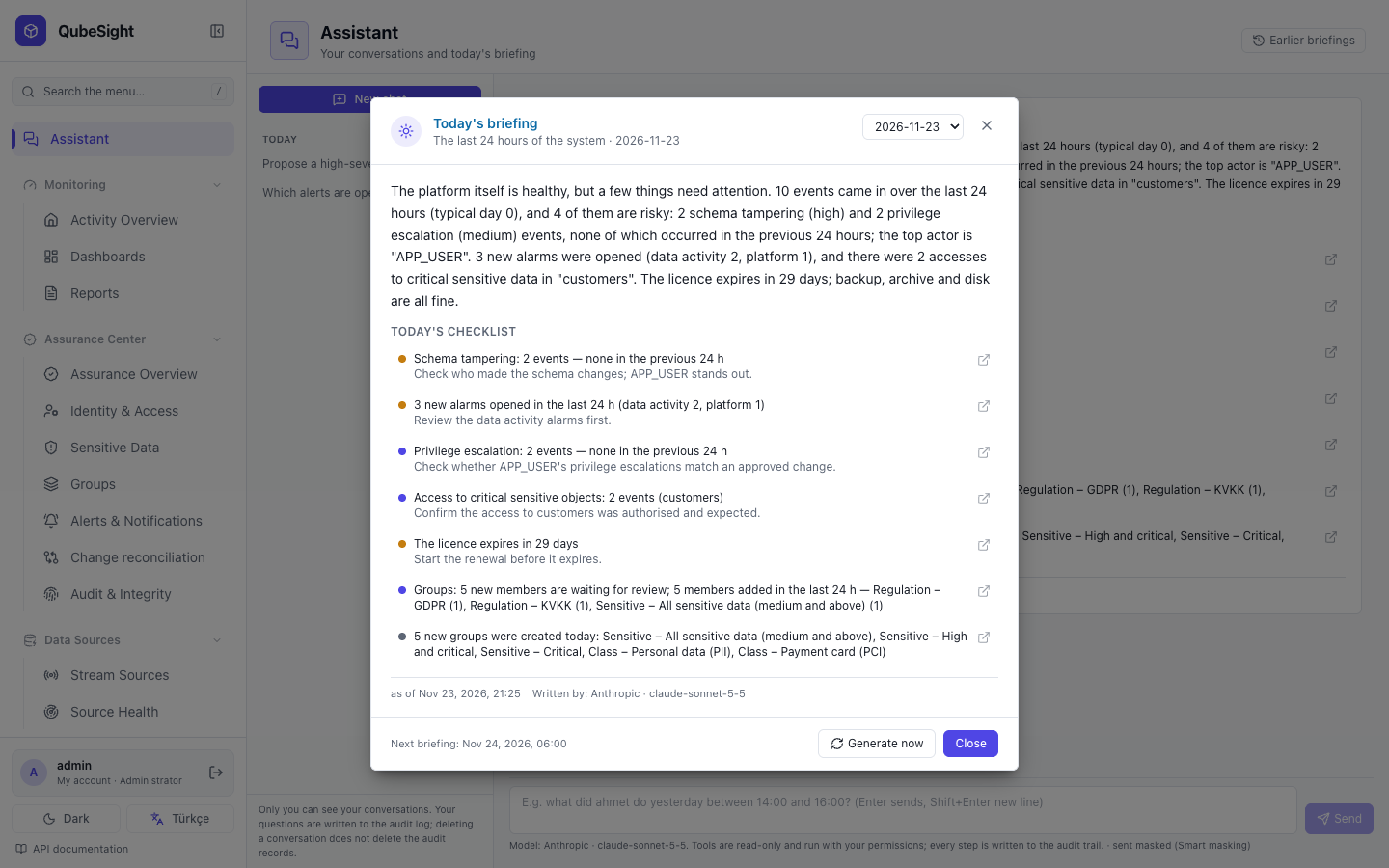
Earlier briefings opens a dialog titled Today's briefing. When earlier briefings exist, a day selector (Pick a day) lists the stored days; choose one to read the briefing of that day. The dialog shows:
| Element | Meaning |
|---|---|
| "No briefing yet. It is prepared every day at | No briefing exists yet; the time is the configured briefing time. |
| "The morning briefing is off (Settings → Assistant)." | The briefing is switched off and none exists. |
| "Preparing the briefing…" | A briefing is being produced; the dialog refreshes every 5 seconds. |
| "A new briefing is being prepared; it will appear here when ready." | Shown under an existing briefing while a new one is produced. |
| "Last generation error: |
The last attempt to produce a briefing failed. |
| "Next briefing: | When the next scheduled briefing is due (footer). |
| Generate now | Produces today's briefing again. Shown only to roles allowed to do so (administrator). |
| Close | Closes the dialog (also Esc or a click outside). |
Administrators switch the briefing on or off and change its time in Settings → Assistant → Morning briefing. See Settings.
Chat
Type a question in plain language (English or Turkish) and press Enter or click Send; Shift+Enter adds a new line. The question box accepts up to 4,000 characters. While an answer is running, Send is replaced by Stop, which cancels the answer ("Stopped.").
While the page checks whether the chat can be used, it shows "Checking the large model…".
The model answers by calling QubeSight's read-only tools with your own permissions: answering a question, listing and running reports, reading the Security dashboard, security events, threat signals, alerts, alert rules, notification channels and sensitive-data findings, and investigating an event. Each tool step is shown as a chip while the model works ("Running a report", "Reading security events" and so on). The answer is formatted text with sources.
| Element | Meaning |
|---|---|
| The model is thinking / The model is gathering information with tools | Progress indicator with elapsed seconds. |
| Tool chips | One chip per tool step with a spinner, a tick or a cross, the main argument and the duration. Click a chip to see a preview of its result (an answer text or the first rows) and, for a report, Open in report. |
| Open in report | Opens the report behind an answer in Reports. For an administrator, the report is saved to My reports under a name taken from your question; other roles get an unsaved draft of the report with the same filters. |
| Usage line | Provider and model, number of tools, seconds and tokens used for the answer. |
| Footnote | "Model: |
Limits per answer
| Limit | Value |
|---|---|
| Model steps per answer | 6 |
| Tool calls per answer | 10 |
| Time per answer | 170 seconds |
| Message length | 4,000 characters in the question box (the server accepts up to 8,000) |
When the tool budget runs out, the model answers with what it has and says what is missing.
If a turn ends without an answer, a warning line is shown under it: "No answer came back.", "The chat did not answer." or the error text returned by the server.
What data reaches the model
The data policy of the active provider decides what is sent, see LLM providers:
| Policy | Effect |
|---|---|
| Open | Values are sent as they are. Only an administrator can choose it. |
| Smart masking (default) | Every SQL value is replaced by its type, for example '<EMAIL>' or <NUM>. Attack traces (quotes, OR 1=1, UNION, SLEEP) stay recognisable. |
| Strict | No SQL text is sent; only the operation, objects, counts and detection traces. |
Administrators can add organisation-specific instructions (for example which databases are production) in Settings → Assistant → Organization instructions. They are appended to the built-in instructions and cannot override the safety rules.
Questions about older data
When a question does not name a time, the server searches the last year. If nothing matches in the last year but older records exist, the answer says so and tells you where the older records begin, instead of reporting zero events. The model does not widen the range by itself; reply in the chat (for example "yes, search 2023") to ask for the older range. In the chat there is no button for this; the Look further back button exists only in the natural-language report dialog on the Reports page.
Change proposals
The assistant can propose, but never apply on its own, these changes: creating or updating an alert rule, creating a saved report and creating a scheduled report delivery. Nothing can be deleted through the assistant.
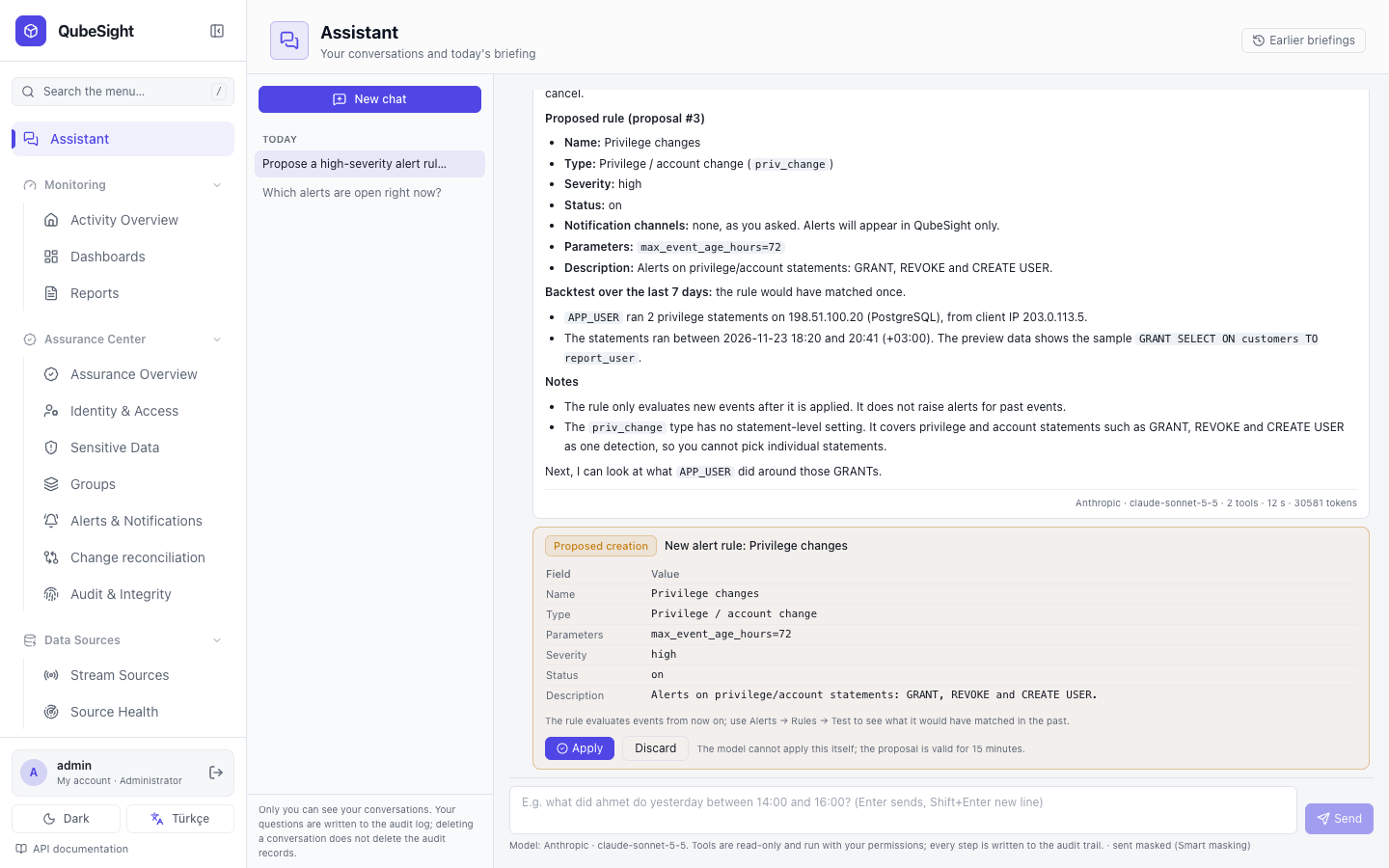
A proposal appears as a card:
| Element | Meaning |
|---|---|
| Proposed creation / Proposed change | Type of proposal. |
| Table Field / Value (or Current / New for a change) | Exactly what would be written. |
| Apply | Applies the proposal with your own permissions. On success "Applied." and an Open → link to the result. |
| Discard | Rejects it: "Discarded; nothing changed." |
| "The model cannot apply this itself; the proposal is valid for 15 minutes." | The confirmation expires after 15 minutes and works once. |
Scheduled deliveries created this way are saved paused unless the proposal itself sets them to enabled; check the last row of the proposal card (the delivery's on/off state) before you click Apply. The field names in the proposal table are shown in English in the English interface (a field name the server does not translate is shown as it is). If your role cannot make the change (for example, saving a shared report definition requires an administrator), Apply fails with the server's reason.
If you reopen an old conversation, earlier proposals are shown read-only with "This proposal was made in an earlier session; its confirmation expired with that session. Ask for it again to apply it."
When the chat is not available
If the chat cannot be used, the page still shows the briefing, and the chat area shows Ask AI is not available with the reason. Except in the Community edition, a Settings → Assistant button is shown as well:
| Reason | What to do |
|---|---|
| Community edition | The chat is an Enterprise feature. |
| No active large-model provider | An administrator adds and activates a provider in Settings → Assistant. See LLM providers. |
| Provider configuration invalid | An administrator fixes the provider settings. |
The local Gemma 3 4B model that QubeSight can install does not power the chat. It is used for natural-language report creation, the daily briefing and, without a large model, Investigate summaries.
Limitations
- Only one person can see a conversation: it cannot be shared. Copy the answer or use Open in report to share results.
- The model sees tool results, not the database. Its answer is limited to what the tools return within the step and time budget; long result lists are truncated, and the model is told to narrow the range.
- Answers are produced by a language model and can be wrong. Check important figures in the linked report.
- The "older data" offer in the chat depends on the model asking you; it was verified with the report dialog and tool results, but its wording in the chat varies by model.
- The access manager role cannot use the Assistant.